.png)
Procare is dedicated to ensuring that each program and its parents/guardians have the tools to succeed in any environment.
Your center decides how parents/guardians sign in/out. This article explains the sign-in/out process for centers that have enabled Contactless Curbside (GPS). Ask your center if they use Contactless Curbside (GPS) and if it is set to a specific drive-up/drop-off lane or area.
Allow Access to Your Mobile Phone
To use Contactless Curbside (GPS) sign-in/out, allow the Procare child care mobile app to access your phone's location. If the app can't access your location, delete the app, reinstall it, and allow location access when prompted
Open the Procare child care mobile app.
Tap Sign-In/Out
 in the right corner.
The window should look similar to this.
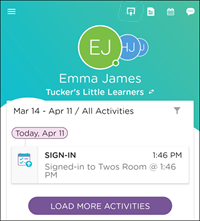
Tap Sign-In/Out. If you get the message, ‘You are not in close proximity to your school’, confirm with the center the drop-off location or area.
Tap your child or children’s name(s).
Tap Sign-In/Out.
Your center may have questions for you to answer before you can continue. Answer the questions.
Tap Submit.
Your center may require your signature; if so, sign your name.
Tap Done.
A confirmation message appears.
Procare Child Care Mobile App Permission
If you are using the app for the first time, Procare will need access to your photos on your mobile phone.
Open the Procare child care mobile app.
Tap Sign-In/Out
in the right corner.The window should look similar to this.
Tap Sign-In/Out. If you get the message, ‘You are not in close proximity to your school’, confirm with the center the drop-off location or area.
Tap your child or children’s name(s).
Tap Sign-In/Out.
Your center may have questions for you to answer before you can continue. Answer the questions.
Sign your name.
Tap Done.
Add your photo. This must be taken at the time of the sign-in/out with your mobile phone’s camera.
Tap Use Photo.
If you need to retake the photo, tap Retake.
Tap the back arrow to return to the signature window. Tap X to return to the child selection window.
A map preview with a pin shows your location. Tap Sign-in/out to complete the sign-in/out process.
A confirmation message appears.
Location Capture Problems?
If the location looks incorrect, tap Try Again to update the pin. The pin cannot be dragged or manually adjusted.
Error Messages
Location is turned off - permission denied or no access
The location is required to complete the sign-in/out. Request help from the center’s staff.
We couldn’t get your location - unavailable or timeout
A location is required to complete this sign-in/out. Tap Try Again.
The device couldn't lock onto a GPS signal in time to complete the process — this is a common issue indoors or in areas with weak signal strength. Moving closer to a window or door can help.
Tapping Try Again is the only way to proceed; this step cannot be skipped.
If the issue persists, request help from the center's staff.

FAQ - Texas Attendance Requirements
Starting September 1, 2026, the Texas Workforce Commission (TWC) requires a photo, a signature, and the device’s location to be captured every time your child is signed in or out if your child receives state child care subsidy assistance.
Parents/guardians with students who do not receive state funding will still need to follow the new sign-in/sign-out requirements. Procare is working to make an update available as soon as possible that will allow parents/guardians who pay for their children’s care privately to opt out of these additional requirements, according to your child care provider’s policy.
Contact your provider for additional questions for how they are handling the Texas Attendance Requirements.
What do I need to do?
When signing your child in and out with your child care provider, either a parent/guardian or child care staff member needs to provide a photo, signature and confirm the location through the Procare child care mobile app, using a compatible Android or iOS device. Please make sure your app is updated to the latest version to ensure that the sign-in features are active.
Do I need to download an app?
If a parent or guardian is signing a child in or out, they may need to download the Procare child care mobile app to a compatible personal device to meet these requirements. Your child care provider may have alternative options, such as having staff sign a student in or a shared compatible device. Please discuss with your child care provider for more details on their specific policies.
What information does the Procare child care mobile app collect?
Each time a child is signed in or signed out, Procare will collect a signature and photo of the parent, guardian or staff member at the moment of sign-in and/or sign-out, as well as geolocation data on the device being used for sign-in and/or sign-out. This information is transmitted to the state of Texas according to new state requirements. Information from families with children that do not receive state funding will not be sent to Texas.
What if I do not have a smartphone or my phone is not compatible?
Child care staff members can also provide the required photo and signature at sign-in or sign-out. Let your child care provider know as soon as possible so they can work with you on the best solution.