Understand Closing Point-of-Sale Payments and the True-Up Process
The True-Up process ensures that payments, updates, and returns are correctly applied before new scheduled payments are processed.
Access the Process Tuition Express screen by navigating to Family Data & Accounting > Tuition Express > Process Tuition Express.
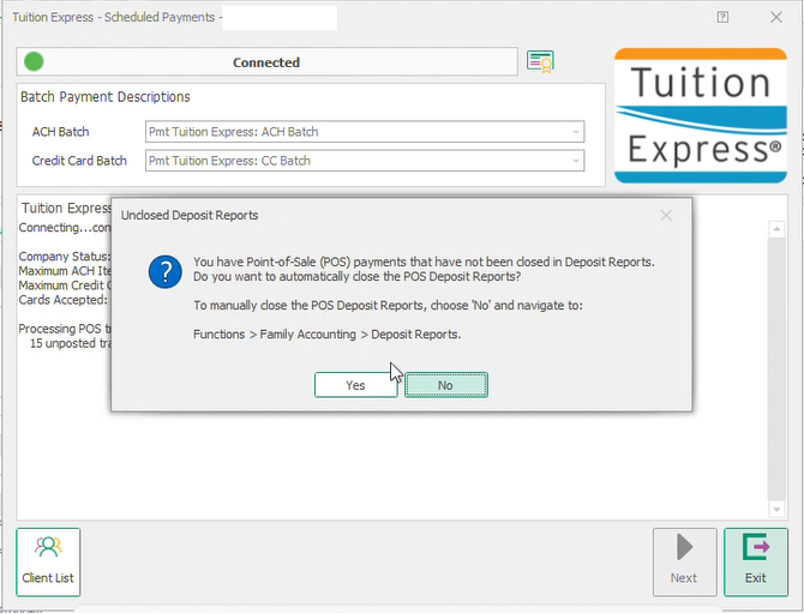
Close any Point-of-Sale payments. When the screen opens, the system first checks for any in-person or Point-of-Sale payments that still need to be closed.
Action Required :
If any are point-of-sale payments that are not currently closed, a pop up message will appear.
Please read the message and choose Yes to close all pending Tuition Express Point-of-Sale payments into deposit reports, or No to skip this process
You must select Yes or No to this message to proceed with Tuition Express Processing
Unclosed Point-of-Sale payments remain in the system and continue to trigger the pop-up each time the Process Tuition Express screen is opened until they are closed. Once closed, these payments no longer appear as unposted deposits and are included in the appropriate deposit totals.
After Point-of-Sale payments are addressed, the True-Up process begins automatically. This process runs in the background to ensure payment records are up to date. The screen should remain open while True-Up is running.
The True-Up process completes two functions:
1. Beginning Transaction History Update Process
The system does an integrity check on previsouly submitted payments to ensure data accuracy, healing any records that may have missing data points caused by network interruptions.
2. Processing Updates to Previously Submitted Payment Groups
Any pending changes found for previously submitted payments, such as cancelled transactions or validation discrepancies, are applied to family ledgers to ensure balances are accurate.
If the screen is closed during the True Up process, the process will stop at the current step and restart from the beginning the next time the Process Tuition Express screen is opened. Any changes from completed steps will remain applied.
Once True-Up is complete, the system checks for any returned or declined payments.
Review Returns and Declines. Once True-Up is complete, the system checks for any returned or declined payments.
If any are found, a pop-up message appears.
Click OK
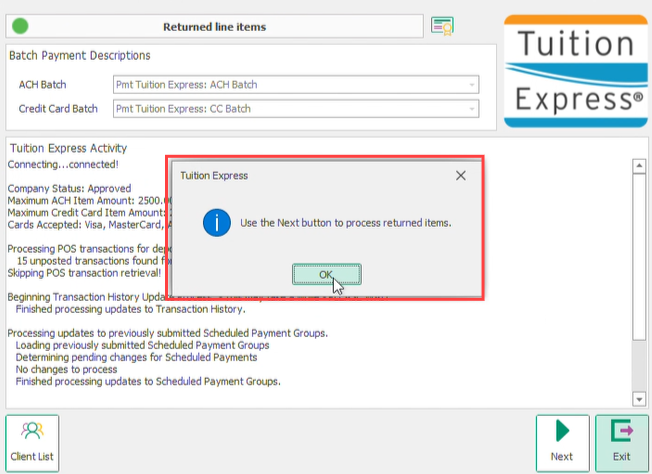
Click Next to review the returns and declines
Select Exit to skip processing Tuition Express and review Returns and Declines at a later time.
Tuition Express cannot be processed again until pending Returns and Declines are posted.
ACH returns will appear first.
After reviewing, click Next to review the card returns and declines
Select Exit to skip processing Tuition Express and review Returns and Declines at a later time.
Tuition Express cannot be processed again until pending Returns and Declines are posted.
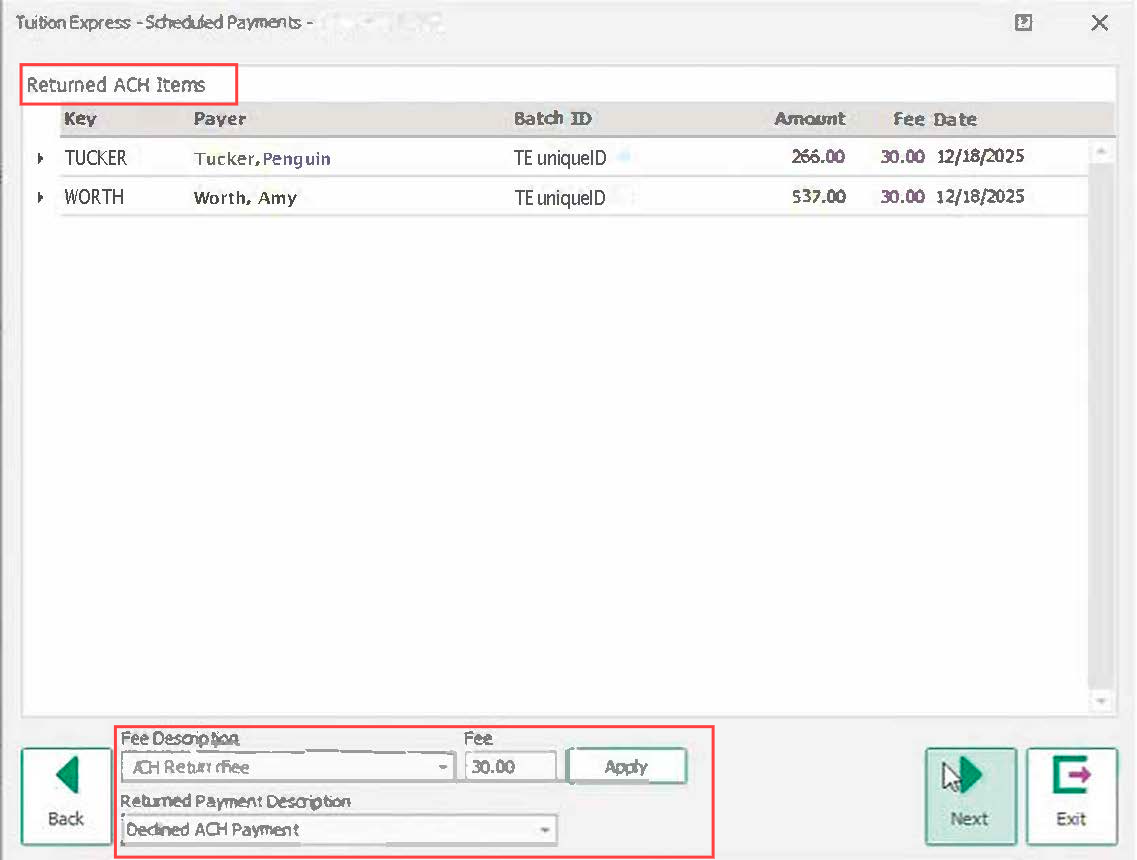
Modify the Return or Decline Fee (Optional)
There is an option to adjust the return or decline fee if needed. This option is available on both screens, first for ACH returns and then for card returns or declines.

The return or decline fee can be adjusted if needed. This option is available on both screens, first for ACH returns and then for card returns or declines.
Use the drop-down menu to select a different fee or returned payment description
Update the fee amount if needed
Click Apply to save the changes
Click Next to post the fees and returns to the ledgers.
The system then opens the screen to process a new group of scheduled payments.