Quickly update rooms, tags, enrollment and more with batch actions.
To do this, navigate to My School > Students. Use the check box next to a student's name to select the student as part of your batch update.
Please Note: You can also select the box in the horizontal menu bar to automatically check all of the students on that page (up to 40 students).
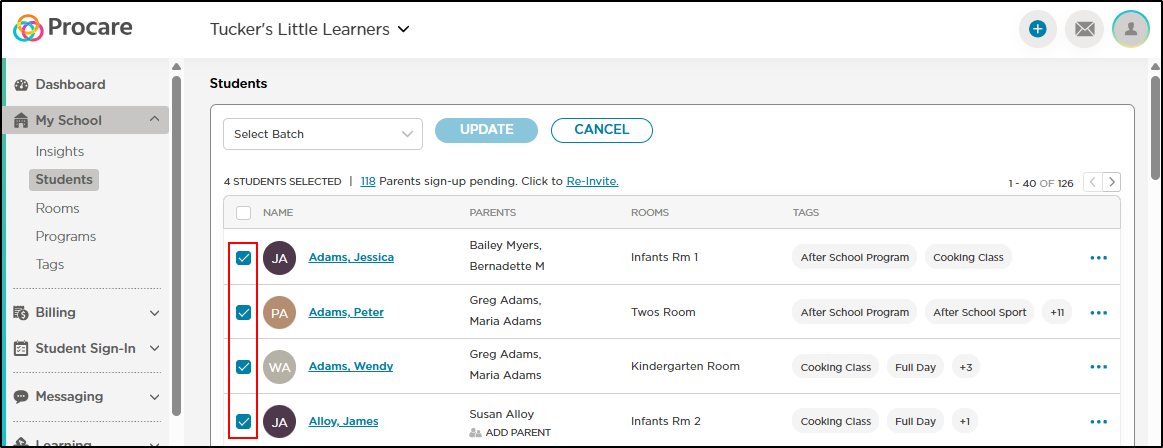
Select Batch Actions
Change Room - this batch action allows you to move multiple children into one room. Learn more
Add/Remove Tags - tags are a great way to keep track of specific groups of children. You can use a batch update to quickly add or remove a tag to/from several children at one time. Learn more
Change Enrollment - new students are automatically listed as Active. However, as their enrollment status changes, they can also move to On Hold, Inactive or Graduate. Click here to learn how to quickly change a student's enrollment status using a batch update.
Change Schedule - assign the same schedule to multiple children at one time using the Change Schedule batch action. Simply select the students, select Change Schedule, then choose the day(s) and times.
Note
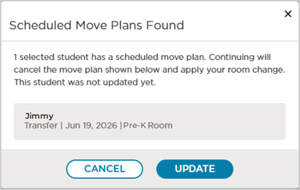
This message displays when you are using the Batch Action feature and a conflict occurs with a RoomRunner move plan.
Options
Click Cancel to stop the Batch Action you started. You are returned to the Students window, and no changes are made.
Review the student(s) impacted and click Update to continue with the Batch Action or
Click X to leave this window. This stops the Batch Action you started. You are returned to the Students window, and no changes are made.
Learn more about RoomRunner Move Plans.