Navigation Changes
The Leads and Registration sections are now under Enrollment.
Once families have entered your enrollment pipeline, you will need to communicate with them often as the family decides whether your program is a good fit for their needs or when their child might be able to enroll.
View Communications
Go to Enrollment > Communication.
The Emails Sent window displays by default. The Emails Sent and SMS Sent windows display similar information, with the exception of email statuses and email status percentages.
Emails Sent
.png)
SMS Sent
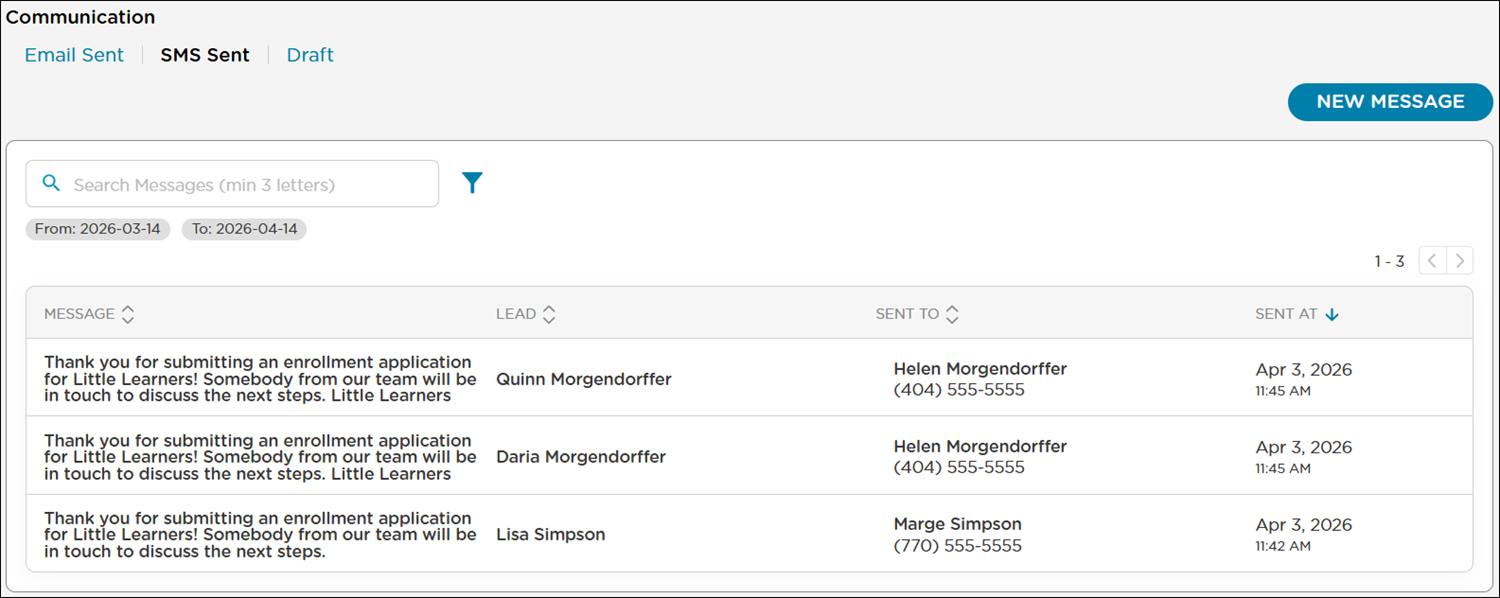
The Lead column displays the name of each lead
The Sent To column displays the name of the parent/guardian each communication was sent to
Communications from the last 30 days, including the current date, are automatically filtered by default
Click Filter
 to select a new date range or filter the list by staff member or lead, then click Apply
Filter labels display at the top of the list
Email statuses with the percentage of emails in each status display at the top of the list. See Lead Email Statuses for more information
Compose a Message
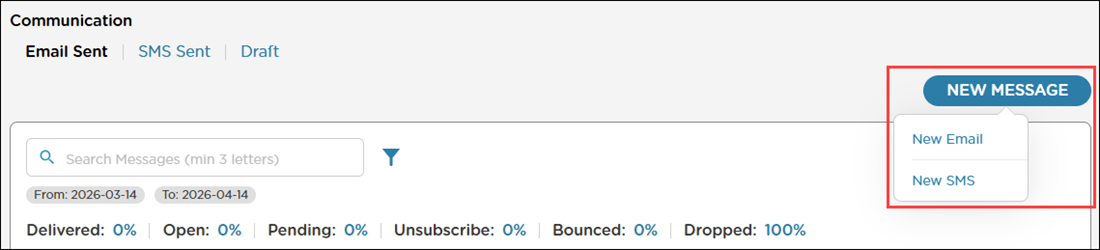
Click New Message.
Select New Email or New SMS to send an email or SMS text message.
Email Messages
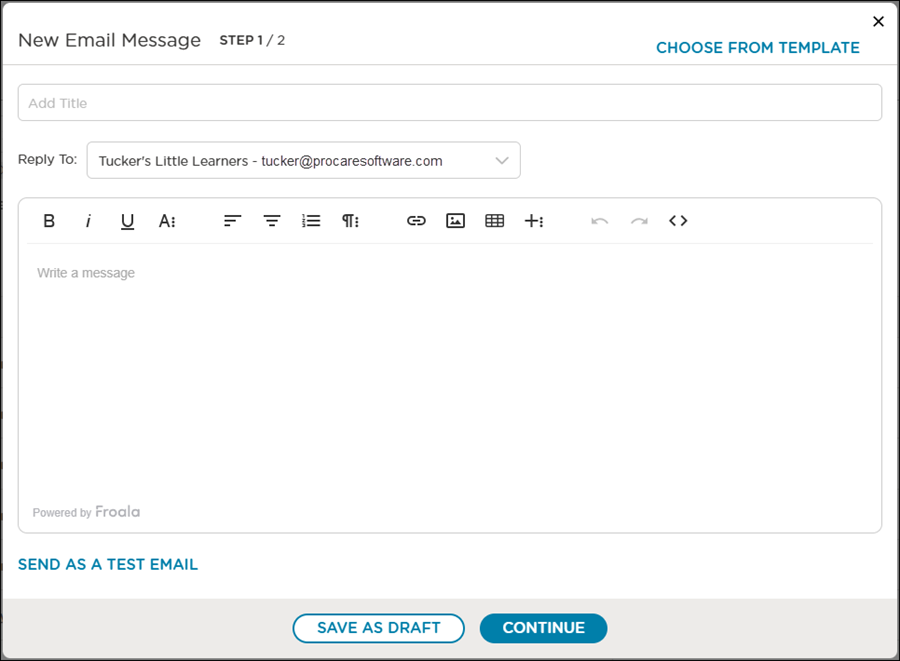
When sending an email message, you have several options to personalize your message to parents/guardians.
Select an email from previously created templates using the Choose From Template option
Use the Title field to create a subject line
The Reply To option allows you to change what email address parents/guardians can reply to
Enter the body of the email message and use the formatting options to change the font, use bullets, add pictures and more
Use the Send as a Test Email option to preview your email before sending it to parents/guardians
Click Save as Draft when you want to return to the message at a later time before sending it
Email Message Shortcuts
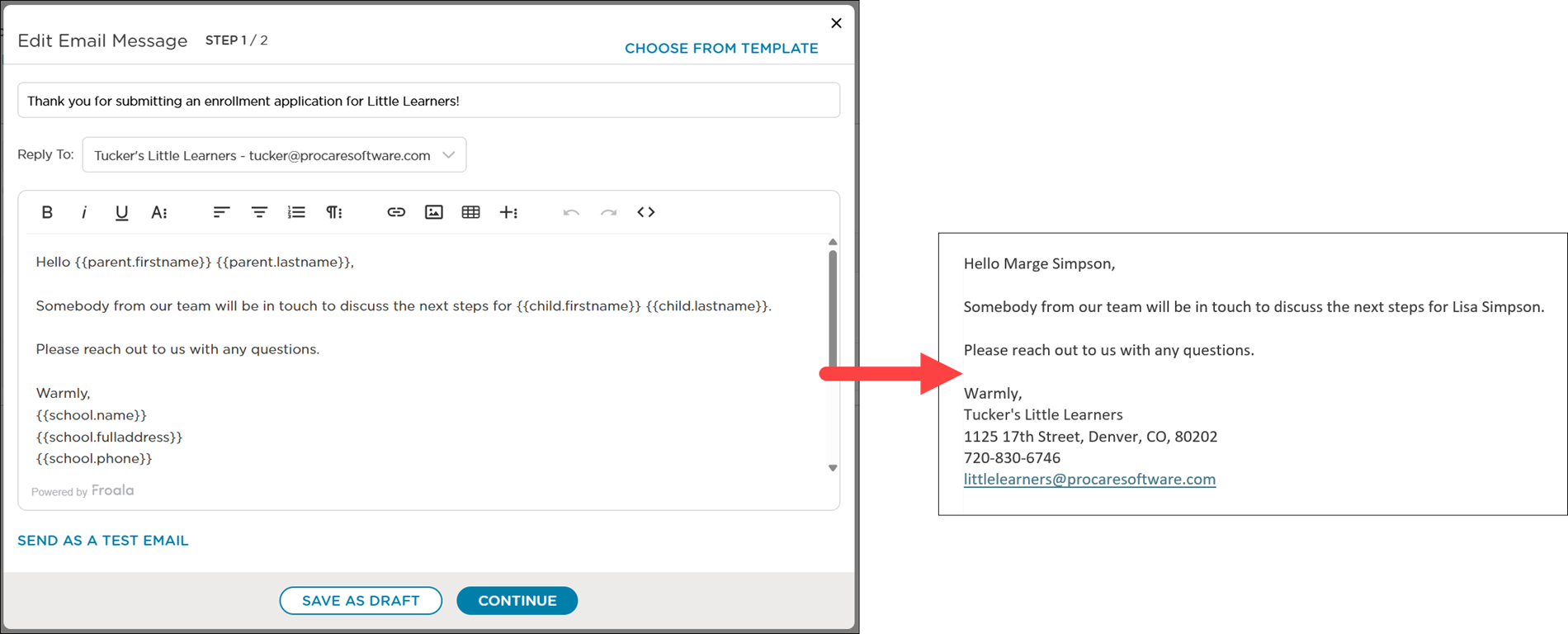
When sending email messages, you can use several preset shortcuts to make your emails more personalized. These shortcuts are placeholders that automatically pull in details such as names and school information.
Shortcut | Description | Example |
|---|---|---|
{{parent.firstname}} | The parent’s/guardian’s first name | Marge |
{{parent.lastname}} | The parent’s/guardian’s last name | Simpson |
{{child.firstname}} | The child’s first name | Lisa |
{{child.lastname}} | The child’s last name | Simpson |
{{school.name}} | The name of the school | Tucker’s Little Learners |
{{school.phone}} | The school’s phone number | 800-388-3884 |
{{school.weburl}} | The school’s website | |
{{school.fulladdress}} | The school’s full address | 1125 17th St, Denver, CO, 80202 |
{{school.address}} | The school’s street address | 1125 17th St |
{{school.city}} | The school’s city | Denver |
{{school.state}} | The school’s state | CO |
{{school.country}} | The school’s country | United States |
{{school.zip}} | The school’s Zip Code | 80202 |
When you send an email with shortcuts (exactly as you see above, with the two braces on either side), the information is replaced by what we have stored for the lead or your school.
Note
Shortcuts can only be used in emails. Shortcuts are not available for SMS messages.
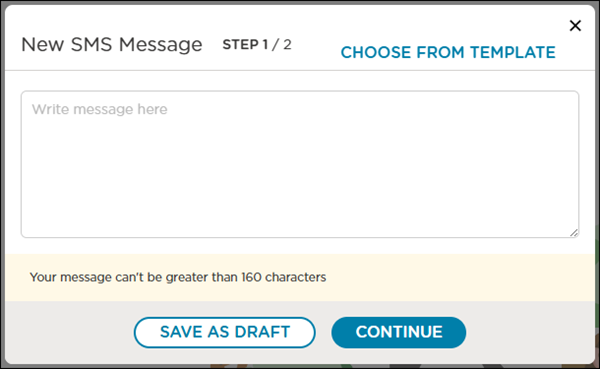
SMS Messages
SMS messaging works similarly to email messaging:
Select an SMS message from previously created templates using the Choose From Template option
Click Save as Draft when you want to return to the message at a later time before sending it
Note
SMS messages have a limit of 160 characters.
View or Edit Drafts
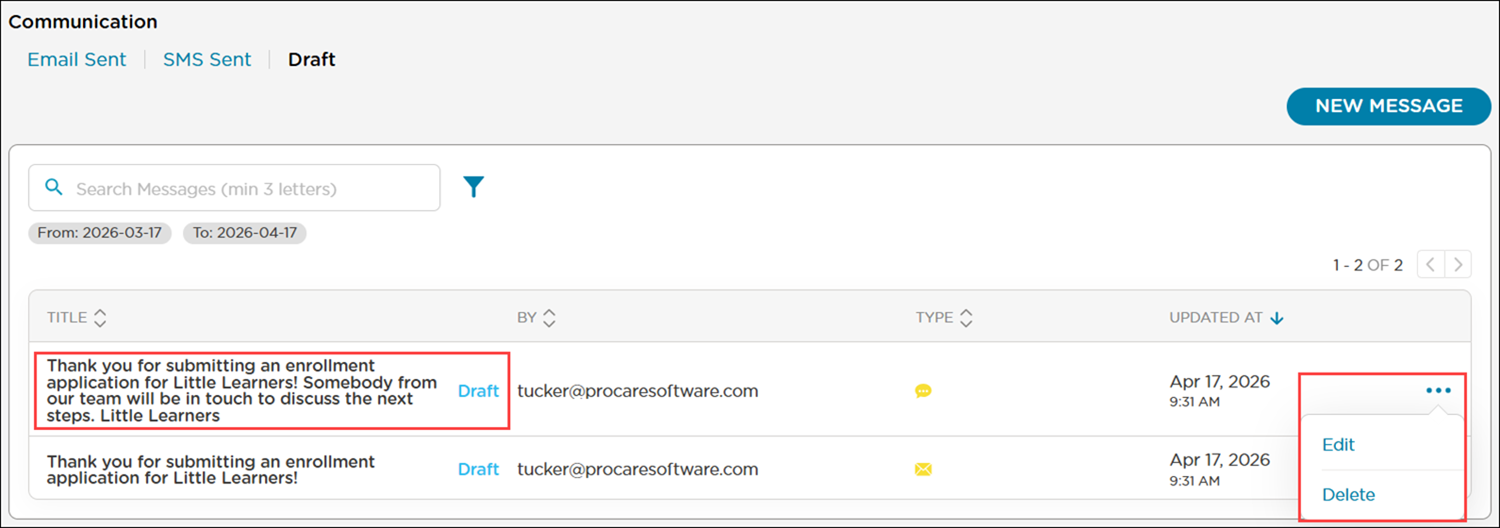
Go to Draft to view messages saved as drafts.
The By column displays the email of the staff member who composed the draft
The Type column displays whether the draft is an email or SMS message
Drafts from the last 30 days, including the current date, are automatically filtered by default
When a message is saved as a draft, you can do the following:
Click Draft or the title of the message to view or edit the message
Click More Actions
 to edit or delete the message
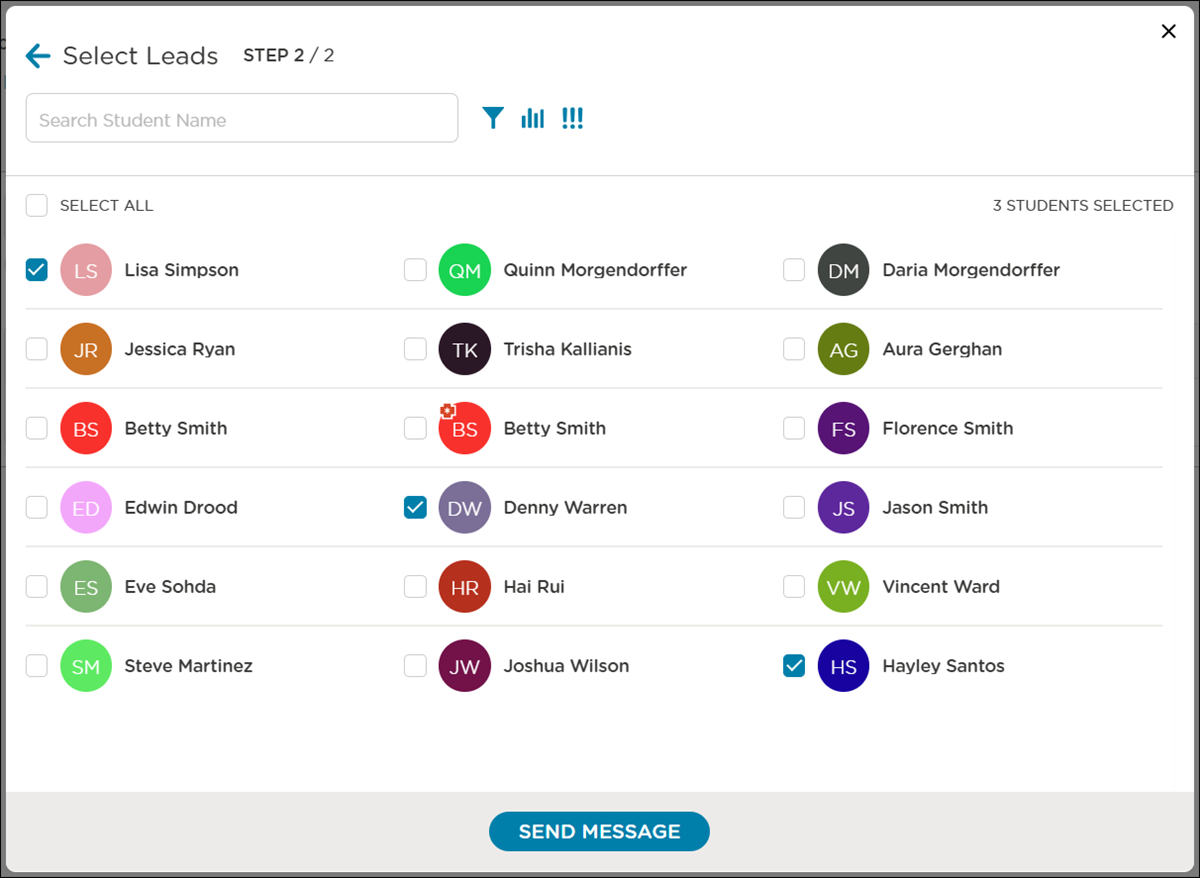
Send Email
When you are ready to send the message, click Continue.
Select recipients.
Click Send Message.
Send SMS Message
When you are ready to send the message, click Continue.
Select recipients.
Click Send Message.
Note
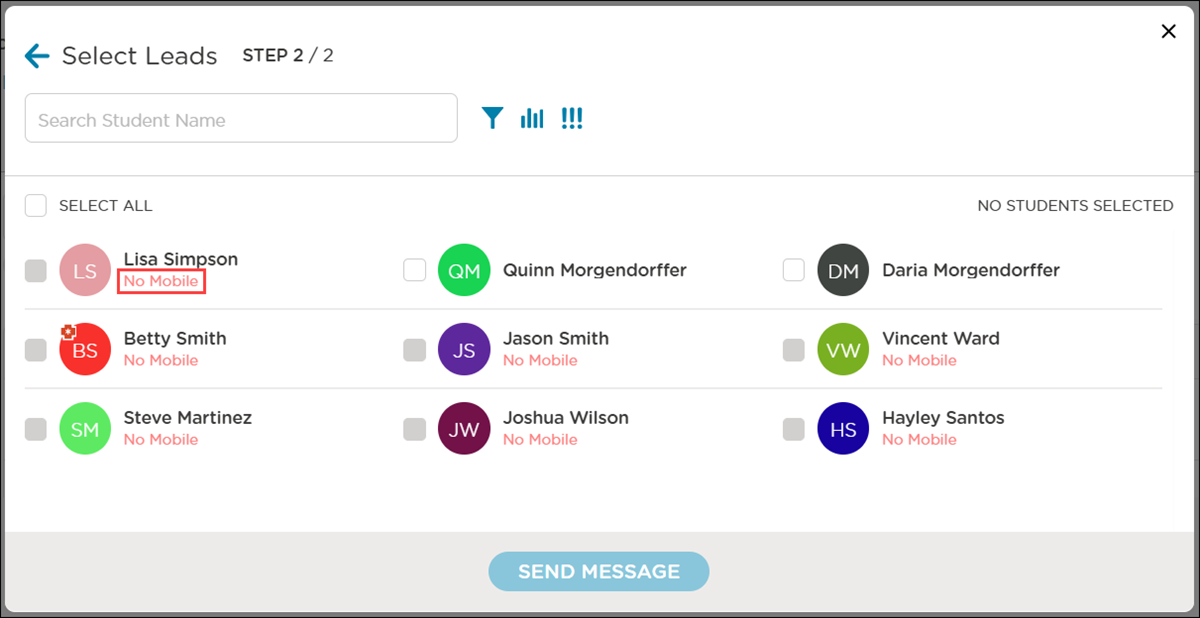
Procare Online displays No Mobile for recipients without a phone number on file.