Corporate Portal Roles and Permissions
Roles and permissions managed in the Corporate Portal only affect access within the Corporate Portal itself. These settings control what users can see and manage in the Corporate Portal experience. Roles and permissions are not Corporate‑managed across all locations, meaning changes made here do not automatically push to or update access at individual school locations. Each location manages its own user access independently.
Managing roles ensures every staff member has the right level of access to do their job. Roles help you create consistency, protect sensitive information, and make onboarding smoother for new staff. Read more about roles and permissions.
There are three permission levels that apply to various functions. Read more about Permissions in the article Managing Staff Access - Roles & Permissions.
No Access – Cannot view the page.
Read – Can view roles but cannot make changes.
Full Access – Can view, add, edit, and delete roles or permissions.
Managing Roles
Roles can be created and managed in Settings > Roles & Permissions.
Staff assignments to roles can also be updated from Staff Management.
Important: Permission changes (what a role can or cannot do) can only be made in Settings > Roles & Permissions.
Migration to Custom Roles and Permissions
When your staff are migrated to the new roles and permissions system, each staff member is automatically assigned a role based on their existing access level.
If staff members currently have different permission sets, for example, ten staff members each with slightly different access, the system will group them by their permissions and create a role for each unique set. Admin staff are assigned to roles named Admin 1, Admin 2, and so on.
Role names are generated automatically using a generic naming convention
Naming is based on each staff member's admin vs. non-admin designation
Remember, you can rename these auto-generated roles to something that reflects your organization's structure
Learn How To
Add a New Role & View Roles
Go to: Settings > Roles & Permissions
This is where you can manage roles, define permissions, and organize staff access across your platform.
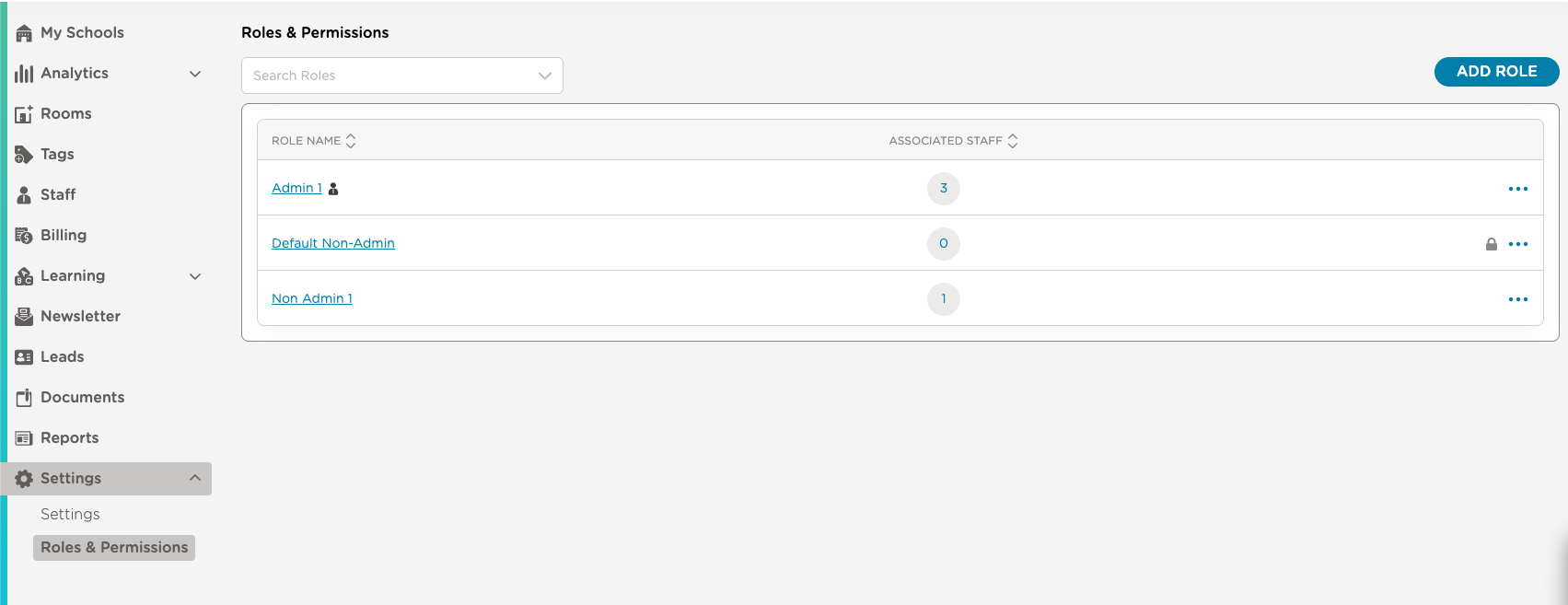
Click Add Role.
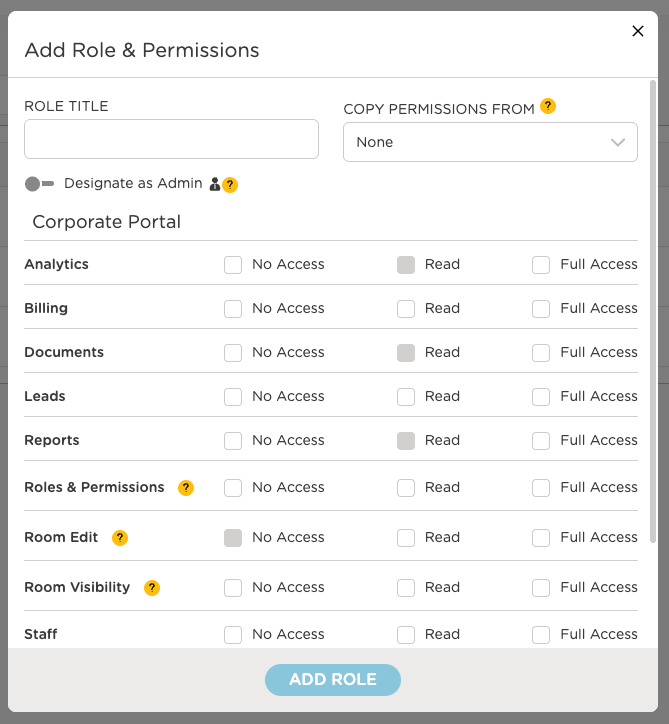
Enter a Role Title.
* You can set the role as Admin.
* You can copy permissions from another role and edit as needed.
Click Add Role to save.
Admin Role
A role designated as an admin can do the following by default:
Staff can see all rooms and all students
Staff can generate reports for all rooms if they have permission to access reports
Staff can view the Center Dashboard in the mobile app
Edit Roles & Permissions or Delete a Role
Edit a Role
Go to: Settings > Roles & Permissions
Find the role in the list.
Click Edit Role next to the role.
Check or uncheck the boxes to allow or restrict access to specific features.
Click Save Changes
Delete a Role
Go to: Settings > Roles & Permissions
Find the role you want to delete. Click Delete Role.
If staff are assigned to the role, a confirmation pop-up will appear.
Any staff assigned to this role will be reassigned to the System Non-Admin (default) role.
If there are no staff associated to the role, there is no confirmation needed.
Add Staff & Assign Roles
The Staff view provides a complete list of all team members, making it easy to see their assigned roles, primary rooms, and invite status. The table can be sorted by Name, Primary Room, Email, Role, or Invite Status, allowing you to quickly organize and find the information you need.

To Add Staff
Select Add Staff
Enter relevant information
Select a Role from the available options
Select Create
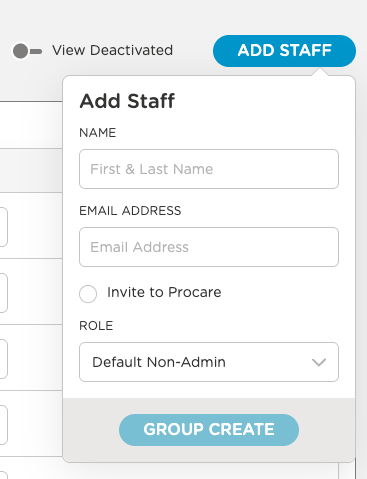
Any role designated as an admin role will display the admin icon next to it.
Add or Edit Staff Assigned to a Role
You can view and manage which staff are associated with a role directly from the Roles & Permissions section.
To add or remove staff from a role:
Click the ellipses next to the role name to open your options
Select Add/Edit Staff.
Check the box next to a staff member’s name to assign them to the role. Uncheck the box to remove them.
Review the staff assigned to the role and use the trash can to remove any staff members. You can also use the trash can icon to quickly remove staff from the list.Click Save.
Remember:
Permissions cannot be edited here, only staff assignments.
Staff members cannot update their own role.
Edit Assigned Roles in Staff Management
Best Practice
It is best practice to assign or remove staff from roles under Settings>Roles & Permissions
While you can change a staff member’s role from the Staff Management screen, we recommend navigating to the dedicated roles and permissions setting screen.
There are two ways to edit a staff member’s role in Staff Management:
Option 1: From Staff Management
Go to the Staff Management view.
Open the Role drop-down next to the staff member’s name.
Select the desired role from the list.
Option 2: From the Staff Profile
Select the staff member’s profile.
Click the pencil icon next to the role.
Choose the new role.
Select Save Changes and confirm the role change.
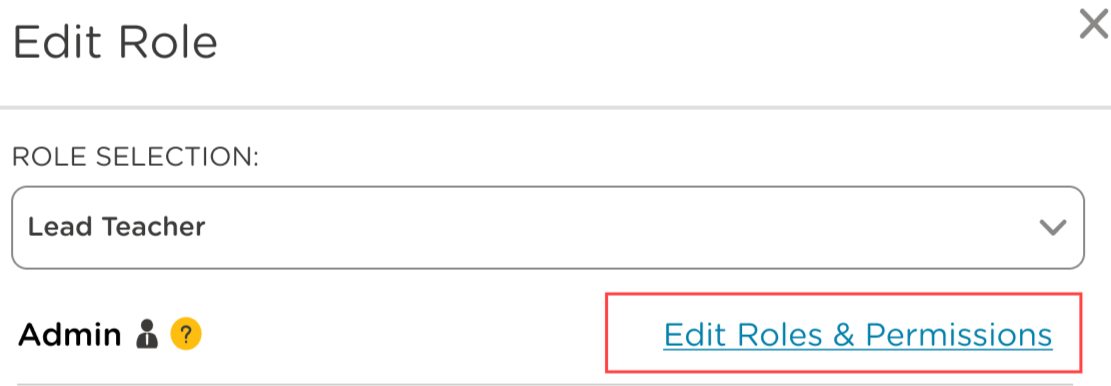
If you have the associated permissions, the option to Edit Roles & Permissions will appear. Selecting it opens the School Settings > Roles & Permissions page, where you can adjust the permissions assigned to that role.
Default System Roles
Before creating or assigning new roles, every account includes default system roles:
Admin (Default)*
Non-Admin (Default)*
Auto-created Admin/Non-Admin: The system will automatically create custom roles for each staff member or group of staff members who share the same permissions. These role titles should then be customized to describe the role.
*These roles are locked to protect your system settings and cannot be deleted. To ensure your account remains accessible, you must always have at least one System Admin with full access.
Procare Desktop and Engagement Functionality and Corporate Portal Sync
When you use Procare Desktop alongside Engagement Functionality and the Corporate Portal, staff access is managed across three distinct environments: Desktop, your Engagement Funtionality sites, and the Corporate Portal. It is important to understand how each environment handles staff records and permissions independently.
User type | In Desktop | On Engagement Functionality sites | On Corp Portal |
System Supervisor | Recorded as staff under IKN in Desktop | Syncs as Admin on each Engagement Functionality site automatically | Does not sync |
Standard staff member | Staff member in Desktop | Syncs with their assigned role (admin or non-admin) | Must be added manually |
Permissions are local to each environment
Permissions set in the Corporate Portal apply only to the Corporate Portal. They do not flow down to Engagement Functionality sites, and Engagement Functionality site permissions do not affect Corporate Portal access. Each environment’s permissions are managed independently.

Troubleshooting Guide
Insert text
Insert answer
Insert test
Insert answer
Insert text
Insert answer
Insert text
Insert answer
Does the System Supervisor in Desktop automatically get access to the Corporate Portal?
No. The System Supervisor does not sync to the Corporate Portal. They are recorded as a staff member under the IKN in Desktop and sync as Admins on Engagement Functionality sites, but they do not appear in the Corporate Portal automatically. A Corporate Portal user must be added manually via the portal's Staff section. This is existing functionality and has not changed.
What role does the System Supervisor get when syncing to Engagement Functionality sites?
The System Supervisor syncs to Engagement Functionality sites as an Admin. This applies to all Engagement Functionality sites that roll up to the Desktop IKN.
Who can add users to the Corporate Portal after the first user is set up?
After Implementation adds the first user, any user who already has access to the Corporate Portal can add additional users. This is done through the Staff section within the Corporate Portal itself. Navigate to the Staff section within the Corporate Portal and select Add staff. Complete the required fields and set their Corporate Portal permissions. Remember that these permissions only apply within the Corporate Portal and are independent of any permissions they hold on Engagement Functionality sites.
If I remove a System Supervisor from Desktop, are they removed from the Corporate Portal as well?
No. The Corporate Portal is managed independently. The user will need to be deactivated from the Corporate Portal as well. If a System Supervisor is removed from Procare Desktop, they will be automatically deactivated from any Engagement schools where they are listed.
Are Corporate Portal permissions the same as Engagement Functionality site permissions?
No. Permissions are local to each environment. The access level a staff member has on the Corporate Portal is entirely separate from their permissions on Engagement Functionality sites. Changing one does not affect the other. You must manage permissions for each environment independently.
If I update a staff member's permissions in the Corporate Portal, does it change their Engagement Functionality site access?
No. Corporate Portal permissions only apply within the Corporate Portal. Changes there do not affect Engagement Functionality site permissions, and vice versa.
Can a staff member have different roles on different sites?
Yes. A staff member's role on an Engagement Functionality site is managed independently from their Corporate Portal access. They can hold different levels of access across environments.