Enrollment with Confidence: Master RoomRunner for AI-Powered Planning
Join our live webinar to see how RoomRunner simplifies planning with AI. Register today!
What is RoomRunner?
RoomRunner is a forecasting and planning tool that helps you schedule student movements and predict room availability up to 12 months ahead.
Who is RoomRunner Available To?
RoomRunner is exclusively available in Procare Online. If you are a Desktop + Engagement Functionality customer, reach out to your Customer Success Manager for more information. RoomRunner is accessible to staff members with Full Access or View Access to the RoomRunner permission.
What You Can Do with RoomRunner
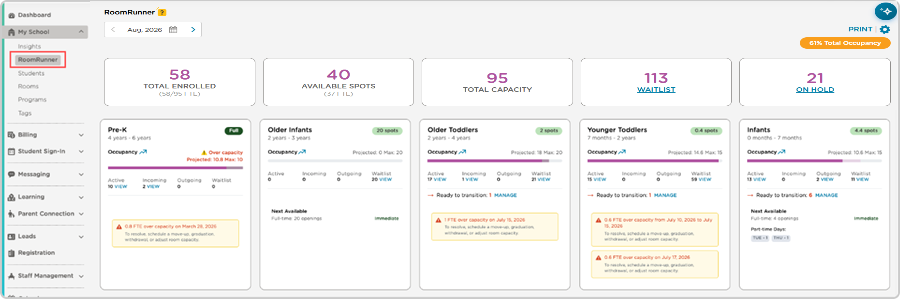
Once you are set up, RoomRunner provides a real-time and forward-looking view of your center:
Schedule transitions, withdrawals and graduations |
|
Track who is coming and going |
|
Understand your openings |
|
Prioritize your waitlist |
|
RoomRunner also includes AI-powered suggestions for room moves and waitlist placements. These suggestions are based on your existing rules for age eligibility, room capacity, and weekly schedule fit. You can accept, modify, or reject any suggestion at any time — you stay in control.
New to RoomRunner?
Configure Your Dashboard
To open the dashboard, navigate to My School > RoomRunner. Select the Settings menu, three options are available:
|
|
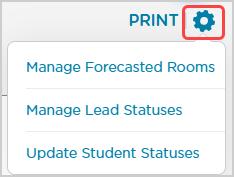
We recommend working through each one in order.
This setting controls which rooms appear in your dashboard. Only rooms that count toward your licensed capacity should be included. Review the list and add or remove rooms as needed to make sure your forecast reflects your actual licensed space.

Manage Lead Statuses
This setting determines which prospective families are pulled into the dashboard on the RoomRunner Waitlist. Select the Lead Statuses you want to include — for example, families who are actively enrolled or confirmed on your waitlist.
Recommendation
For accurate placement suggestions, confirm that all Leads have a date of birth and a schedule assigned. Date of birth is required, and a schedule is recommended.
The exception is Expecting Mothers, where a date of birth is not required.


Update Student Statuses (Optional)
RoomRunner will surface suggested status updates for your current students based on activity and age data. Students in this list have had no recorded attendance or daily activities in the last 60 days, signaling they may not be active.
Review each suggestion.
Select the appropriate status.
Confirm your changes.
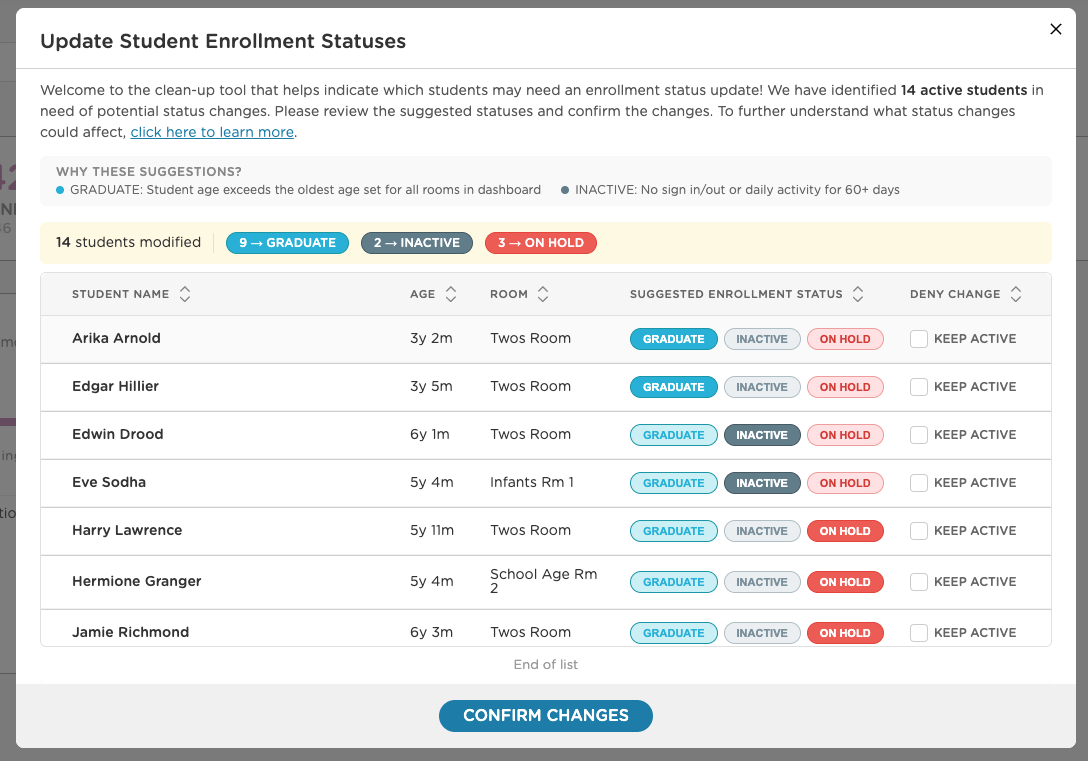
This table explains what the suggested update status means:
Status | Definition |
|---|---|
Graduate | The suggestion is to move the Active student to the Graduate status because the student's age exceeds the maximum age set for all rooms in the dashboard. |
Inactive | The suggestion is to move the Active student to Inactive when no sign-ins, sign-outs, or daily activities are recorded for 60 or more days. |
On Hold | RoomRunner will not suggest placing a student on hold. You can choose to place the student on hold. |
On Hold Students
Messages cannot be sent to students with an On Hold status. However, their parents/guardians can still log in to the app as usual.
Fix Missing Data (Highly Recommended)
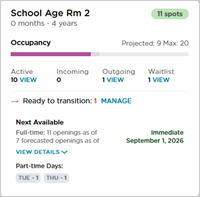
After you’ve set up your dashboard, you may notice room cards with missing data.
|
|
These two additional steps will guarantee the most accurate data and are recommended:
Go to My School > Rooms
Compare age range and capacity
Run Student and Family Report
Compare the student’s date of birth
Why This Matters
Without a capacity and age range, RoomRunner cannot calculate whether you have openings or match waitlist students to the right room. RoomRunner reviews each student's date of birth and the age range of each room. It detects when a student will age into a room and is available for a room transition.
You Are Ready to Run with RoomRunner!
Once your rooms, lead statuses, and student statuses are configured, your dashboard is ready to use. From here, you can begin:
Scheduling transitions- click here to go directly to the article
Reviewing AI suggestions - click here to go directly to the article
Planning ahead - click here to go directly to the article
If you run into any issues during setup, most data corrections can be made directly from the dashboard; there's no need to navigate away and start over.
FAQ for RoomRunner
Check out our FAQ article dedicated to RoomRunner questions.