Enrollment with Confidence: Master RoomRunner for AI-Powered Planning
Join our live webinar to see how RoomRunner simplifies planning with the power of AI. Register today!
RoomRunner is the AI-powered enrollment planning tool that takes the guesswork out of what’s happening now and what happens next. This article covers how to use AI agent suggestions:
to generate move plans
to determine how seat utilization is calculated
for what to expect when move plans interact with student profile changes
RoomRunner’s AI agent can recommend move plans on your behalf and surfaces suggestions for your review; nothing is changed in your system until you approve it. The final decision about whether and when to move a student is always yours.
Recommendation
Ready to explore this new feature? Before diving in, we recommend taking the time to get familiar with RoomRunner - Create and Manage Move Plans— knowing it inside and out will set you up for a much smoother experience.
What the Agents Know (and Don't Know)
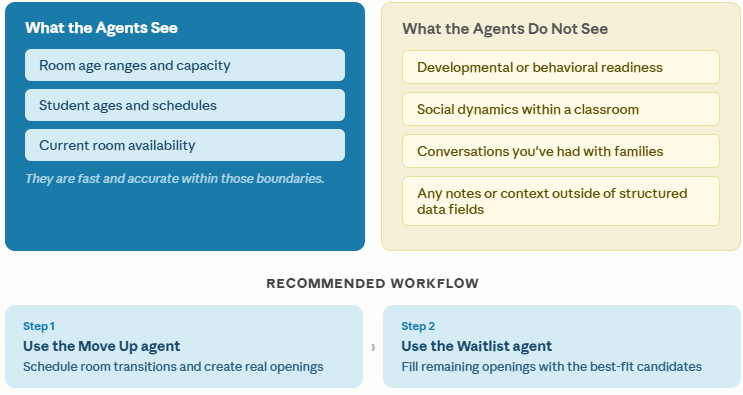
Use the AI |
|---|

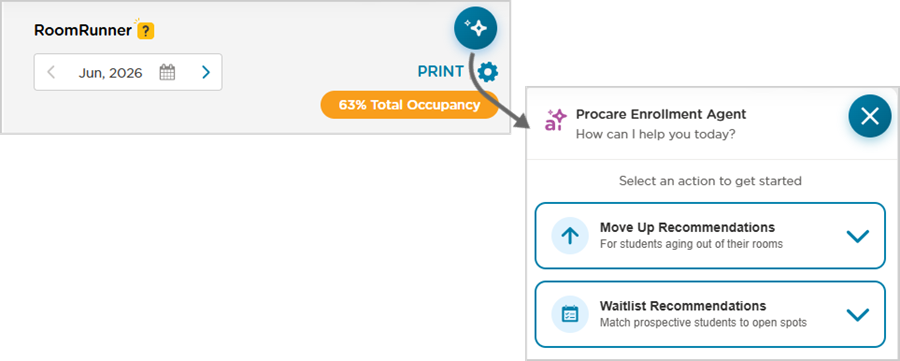
Move Up Recommendations
Analyzes | Provides |
to identify students who may be ready to transition to the next room |
|
Click the Procare Enrollment Agent.
Select Move Up Recommendations.
For each recommendation, you’ll see: |
|
| |
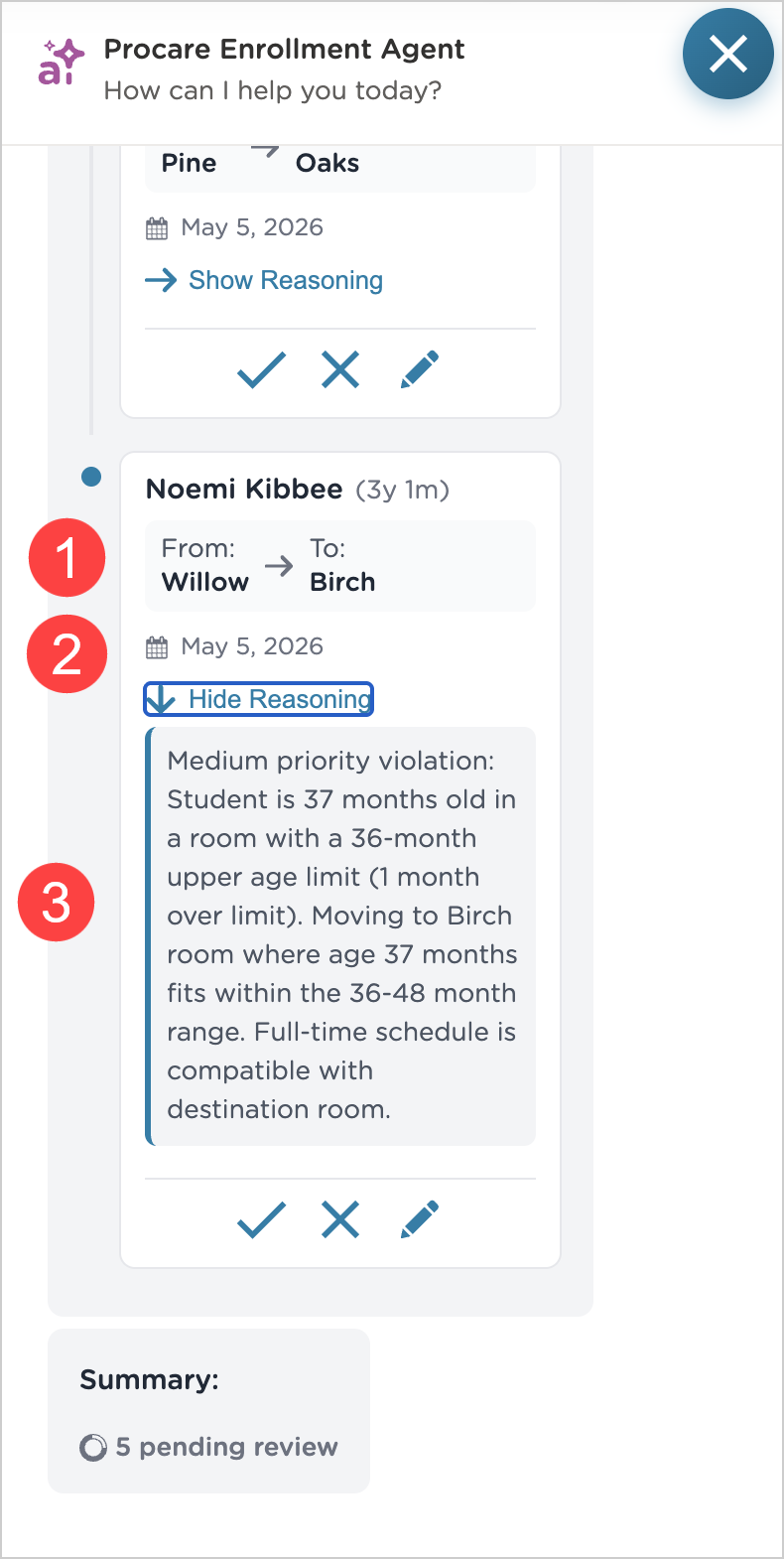
Accept | Reject |
| |
Accepting a recommendation creates a move plan you can manage from the dashboard or student profile. |
|
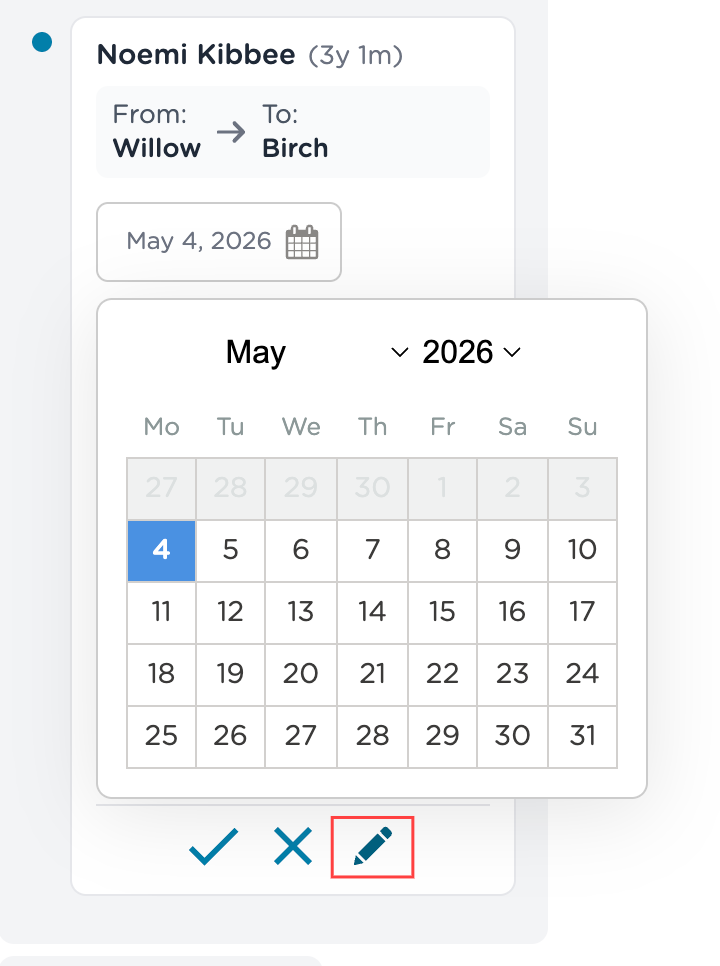
 to schedule the move for a different day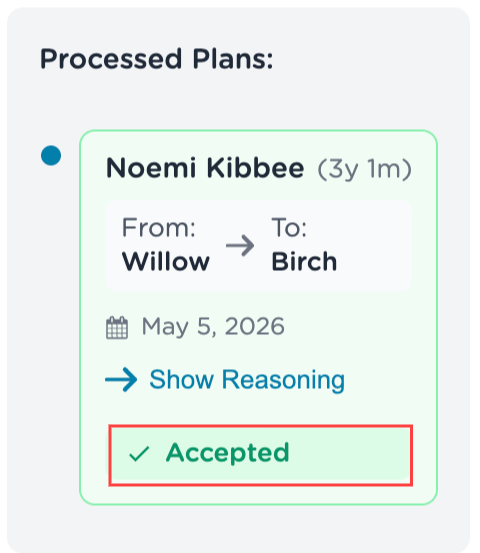

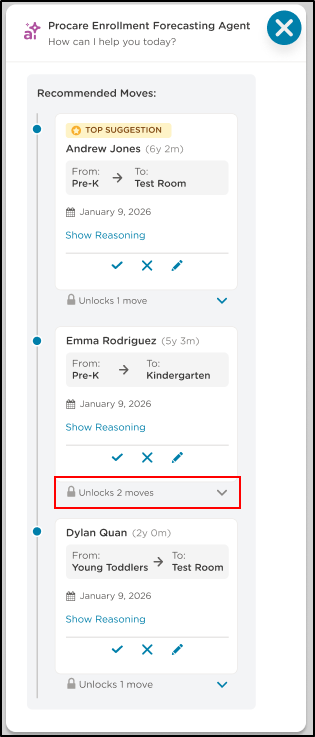
When a move or transition is suggested, the Procare Enrollment Forecasting Agent will also display how the single move will unlock additional moves.
Waitlist Recommendations
The Waitlist Recommendations agent scans your upcoming openings across all rooms and matches them against leads in the RoomRunner Waitlist.
For each opening, it identifies: |
|
and then presents them: |
|
Click Provide Recommendations.
Select Waitlist Recommendations.
.png)
Select the Room.
For each recommendation, you’ll see: |
|
| |
If no waitlist matches exist for a room, the agent will let you know. | |
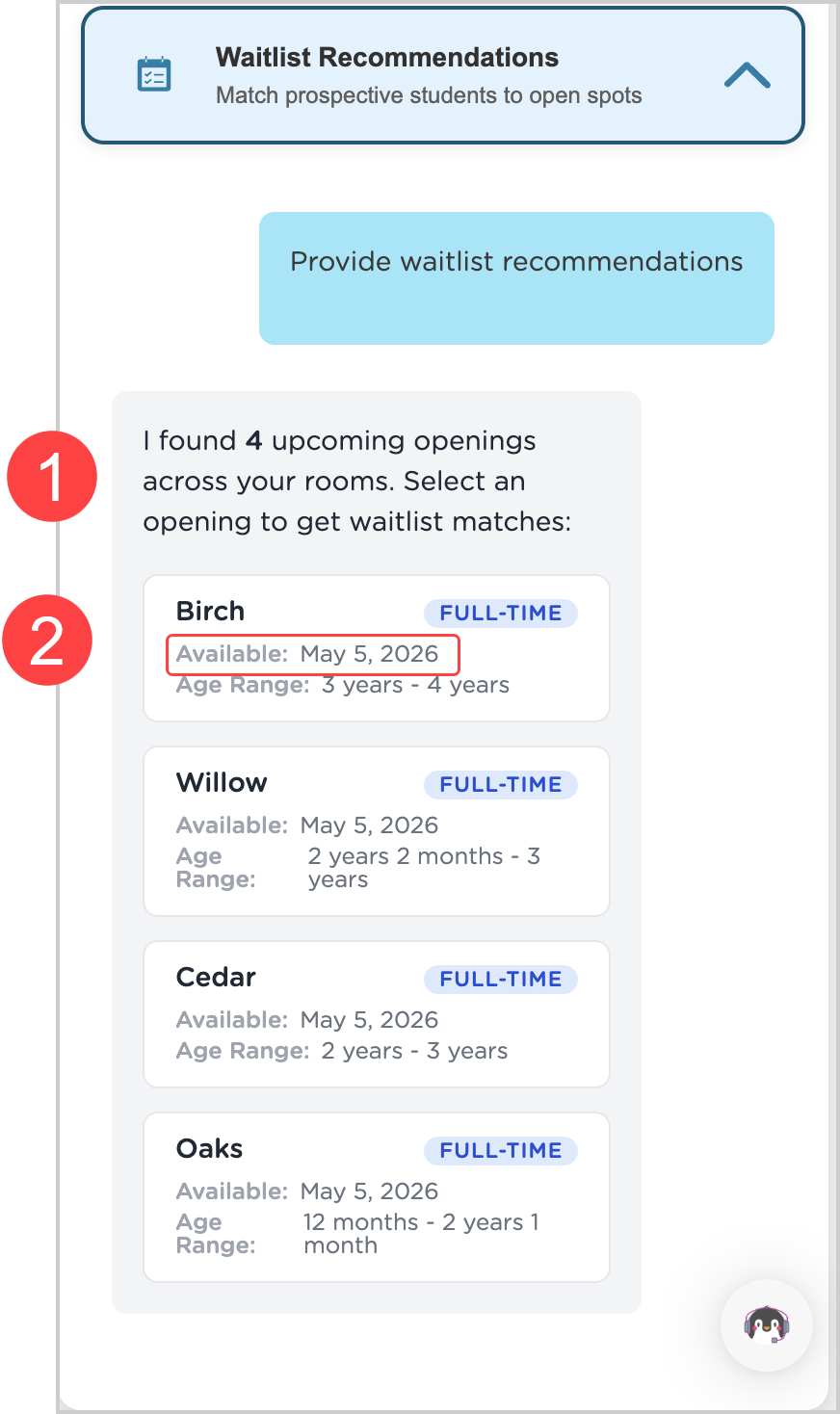
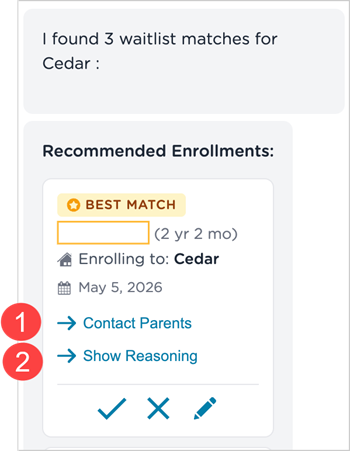
For each opening, the agent shows you a ranked list of leads from your RoomRunner Waitlist (the 1-2 lead statuses selected during setup). The best match appears at the top. Each match includes: |
|
| |
|
|
Accepted placements create a move plan for that lead, which you can view and manage from the dashboard or the lead’s profile. |
How Matching Works with the Waitlist Recommendations Agent
The agent evaluates multiple factors together to produce ranked recommendations.
Age Compatibility: | Schedule Compatibility |
| The agent checks real seat availability, including:
|
Placements that would exceed capacity are not recommended. |
Best Match Ranking
When multiple leads qualify, ranking is based on:
Schedule fit |
|
Lead priority level |
|
Age fit |
|
Waitlist order |
|
Full-Time Versus Part-Time Openings
The Move Up and Waitlist Recommendations agents handle both full-time and part-time openings, but treat them differently.
Full-time openings | The agents look for students requesting a 5-day schedule and calculate whether the room has 1.0 FTE available on the proposed date. |
Part-time openings | The agents consider leads requesting fewer days and check whether the specific days and time types (AM or PM) they need are actually available. A room can have 0.4 FTE remaining but still not be able to accommodate a student who needs Tuesday/Thursday AM if those specific slots are already taken. |
Important Notes Regarding the AI Agents
Your Roomer Waitlist is defined by the Lead Statuses selected during setup. Recommendations are drawn from leads in those statuses.
Recommendations reflect your current RoomRunner Waitlist snapshot. Navigate away and back to refresh.
Accepting a recommendation creates a move plan, not an immediate enrollment.
Rejecting a match does not remove that lead from recommendations in future sessions. The Move Up and Waitlist Recommendations agents do not have session memory and will recommend moves again in the future.
FAQ for RoomRunner
Click here to check out our FAQ article dedicated to RoomRunner questions.