Enrollment with Confidence: Master RoomRunner for AI-Powered Planning
Join our live webinar to see how RoomRunner simplifies planning with AI. Register today!
Move plans let you schedule student transitions, withdrawals, and graduations in advance, so your center's future enrollment is always visible, helping you proactively plan with confidence.
There are six types of move plans. All scheduled move plans appear in the Upcoming Transitions field on the student's profile.
Billing Plans
Click here to see an important note regarding Billing Plans.
What Move Plan Are You Trying To Do?
Click on the move plan type below and it will take you to the instructions.
Move Plan Type | What It Does | When | Who It Applies To |
|---|---|---|---|
Transitions a student to a different room. | Transition occurs at the start of the scheduled day. | Any active student | |
Enrolls a lead as an active student on a future date. | Enrollment occurs at the start of the scheduled day. | Any lead on your RoomRunner Waitlist | |
Marks a student Inactive on a future date. | Move occurs at the end of the scheduled day. | Any active student | |
Marks a student Graduated on a future date. | Move occurs at the end of the scheduled day. | Students in the oldest room/aging out | |
Returns an On Hold student to Active on a future date. | Move occurs at the start of the scheduled day. | Students with On Hold status | |
Marks Active student to On Hold | Move occurs at the start of the scheduled day. | Any active student. |
| Learn more about student Enrollment statuses. Learn more about Lead statuses. |

AI Enrollment Agent Suggestions |
|---|
Based on your data, the AI Enrollment Agent: |
Read more about Using the RoomRunner AI Enrollment Agent here. |
Move plans can be managed without the AI Enrollment Agent. |
Review the Room Card
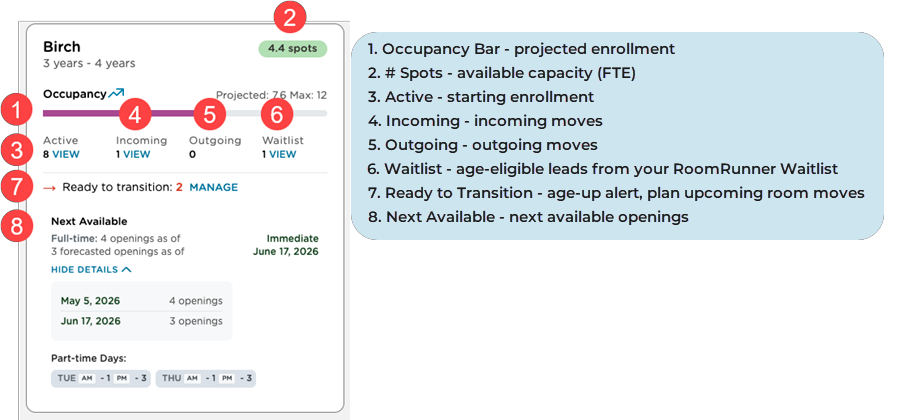
| Learn more about the Room Card definitions. |
Room Transitions
What | Notes | |
|
|
|
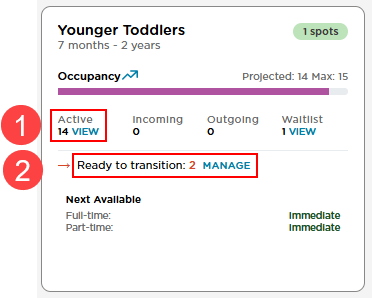
Schedule age-up transitions directly from the Room Card using:
|
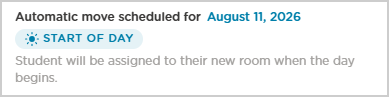
Move Message Confirmation
The confirmation message will vary based on your move plan, but here are examples.
Individual
Bulk

To move a student:
Go to the Room Card where the student is currently active or ready to transition.
Select the Room Card Active View or Ready to transition: Manage view.
For the student moving, select More Options
 .
.Select Move.
Select the Destination Room.
Select the Transition Date.
A confirmation message displays the details you entered.
Click Confirm.
To move multiple students:
Go to the Room Card where the student is currently active or ready to transition.
Select the Room Card Active View or Ready to transition: Manage view.
Options:
Select the Name field to select all listed students.
Select the Name field to select all listed students and deselect the ones you do not want to include.
Select one or any number of students.
Select Bulk Actions.
Select Schedule Room Transition.
Select Date.
Select Room.
A confirmation message displays the details you entered.
Click Update.
To edit a student move:
Go to the Room Card where the student is currently incoming or outgoing.
Select the Room Card Active or Outgoing View or the Room Card Incoming View of the room they are moving to.
For the student you are editing, click More Options
 .
.Click Edit.
Select the Date
A confirmation message displays the details you entered.
Click Update.
To cancel a student move:
Go to the Room Card for the student whose room transition you want to cancel.
Select the Room Card Active or Outgoing View or the Room Card Incoming View of the room they are moving to.
For the student you are canceling, click More Options
.Select Cancel Plan.
A confirmation message displays the details you entered.
Click Yes, Cancel Plan. The student is returned to the original status in the original room.
To edit multiple students moves:
Go to the Room Card where the student is currently incoming or outgoing.
Select the Room Card Active or Outgoing View or the Room Card Incoming View of the room they are moving to.
Options:
Select the Name field to select all listed students.
Select the Name field to select all listed students and deselect the ones you do not want to include.
Select one or any number of students.
Select Bulk Actions.
Select Cancel Transition.
A confirmation message displays the details you entered.
Click Update.
Scheduled Enrollments
What |
|
To schedule enrollment for a student:
Go to the Room Card where the student is currently on the waitlist.
Select the Room Card Waitlist View.
Click More Options
for the student. Select Schedule Enrollment.
Select the room.
Select the Enrollment Date.
entered.
Click Enroll.
To cancel scheduled enrollment for a student:
Go to the Room Card where the student is currently incoming.
Select the Room Card Incoming View.
Click More Options
for the student. Select Cancel Enrollment.
A confirmation message displays the details you entered.
Select the Move back to status.
To cancel scheduled enrollment students:
Go to the Room Card where the students are currently incoming.
Select the Room Card Incoming View.
Click More Options
for the students. Select Bulk Actions.
Select Cancel Transtion.
Select Move back status.
A confirmation message displays the details you entered.
Click Confirm.
To edit scheduled enrollment for a student:
Go to the Room Card where the student is currently incoming.
Select the Room Card Incoming View.
Click More Options
for the student. Select Edit.
Select the Transition Date.
A confirmation message displays the details you entered.
Click Update Date.
| Learn more about Lead Statuses. |
Withdrawal
Withdrawals schedule a student to be marked Inactive on a specified future date. On the scheduled date, the students’ status automatically updates to Inactive at the end of the day.
To withdraw a student:
Go to the Room Card where the student is currently active or ready to transition.
Select the Room Card Active View or Ready to transition: Manage view.
Click More Options
for the student. Select Withdraw.
Select the Withdrawal Date.
A confirmation message displays the details you entered.
Click Confirm.
To withdraw students:
Go to the Room Card where the student is currently active or ready to transition.
Select the Room Card Active View or Ready to transition: Manage view.
Options:
Select the Name field to select all listed students.
Select the Name field to select all listed students and deselect the ones you do not want to include.
Select one or any number of students.
Select Schedule Withdrawal.
Select the Date.
A confirmation message displays the details you entered.
Click Update.
To edit a student withdrawal:
Go to the Room Card where the student is currently withdrawing.
Select the Room Card Active View or the Outgoing View.
Click More Options
for the student. Select Edit.
Revise the Withdrawal Date.
A confirmation message displays the details you entered.
Click Update.
To cancel a student withdrawal:
Go to the Room Card where the student is currently withdrawing.
Select the Room Card Active View or the Outgoing View.
Click More Options
for the student.Select Cancel Plan.
A confirmation message displays the details you entered.
Click Yes, Cancel to confirm.
To edit students withdrawals:
Go to the Room Card where the student is currently withdrawing.
Select the Room Card Active or Outgoing View.
Options:
Select the Name field to select all listed students.
Select the Name field to select all listed students and deselect the ones you do not want to include.
Select one or any number of students.
Select Bulk Action.
Select Cancel Transition.
A confirmation message displays the details you entered.
Click Update.
| Learn more about Student Enrollment Statuses. |
Graduation
What |
|
To schedule a student for graduation:
Go to the Room Card where the student is currently active.
Select the Room Card Active View or Ready to transition: Manage view.
Click More Options
for the student. Select Graduate.
Select the Graduation Date.
A confirmation message displays the details you entered.
Click Confirm.
To cancel a student’s graduation:
Go to the Room Card where the student is currently outgoing.
Select the Room Card Active or Outgoing View.
Click More Options
for the student. Select Cancel Plan.
A confirmation message displays the details you entered.
To confirm, click Yes, Cancel.
To edit a student’s graduation:
Go to the Room Card where the student is currently outgoing.
Select the Room Card Active or Outgoing View.
Click More Options
for the student. Select Edit Plan.
Select the Graduation Date.
A confirmation message displays the details you entered.
Click Update.
Note
A suggested graduation date is displayed.
To schedule students for graduation:
Go to the Room Card where the student is currently active or ready to transition.
Select the Room Card Active View or Ready to transition: Manage view.
Click More Options
for the student. Select the Name field to select all listed students.
Select the Name field to select all listed students and deselect the ones you do not want to include.
Select one or any number of students.
Select Bulk Actions.
Select Graduation.
Select the Graduation Date.
A confirmation message displays the details you entered.
Click Update.
To cancel students’ graduations:
Go to the Room Card where the student is currently outgoing.
Select the Room Card Active or Outgoing View.
Click More Options
for the student. Select the Name field to select all listed students.
Select the Name field to select all listed students and deselect the ones you do not want to include.
Select one or any number of students
Select Bulk Actions.
Select Cancel Transition.
A confirmation message displays the details you entered.
Click Update.
| Learn more about Student Enrollment Statuses. |
Activation and Transition to On Hold
What | How It Works | |
Students who are placed On Hold can be scheduled to automatically return to Active status on a future date. This allows administrators to plan ahead and avoid manual follow‑up while ensuring the student is reactivated at the appropriate time. |
|
|
On Hold to Active
Move a student from On Hold to Active.

Select On Hold from the RoomRunner dashboard. If there are no students with On Hold status, it will not appear as a tile on the dashboard.
Select More Actions
for the student to schedule the activation. Select Schedule Activation.
Select the Return Date.
Select the Room Upon Return.
A confirmation message displays the details you entered.
Click Schedule.
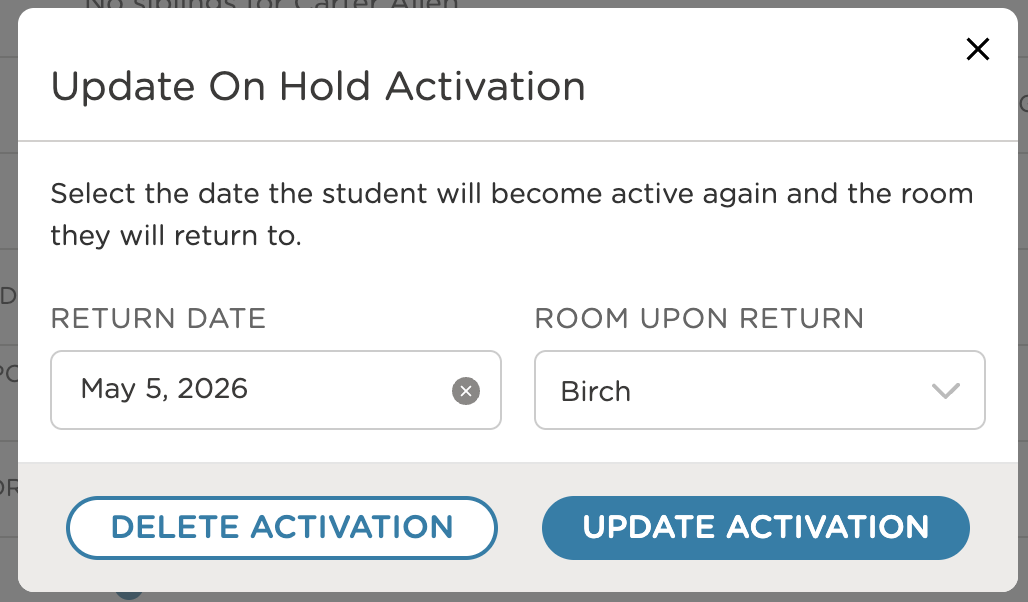
Edit a student with On Hold to Activate status.
Select On Hold from the RoomRunner dashboard or Incoming view on the room card that the student is transitioning into.
Select More Actions
to edit the student activation. Select Edit.
Select the Return Date.
Select the Room Upon Return.
A confirmation message displays the details you entered.
Click Update.
Note
Use
to filter by room.
Cancel a student with an On Hold to Active status.
Select On Hold from the RoomRunner dashboard or the Room Card Incoming View the student is transitioning into.
Select More Actions
to edit the student activation. Select Cancel.
A confirmation message displays the details you entered.
Click Yes, Cancel.
Move students from On Hold to Active.
Select On Hold from the RoomRunner dashboard. If there are no students with On Hold status, it will not appear as a tile on the dashboard..
Click More Options
for the student. Select the Name field to select all listed students.
Select the Name field to select all listed students and deselect the ones you do not want to include.
Select one or any number of students
Select Bulk Actions.
Select Schedule On Hold.
Select the Date.
A confirmation message displays the details you entered.
Click Update.
Cancel students with an On Hold to Active status.
Select On Hold from the RoomRunner dashboard or the Room Card Incoming View the student is transitioning into.
Click More Options
for the student. Select the Name field to select all listed students.
Select the Name field to select all listed students and deselect the ones you do not want to include.
Select one or any number of students
Select Bulk Actions.
Select Cancel Transition.
A confirmation message displays the details you entered.
Click Update.
Active to On Hold
Move a student from Active to On Hold.
Select the Room Card Active View.
Click More Options
for the student. Select Schedule on Hold.
Select the On Hold Date.
A confirmation message displays the details you entered.
Click Confirm.
Edit a student moved from Active to On Hold.
Select the Room Card Active or Outgoing view.
Click More Options for the student.
Select Edit.
Select the On Hold Date.
A confirmation message displays the details you entered.
Click Update.
Cancel a student moved from Active to On Hold.
Select the Room Card Active or Outgoing view.
Click More Options for the student.
Select Cancel Plan.
A confirmation message displays the details you entered.
Click Yes, Cancel.
Move students from Active to On Hold.
Select the Room Card Active View.
Click More Options for the student.
a. Select the Name field to select all listed students.
b. Select the Name field to select all listed students and deselect the ones you do not want to include.
c. Select one or any number of students.
Select Bulk Actions.
Select Schedule On Hold.
Select the Date.
A confirmation message displays the details you entered.
Click Update.
Cancel students moved from Active to On Hold.
Select the Room Card Active or Outgoing view.
Click More Options for the student.
a. Select the Name field to select all listed students.
b. Select the Name field to select all listed students and deselect the ones you do not want to include.
c. Select one or any number of students.
Select Bulk Actions.
Select Cancel Transition.
A confirmation message displays the details you entered.
Click Update.
Common Use Cases for an On Hold Student
Medical or Personal Leave
A student may temporarily pause their attendance due to illness, family responsibilities, or other personal circumstances. Scheduling activation ensures they return to Active status when their leave is expected to end.
Example: A student on medical leave is expected to return on August 15th. You place the student On Hold and schedule activation for August 15th.
Example: A student on medical leave is expected to return on August 15th. You place the student On Hold and schedule activation for August 15th.
No further action is required unless the plan changes.
On Hold Activations can be cancelled/deleted or rescheduled from the student profile or from the Incoming list on the Room Card within the RoomRunner dashboard.
On the morning of the scheduled activation date, the student’s status automatically updates from On Hold to Active.
Move Plans and the Student Profile
Move plans scheduled from the dashboard are also visible and manageable from individual student profiles.
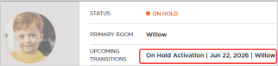
Viewing Upcoming Transitions
All scheduled transitions for a student are listed in the Upcoming Transitions field on their profile page. This gives you a per-student view of planned moves without having to navigate the dashboard.
Conflict Warnings
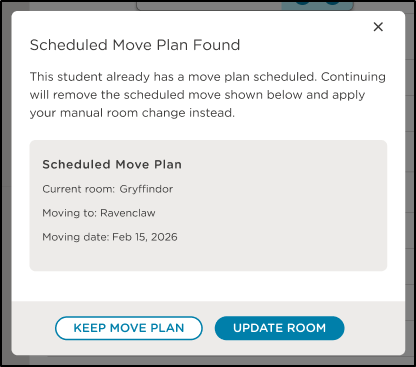
If you update a student's room or status directly from their profile and a move plan already exists, a warning pop-up will appear. You can:
Keep Move Plan — preserves the existing scheduled move
Update Room — applies the change and removes the scheduled move plan
Billing Plans
A billing plan is not impacted by scheduling a withdrawal, graduation, or room change. These updates must be managed manually.
Scenario | Scenario |
|---|---|
Student withdraws or graduates. |
|
Student's move plan results in a new or updated recurring billing plan. |
|
Student needs to temporarily pause attendance and will no longer be billed. You update them to the On Hold status. |
|
FAQ for RoomRunner
Click here to check out our FAQ article dedicated to RoomRunner questions.