Navigation Changes
The Leads and Registration sections are now under Enrollment.
Procare Online Only
This article applies to the online version only (without desktop).
With Procare Online's enrollment form, you can have parents/guardians fill out an application, accept registration fees and track where the families are as they go from showing interest in your program to becoming actively enrolled. Alternatively, you can use the form as a way to track interest in your program via an inquiry form.
Customize Statuses
Create a Status
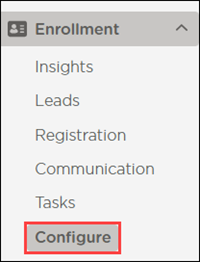
Go to Enrollment > Configure.
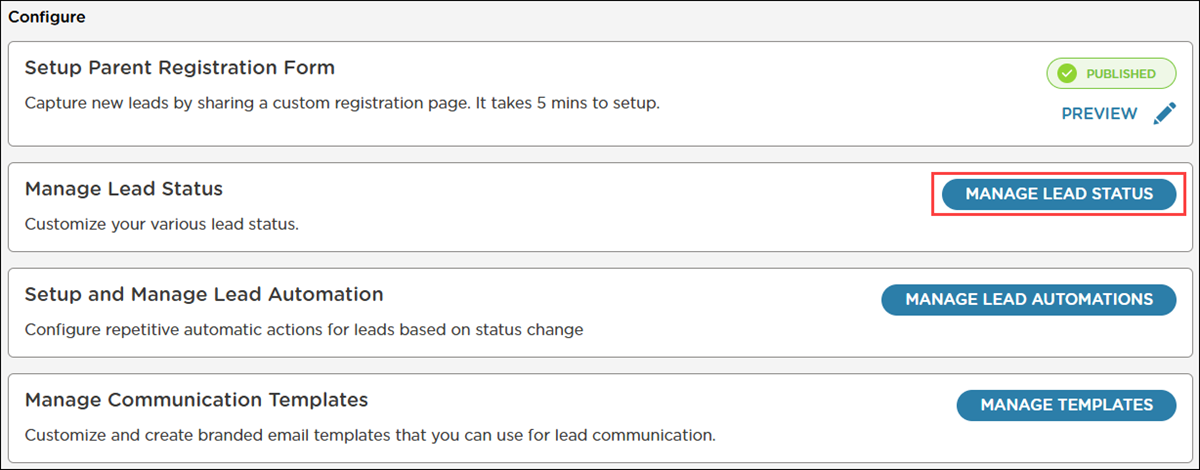
Click Manage Lead Status.
Click Add Status.
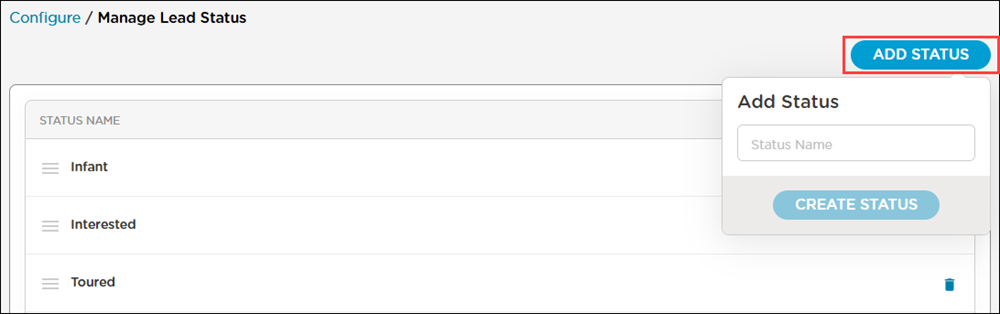
Enter a name for the status.
Click Create Status. The new status displays at the top of the list.
Edit a Status
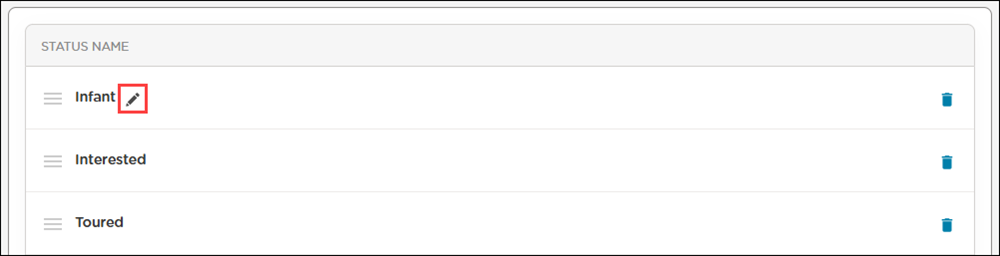
Hover over a status.
Click Edit
 .
.
Enter a new name for the status.
Click Save.
Delete a Status
Click Delete
 .
.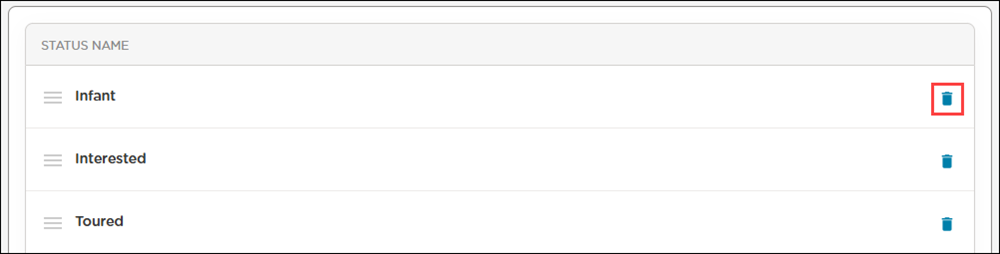
Click Yes, Delete to confirm that you want to delete the status.
Note
When a status is deleted, it is removed from all existing leads. This action cannot be undone.
System-defined statuses (Waitlisted and Enrolled) can be edited, but they cannot be deleted.
Reorder Statuses
The order of the statuses in the list affects how the statuses display in Leads when selecting from the drop-down menu or filtering by status.
Click and hold Reorder
 to the left of the status name.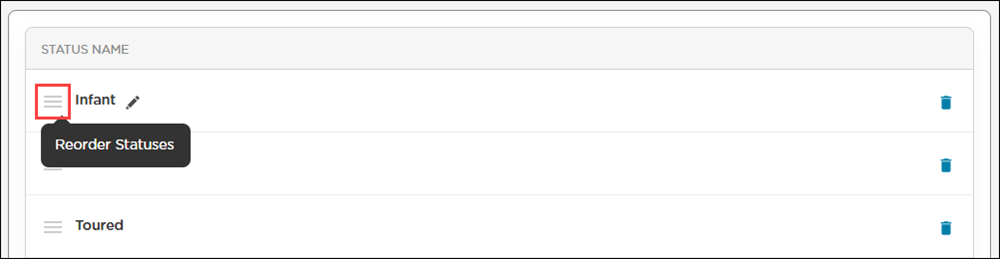
Drag and drop the status to the location where you want it to display in the list.
Change and Filter Lead Statuses
Once you create or edit statuses, you can use them to filter and change the status of leads directly on the Leads page.
Filter by Status
Click Status Filter
 .
.Select the status you want to filter by. You can only filter by one status at a time.
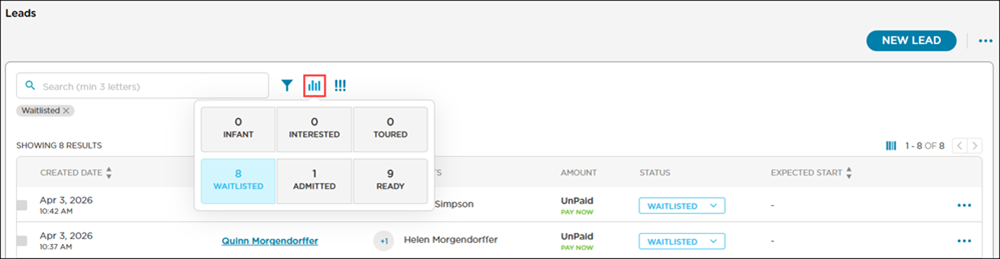
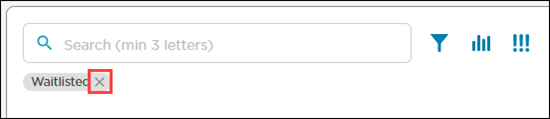
To remove the filter, do one of the following:
Click Status Filter
, then click the name of the highlighted statusClick ✕ on the filter label above the list
Change a Lead Status
Click the name of the status in the Status column on a lead.
Select the status to change the lead to.
.png)
Schedule Enrollment Ahead of Time
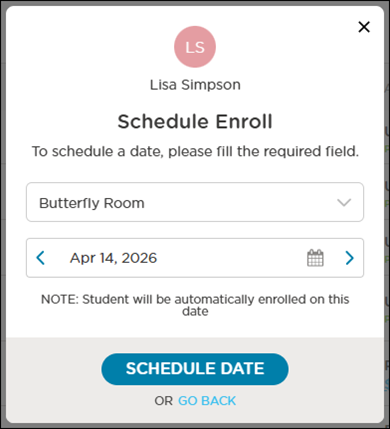
When you change a lead’s status to Enrolled, you can enroll them immediately or schedule their enrollment for a specific date.
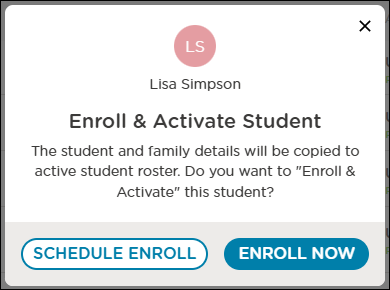
If you choose to schedule their enrollment, you must select the room and date of enrollment. The lead will be automatically copied over to your active student roster on the selected date.
Default Statuses
You can use our default status names and definitions or modify them to better align with your school’s processes.
Status | Description |
|---|---|
Toured | Families who have physically visited your center or have completed preliminary steps for enrollment. |
Interested | Families who have shown a definite interest in enrolling in your center, but have not confirmed/reserved their spot yet. |
Waitlisted | Families who would like to be enrolled or have paid to reserve a spot, but there is currently no space to enroll their children. |
Admitted | Families who have received a spot at your center, but will not start immediately. |
Enrolled | These children will be moved into the My School > Students section of the website and are no longer part of your enrollment pipeline. However, you can still access their registration form information here. |