Complete the tasks below before setting up RoomRunner. Each item links to a Procare support article for step-by-step guidance.
Prefer to download the checklist as a PDF? Click here.

Confirm Access and Permissions | Why This Matters |
|---|---|
RoomRunner is exclusively available in Procare Online. Procare Desktop + Engagement customers must contact Customer Success if they are interested in exploring Procare Online. | |
RoomRunner is a permission-controlled feature. Staff without the correct role setting will not be able to navigate to My School > RoomRunner. | |
Procare offers free live training on RoomRunner. Attending before your first setup session reduces errors and helps your team get the most out of AI suggestions. |


Understand Your Room Setup | Why This Matters |
|---|---|
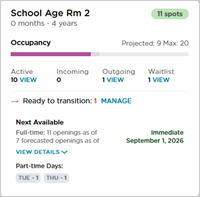
RoomRunner's dashboard is built around your existing rooms. Later, you can decide which rooms to include or exclude from RoomRunner. | |
Without an accurate capacity for each room, RoomRunner cannot correctly calculate openings or determine whether rooms are full. Capacity is set on each room’s profile by navigating to My School > Rooms. | |
Accurate age ranges are required for RoomRunner to match waitlisted children to the right room and to surface age-up transition suggestions. Rooms can have overlapping age ranges. |

Understand Student Profiles | Why This Matters |
|---|---|
RoomRunner pulls data directly from student profiles. | |
Birth dates power every age-based calculation in RoomRunner — room matching, 'Ready to Transition' signals, and AI suggestions all depend on accurate dates of birth. The exception is Expecting Mothers, where a date of birth is not required. | |
Primary room assignment determines which Room Card a student appears on. Misassigned students will make occupancy numbers inaccurate. | |
RoomRunner uses FTE-based seat math. A part-time student mistakenly listed as full-time will show fewer available spots than you actually have. | |
RoomRunner only surfaces Active students in the room cards. On Hold students appear in a separate window. Understanding statuses prevents confusion when students appear missing or misplaced. |

Understand the Leads/Enrollment Pipeline | Why This Matters |
|---|---|
RoomRunner's waitlist section draws from your leads pipeline, not your active student roster. Leads are prospective families managed in the Enrollment section. You can manually add lead profiles, or families can register through a registration form. | |
During RoomRunner setup you select which Lead Statuses count as your RoomRunner Waitlist. Only families in those statuses appear in the RoomRunner Waitlist window and AI recommendations. In the Leads section, you can customize your Lead Statuses. | |
The AI Enrollment Agent evaluates age eligibility and schedule compatibility for waitlist matches. Missing Date of Birth (DOB) on a lead profile means they won't be suggested for placement. The exception is Expecting Mothers, where a date of birth is not required. |