The student profile contains demographic and medical information, parent/guardian details, primary room and schedule, and other school or personal information.
Go to My School > Students.
You can also:
Access immunizations, documents and programs.
Edit immunizations
Edit, view, download or delete documents associated with a student
View, add or remove programs connected with the student
Print a PDF containing the student profile details


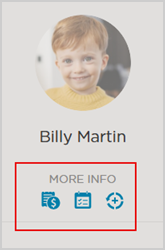
| Use the More Info links to quickly access:
|
Edit Student Profile
Update or revise the student profile fields and student enrollment status.
Hover at the end of any field and use the  icon to edit the field. All fields can be edited in this view except for Upcoming Transitions.
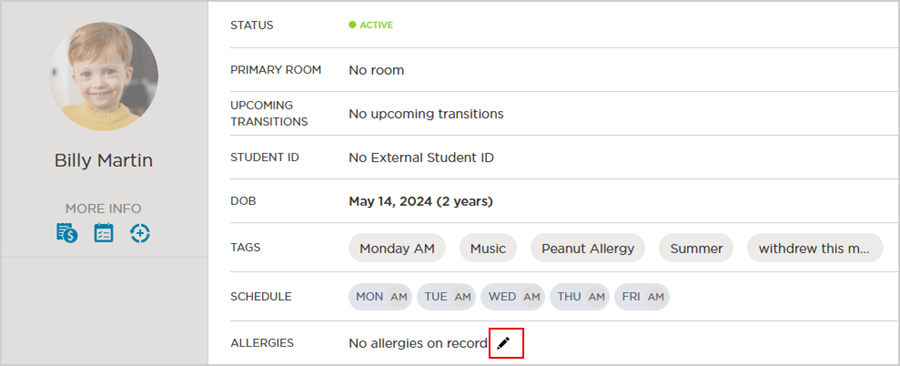
Key Fields in the Student Profile
Profile Picture
To edit the picture, select the current photo and replace it with the new picture. File sizes are limited to 200×200 pixels.
Note
Once you add a photo, you cannot remove it. The only option is to replace it.
Name
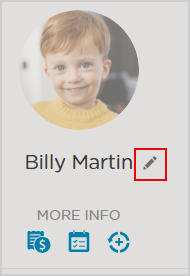
The student name can be edited as needed.
Note
If you update the name, it will change everywhere in the software. Also, keep in mind that all the records and history are connected to this student profile. Best practices include not replacing this student profile with another student's profile or a sibling's profile.
Status
Schedule On Hold to Active.
Go to My School > Students.
In the search window, click Filter
 .
.Select the Room and Tags as needed. Select On Hold.
.png)
Click the Student’s name.
Select Schedule Activation
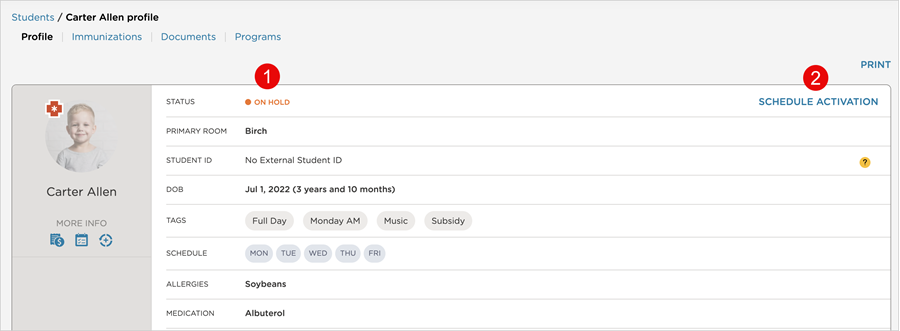
Choose the activation date.
Select the Room.
Select Schedule Activation.
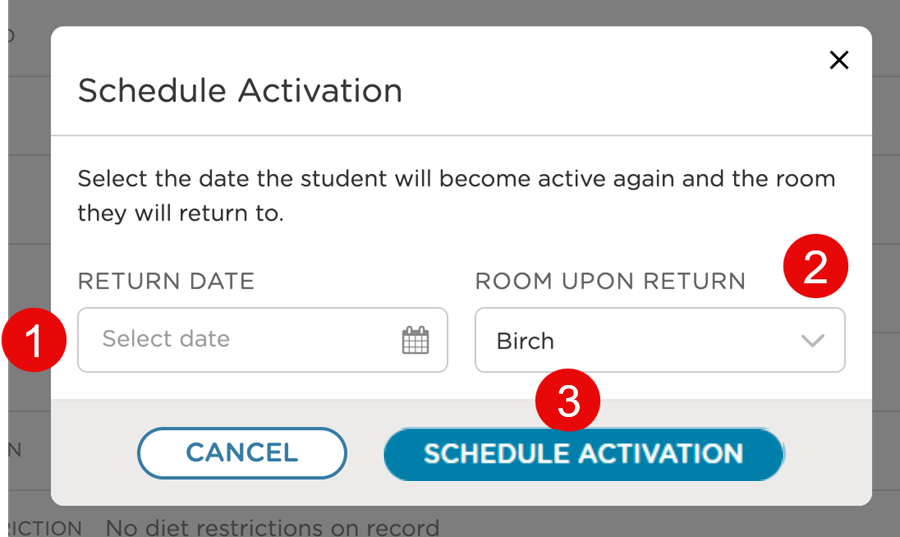
The scheduled activation will now appear next to the Upcoming Transitions field, labeled as On Hold Activation.

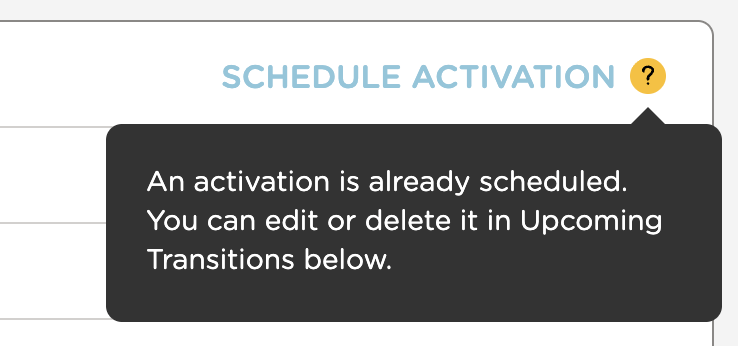
The tooltip provides information regarding the status.

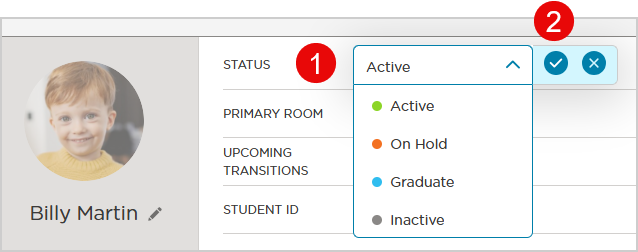
Change the status instantly.
Select the Status.
Select the
 .
.
Primary Room
The room can be changed from the student profile, but it is critical to understand the room designation and capacity. Refer to these articles for more information.
| Learn more about Rooms. Learn more about RoomRunner. |
To learn more about upcoming room transitions:
Note
Parents can only sign in/out of the primary room
Some reports contain the Primary Room filter. Students will appear in reports only when their designated primary room is selected.
Upcoming Transitions
View any transitions or move plans for the individual student.

Learn more about RoomRunner Move Plans.
DOB (Date of Birth)
Entering the date of birth is important for maintaining accurate records (for example, immunization ) and planning and forecasting transitions.
Tags
Tags are customizable labels that make it easier to quickly filter and find specific groups of students, especially in larger programs.
Note
Tags are available in both the web and mobile platforms.
Schedule
Edit or revise the student’s schedule by selecting the day and AM or PM. Click to save.

Note
When adding a new student, the schedule defaults to the full-time schedule
For you to know, schedules impact:
LiveRoom status
Dashboard Sign In-Out analytics
RoomRunner dashboard
Programs
Allergies, Medications
These fields can be populated from a registration form.
To indicate no allergies you can enter any of the following: None, No, NA or N/A.
Note
Allergies and medications are displayed on the Emergency Cards.
Allergies are indicated throughout the software with this icon
.
Food Program
Appear on the Meal Tracking report.
| Learn more about Meal Tracking and Reports |
Address
This field can be populated from a registration form.
Graduation Date
The Graduation Date automatically populates on today's date when the student enrollment status is updated to:
Inactive or
Graduate
This field can also be manually edited.
Additional Profile Fields
Profile fields can be created in School Settings or when creating or editing a registration form.
Parent/Guardians
Manage parent/guardian contact information.
Additional Authorized Pickup
There are two types of pickups you can set up:
Authorized Caregiver Pickups
Carpool Pickups
Physician
Physicians can added or revised here. Create an Emergency Card Report for quick access to student and family information.