Manage parent/guardian contact information
You can give parents access to their child's account by adding them as a "Parent/Guardian." Once added, they will receive an invite code to sign up (click here to learn more).
Important: To save time, once a parent is added for each student, that parent can enter additional parents and pickups. To enable this, on the website go to School Settings | Settings and enable Allow Parent to Edit Family Records.
How to Add Parents
Via the Mobile App
From the Home screen, click on the student's name.
Click Profile from the top right.

Click Add Parent.

4 Enter the parent/guardian information and click Save.
Via the Website
Go to My School | Students.
Click Invite Parent.

Complete the popup to Add Parent and click Save.
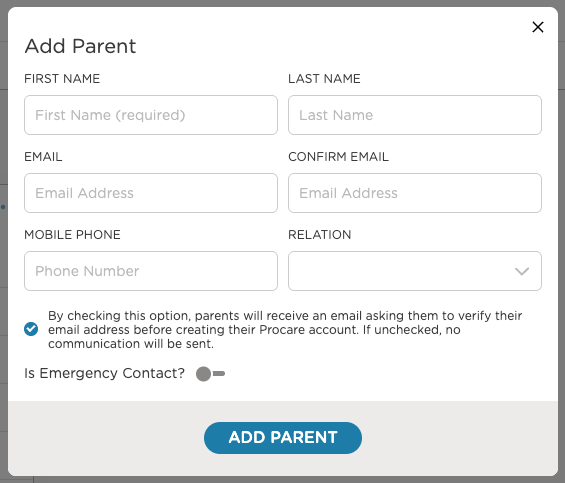
Inviting parents to create a Procare account
By checking the box, parents will receive an email asking them to verify their email address before creating a Procare account.
If a parent rejects the email verification, all staff designated as Admin will receive an email notifying them.
How to Edit Parents
Via the Mobile App
From the Home screen, click on the student's name.
Click Profile on the top right.
Click the parent's name to make changes.
Via the Website
Go to My School | Students.
Click on the Student's Name.
Hover your mouse over the field you wish to edit, then click the pencil icon.

Editing Email Addresses for Parents Who Have Signed Up
If a parent has already created an account and their email address is edited, then they will need to reconfirm their email address before they can continue to receive communications from the center.
Delete Parents
Via the Mobile App
From the Home screen, click on the student's name.
Click Profile on the top right.
Click the parent's name, then scroll down and click Delete.

Via the Website
Go to My School | Students.
Click on the Student's Name.
Scroll down to find the parent.
Click the More Actions icon, then select Delete Parent.
