Name Update
Profile Field mapping was previously referred to as Custom Fields.
Schools can create profile fields for their staff, students, parents/guardians and leads by using the Profile Fields function. For example, if you want to have a particular certification date on file for your staff members, you can customize a field that will display on all your staff profiles and allow for the school to enter a date to have on record.
Note: When profile fields are created for both lead students and lead parents/guardians, the data can be automatically synced to the student's profile once a lead status is changed to Enrolled. Profile field mapping occurs once during enrollment, eliminating manual data entry and streamlining the registration process to save time for users.
Staff members with the appropriate permissions can create and manage profile fields under school settings. See: Staff Roles and Permissions for more information.
Create Profile Fields
Profile fields can be created in School Settings or when creating or editing a registration form.
Go to School Settings > Settings > Profile Fields.
Click Create Profile Field.
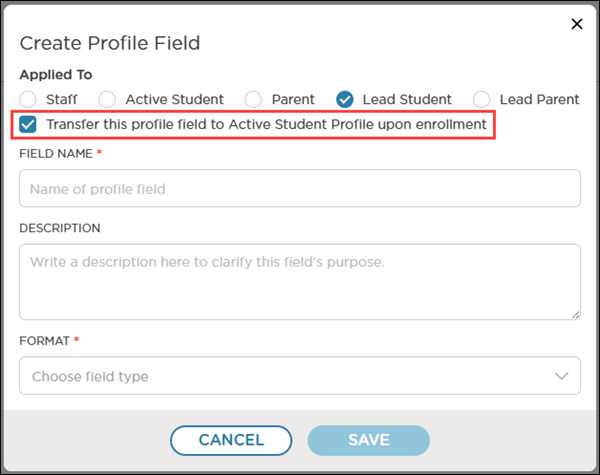
Complete the fields.
Field
Description
Applied To
Select the group to add the profile field to
Transfer this profile field to Active Student profile upon enrollment
This field only displays when the profile field is applied to Lead Student. Select this option to allow the lead profile field to automatically transfer to the student profile (in My School > Students) when a lead's status is changed to Enrolled.
Transfer this profile field to Parent profile upon enrollment
This field only displays when the profile field is applied to Lead Parent. Select this option to allow the lead profile field to automatically transfer to the parent/guardian profile (in My School > Students) when a lead's status is changed to Enrolled.
Field Name
Enter a name for the field
Description
Enter a description for the field
Format
Select the type of field to add:
Text
Date Picker
Number
Checkbox
Drop-down Menu
Click Save.
Transfer Lead Profile Fields
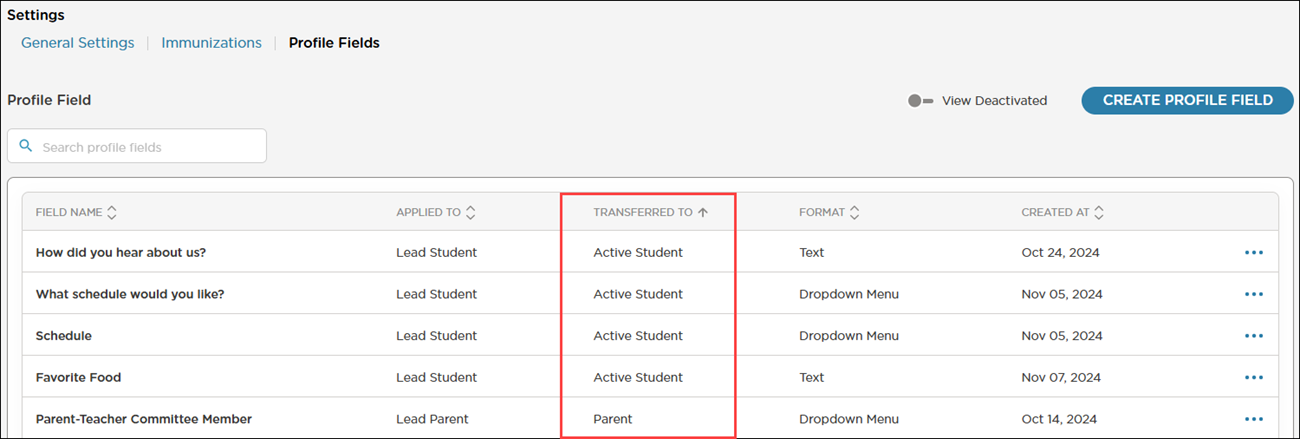
The Transferred To column indicates if a profile field will be automatically transferred to the student or parent profile upon enrollment. If the field is blank, it will not be transferred. You can also edit or delete profile fields as needed.
Note
This is a one-time transfer. Any changes made to the lead profile after enrollment will not automatically update the student profile.
Important Information
Lead profile information is found by navigating to Enrollment > Leads > select a student.
Student profile information is found by navigating to My School > Students > select a student.
Fill Out The Profile Fields
After the profile field has been created in School Settings, the field will display in the Additional Info section or at the bottom of the profile when looking at the profiles associated with that attribute. In the example below, you will be able to see a profile field that has been added to a staff profile. The name of the field is displayed, allowing you to select the pencil icon to edit the field. In the below example the format is a date picker. The yellow question mark provides the description of the field, input upon field creation.
Reports
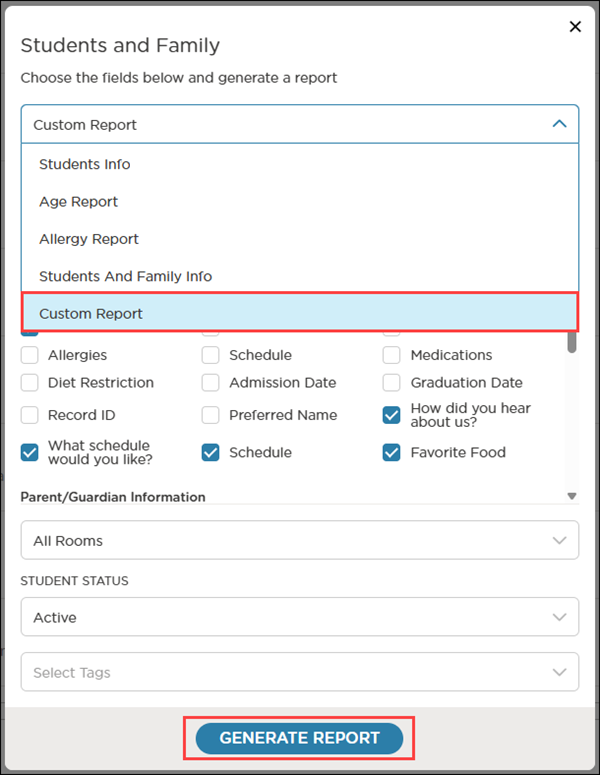
To generate a report that includes your custom profile fields, follow these steps:
Go to Reports > Reports Library > Management Reports.
Select the Students and Family report.
From the dropdown menu, select Custom Report.
Select your custom profile fields to include them on the report. Some fields are selected by default.
Select the rooms, student status and tags to include on the report.
Click Generate Report to view your customized data.