Using PINs for parent Sign In-Out and staff Check In-Out
For Parents
PINs are randomly generated by our system and assigned to a parent upon creation of the account. However, you can generate a new PIN for parents by following the steps below.
In order to ensure that each parent has a unique identifying pin that will only pull up their own child during the Sign In-Out process, we cannot allow parents to choose their own pins at this time. If they would rather not use a pin, we offer the PIN-less mode in the Parent Kiosk of the Procare app. Read more about it here.
- Navigate to My School > Students and select a student.
- Locate the Parent/Guardians section.
- Hover over the Sign In PIN field and click the pencil icon.
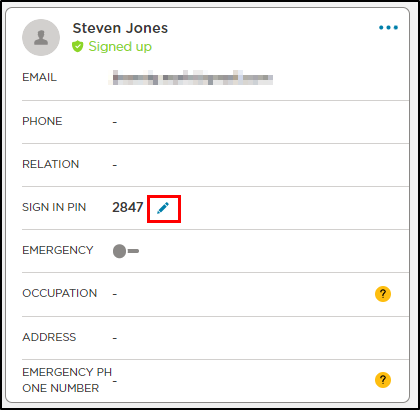
- On the confirmation, click Generate.
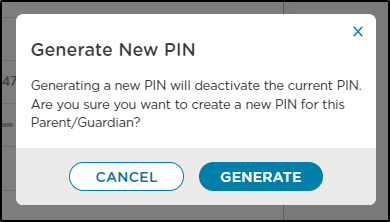
- When a new PIN has been assigned, a success message will display at the bottom of the screen.

For Staff
Staff PINs are also randomly generated by the system. However, you can assign a different PIN as long they are between 0001 and 0999 and is not the same as another staff member's.
- Navigate to Staff Management > Staff and select the staff member.
- Locate the Clock In-Out PIN field and click the pencil icon to edit.

- Once updated, click the blue check-mark.
