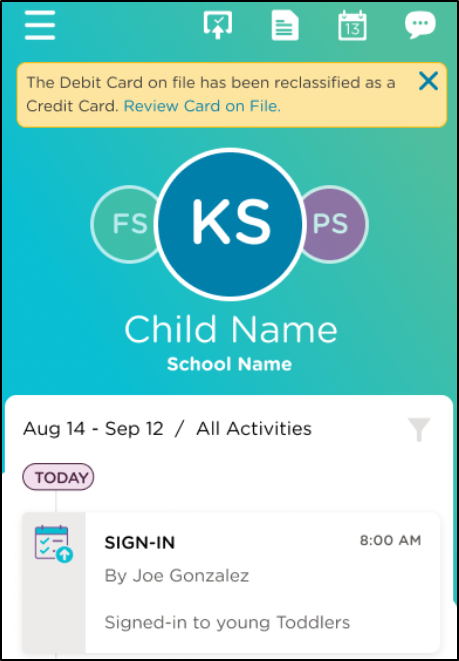
You can conveniently make payments towards your child's account from the Procare Child Care Mobile app or the Procare website!
The Procare Child Care Mobile app or Procare website allows you to pay your balance in full or enter a different amount.
Note
Each parent/guardian must set up online payment methods separately. If there are two parents/guardians on an account, they are unable to view or use each other's payment method.
Make a Payment via the Procare Child Care Mobile app
Log in to the Procare Child Care Mobile app and follow the steps below to make a payment:
Click Pay Now or click the menu icon in the top left corner, then select Make Payment.
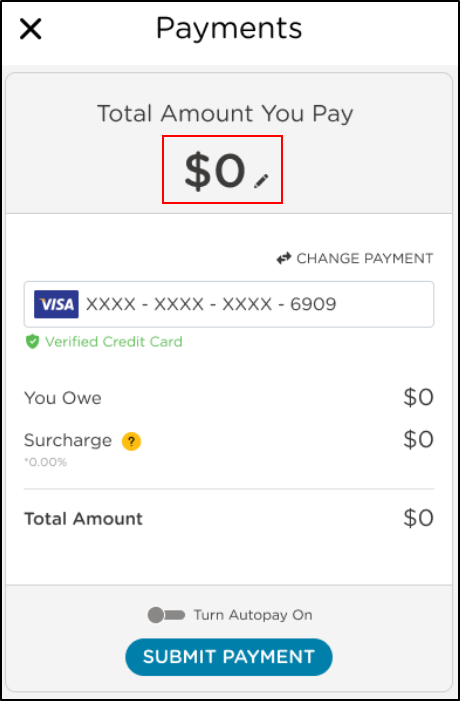
Your current balance will display as the payment amount.
Note
To make a partial payment, click Edit
 and enter the new payment amount.
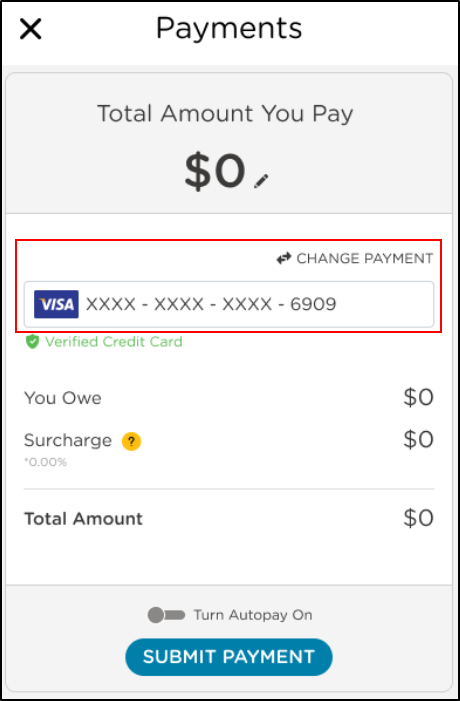
Confirm your payment method or add a new method, if enabled by your school.
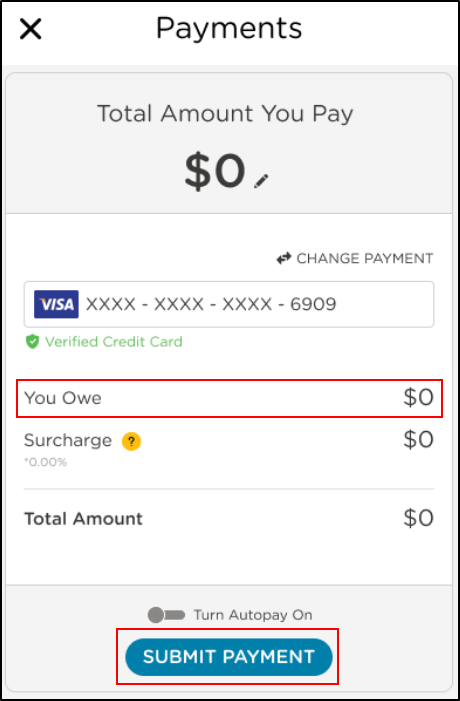
Verify the "You Owe" amount is the amount you want to pay, then click Submit Payment
Note
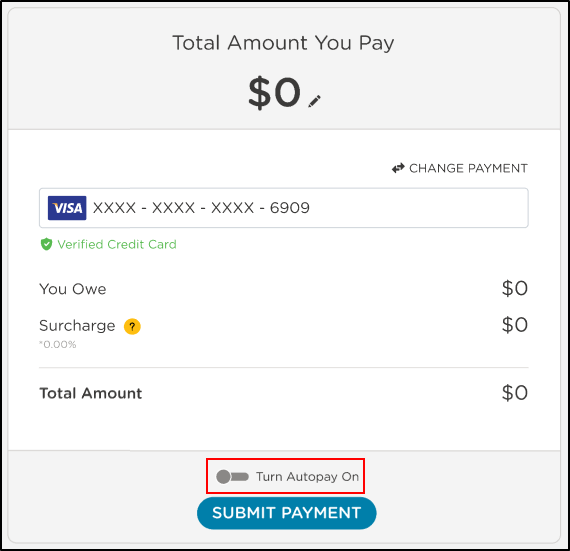
If enabled by your school, you can select Turn Autopay On to enable autopayments beginning from the next invoice.
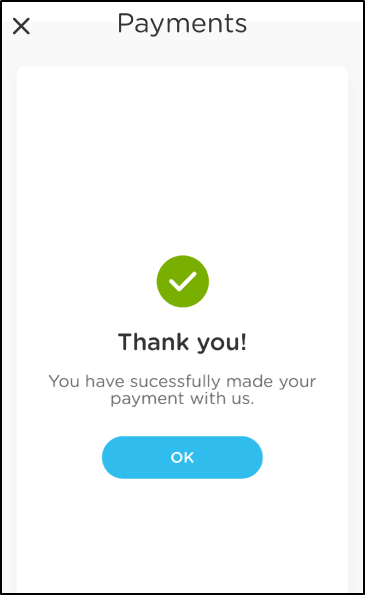
Once the confirmation screen displays, your payment has been successfully submitted. Click OK.
Make a Payment via the Procare website
Log in to the Procare website provided by your school and click Pay Now or Payments from the left navigation menu.
Click Make Payment.
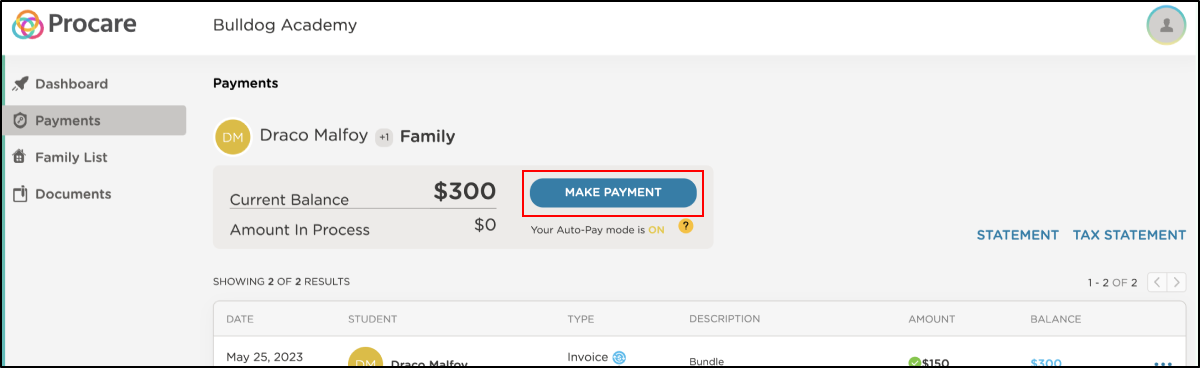
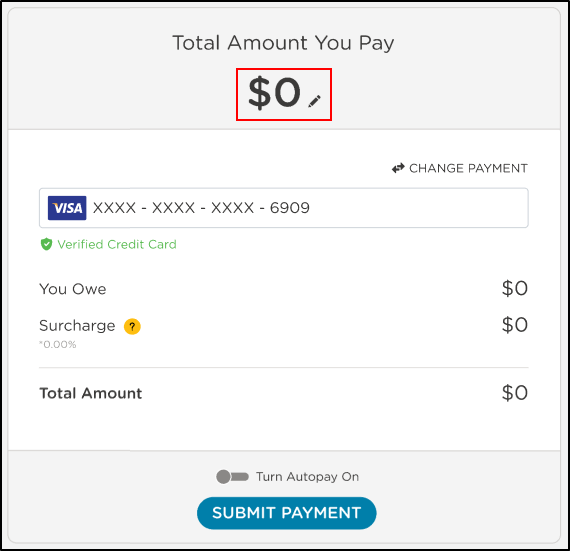
Your current balance will display as the payment amount.
Note
To make a partial payment, click Edit
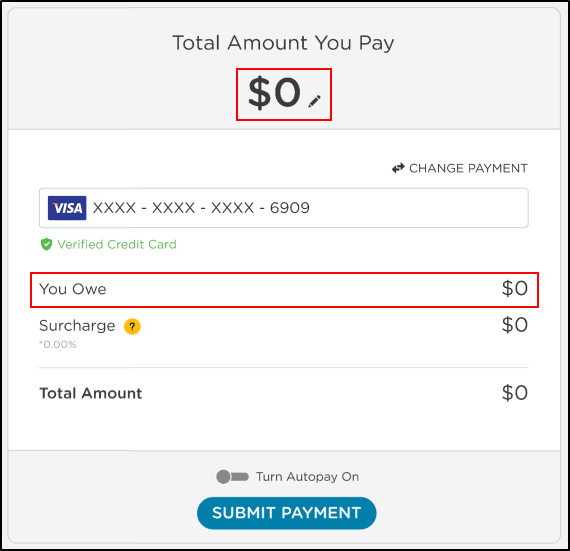
and enter the new payment amount.Verify the "You Owe" amount is the amount you want to pay, then click Submit Payment.
Note
If enabled by your school, you can select Turn Autopay On to enable autopayments beginning from the next invoice.
Once the confirmation screen displays, your payment has been successfully submitted.
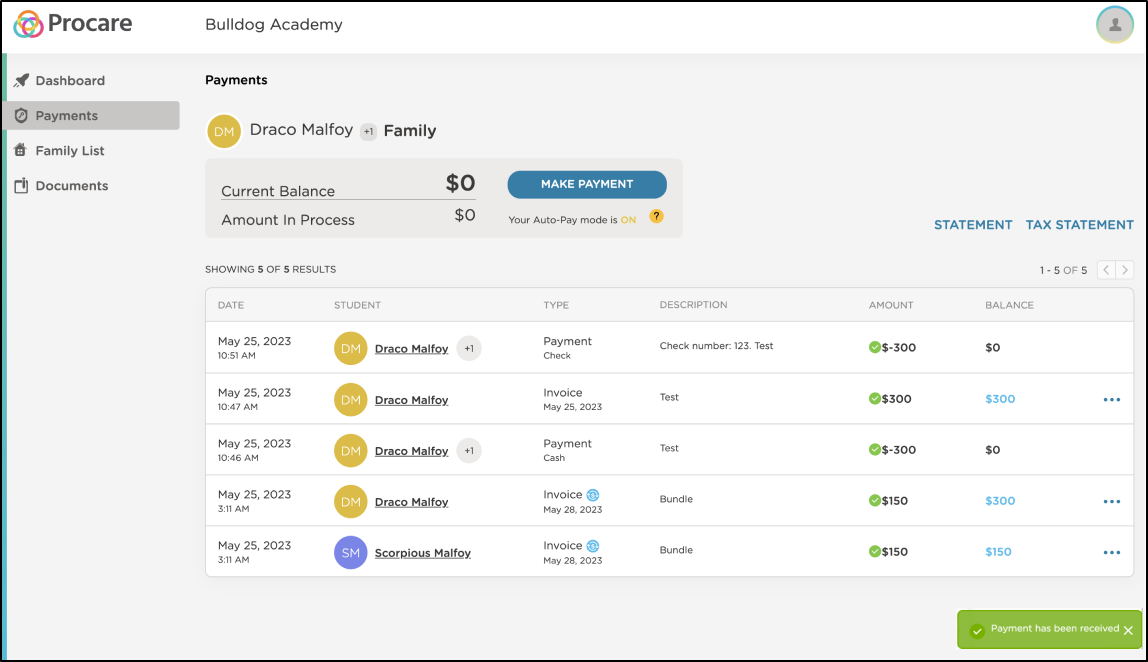
Autopay
If your school has enabled autopay, you have the option to set it up while making your payment. Learn more
If a Payment Fails
If a payment fails, an error message will display with the reason and an action to resolve the issue.
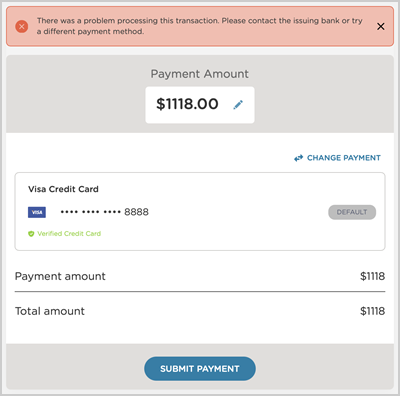
Error message on credit card payment window
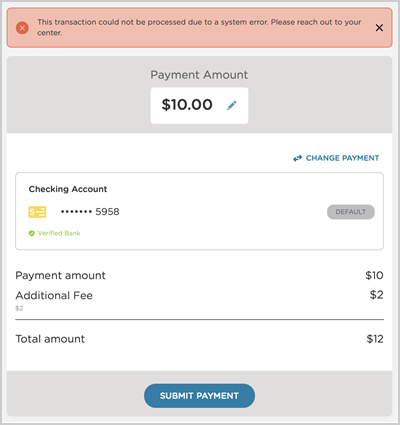
Error message on checking account payment window

Learn more about Common Error Messages and What They Mean
Card Reclassification Notifications
Upon adding payment methods, Procare verifies that all cards entered are correctly classified as debit or credit cards. If a card was entered incorrectly, you may receive one of the following notifications:
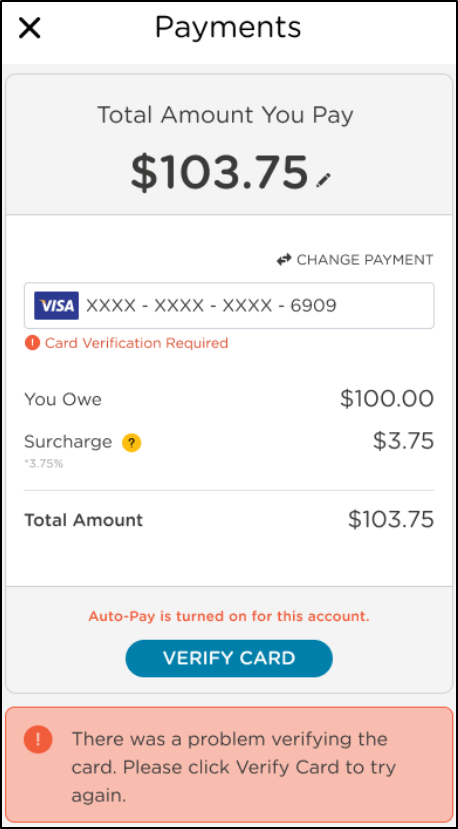
If a card does not verify, the following error message will display. If you receive this message, remove and re-add the card information. If the error message continues to display, wait 15 minutes before reattempting. If the reattempt fails, remove and reenter the payment method.
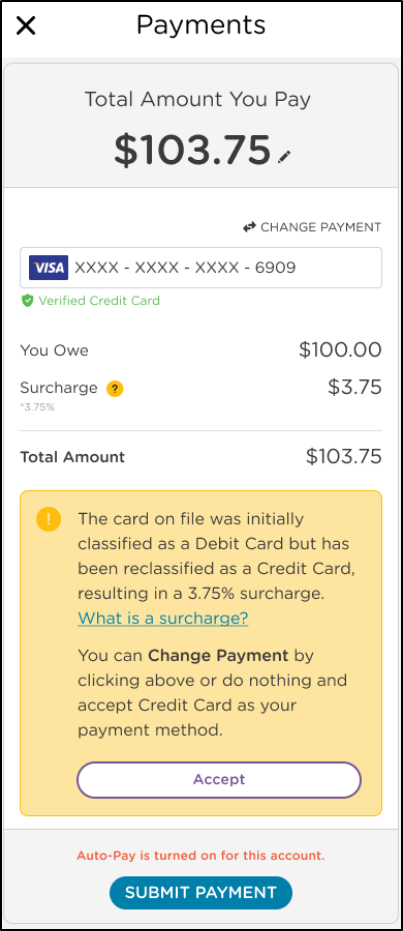
If a card was initially added as a debit card but found to be a credit card, you may receive the following message. Click Accept to reclassify your card as a credit card. If you do not accept the change, navigate to the Payments screen to change your payment method.
If an autopay card was added as a debit card but found to be a credit card, you will receive the following banner at the top of your mobile app. Click Review Card on File to update the card type.