Overview
Keeping data safe and secure is a top priority. In today’s environment, where credential theft is an ongoing risk, strong passwords are essential, but they’re even more effective with an added layer of protection.
2-Step Verification, sometimes referred to as Multifactor Authentication or MFA, adds that extra layer by requiring a verification code during sign-in. Even if someone knows your password, they won’t be able to access your account without the code sent to your selected method.
Using 2-Step Verification
2-Step Verification is only available for Procare Online; it is not available for Desktop + Engagement Functionality.
2-Step Verification is optional for families, but once you add a verification method, it cannot be turned off. You will always need at least one verification method on your account once you enable the feature.
Verification Methods
When setting up 2-Step Verification, select the verification method that works best for you: an authenticator app, text message or email. Choose one method to get started. For greater security, you can set up all three and choose your preferred method at login.
Method | Description |
|---|---|
Authenticator App | Use an authentication app to generate a time-based verification code. |
Verify using a secure code sent to your email address. | |
Text Message | Receive a verification code directly to your mobile number. |
Set Up 2-Step Verification
Website
Click the profile icon (
 or your photo).
Select your name.
Go to the 2-Step Verification section.
Click Add Verification Method.
Select a tab below for setup instructions.
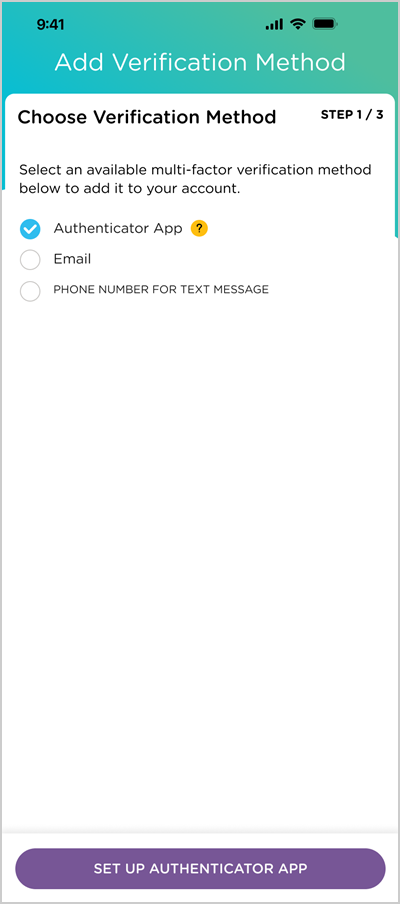
Select Authenticator App.
Click Set Up Authenticator App.
Download or use an existing authenticator app installed on your device.
Scan the QR code using your authenticator app or enter the code to link your Procare Online account.
Click Verify Authenticator App.
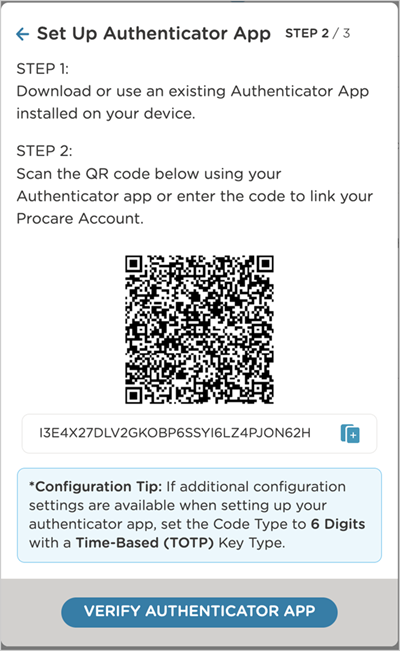
Enter the verification code from the authenticator app.
Select Email.
Click Set Up Email.
The Email Address field is prepopulated with the email address used in your account.
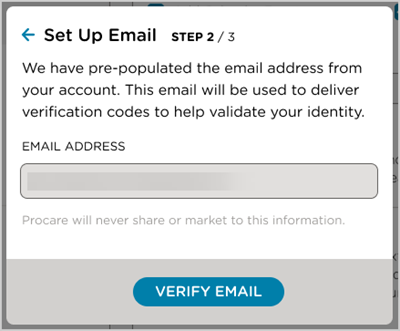
Click Verify Email.
You will receive an email with the subject ‘User OTP from Online-Auth’ no-reply@online.procaresoftware.com.
Check your spam folder if you don’t see it in your inbox.
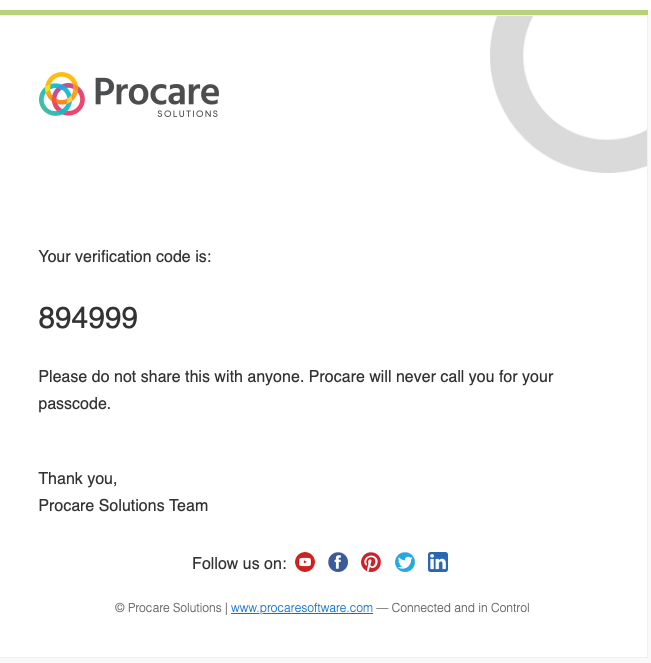
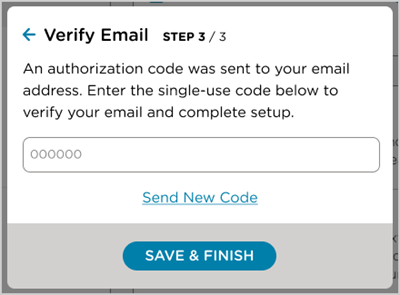
Enter the verification code from your email.
Select Phone Number for Text Message.
Click Set Up Text Message.
Enter your cell phone number.
Click Verify Text Message.
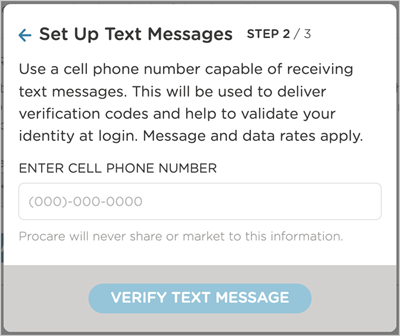
Enter the verification code sent to your cell phone number.
Click Save & Finish.
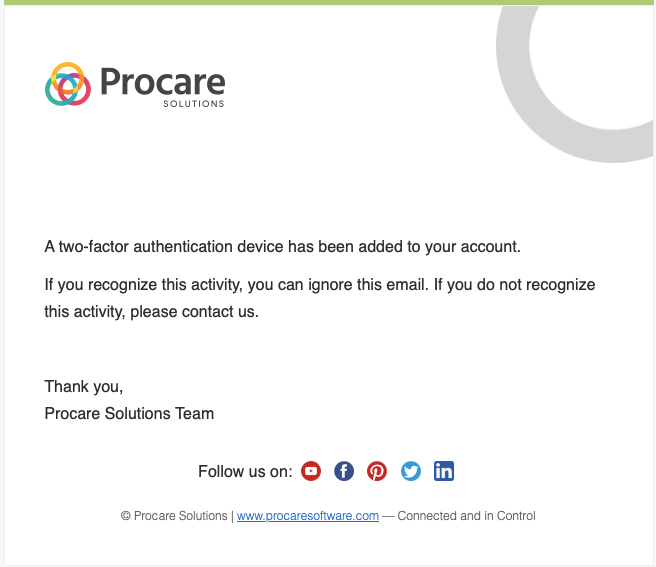
After the verification method is set up, you will receive a confirmation email from no-reply@online.procaresoftware.com with the subject ‘A two-factor authentication device has been added’.
Child Care Mobile App
|
|
|
|
|---|---|---|---|
|
|
|
|
 Edit Profile.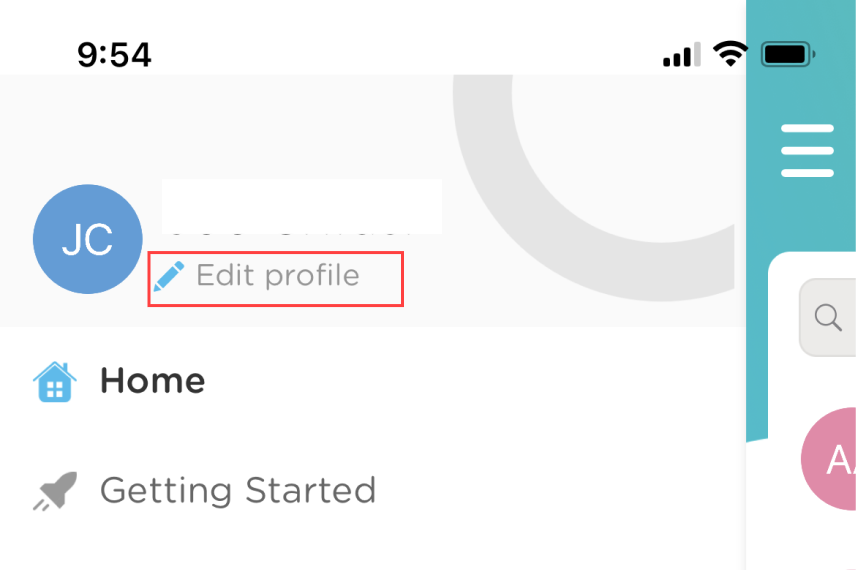
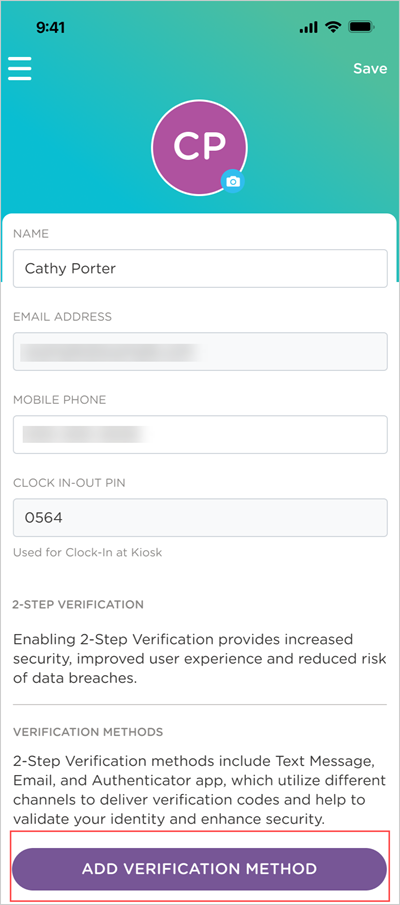
Add Additional Verification Methods
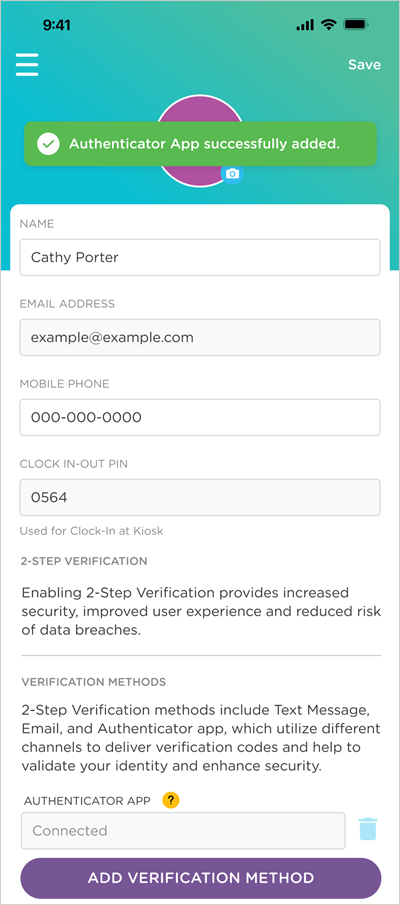
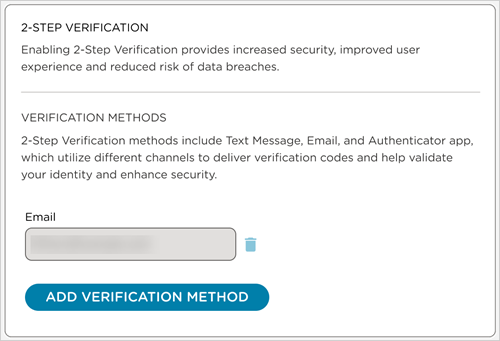
To increase your account security, add any additional verification methods as needed.
Log In
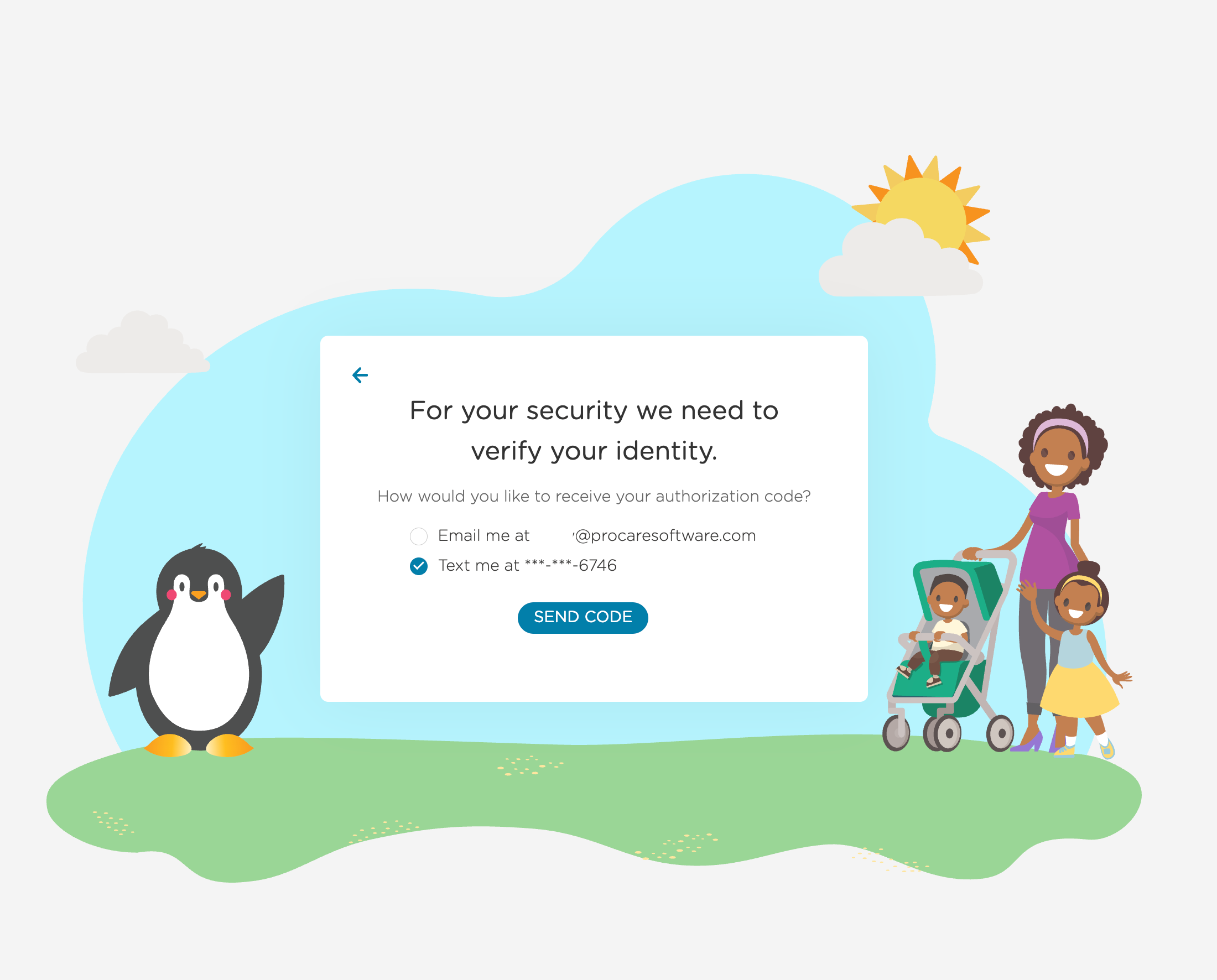
After you have added the Verification Method, you are prompted to enter a unique verification code.
If you have only one method, the code will be sent directly to it.
If you have multiple methods, select the one you want to receive the code on.
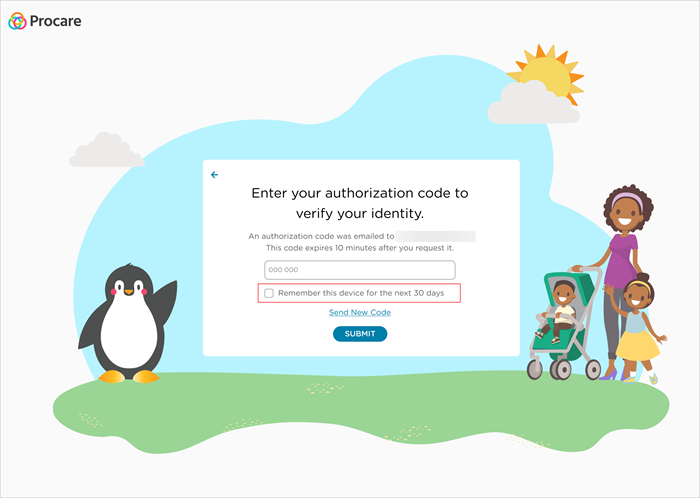
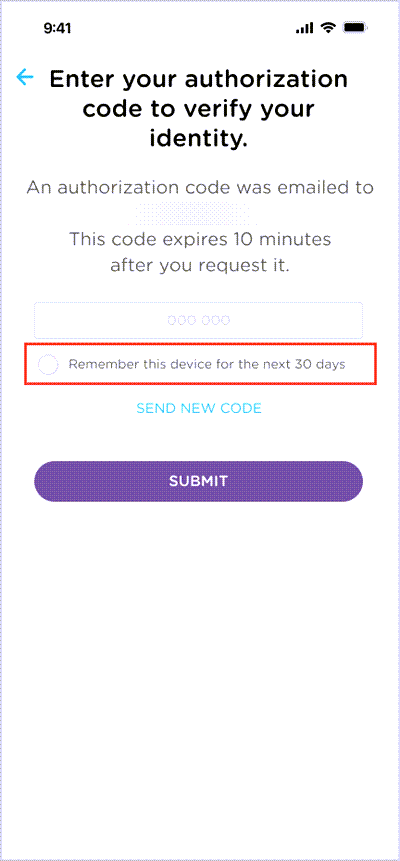
Remember Your Device for 30 Days
When you enter the code, you can select Remember this device for the next 30 days. If you select this option, your device will be saved and you will not be asked to enter a code again for 30 days. After 30 days, you will be prompted to complete 2-Step Verification to keep your account secure.
Delete a Verification Method
Occasionally, email and phone numbers may change. To update a verification method, you must first remove it.
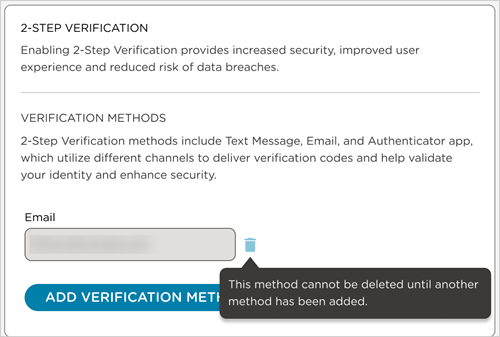
At least one verification method is always required.
If you only have one verification method, it cannot be deleted. You must add an additional verification method before the option to delete is enabled.
Go to the website or Child care mobile app.
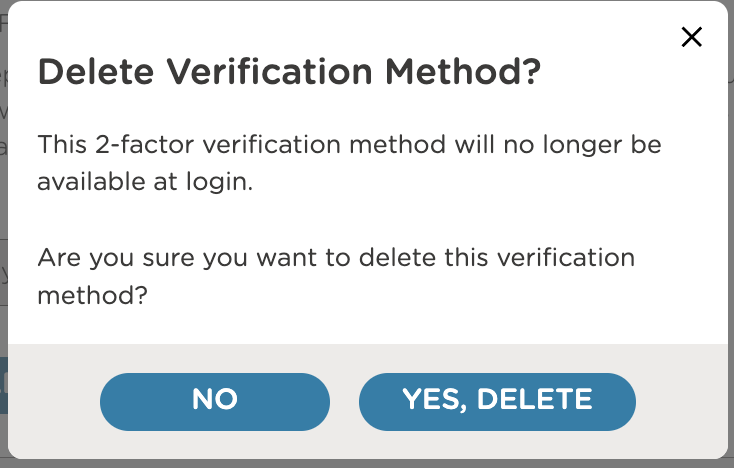
For multiple options, click or tap Delete
 next to the method to delete.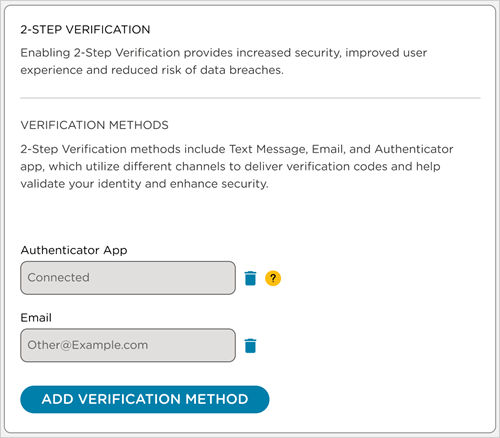
Confirm the action.
Reset 2-Step Verification
To reset 2-Step Verification for a parent/guardian, contact Procare Support with the user’s email.

FAQ
What is 2-Step Verification?
2-Step Verification (also called Multifactor Authentication or MFA) adds an extra layer of security when signing in. In addition to your password, you’ll input a verification code delivered to your chosen authentication method.
What verification methods are available?
You can use an authenticator app, text message, or email. At least one method is required, but you can add more for extra security.
Can I make 2-Step Verification mandatory?
2-Step Verification is mandatory for staff who use Procare Online and is optional for parents/guardians.
I’m both a staff member and a parent/guardian using Procare. When I set up 2-Step Verification on my staff profile, will I also need to verify when logging in as a parent/guardian?
Yes. Because 2-Step Verification is required for staff, you will also need to use one of your selected verification methods when logging in as a parent/guardian.
Do I need to set up all three methods?
No. You only need one verification method to enable 2-Step Verification. Adding more is optional.
How long is a verification code valid for?
The code expires 10 minutes after you request it. Requesting a new code within the 10 minutes will not invalidate a previously requested code.
I haven’t received a code. Can I resend one?
Yes. Select send new code.
How do I reset a verification method?
Administrators can reset 2-Step Verification from the staff or parent/guardian profile under 2-Step Verification > Reset.
I didn’t get my verification code. What should I do?
First, check your spam or junk folder (for email) or confirm that your phone has service (for text messages). If you’re using an authenticator app, make sure your device’s date and time settings are correct. If the issue continues, contact a center admin to reset your verification method.
My authenticator app isn’t working. How can I fix it?
Try refreshing or resyncing the app, or reenter the setup code if prompted. If that doesn’t work, your administrator can reset your 2-Step Verification so you can set it up again.