2-Step Verification can be reset on the web app. Administrators can reset credentials for staff or parents/guardians who are locked out, allowing users to quickly regain access to their Procare account.
Key Points
The Reset option for 2-Step Verification only displays if the user has previously set up a verification method.
To reset, you will need full or edit access to the student’s or staff member’s profile.
A user must re-add verification methods if their 2-Step Verification has been reset.
Web App
Go to Staff Management > Staff and select the staff member.
Under 2-Step Verification, select Reset. The reset button only displays if the staff member has added a 2-Step Verification method.

Confirm by selecting Yes, Reset.
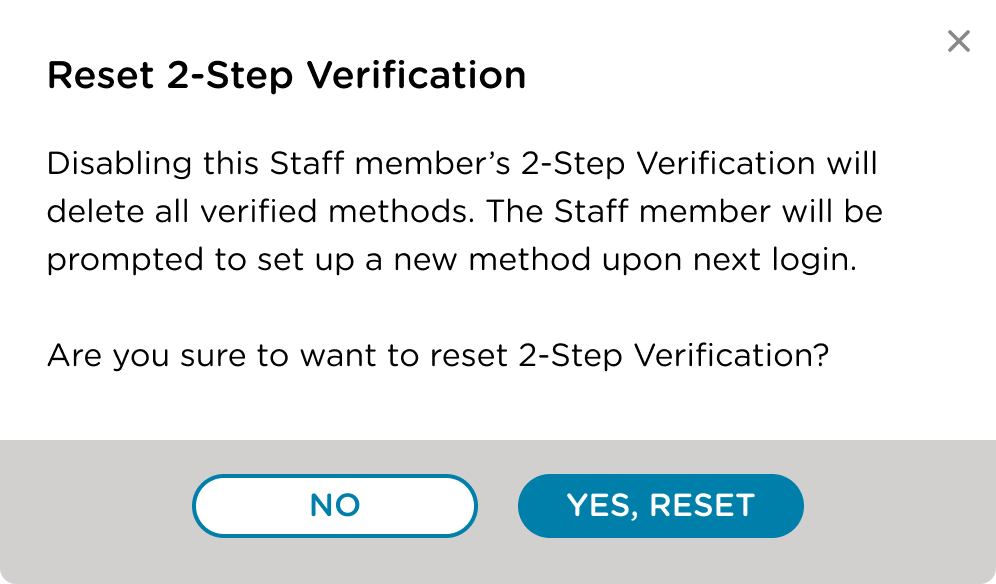
Staff now need to reenter their Verification Method. Click here for instructions.
Go to My School > Students and open the student’s profile.
In the Parent/Guardians profile card, locate the 2-Step Verification section.
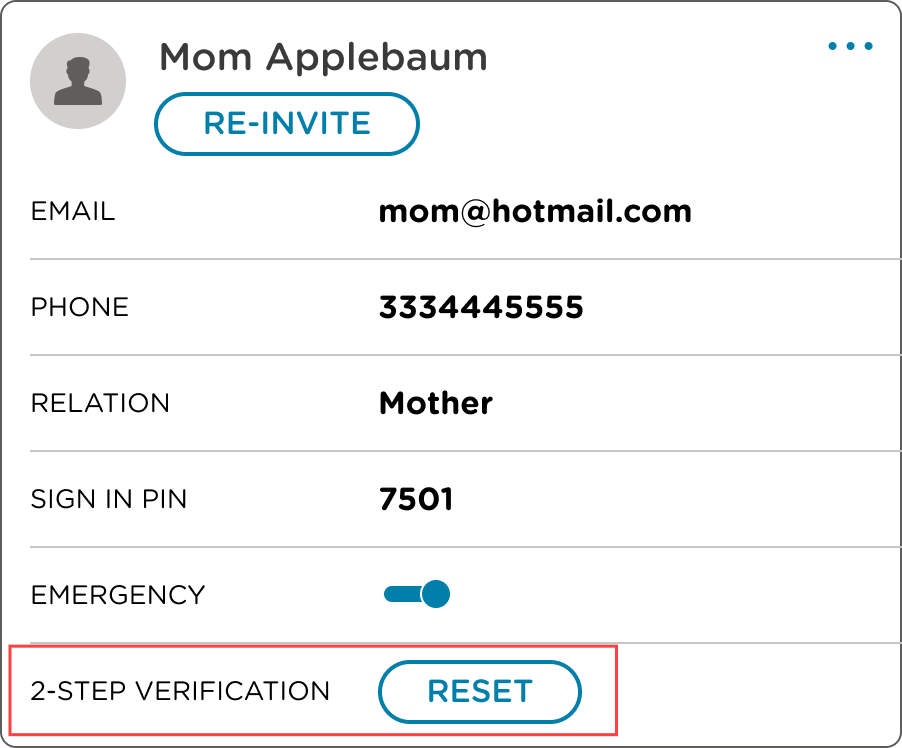
Click Reset to reset the parent/guardian’s 2-Step Verification.
The parent/guardian now needs to reenter their Verification Method. Click here for instructions.
Resetting Password When 2-Step Verification is Enabled
When 2-Step Verification is enabled, you will be prompted to select a verification method when resetting your password in the web or mobile app.
2-Step Verification is Not Set Up
If no method is set up, the reset button will not display.
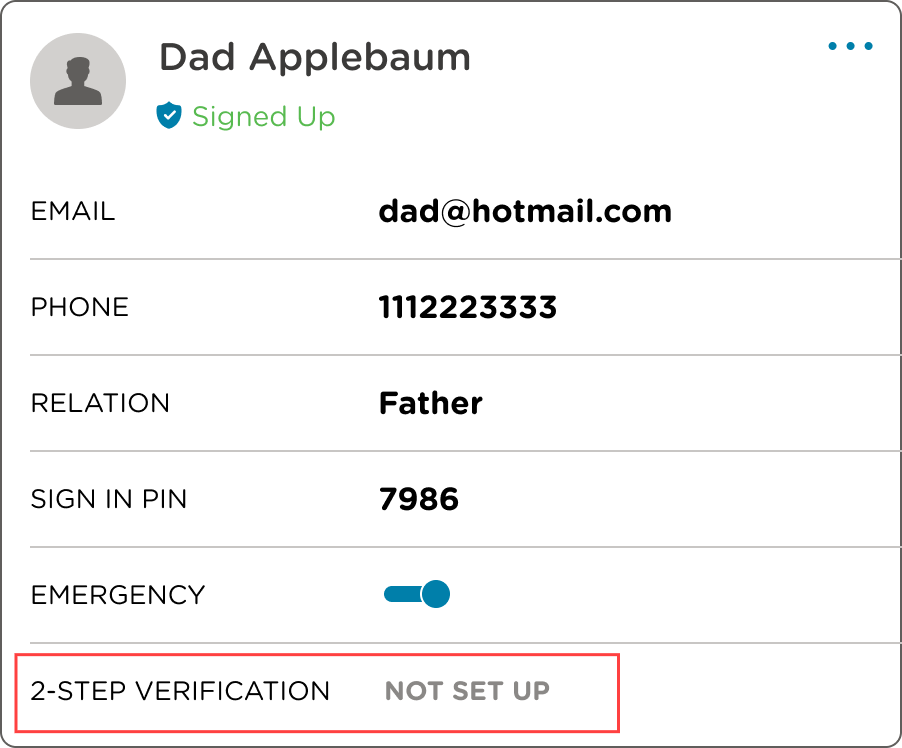
To learn more about setting up 2-Step Verification for Staff, click here.
To learn more about setting up 2-Step Verification for Families, click here.
Reset Notification Emails
After 2-Step Verification is reset and the Verification Method is added, an email is sent confirming the reset is complete.