Overview
Keeping data safe and secure is a top priority. In today’s environment, where credential theft is an ongoing risk, strong passwords are essential, but they’re even more effective with an added layer of protection.
2-Step Verification, sometimes referred to as Multifactor Authentication or MFA, adds that extra layer by requiring a verification code during sign-in. Even if someone knows your password, they won’t be able to access your account without the code sent to your selected method.
Using 2-Step Verification
2-Step Verification is only available for Procare Online; it is not available for Desktop + Engagement Functionality.
2-Step Verification is optional for families and required for staff.
Set Up 2-Step Verification
Web App
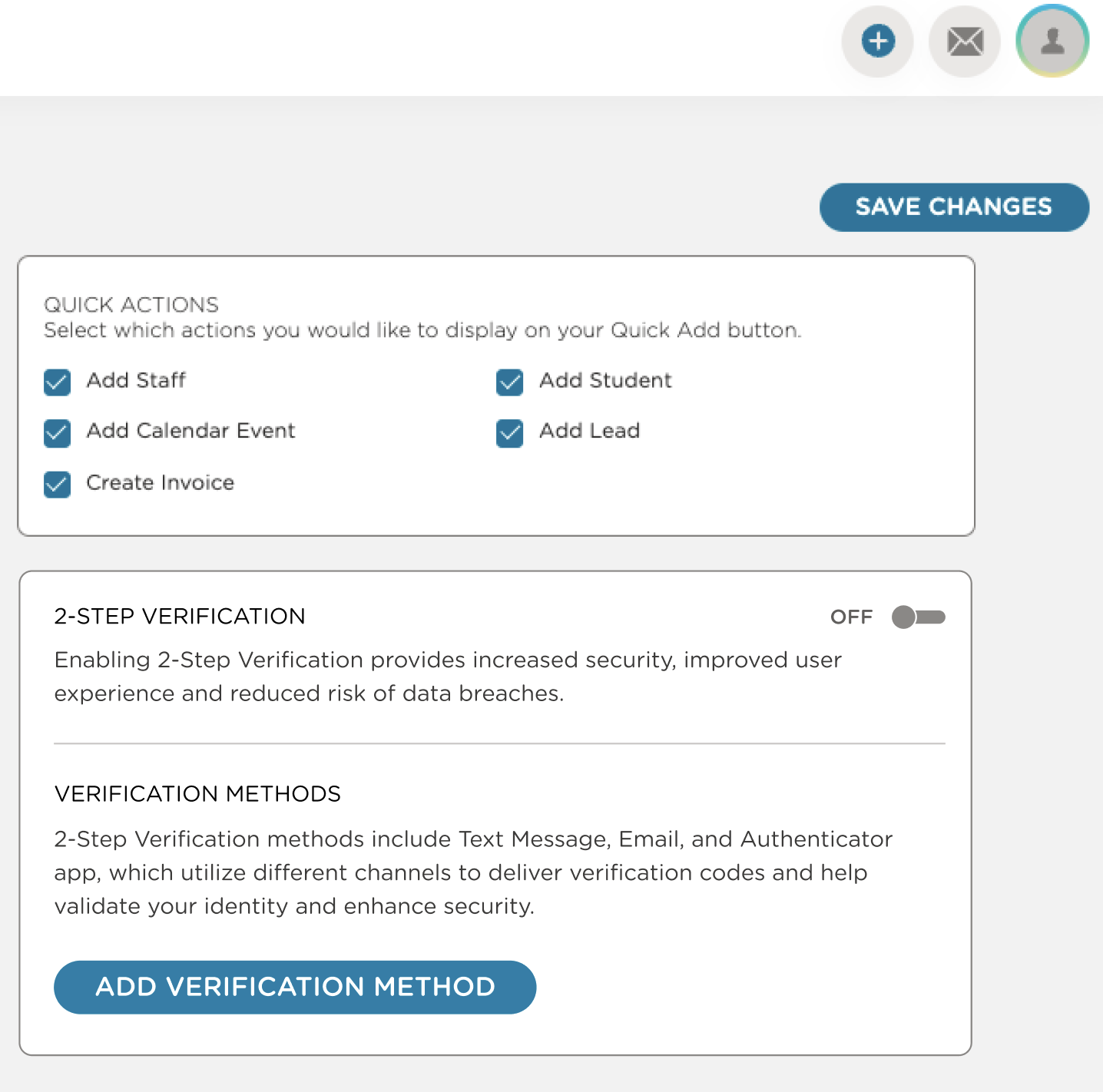
Click the profile icon.
Click your name.
Review the 2-Step Verification window.
You must add at least one Verification Method before enabling the 2-Step Verification feature.
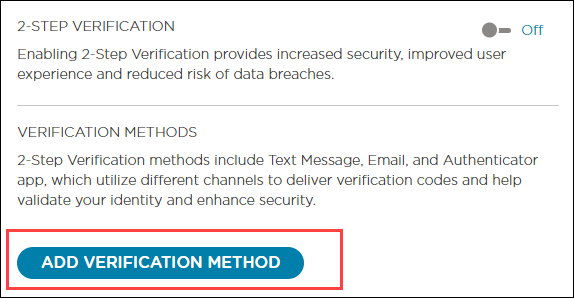
Verification Methods
Once enabled, 2-Step Verification prompts you to verify your identity using an authenticator app, text message, or email. Choose one method to get started, or use all three for added security. If you add all three verification methods, you select which option you want to receive your login code.
Method | Description |
|---|---|
Authenticator App |
|
| |
Text Message |
|
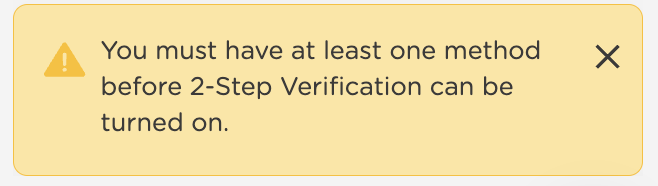
Remember, Verification Method First, then Enable
If you toggle the 2-Step Verification on before adding the verification method, this error message displays.
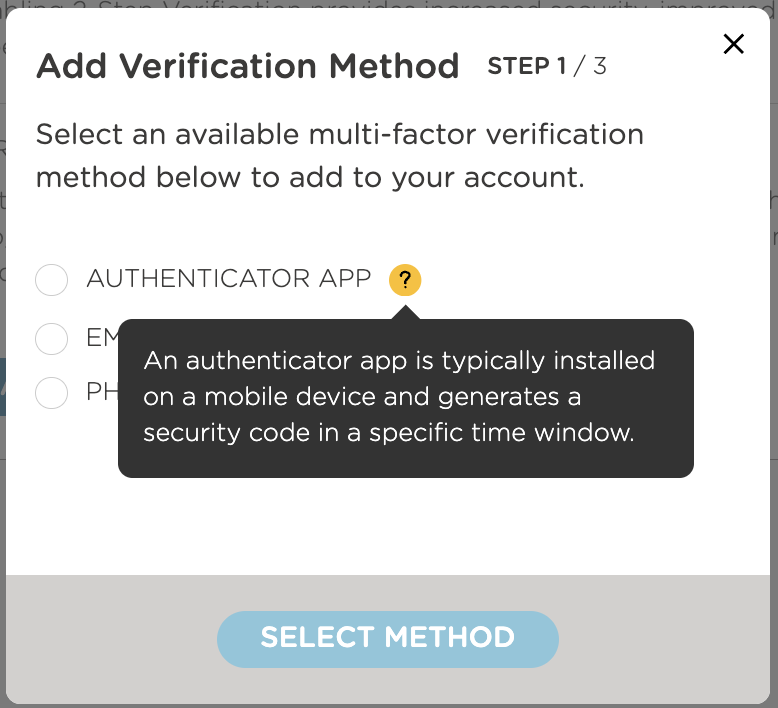
Add Verification Method
Click the tab for instructions for each method. You can choose to add all three.
Select Authenticator App.
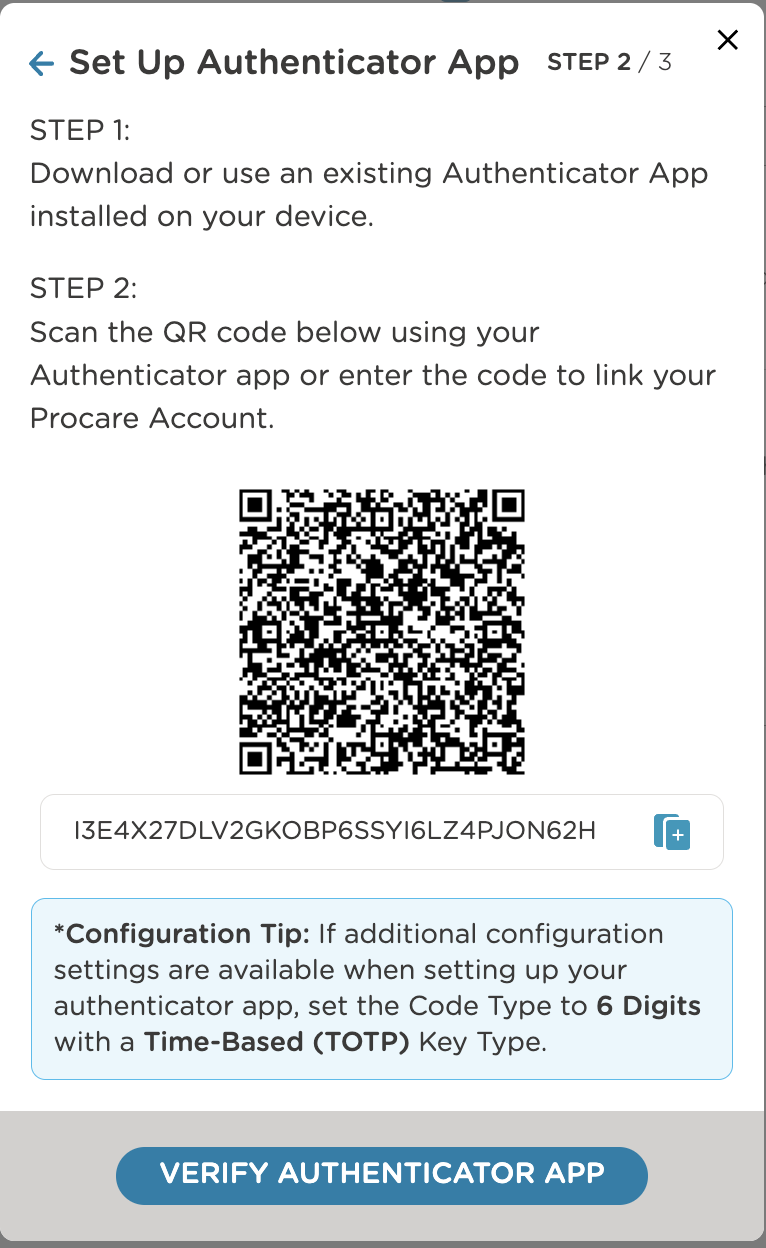
Follow the instructions to set up the authenticator app.
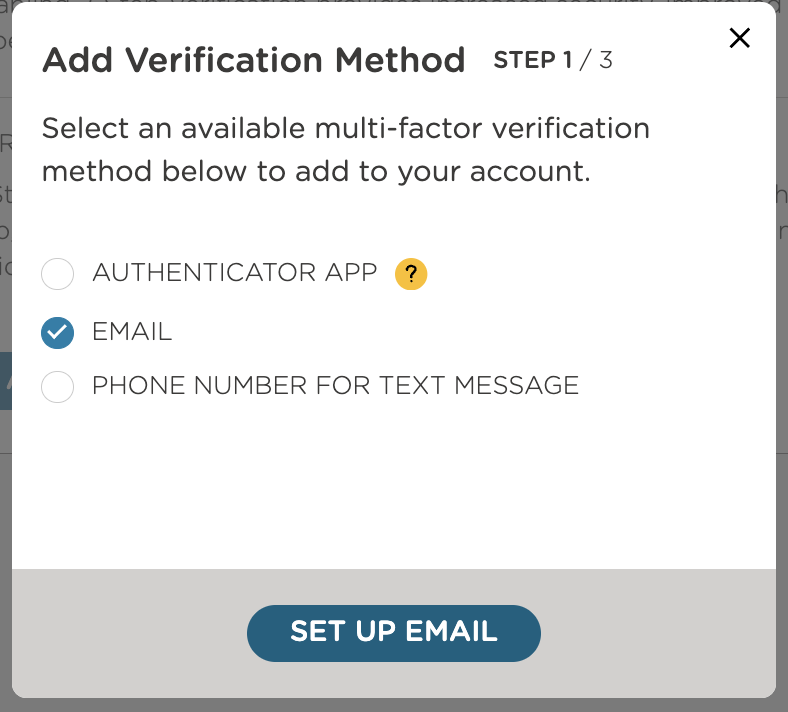
Select Email.
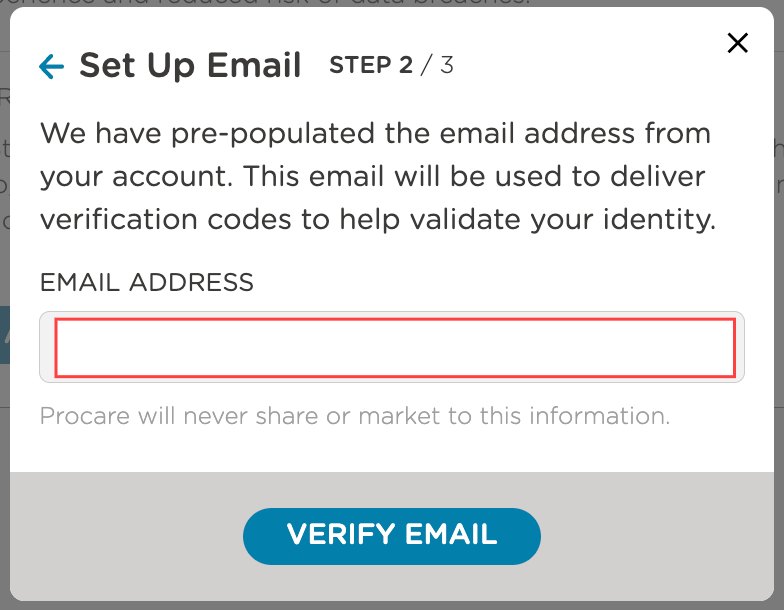
The email address used in your login credentials is already prepopulated.
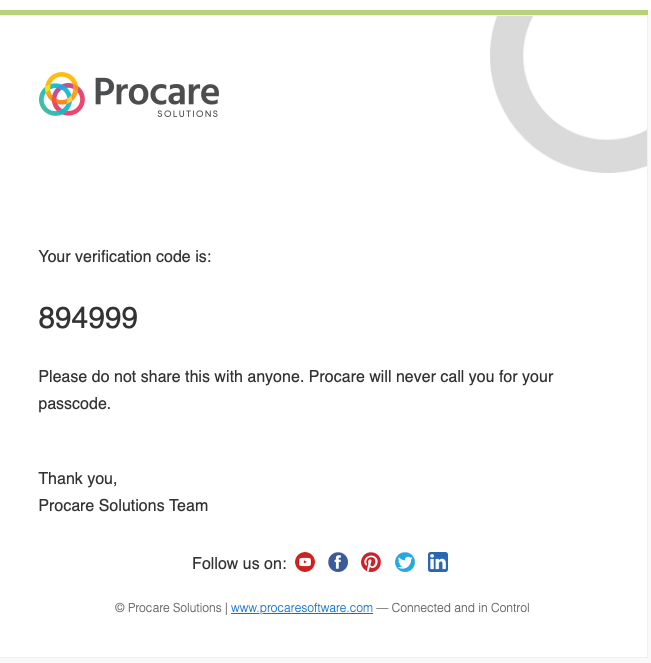
You will receive an email with the subject ‘User OTP from Online-Auth’ no-reply@online.procaresoftware.com.
Check your spam folder if you don’t see it in your inbox.
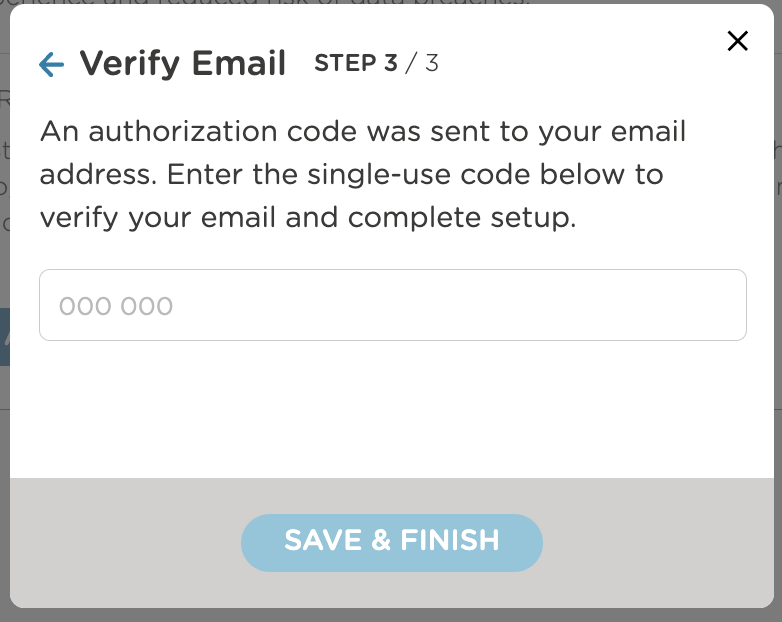
Input the verification code.
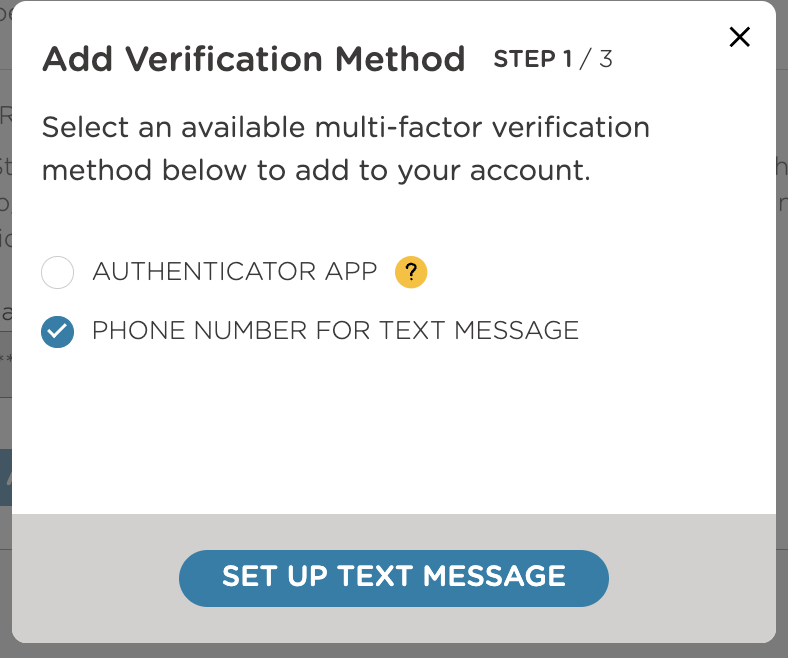
Select Phone Number for Text Message.
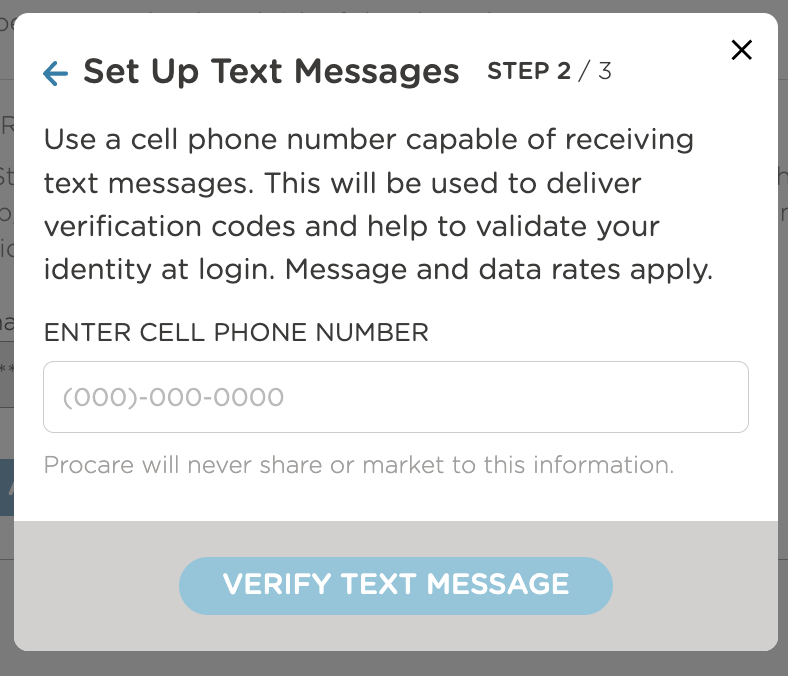
Input your number and verify.
Enable 2-Step Verification
Toggle on 2-Step Verification.
This requires at least one verification method to be added first.
You can disable it by toggling it off. The verification method has been saved, but remember that 2-Step Verification is the safer, more secure login option.

Logging In
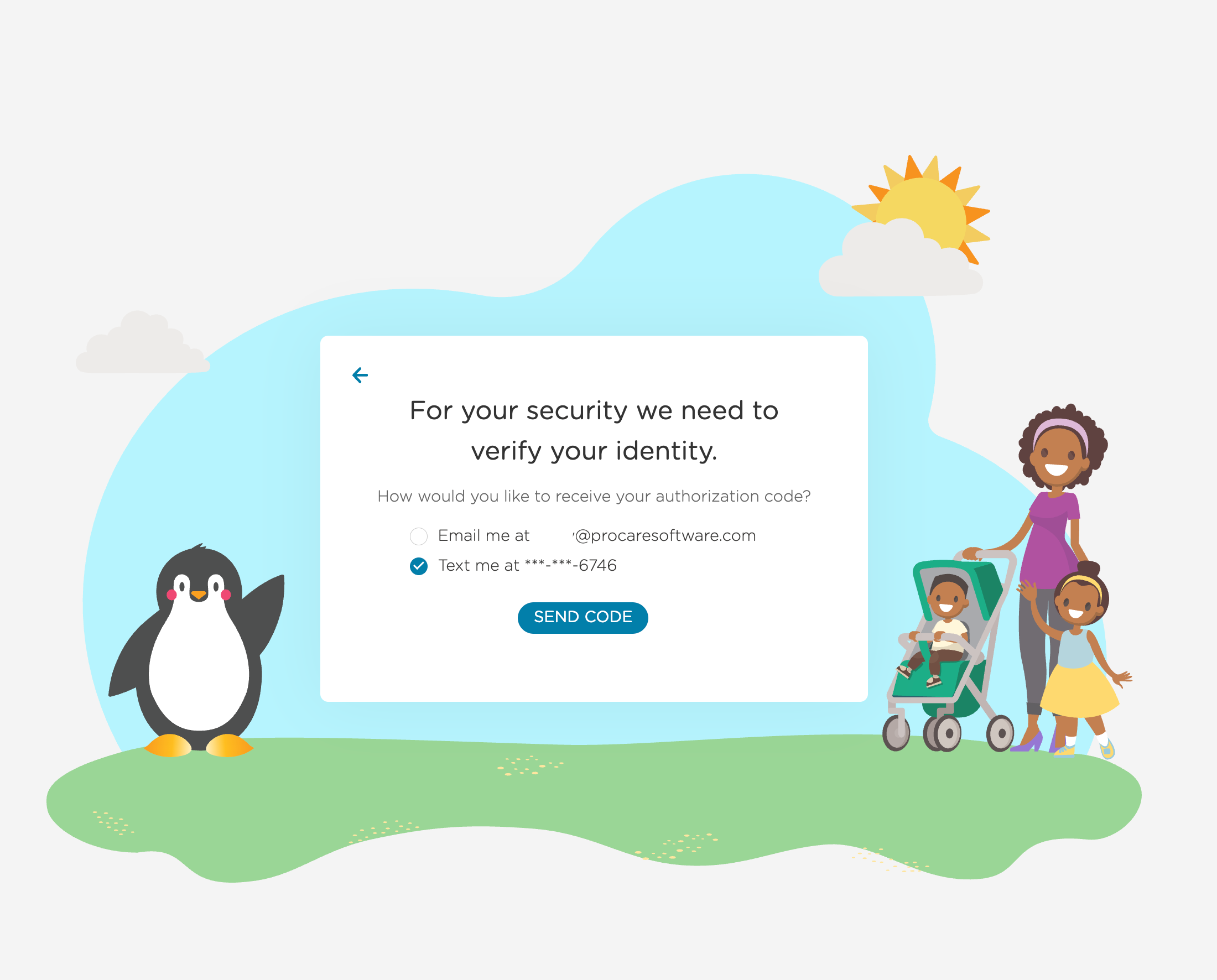
After you have added the Verification Method and enabled the 2-Step Verification, each time you log in, you are prompted to enter a unique verification code.
If you have only one method, the code will be sent directly to it.
If you have multiple methods, select the one you want to receive the code on.
Mobile App
|
|
|
|
|---|---|---|---|
|
|
|
|
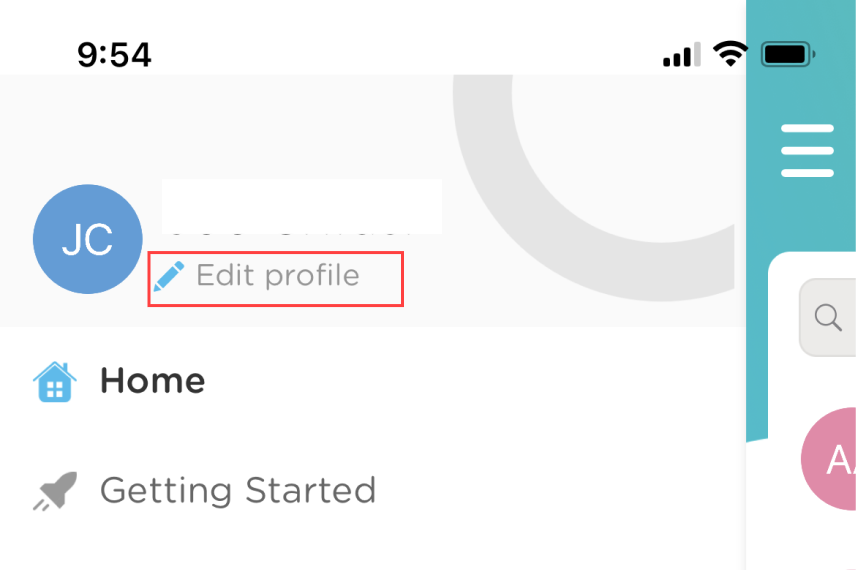
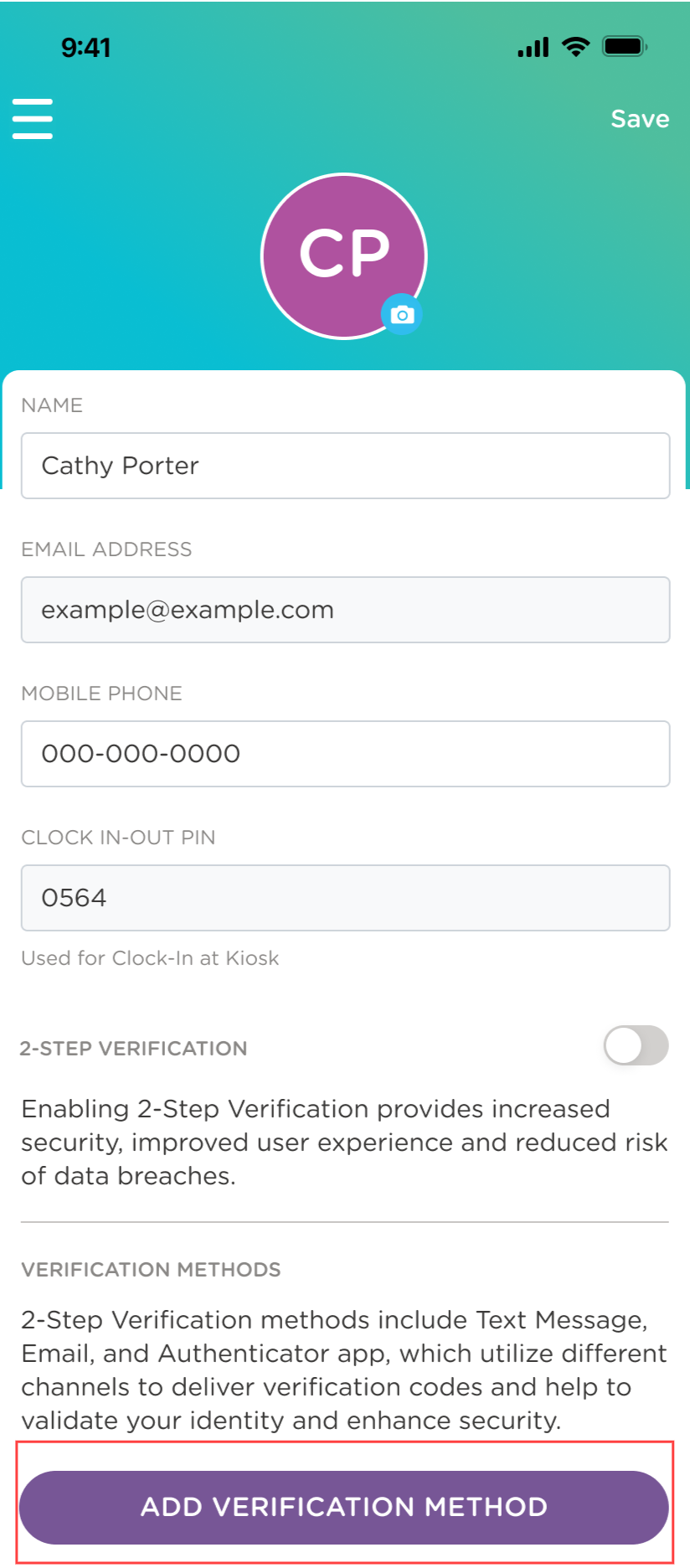
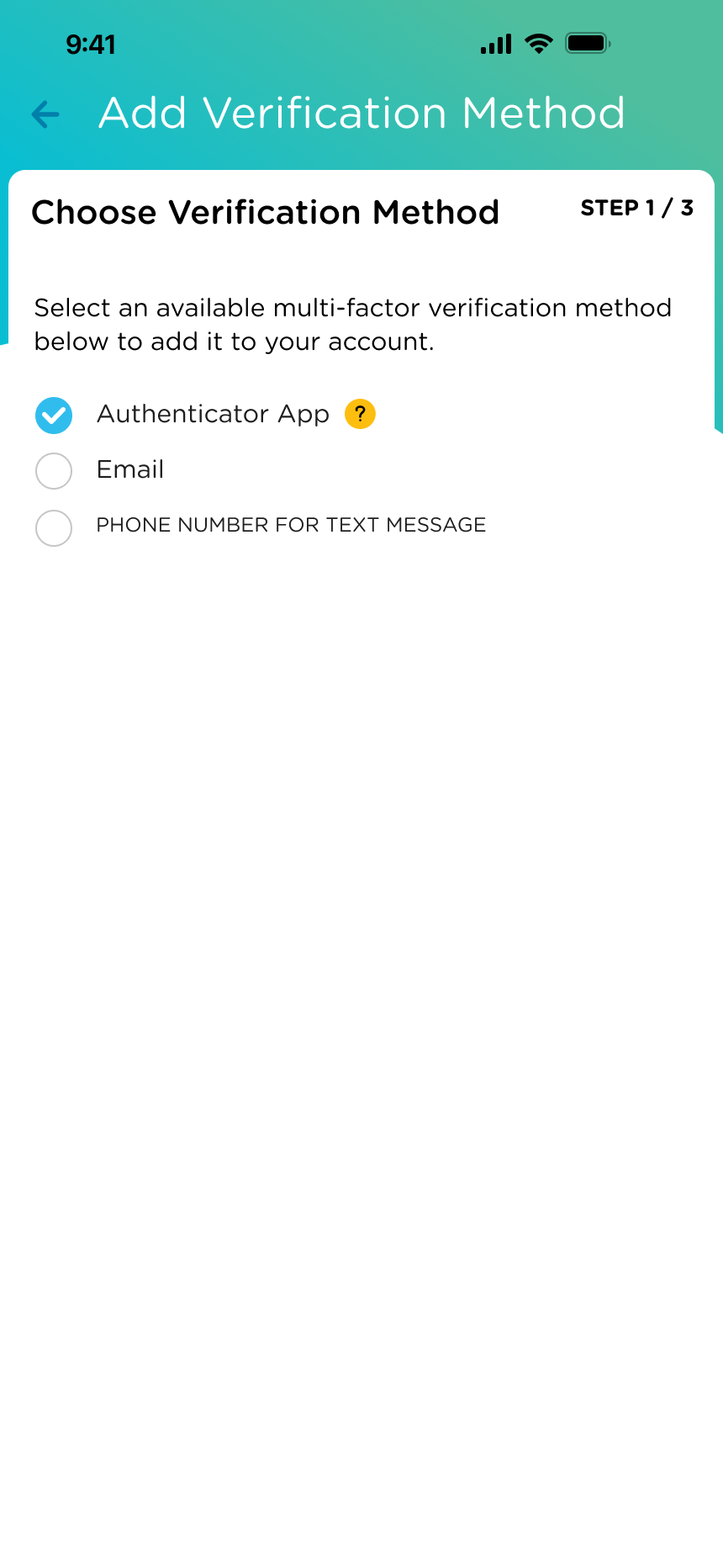
To increase your account security, add any additional verification methods as needed.
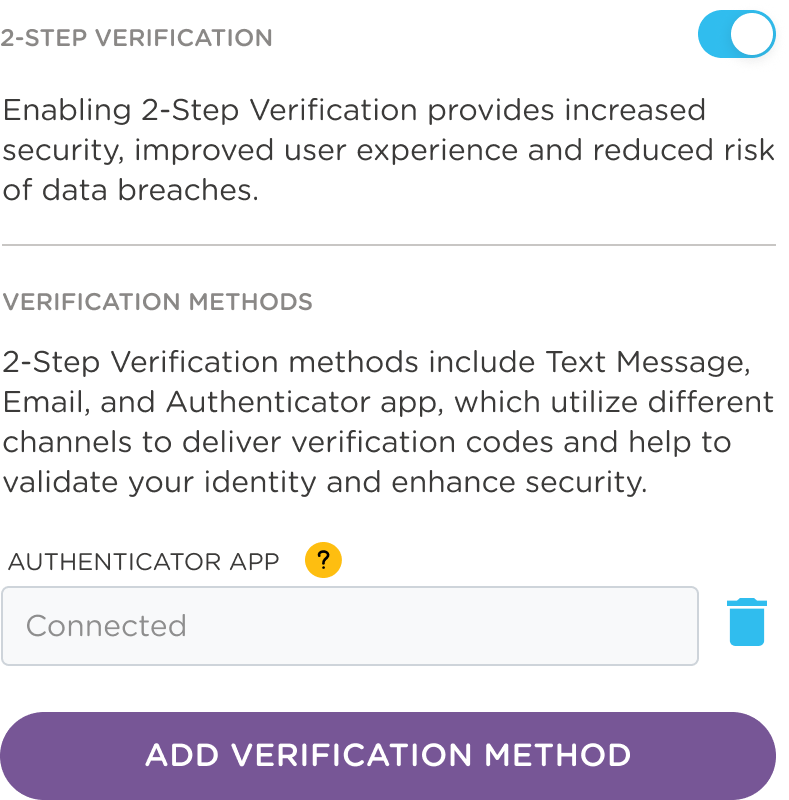
Once a method is added, 2-Step Verification is automatically enabled. Toggling it on or off enables or disables 2-Step Verification, but remember that it is the safer, more secure login option.
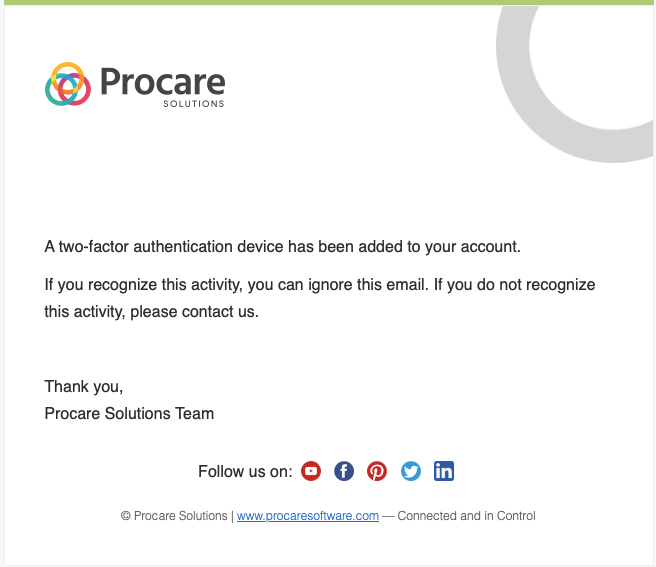
After the verification method is set up, you will receive a confirmation email with the subject ‘A two-factor authentication device has been added’.
Delete or Edit a Verification Method
Occasionally, email and phone numbers may change. To update a verification method, you must first remove it.
Go to the web or mobile app.
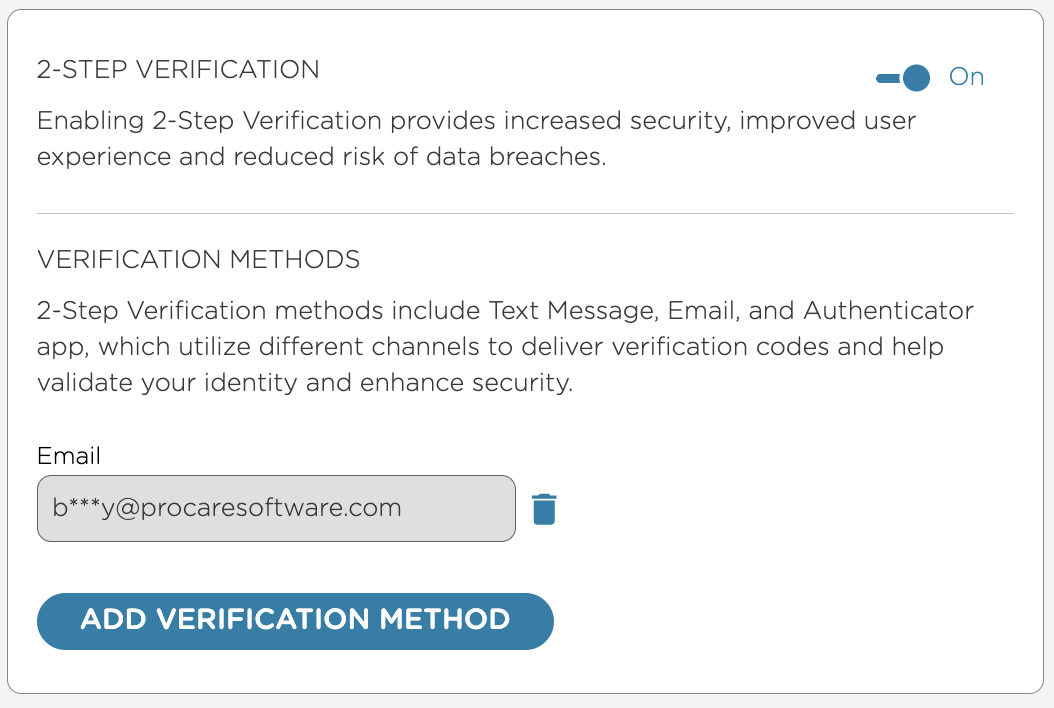
If you have one option, click Delete
 to delete that method. For multiple options, click Delete next to the method to delete.
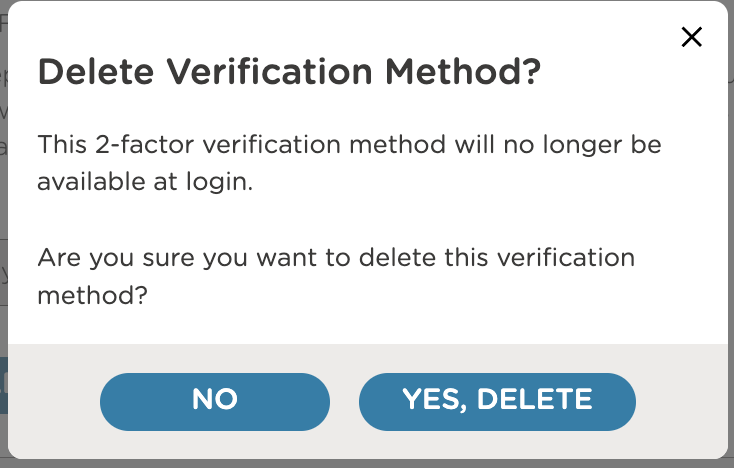
Confirm the action.
Reset 2-Step Verification
To reset 2-Step Verification for a parent/guardian, contact Procare Support with the user’s email.
| FAQs |
|---|

What is 2-Step Verification?
2-Step Verification (also called Multifactor Authentication or MFA) adds an extra layer of security when signing in. In addition to your password, you’ll input a verification code delivered to your chosen authentication method.
What verification methods are available?
You can use an authenticator app, text message, or email. At least one method is required, but you can add more for extra security.
Can I make 2-Step Verification mandatory?
2-Step Verification is mandatory for staff who use Procare Online and is optional for parents/guardians.
I’m both a staff member and a parent/guardian using Procare. When I set up 2-Step Verification on my staff profile, will I also need to verify when logging in as a parent/guardian?
Yes. Because 2-Step Verification is required for staff, you will also need to use one of your selected verification methods when logging in as a parent/guardian.
Do I need to set up all three methods?
No. You only need one verification method to enable 2-Step Verification. Adding more is optional.
How long is a verification code valid for?
The code expires 10 minutes after you request it. Requesting a new code within the 10 minutes will not invalidate a previously requested code.
I haven’t received a code. Can I resend one?
Yes. Select send new code.
How do I reset a verification method?
Administrators can reset 2-Step Verification from the staff or parent/guardian profile under 2-Step Verification > Reset.
I didn’t get my verification code. What should I do?
First, check your spam or junk folder (for email) or confirm that your phone has service (for text messages). If you’re using an authenticator app, make sure your device’s date and time settings are correct. If the issue continues, contact a center admin to reset your verification method.
My authenticator app isn’t working. How can I fix it?
Try refreshing or resyncing the app, or reenter the setup code if prompted. If that doesn’t work, your administrator can reset your 2-Step Verification so you can set it up again.