Procare Online automatically locks accounts after too many consecutive failed login attempts. This security measure is designed to protect accounts against brute for attacks, which are automated attempts to guess a password or verification code by trying many combinations in rapid succession. When a staff member’s or parent’s/guardian’s account has been locked, their account must be manually unlocked by a director or authorized staff member.

Learn more about Too Many Failed Login Attempts.
Unlock a Staff Member’s Account
When a staff member’s account is locked, a red banner displays at the top of their profile in Staff Management.
Go to Staff Management > Staff.
Select the staff member.
“Account has been locked” displays at the top of the staff member’s profile.
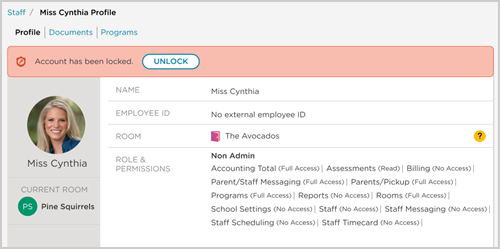
Click Unlock.
The locked banner message clears.
Unlock a Parent’s/Guardian’s Account
When a parent’s/guardian’s account is locked, a red banner displays at the top of their profile card in the Parents/Guardians section of Students.
Go to My School > Students.
Select a student in the parent’s/guardian’s family.
Go to the Parents/Guardians section.
“Account has been locked” displays on the parent’s/guardian’s card.
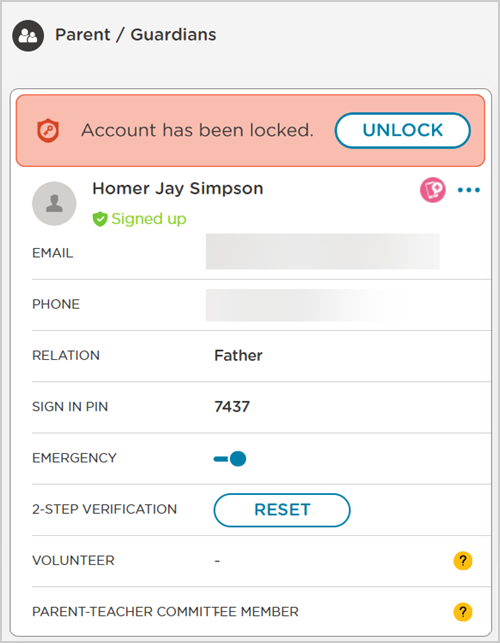
Click Unlock.
The locked banner message clears.
Important
Only directors and authorized staff can unlock accounts. If you do not see the Unlock button, contact Procare Support at (800) 964-1729. After an account is unlocked, the user’s failed login counter resets and they can log in as normal.