Procare Online automatically locks accounts after too many consecutive failed login attempts. This security measure is designed to protect your account against brute force attacks, which are automated attempts to guess your password or verification code by trying many combinations in rapid succession. Limiting repeated login attempts significantly reduces the risk of unauthorized access to your data.
Account Security Lockout and 2-Step Verification
Account security lockout applies to all staff and parents/guardians with 2-Step Verification enabled. Each failed 2-Step Verification attempt counts toward your failed login attempt total, the same as a failed password attempt. Be sure to complete all login steps correctly to avoid triggering a lockout.
What Happens When Your Password or Verification Method Fails
Trigger | Lockout Status | Action |
|---|---|---|
None | Retry entering the correct credentials, reset your password or reset your 2-Step Verification before the 5th attempt. | |
30-minute temporary lockout | After the lockout expires, retry entering the correct credentials. | |
1 Failed login attempt after the 30-minute lockout expires OR | Full account lockout | An authorized staff member must manually unlock the account:
|
Note
If your account is already fully locked, skip to How to Get Your Account Unlocked below.
After 1-4 Failed Login Attempts: Countdown Warning
After the first failed login attempt, a generic error message displays:
“Email and/or password did not match. Please try again.”
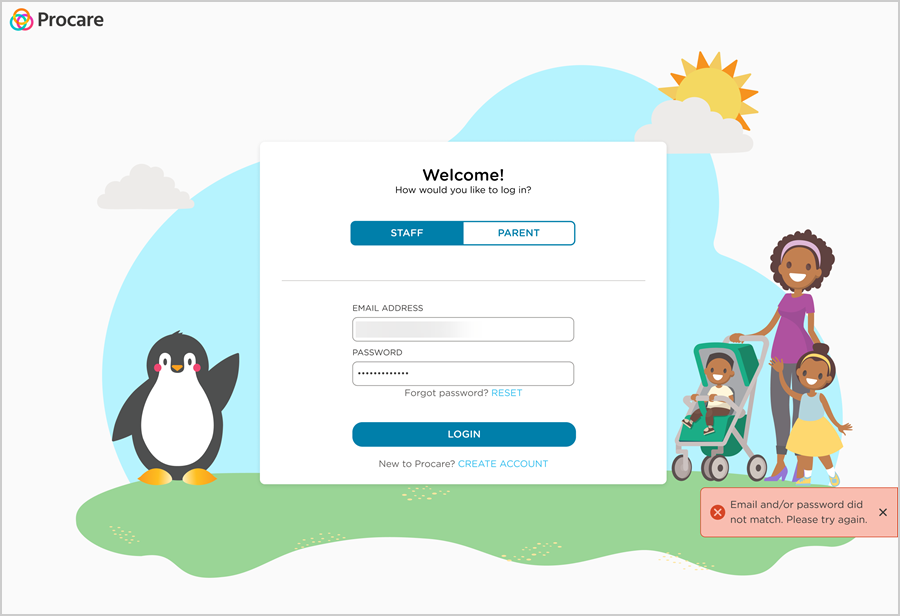
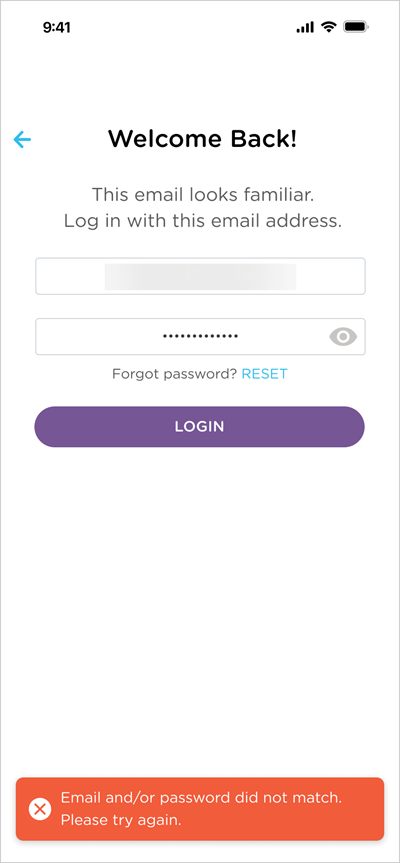
After subsequent failed login attempts, the error message updates to show how many attempts you have left before a lockout occurs:
“Email and/or password did not match. Only 4 more login attempts remain. After 5 failed attempts, your account will be temporarily locked.”
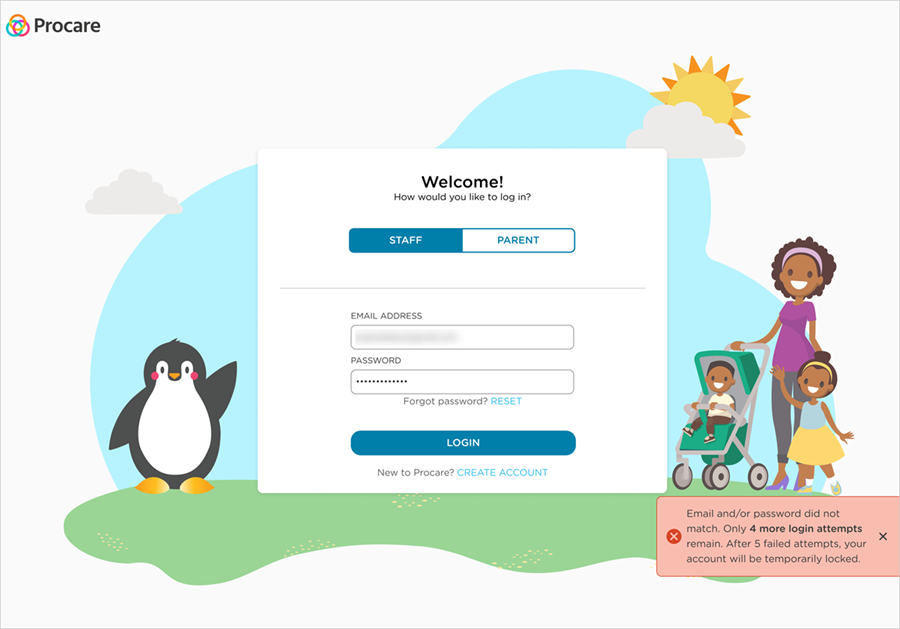
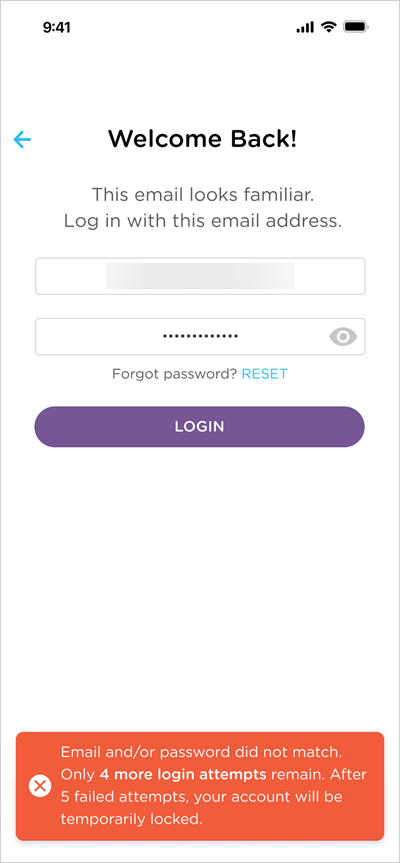
After 5 Failed Login Attempts: Your Account is Temporarily Locked
After five consecutive failed login attempts, your account is temporarily locked for 30 minutes. This includes failed 2-Step Verification attempts, which count toward the five-attempt total.
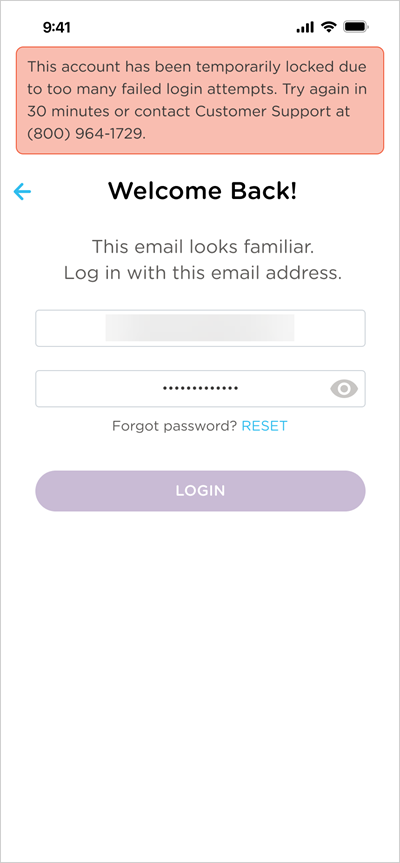
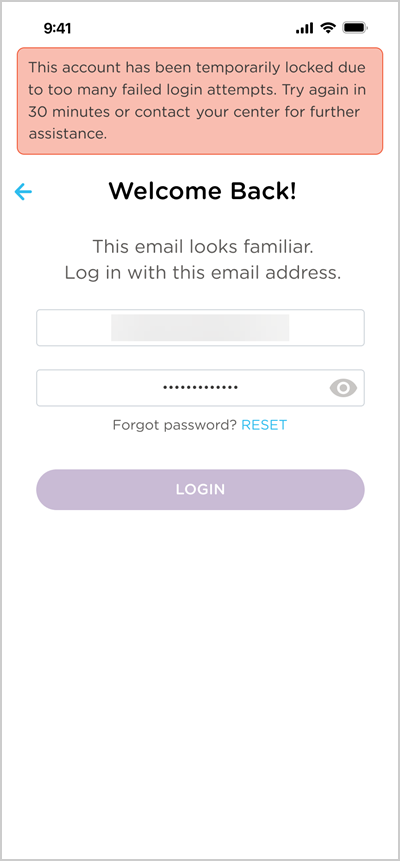
The login button is disabled and a message displays at the top of the window. The message that displays and the point of contact will be different depending on whether you are a staff member or a parent/guardian.
Error message: “This account has been temporarily locked due to too many failed login attempts. Try again in 30 minutes or contact Customer Support at (800) 964-1729.”
Website
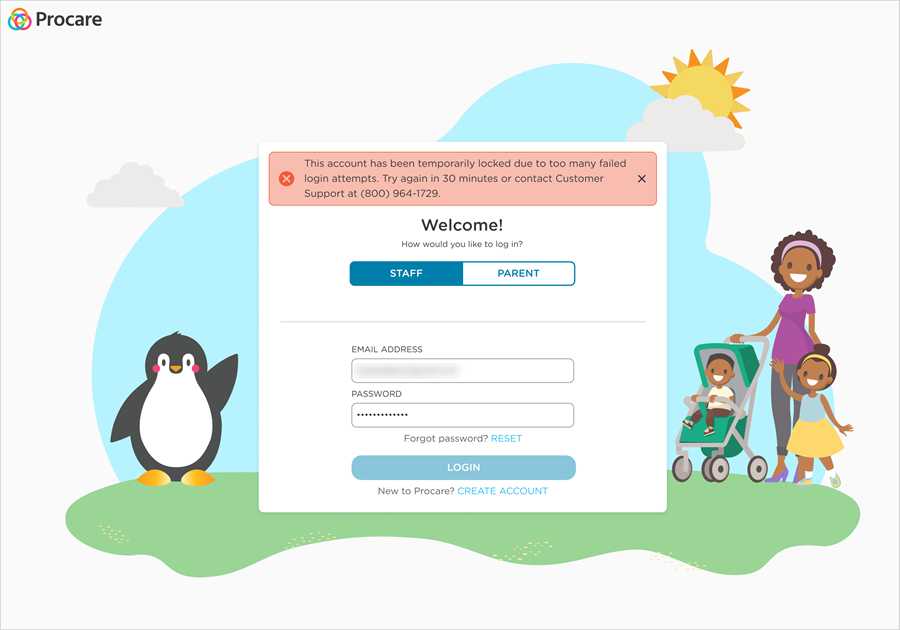
Child Care Mobile App
Error message: “This account has been temporarily locked due to too many failed login attempts. Try again in 30 minutes or contact your center for further assistance.”
Website
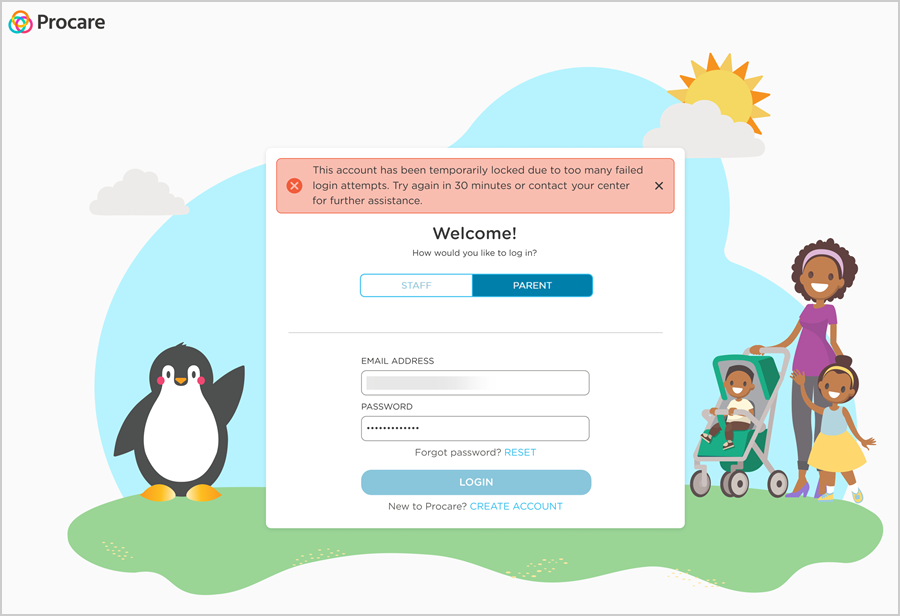
Child Care Mobile App
The lockout automatically expires after 30 minutes. You do not need to reset your password or verification method. Wait before you attempt to log in again.
Important: One Login Attempt
After the 30-minute lockout expires, you have one attempt to log in with the correct credentials. If that attempt fails, your account will be fully locked you and must request to have the account unlocked. A successful login resets the failed login attempt counter to zero.
After 3 Temporary Lockouts in 7 Days: Your Account is Fully Locked
If your account is temporarily locked three times within a seven-day period, it will be fully locked and require manual intervention to restore access. A full lockout does not expire on its own and requires an authorized person to manually unlock it. The message that displays and the point of contact will be different depending on whether you are a staff member or a parent/guardian.
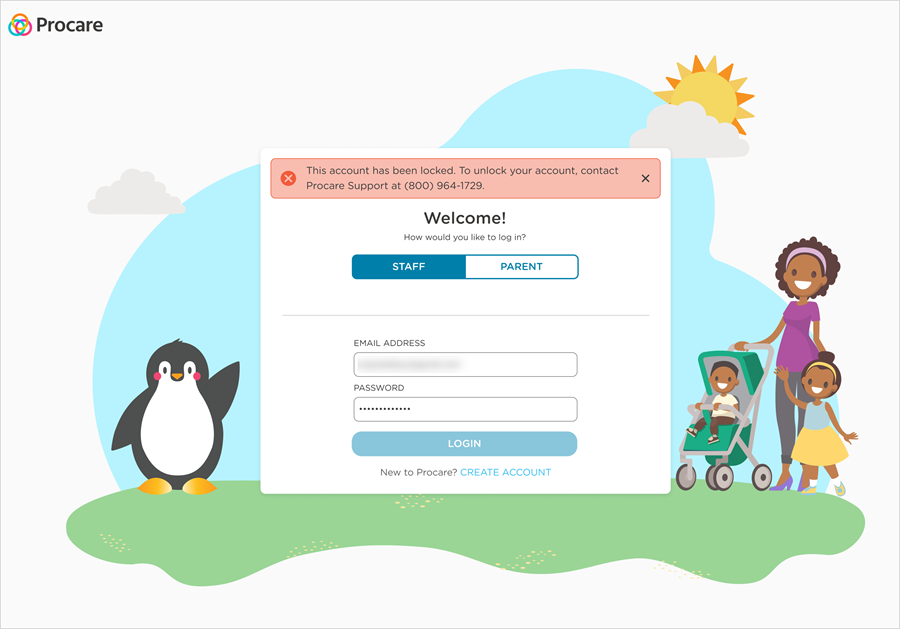
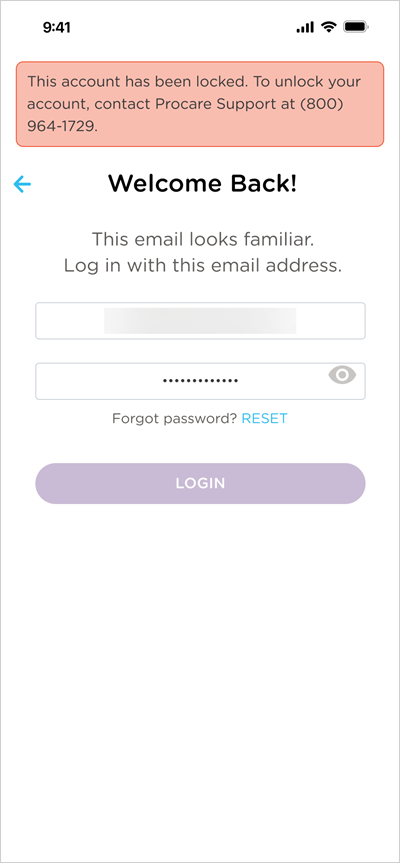
Staff must contact Procare Support directly to have their account unlocked.
Error message: “This account has been locked. To unlock your account, contact Procare Support at (800) 964-1729.”
Website
Child Care Mobile App
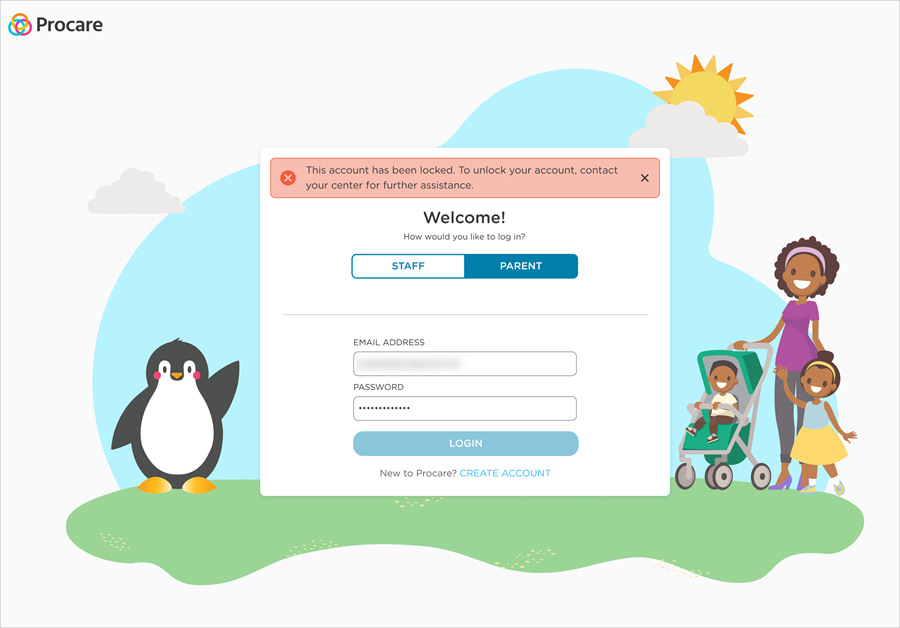
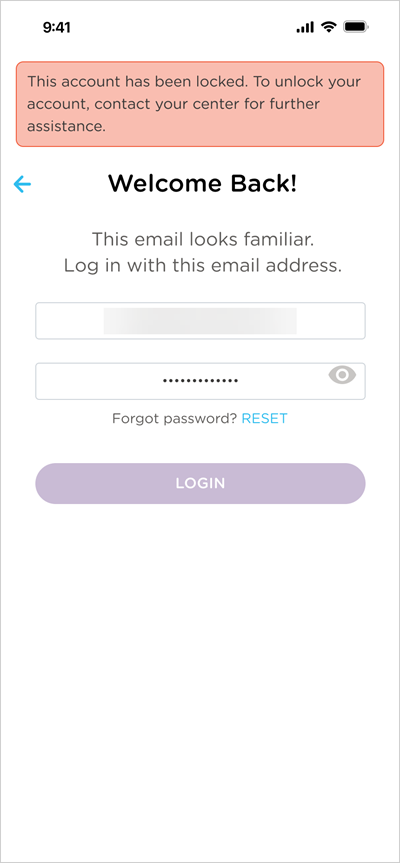
Parents/Guardians must contact their child’s center to have their account unlocked. An authorized staff member at the center can unlock the account directly from within Procare Online.
Error message: “This account has been locked. To unlock your account, contact your center for further assistance.“
Website
Child Care Mobile App
How to Get Your Account Unlocked
If you are a staff member, contact Procare Support at (800) 964-1729.
If you are a parent/guardian, contact your child’s center and ask them to unlock your account.
A director or authorized staff member can unlock your account from your profile in Procare Online. Once unlocked, you can log in as normal, and your failed attempt counter resets to zero.

Learn more about Unlock a Staff or Parent/Guardian Account.
Tips to Avoid Getting Locked Out
Make sure you are entering the password correctly:
Check for typos.
Confirm whether Caps Lock is on or off.
Ensure any special characters are entered exactly as required.
If you are unsure of your password, use the Forgot Password? RESET link before your fifth attempt to avoid triggering a lockout.
If you are having issues with your verification method, request to have it reset.
Use a password manager to store and autofill your credentials accurately.
If you suspect someone else is attempting to access your account:
Contact Procare Support immediately if you are a staff member.
Contact your center immediately if you are a parent/guardian.