Better Security
Procare has implemented a more secure password protocol. You will see it referred to as either 2-Step Verification or Multifactor Authentication (MFA). Currently, it is not required for parents/guardians, but it is highly recommended. 2-Step Verification is required for staff. Take the steps now to keep your data safer and more secure.
Want to reset your password? Use your preferred verification method. Click here for instructions.
Follow the steps below to reset your password if your current password is unknown, before a 5th consecutive failed login attempt or if you are required to reset a password:
If you are logged in to Procare Online, log out (click the Profile
 icon or your photo, then select Log Out).
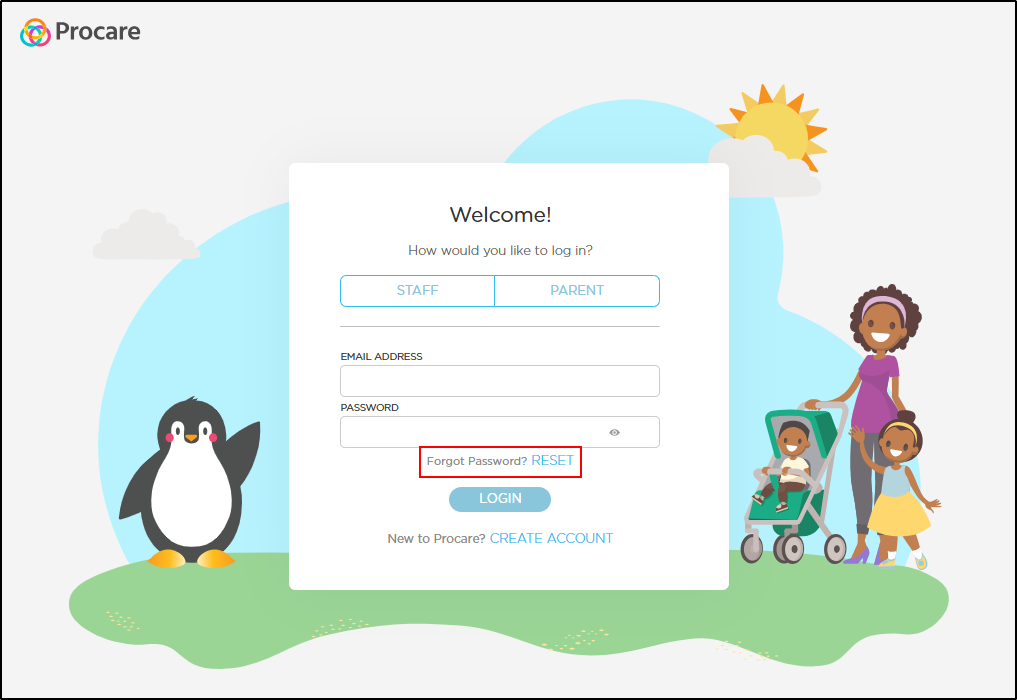
Click Forgot Password? RESET on the login screen or visit https://schools.procareconnect.com/restore-password.
Note
If clicking the link automatically logs you in, clear your browser cache and try again.
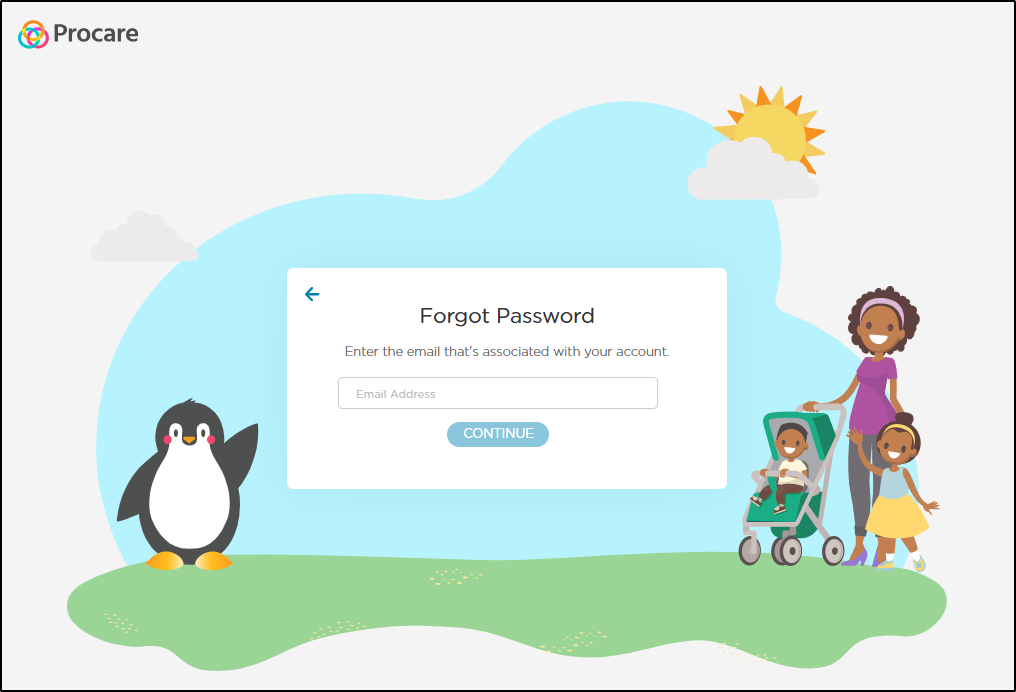
Enter the email address associated with your account, then click Continue.
You will receive an email with further instructions on how to reset your password. Make sure you use the latest password reset email link when resetting your password.
Once your password has been reset, log in with your new password on the website and Child care mobile app.
Password Requirements
Strong passwords help protect accounts and personal information.
Procare Online requires the following:
A minimum of 12 characters
Must contain at least one of each of the following character types:
number
special character (~ ! @ # $ % ^ * ( ) _ - + = { } [ ] \ | : ; “ ‘ < > , . ? /)
uppercase letter
lowercase letter
Cannot be a commonly used or easily guessable password (e.g., “password1234,” “quertyABCDEF“ or simple sequences)
Strong Password Checks
Procare Online blocks commonly used and easily guessable passwords. If your password is too weak, Procare Online will display a message requiring you to choose a stronger one.
Cannot match your last 12 passwords
Password History
Reusing old passwords is one of the easiest ways for an account to be compromised. If a past password was ever exposed, reusing it (even much later) can put your account at risk. To keep accounts secure, Procare Online checks new passwords against your 12 most recently used passwords. If you try to reuse one, an error message will display requiring you to choose a different password. Choose a password you have not used recently to avoid this message.
Password Best Practices
Use a unique password for each account.
Make passwords random, or consider using a password phrase (passphrase).
Avoid using variations of a recent password (e.g., adding a number or symbol to the end).
Keep passwords private and do not share them with others.
Consider using a password manager to help generate and store unique, strong passwords.
Resources
This resource explains password requirements, the password reset process, and troubleshooting tips. Print or distribute this guide to center staff and families to support password resets.
PDF: Updated Password Requirements

Troubleshooting Guide
If you are having difficulty resetting your password, there are several steps you can take to resolve the issue. This guide provides troubleshooting methods to help ensure you regain access to your account quickly and efficiently.
General Troubleshooting Steps
When encountering issues related to password resets:
Verify Your Email Address
Ensure the email address you enter in the password reset form is correct and belongs to the registered account. Check for any typing errors.
Use The Most Recent Reset Email
Make sure you use the latest password reset email link when resetting your password.
Check Spam or Junk Folders
Sometimes password reset emails are filtered into spam/junk folders. If found there, mark it as 'Not Spam' for future ease.
Meet Password Requirements
Ensure your new password meets the password requirements listed above.
If Procare Online displays a message saying your password has been reused before, choose a password that is different from your last 12 passwords.
If Procare Online displays a message saying your password is not strong enough, avoid using common words, phrases or sequences (such as “password1234” or “abcdef123456“).
Clear Browser Cache and Cookies
Clearing the browser cache and removing browser cookies can resolve conflicts. Refer to your specific browser help articles to learn how to clear the browser cache and remove browser cookies.
Update any Password Management Tools
Update stored passwords to reflect the new credentials.
Log Out of Active Sessions
Before attempting a reset, log out of all active sessions or tabs in Procare Online.
Troubleshooting Email Receipt Issues
If the password reset email is not reaching your email inbox, try these steps:
Resend the Request
Go to the password reset page: https://schools.procareconnect.com/restore-password.
If the problem persists, verify internet stability or switch to a different device.
Avoid Email System Blocks
Sometimes, organizational or email provider settings might block Procare emails. If this happens, reach out to the organization’s administrator and ask them to allow Procare emails.
Potential Log-in or Email Access Issues
The ‘Login’ button is grayed out
Ensure you have selected Staff or Parent, and enter your email address and password.
Unable to Log in After Reset
Uninstall and reinstall the Child care mobile app.
Use the password reset link again: https://schools.procareconnect.com/restore-password.
Attempt to log in with the new password.
No longer have access to the email address on the account to complete a password reset
For centers, contact Procare Support.
The account is locked due to too many failed login attempts
Your account must be manually unlocked by an authorized staff member.
For staff, contact Procare Support.
For parents/guardians, contact your child’s center.
Cannot Log In and Forgot Their Login Email Address
A parent/guardian may be unable to log in because they have forgotten the email address used for their account.
It’s also important to note that:
The email address on the parent/guardian profile is used to send the parent/guardian invitation.
This same email address is used for center communications, such as newsletters and daily sheets.
Changing the email on the parent/guardian profile does not change the login email.
The login email remains the email address originally used to accept the invitation.
How to Locate a Parent’s/Guardian’s Email Login
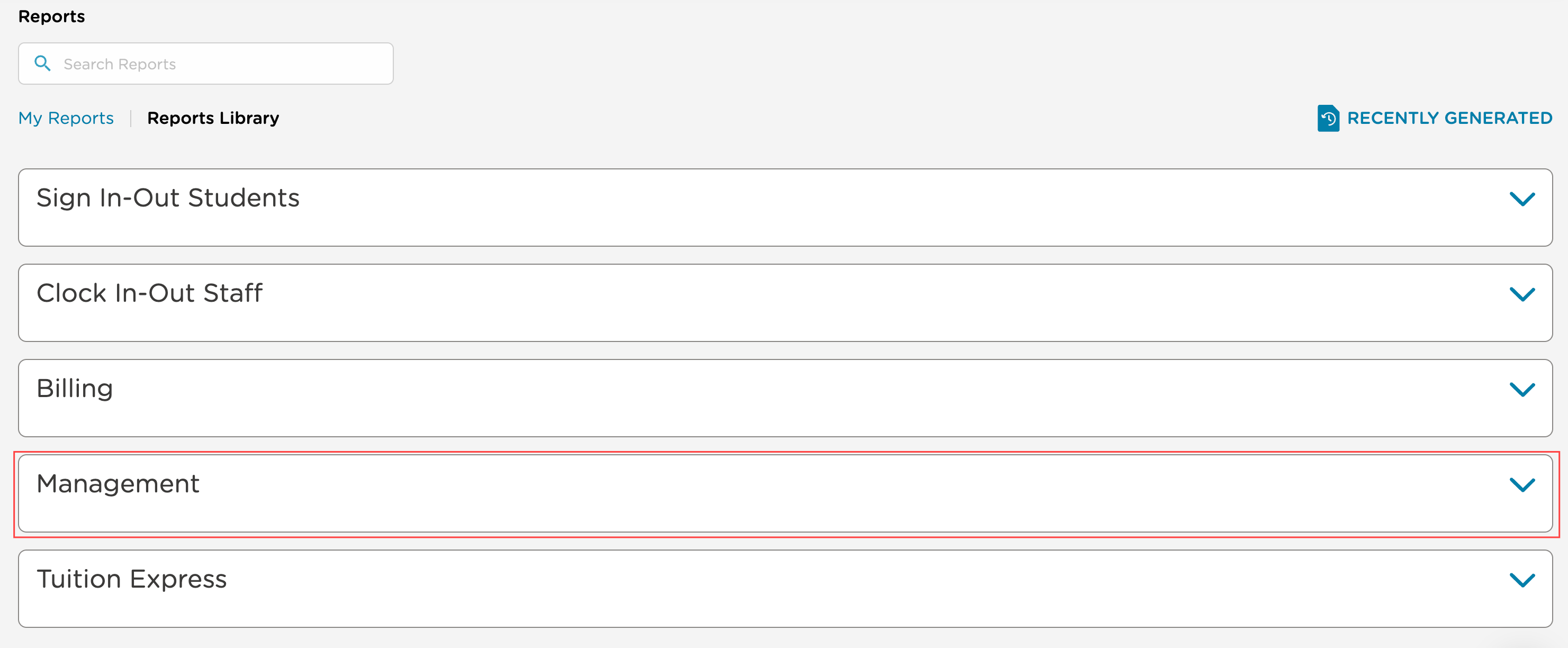
Go to Reports > Management Reports.
Open the Students and Family Report and choose Custom Report.
Under Parent/Guardian Information, select:
Carer First Name
Carer Last Name
Email
Invitation Sent At
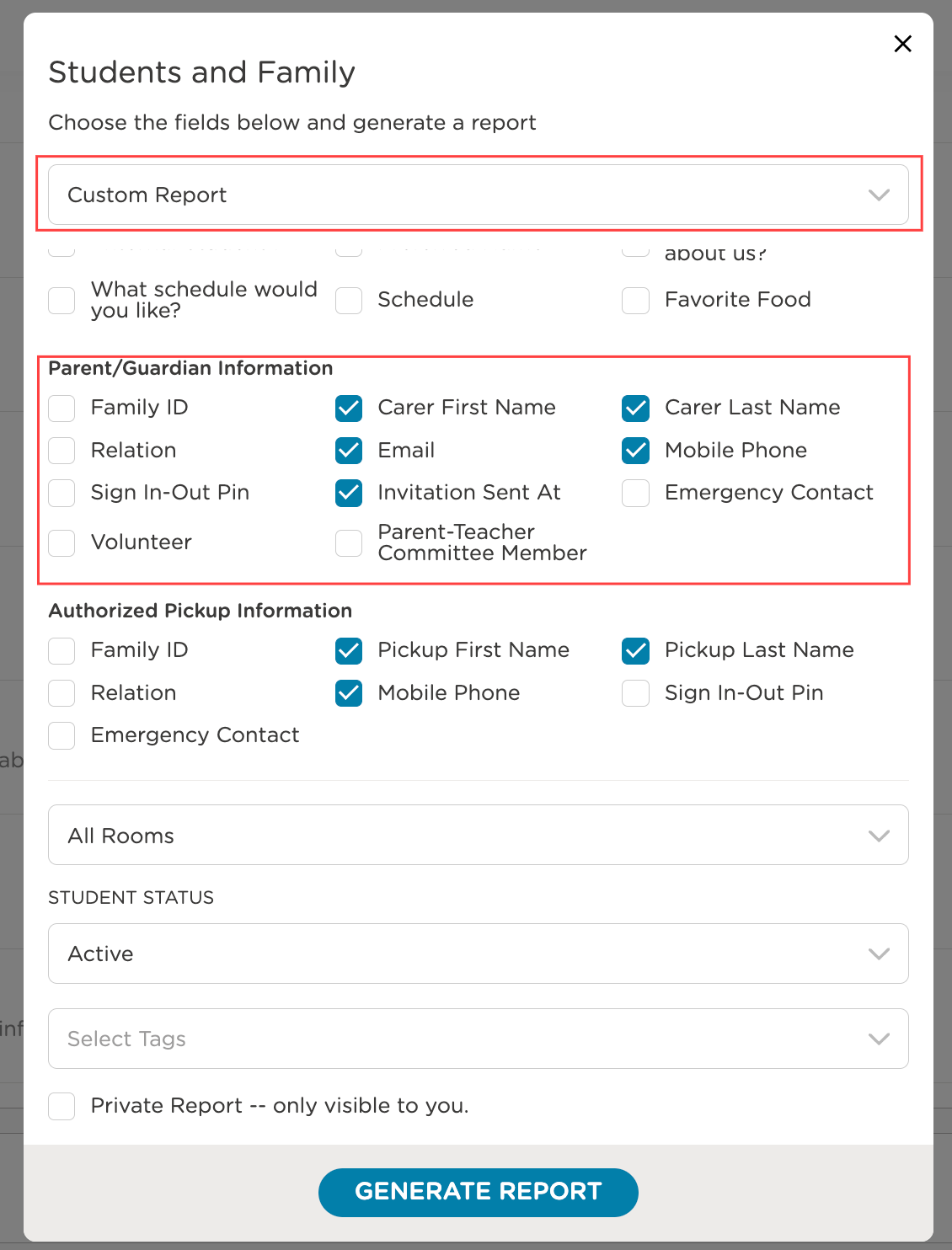
Compare email addresses.
Email displays the current email address on the parent/guardian profile. This is where communications are sent.
Invitation Sent At displays the email address originally used to create the account. If the email address on the parent/guardian profile has been updated, these two fields may be different.

Confirm the Login Email.
Use the email address listed under Invitation Sent At as the correct login email for the parent/guardian.
If the parent/guardian no longer has access to that email address, contact Procare support.
Child Care Mobile App Error Messages or Access Issues
‘We are unable to retrieve your user information,’ or other miscellaneous server errors display in the Child care mobile app.
Log out and attempt to log back in. If you are still unable to log in, use the reset password link and follow the steps above.
Password has been successfully reset, but unable to log in to the Child care mobile app.
Make sure you’re entering the password correctly
Check for typos
Confirm whether Caps Lock is on or off
Ensure any special characters are entered exactly as required
Check your app version to make sure you’re using the latest release
Update the app if an update is available
If the issue continues, delete the app and reinstall it