Here you will find answers to the most frequently asked questions across a range of topics. If the support articles and FAQ library do not address your question, contact Support for additional assistance.
Topic 1: IACET®
What is IACET?
IACET is the International Accreditors for Continuing Education and Training.
IACET is a non-profit organization that provides third-party accreditation to professional development training organizations across industries.
IACET ensures that our practices related to the development and management of our training are of the highest standard. As an IACET accredited provider, you can trust that the training you receive from us meets top industry standards.
What are Continuing Education Units (CEUs)?
CEUs are continuing education units, a unit of measurement for professional development training hours. We offer IACET CEUs as an IACET accredited provider. CEUs are calculated as follows:
10 training hours=1 CEU
1 training hour=0.1 CEU
What is the difference between CEUs and clock hours?
CEUs stands for continuing education units. CEUs are a universally recognized standard of measure for a continuing education or professional development activity. IACET CEUs are only offered by IACET accredited organizations because the learning activity meets IACET standards.
Clock hours are the actual time spent in any given educational activity. Clock hours show that a person attended a training, but the training is not necessarily vetted by a third-party organization. Any trainer or training organization can issue clock hours with no oversight.
Each state requires educators to submit proof of training attendance according to different standards. Review requirements with your individual state licensing authority or registry organization.
Topic 2: State Reporting
Will my attendance be reported to my state registry?
We report attendance:
To states where the training organization is required to submit attendance
For users who have included their first and last name, state of residence and/or their registry ID number in their Procare Professional Development account
If your state does not require training organization attendance reporting, you will receive a certificate that you can submit to your state registry.
Note that each state requires educators to submit proof of training attendance according to its own specific standards. Review requirements with your individual state licensing authority or registry organization.
When will my attendance be reported to my state registry?
Your attendance will be reported to your state within two weeks of the date that your certificate was issued. Your state may take additional time to reflect your attendance on your registry profile.
What do I do if my attendance does not appear on my registry profile?
If your attendance is not reflected in your state registry profile:
Verify that your certificate was issued more than two weeks ago. If it has been less than two weeks, wait until two weeks have passed.
If it has been more than two weeks since your certificate was issued, contact your registry.
You can download a certificate as soon as you pass the final exam for a course.
How can I get help with questions about attendance reporting or course approval in my state?
Questions regarding registries, attendance reporting or state approval should be directed to pdregistry@procaresoftware.com.
You can also reach the support team via chat on any window of our website by clicking on the small chat icon in the bottom right corner of the window.
Topic 3: Course Resets
I did not pass the final exam, what do I do?
You get three attempts on the final exam. If you have not taken the final exam three times, click ‘Try Again’ to take the exam again. We recommend first reviewing the questions you’ve missed by clicking ‘See Your Answers’
I took the final exam three times and did not pass, now what?
If you did not pass the final exam in three attempts, you will need to retake the course before attempting the exam again. To have your course reset, submit a support ticket using the icon at the lower right corner of your window or submit a ticket through the Support page by clicking ‘Support’ in the menu at the top of your screen.
Why do I have to start the course over if I do not pass the final exam?
Our compliance policies require you to review the course after failing the exam three times to be sure you can demonstrate mastery of the learning outcomes before earning a certificate.
Topic 4: Certificates
How do I get a certificate for a course?
You earn a certificate by passing the final exam at the end of the course.
Where can I find my certificates?
You can download a certificate as soon as you pass the final exam for a course. Use the ‘Download Certificate’ button at the end of the exam. A copy of all the certificates you’ve earned is also stored on your profile.
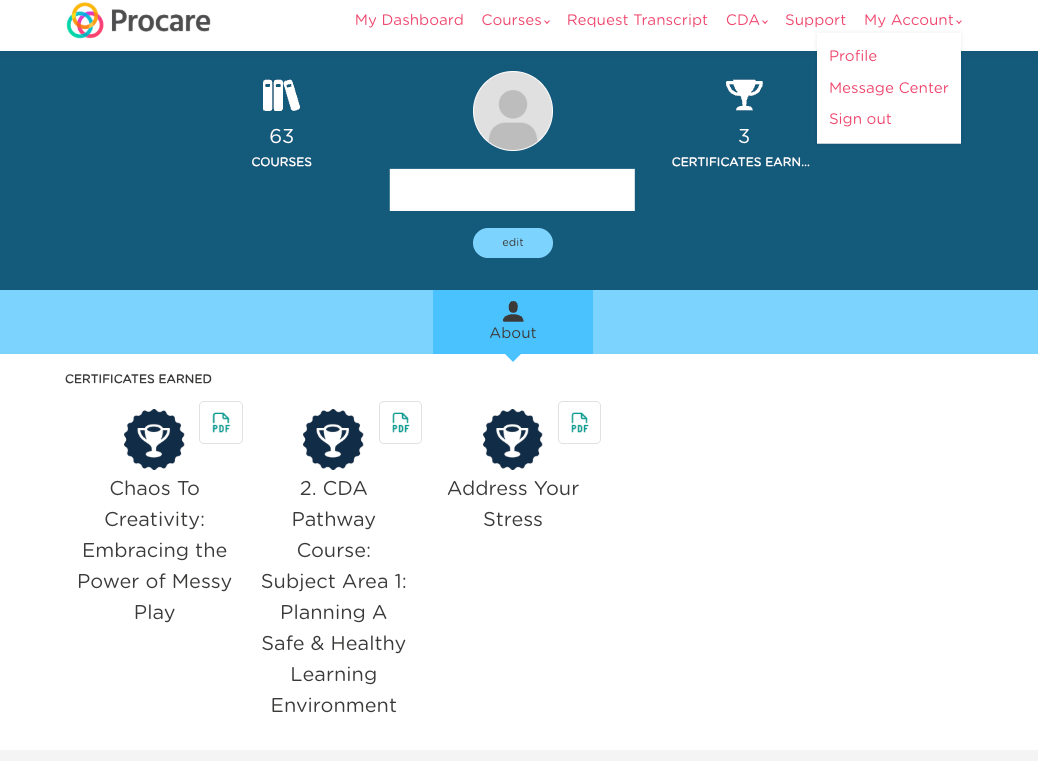
Click ‘My Account’ in the menu at the top of your screen.
Click ‘Profile’ in the dropdown menu.
Scroll down to the Certificates Earned section of the page and click on the PDF icon next to the title of your completed course to download a copy of a certificate.
I misspelled my name on the certificate or I need to change the name on my certificate.
We can correct misspellings on the certificate you earn. We can also update a name in cases where your legal name may have changed (marriage, divorce, etc.). Submit a support ticket using the icon at the lower right corner of your window or submit a ticket through the Support page by clicking ‘Support’ in the menu at the top of your screen.
Topic 5: Access Code
I have an access code. How do I sign up?
From the home page, click ‘Sign up with your unique access code’ underneath the sign in box.
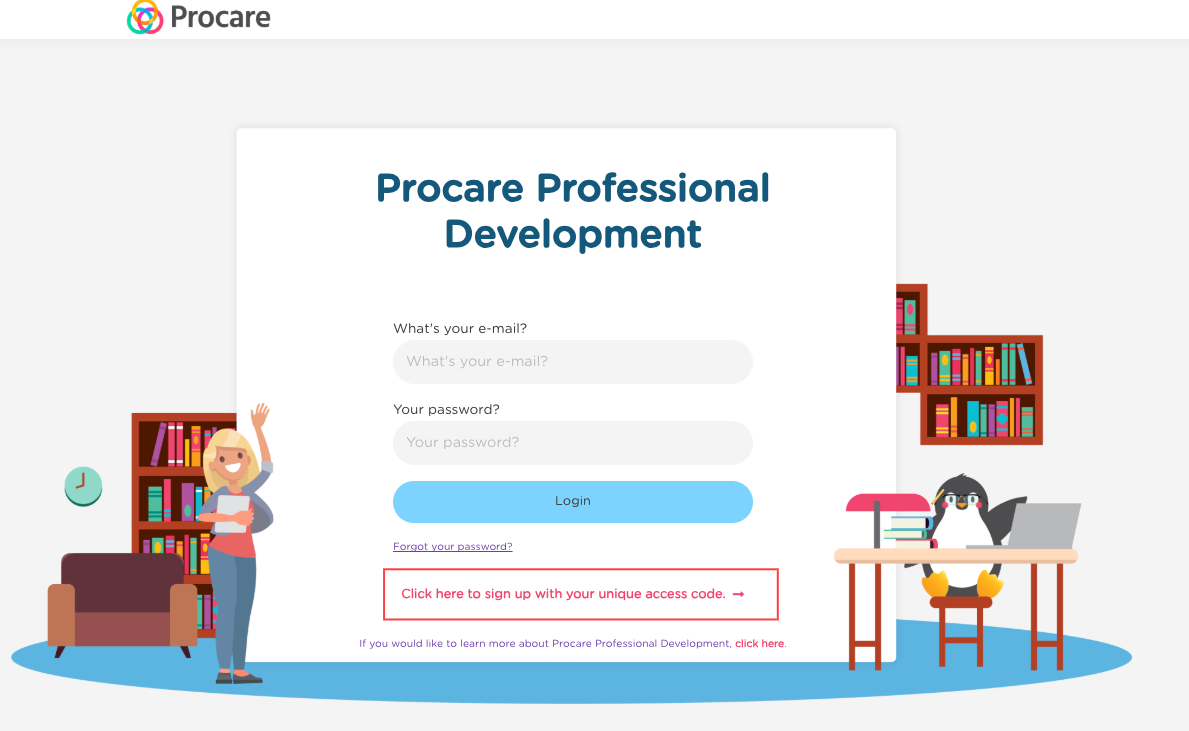
Fill in the required fields to create your profile, enter the access code in the box, and click ‘Redeem’ to apply it. Then click ‘Continue’ to finish creating your account. Note that the access code is case sensitive.

How do staff sign up with the access code?
You should have received a flyer with instructions for staff to use the access code. Each staff member must create their own account. To do this, each staff member must navigate to the home page, then click ‘Sign up with your unique access code’ underneath the sign in box. Fill in the required fields to create your profile, enter the access code in the box, and click ‘Redeem’ to apply it. Then click ‘Continue’ to finish creating your account. Note that the access code is case sensitive.
My access code isn’t working.
Double check that the access code is spelled correctly, and remember, it is case sensitive. Try entering it directly instead of copying and pasting to eliminate the possibility of hidden format spacing.
If your access code is still not working, submit a support ticket using the icon at the lower right corner of your window or submit a ticket through the Support page by clicking ‘Support’ in the menu at the top of your window.
Topic 6: Navigating the Dashboard
Where do I find my courses?
After logging in, your dashboard is displayed and your courses are listed. You can access the dashboard anytime by clicking ‘My Dashboard’ in the menu at the top of the window.

Do I have to finish a course in one sitting once I start? How can I resume a course I am working on?
No, you can start and stop a course at any time. To continue a course, find it in the ‘My Content’ section of your dashboard and click ‘Continue’. This will take you to the Course Overview Page. Click ‘Continue’ one more time to enter the course and pick up where you left off.
How do I navigate through a course?
We have helpful navigation buttons at the top of the course to help you move between learning activities. Each activity has directions explaining how you can complete that activity. There is a tutorial video at the beginning of every course.
I’m having technical difficulties in the course. What do I do?
Submit a support ticket using the icon in the lower right corner of your window and our support staff will be happy to assist you.
Topic 7: Viewing Individual Transcripts
How do I download a copy of my individual transcript?
From your dashboard, click ‘Request Transcript’ at the top of the page. You can change the dates shown and print by clicking ‘Download’. 
What is shown on the Individual Transcript?
The transcript lists the title of the course, the completion date, the training hours and the CEUs earned.
Topic 8: Viewing Facility Transcripts
What is a Facility Transcript?
A Facility transcript is a report that shows all the staff members who have signed up using your access code. For each staff member, you can see a list of courses they have completed, the completion date, training hours and CEUs earned.
How do I view my Facility transcript?
You can view your transcript in the reminder email or from ‘My Dashboard’. In the reminder email, click ‘View Transcript’. From My Dashboard, click ‘View Facility Transcript’ button.
Note that if you are not an admin on the account, you will not see a ‘View Facility Transcript’ button. Reach out to your account administrator to request facility transcript access.
Can others view the Facility Transcript?
Yes, you can give other staff who have already signed up with the access code the ability to view one Facility transcript. Click ‘Expand Transcript Options’ to view the Transcript Options Menu. Under Admins, view staff who can access your Facility Transcript. To give someone access to view a transcript, click ‘Promote to Facility Admin’ next to their name. To remove access, click ‘Demote to Staff’.
It is important to note here that there can be only one admin to view multiple facilities. By promoting a user to admin, you are giving them access to view the transcript only for that facility.
Can I print the Facility transcript?
Yes, click ‘Print’ to print the transcript. It will print exactly as it is displayed, meaning that staff information that is expanded when you select print will appear on the printout. Staff information that is not expanded will not show complete details on the printout.
Can I change which staff members are shown on the Facility transcript?
Yes. From the homepage click ‘View Facility Transcript’. Select the name of the center you want to review from the dropdown menu. Click ‘Expand transcript options’ to access the Transcript Options menu. On the left side of the Transcript Options menu is a list of staff associated with your facility. Users in green are shown on the report. To hide a user, click on their name. Their line will turn red, indicating that this staff member is no longer displayed on the report. They still have access to their account and coursework, but it will remain hidden from your view until you click on their name to show them again.
Topic 9: Registry ID Issues
What is my registry ID?
Each state has a unique system for tracking professional development activities for early childhood educators. States may call this a registry, professional development registry or may have a specific name.
This is used to verify professional development for early childhood educators, including uploading certificates, reporting attendance, reviewing training opportunities from the state, and training approval statuses.
Most registry systems provide a unique ID number that is associated with a user's individual account. This is your registry ID.
Our team uses this number to connect the certificate you earned through our training with your state registry.
A list of the names of state registry systems is available for your review here.
Why do I need to provide my registry ID in my Procare Professional Development account?
Our team uses your registry number to connect the certificate you earned through our training with your state registry. This means that we are unable to report attendance to your state without your registry ID number.
Where can I find my registry ID?
Your registry ID number can be found within your registry account information. If you have any trouble locating this ID number, contact your state registry. We cannot retrieve your registry ID number, it must be provided to us. Without this ID we are unable to report attendance to your state.