Filter Transactions
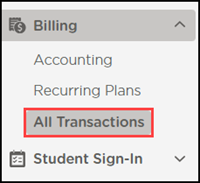
Go to Billing > All Transactions.
Click Filter
 .
.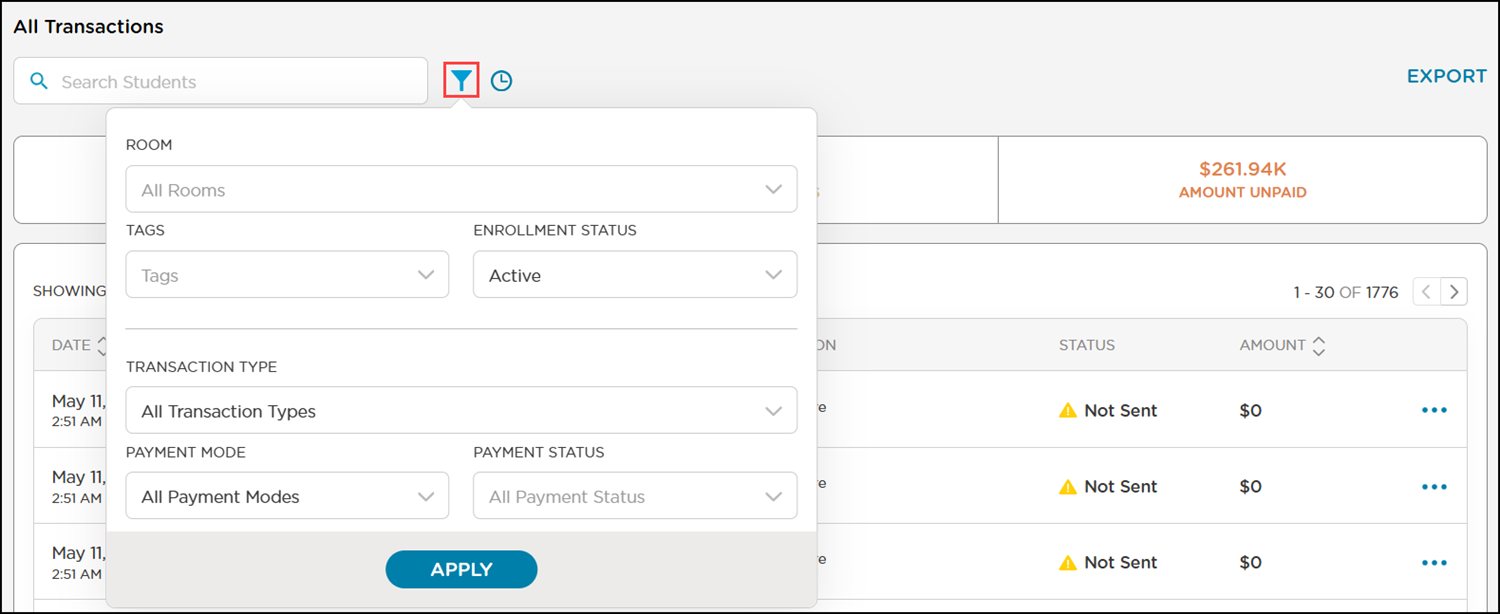
Select your filter criteria, then click Apply.
Click Date Range Filter
 .
.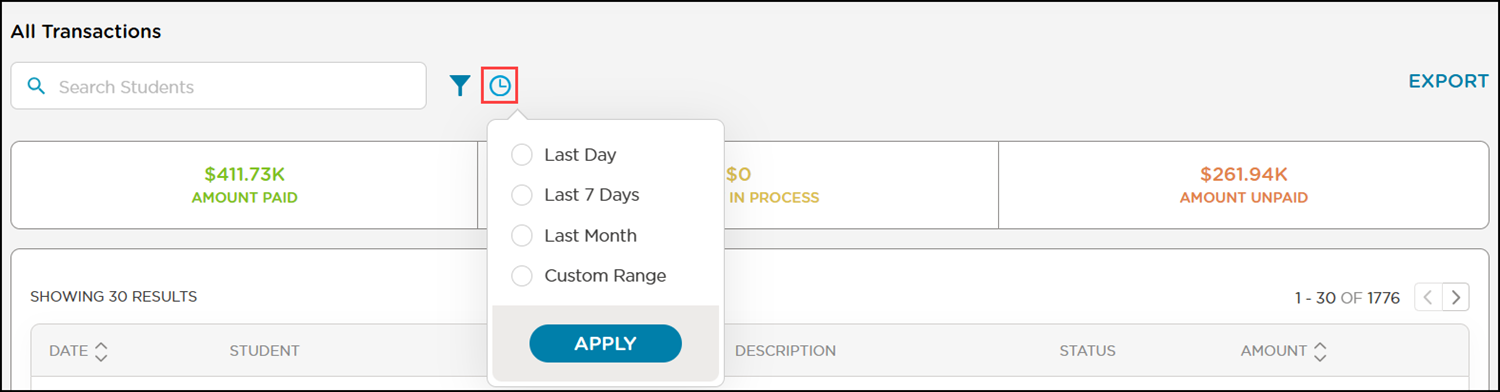
Select a date range, then click Apply.
Note
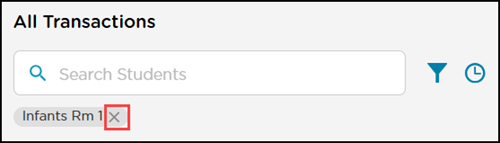
To remove the filter, click ✖ on the filter label above the list.
Export Transactions
Export your billing transactions to copy and paste into another program, such as Excel.
Click Export.

The report opens in a new tab. If you applied filters, the report will export with the filtered data.
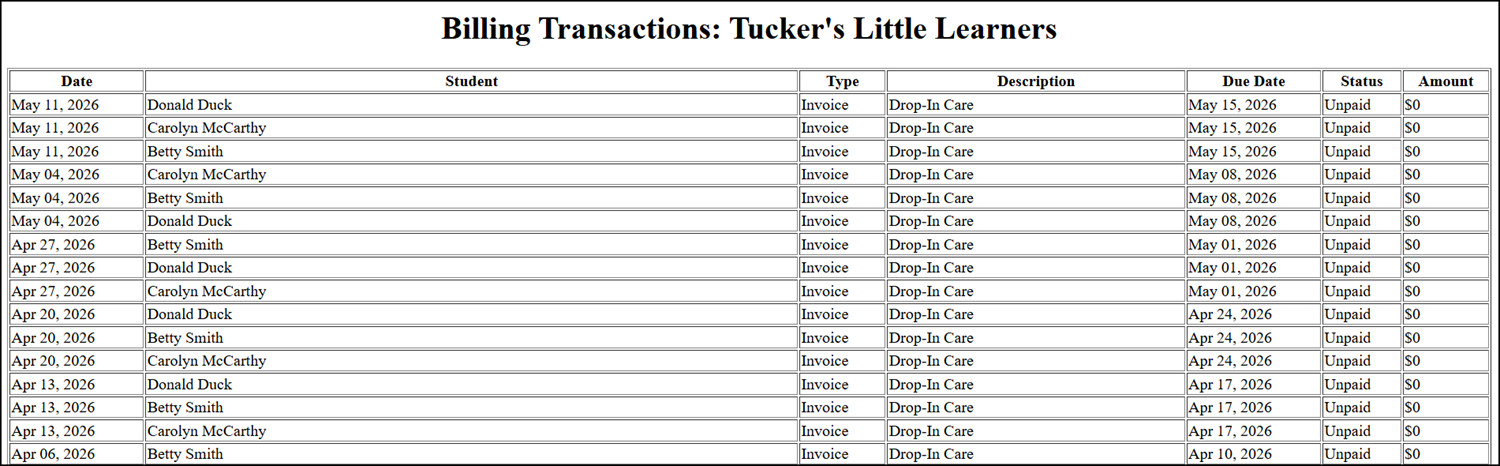
Choose how you want to save the report.
Save the Report as a PDF
Go to Print.
Select one of the following Destinations:
Microsoft Print to PDF
Save as PDF
Click Print.
Print from Different Browsers
The print options may differ based on your browser’s settings. Visit the following resources for more information on how to print from the following browsers:
Choose where to save the file on your device.
Copy and Paste the Report into a Spreadsheet Editor
Press Ctrl + A to select all data on the report.
Press Ctrl + C to copy the selected data.
Open Excel or a spreadsheet editor of your choice.
Select the first cell in the worksheet.
Press Ctrl + V to paste the data into Excel.
Format the data as needed.
Press Command + A to select all data on the report.
Press Command + C to copy the selected data.
Open Excel or a spreadsheet editor of your choice.
Select the first cell in the worksheet.
Press Command + V to paste the data into Excel.
Format the data as needed.
Visit the following resources for more information on how to use Excel: