Navigation Changes
The Leads and Registration sections are now under Enrollment.
When working with potential families who are interested in placing their child at your center, you need to ensure that leads are contacted quickly so that they don't lose interest or decide to go somewhere else. Procare makes keeping track of your to-do's easier by adding a Tasks section to our Enrollment feature.
The Tasks window allows you to create tasks related to an action, email or phone call that a specific staff member will need to complete within an assigned due date.
Note
The Tasks window is a premium feature. Contact Support for more information.
Create a Task
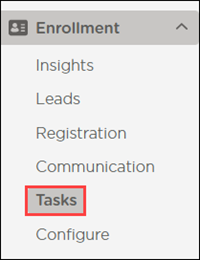
Go to Enrollment > Tasks.
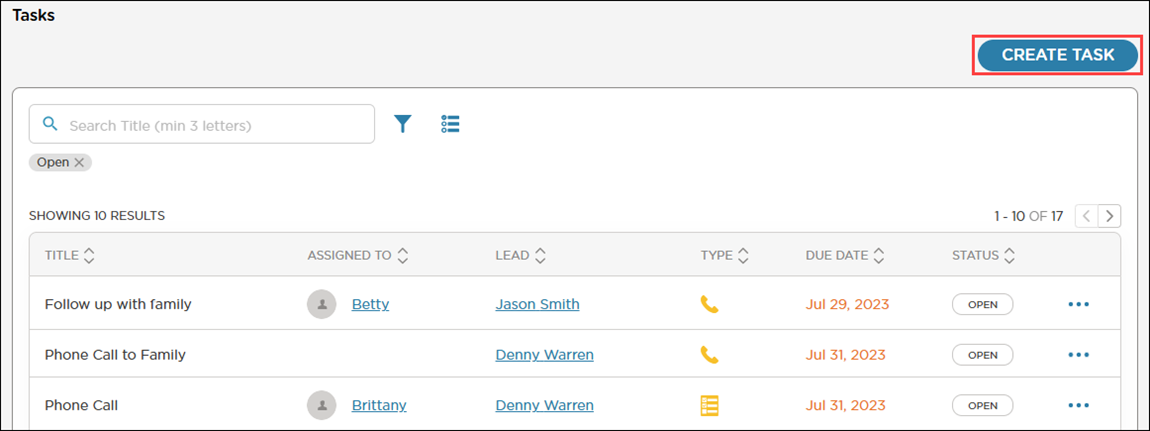
Click Create Task.
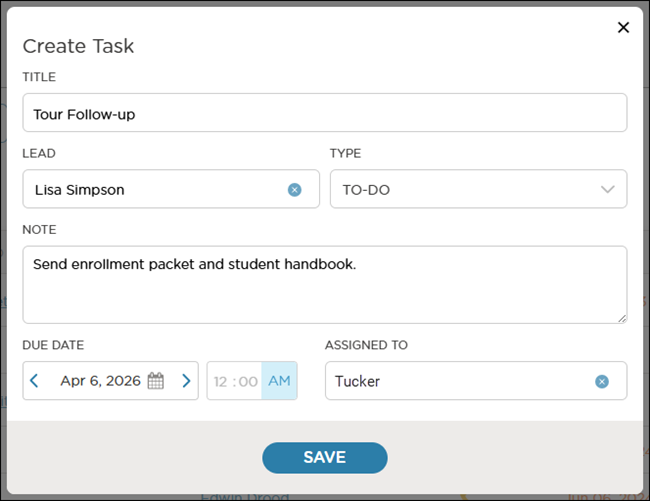
Complete the fields.
Field
Description
Title
Enter the name of the task
Lead
Search for or select the lead to associate the with
Type
Select the type of task: Call, Email or To-Do
Note
Enter any additional details or steps the staff member must take to complete the task
Due Date
Select a date and time the task must be completed by
Assigned To
Select the staff member to assign the task to. This staff member will receive an email notifying them of the task
Click Save.
Filter Tasks
Filter by Any Criteria
Click Filter
 to specify which tasks to display in the list. The list is filtered to only display Open tasks by default.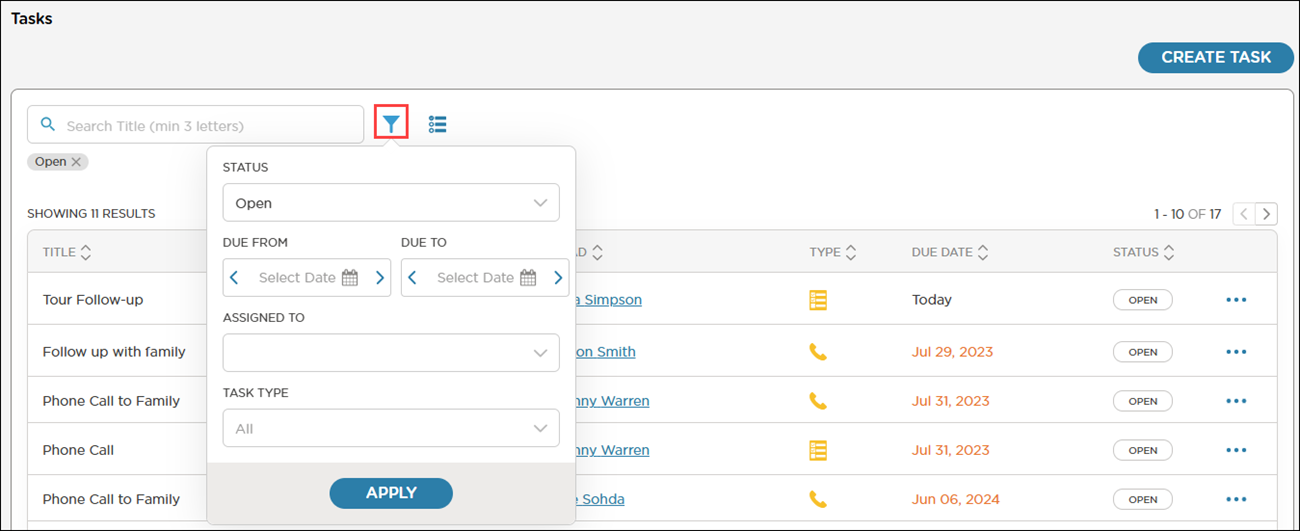
Enter your filter criteria.
Click Apply.
Note
To remove the filter, click ✖ on the filter label above the list.
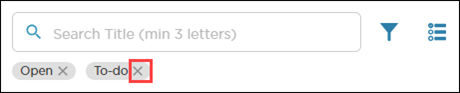
Filter by Due Date
Click the Due Date Filter
 to quickly view tasks due today, due in the next seven days or past due.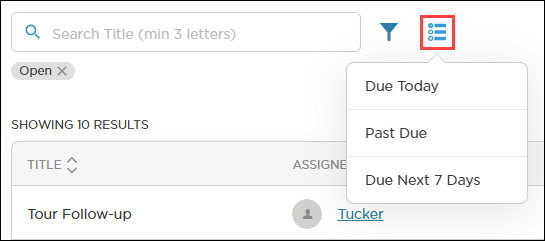
Select a due date to filter by.
Note
To remove the filter, select the due date from the filter again or click ✖ on the filter label above the list.
Change the Status of a Task
To complete an open task, click Open in the Status column to change it to Closed.
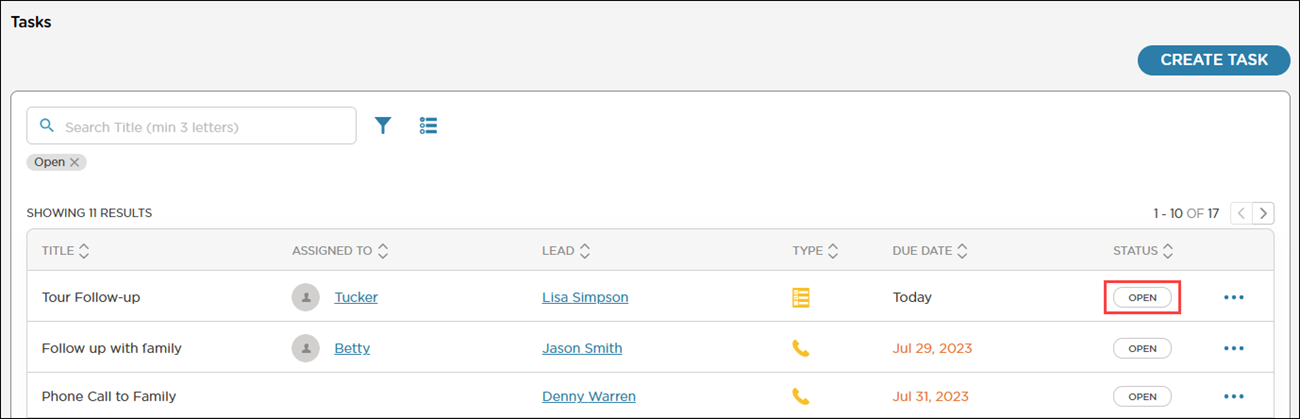
The completed task displays with a strikethrough across the task details.
.png)