
Your center decides which sign-in/out method(s) to offer parents/guardians and authorized pickups. As center staff, it's important to understand the parent/guardian and authorized pickup experience so you can assist as needed. This article explains how parents/guardians and authorized pickups will use the Parent Kiosk to sign their child or children in and out, and what you can do to support them.
KinderSystem Texas Requirements
In September 2026, the state of Texas adopted new requirements for collecting and submitting child attendance records for subsidized child care. Check with your center to verify they use this process, then click on the KinderSystem Texas tab below for state-specific instructions.
Parent Kiosk
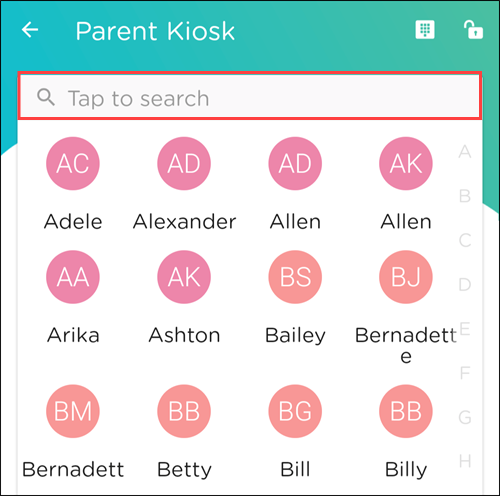
The parent/guardian taps to select their child or tap to search and enter a child’s name.
A List of Pickups is displayed. They tap the name to continue.
They tap their child or children’s name(s).
They tap Sign-In/Out.
The center may have questions before the parents/guardians can continue.

They tap Submit.
The center may require a signature.
They tap Done.
A confirmation message appears.
Procare Child Care Mobile App Permission
If you are using the app for the first time, Procare will need access to your photos on your mobile phone.
Locate the Parent Kiosk device. The window should look similar to this.
The parent/guardian taps to select their child or taps to search and enter a child’s name.
A List of Pickups is displayed. They tap the name to continue.
They tap their child or children’s name(s).
They tap Sign-In/Out.
The center may have questions before the parents/guardians can continue.
They add your photo. This must be taken at the time of the sign-in/out with your mobile phone’s camera.
They tap Use Photo.
If they need to retake the photo, tap Retake.
They tap the back arrow to return to the signature window. They tap X to return to the child selection window.
A map preview with a pin shows their location. They tap Sign-in/out to complete the sign-in/out process.
A confirmation message appears.
Location Capture Problems?
If the location looks incorrect, tap Try Again to update the pin. The pin cannot be dragged or manually adjusted.
Error Messages
Location is turned off - permission denied or no access
The location is required to complete the sign-in/out. The center staff will need to assist the parent/guardian.
We couldn’t get your location - unavailable or timeout
A location is required to complete this sign-in/out. Tap Try Again.
The device couldn't lock onto a GPS signal in time to complete the process — this is a common issue indoors or in areas with weak signal strength. Moving closer to a window or door can help.
Tapping Try Again is the only way to proceed; this step cannot be skipped.
If the issue persists, the center staff will need to assist.
Location Capture Submission Note
Sign-in/out locations use GPS, so the address shown may be slightly off (e.g., a few doors down). This is normal and will not affect your submission. Location data is reviewed only during state audits, where minor GPS variations are not flagged as issues.
Lock Status
Password Protect
This feature can be password-protected. When enabled, only staff with the appropriate security permission can lock the device screen to restrict sign-in/out access — either for a specific room or for all rooms. In the Procare Child Care App, the button reflects the current state, displaying as Lock
or Unlock
.

Learn more about how to lock the Sign-In Kiosk.
Lock the Parent Kiosk
Log in to the Procare child care mobile app as an admin.
Tap Menu
 .
.Tap My School.
Tap School Settings.
Tap to check the Password Protect Sign In-Out option.
Tap < twice to return to the home screen.
Tap Sign-In
Tap Parent Kiosk.
Tap Unlock
in the top right corner to change to Lock  .
.The screen is locked and a parent/guardian cannot navigate away from the current kiosk screen.
Unlock the Parent Kiosk
Any staff member can unlock the parent kiosk device.
Tap Lock
in the top right corner to change to Unlock .Enter your password for the app.
Tap Submit.