Add up to six multiple payment methods to your Procare account. Build a wallet of payment options that you can select from at the time of payment. Set a payment default to use for autopay or when making a payment.
Payment Types
Verify with your center which payment methods they accept.
Enable or Disable Parent Wallet
Administrators can enable or disable Parent Wallet.
Learn more about Enable or Disable Parent Wallet.
Add Payment Methods to Your Account
Go to Payments > Wallet. The available payment methods are listed.
Click Add Payment Method.
.png)
Select the type of payment method. The options are:
Debit Card
Credit Card
ACH Bank
All options require having the correct data for each account added, including:
Name on account
Account number for credit/debit cards, routing numbers for checking/savings
ZIP (postal code)
This authorization will display. You must agree to proceed.
Authorization Notice
By submitting this payment, you authorize <center name> to securely store your credit card or bank account information to process this payment and any future payments you authorize, including recurring transactions.
To keep your card on file, please review and accept the authorization agreement. If you do not accept, the payment method will have to be manually deleted. Any payments will need be made manually.
Complete the payment type details.
A message will display verifying that the payment method was successfully added.
.png)
Payment default can be set for any one payment type.
The default method is confirmed.
To edit the name of the account, click Edit
 .
.Editing the account name is confirmed.
Autopay
At least one default payment type must be selected if autopay is enabled. Click here to learn more.
You can add a payment method to the Wallet in the mobile app.
Select Add Card or Bank.
.png)
Select the type of payment method. The options are:
Debit Card
Credit Card
ACH Bank
All options require having the correct data for each account added, including:
Name on account
Account number for credit/debit cards, routing numbers for checking/savings
ZIP (postal code)
This authorization will display. You must agree to proceed.
Authorization Notice
By submitting this payment, you authorize <center name> to securely store your credit card or bank account information to process this payment and any future payments you authorize, including recurring transactions.
Complete the details for the payment type.
A message will display verifying that the payment method was successfully added.
Click Edit
to change the:name of the payment method
default payment method
Card Update Information
If you receive a new bank card on the same account but with a different CVV or expiration date, you cannot edit the card in the Wallet. You must delete the card and add it back.
If a Payment Method Cannot Be Saved
If a payment method cannot be saved, an error message will display.
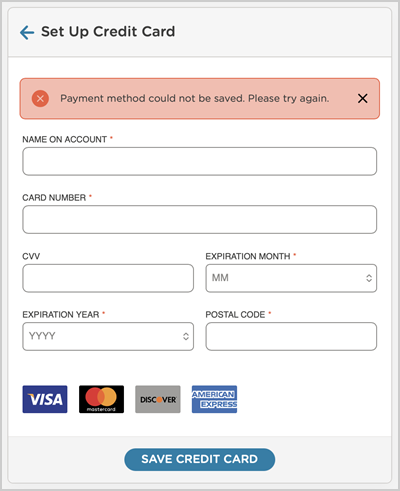

Learn more about Common Error Messages and What They Mean
Delete Payment Method from the Wallet
Click Delete
 .
.Confirm you want to delete.
If you delete a default payment method, the next payment method will automatically become the default.
If there is no remaining payment method, the payment method cannot be deleted.
.png)
The payment method deletion is confirmed.