Navigation Changes
The Leads and Registration sections are now under Enrollment.
Legacy System Notice and Recommendation
This article covers instructions for our legacy registration form, which may not be available in your version of Procare Online. If you do not see it, click here to learn more about the new Registration feature. We highly recommend switching to the new feature as this legacy form may be discontinued in the future. Added benefits of the new Registration feature include:
create and send multiple forms to both leads and existing students
more form customization
the ability to quickly send forms to existing leads and students directly through Procare
After your registration form has been created and published, the next step is sharing it with parents/guardians. You can decide how and when parents/guardians complete the form. This can be the first form they complete upon showing interest in your school/center or it can be filled out after parents/guardians have completed preliminary steps.
Procare Online allows you to share a URL with parents/guardians or embed it as a button on your school website.
Use Leads for New Families Only
The Leads feature is for new families only; if a current family completes the form, it will create a duplicate student. For this reason, the Leads section is not a good fit for summer camps and enrichment programs. See Re-Registration for current students.
Sharing Your Form
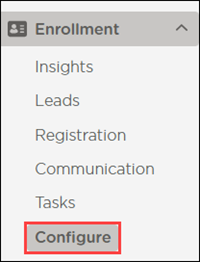
To share your form, go to Enrollment > Configure.
Click Edit
 .
..png)
Click the Step 3 icon for Share the Form.

Choose how to share the registration form.
.png)
Share the Link
Your first option for sharing your registration form is to share the URL. Click Copy  to copy the URL from your screen and paste it into an email to parents/guardians.
Embed the Button
The second option for sharing your registration form is by embedding the button on your existing website. This allows interested families to easily locate and complete your registration form.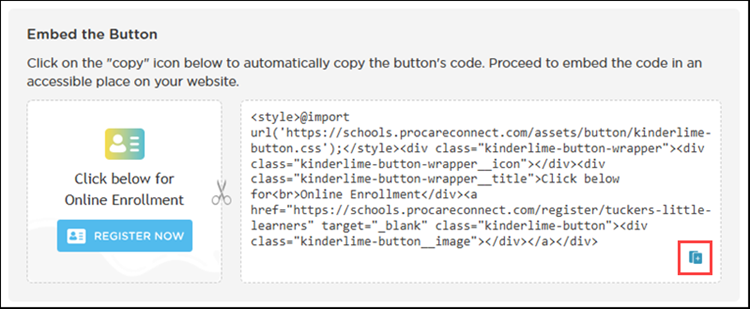
First, you will need to decide where you want to display the button on your website. Some ideas include:
Adding the button to a sidebar on the left or right side of your website.
Featuring it somewhere along the top of the website, in the heading area or in the upper right corner.
Including it somewhere in the body of your homepage.
Next, Click Copy to copy the button's embed code.
To use the button as-is, paste it into your website's HTML. If you want to change the wording, you will need to do so before or after pasting the code.
You can also create your own button to match the style and branding of your website.