If you were invited to create a Procare staff account from an existing program or school, you will receive an email from connect-hello@online.procaresoftware.com with instructions to create your account.
Open the invitation email.
Check your spam, junk, promotions or updates folders if you do not see it in your inbox.

Click the Procare Web Portal link in step 1 in the email.
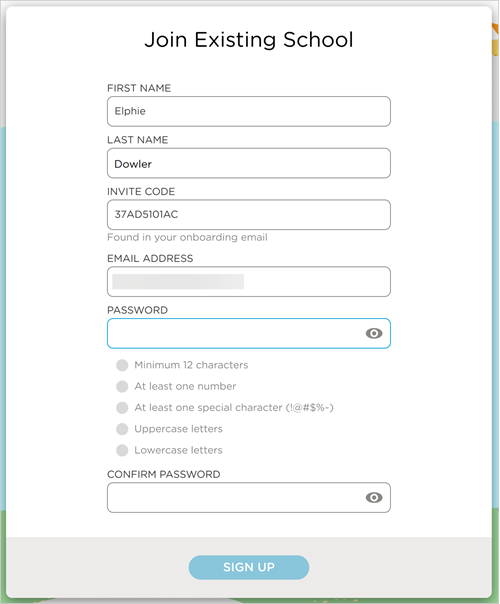
Complete the fields:
First Name
Last Name
Invite Code
Email Address
Note
When you click the link from the email, your name, invite code and email address are automatically populated in the fields. If you go directly to the website without clicking the link from your email, you will have to manually complete these fields.
Enter a password.
Procare Online requires the following:
A minimum of 12 characters
Must contain at least one of each of the following character types:
number
special character (~ ! @ # $ % ^ * ( ) _ - + = { } [ ] \ | : ; “ ‘ < > , . ? /)
uppercase letter
lowercase letter
Cannot be a commonly used or easily guessable password (e.g., “password1234,” “quertyABCDEF“ or simple sequences)
Strong Password Checks
Procare Online blocks commonly used and easily guessable passwords. If your password is too weak, Procare Online will display a message requiring you to choose a stronger one.
Reenter the password to confirm it matches.
Click Sign Up.
Set up 2-Step Verification.
Note
2-Step Verification is required for all staff who use Procare Online.

Learn more about Setting Up 2-Step Verification for Staff.
Download the Child Care Mobile App
After following the steps above, download the Child care mobile app for free from the app store appropriate for your mobile device.
Apple®
Download from the Apple® App® Store

Android
Download from the Google Play™ store

Open the Child care mobile app.
Select your role.
Log in with your email address and the password you created.
Dual Roles - Switch Between Staff and Parent/Guardian Profiles
If you have both a staff and a parent/guardian profile, you can easily switch between the two as long as they are linked to the same email address.
Note
Both profiles must be associated with the same email address for this feature to work.
Click the Profile
 icon.
icon.Select Switch to Parent.
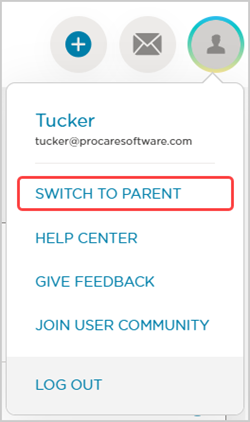
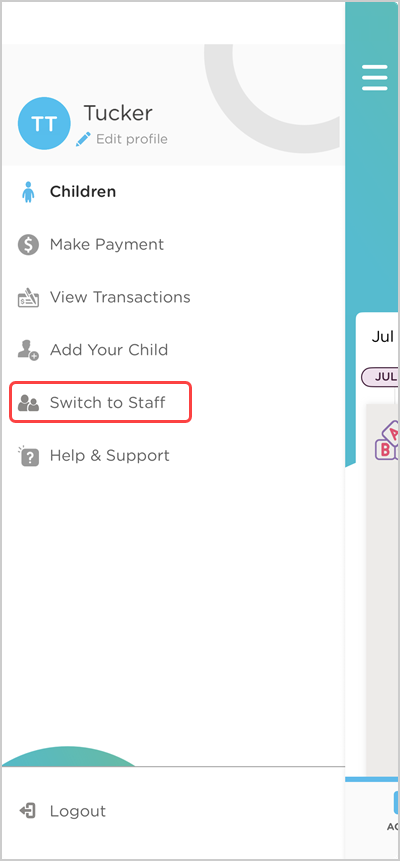
To switch back to your staff account, click the Profile
icon, then select Switch to Staff.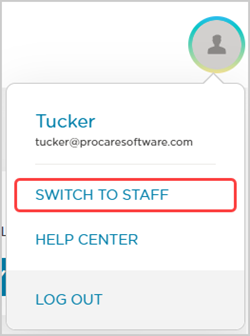
Tap Menu ☰.
Tap Switch to Parent.
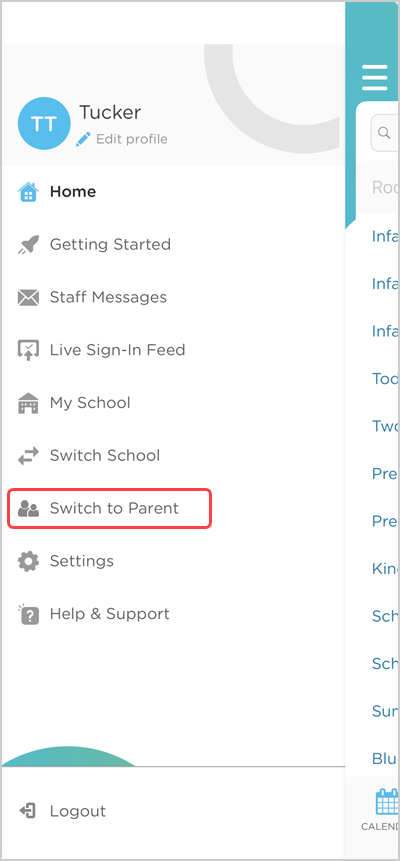
To switch back to your staff account, tap Menu ☰, then tap Switch to Staff.

Troubleshooting Guide
Trouble logging in? Here are a few things to check:
Check Your Email Address
Ensure the email address you enter on the sign-up screen matches the email address your invite code was sent to. If the email address is different, the account creation will fail.
Create an Account With the Correct Credentials
Logging in to Procare with the invitation code as your password will not work. You will receive an error that your email is invalid. You must first create an account.
Create an Account on the Website
Ensure you have created an account through the website before signing in on the Child care mobile app.