The SMS Delivery Status dashboard provides a centralized view of every sent text message so you can quickly confirm delivery and resolve any failures before they turn into a communication gap.
Dashboard Details
Go to Messaging > Parent Messaging > SMS Delivery Status.
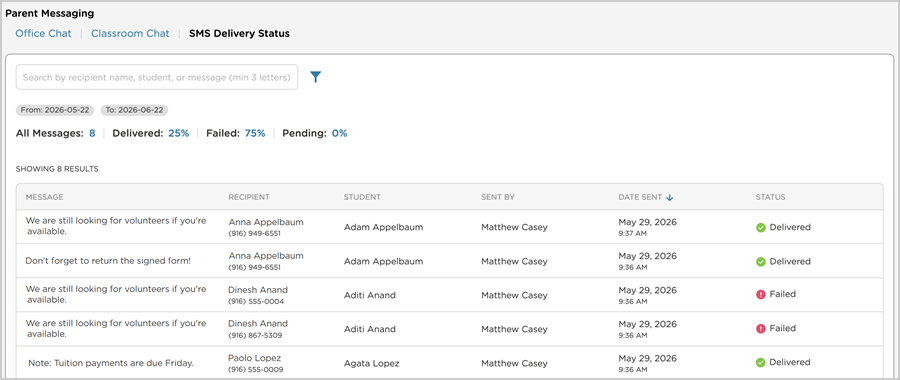
The dashboard displays the following details for each message:
Message: a preview of the message that was sent
Recipient: the name and phone number of the parent/guardian the message was sent to
Student: the student associated with the message
Sent By: the staff member who sent the message
Date Sent: the date and time the message was sent
Status: whether the message was delivered, failed or is still pending
Search and Filter Messages
Use the search bar to find a message by recipient name, student or message text. Searches require a minimum of three letters.
Click Filter
 to narrow results further.
A date range (From/To) is applied by default and can be adjusted to view messages sent during a different time period.
SMS Status Descriptions
Procare Online displays a running total of all messages sent within the selected date range at the top of the list, along with the percentage that falls into each status:
Status | Description |
|---|---|
Delivered | The message was successfully sent to the recipient’s phone. |
Failed | The message could not be delivered. |
Pending | The message has been sent but delivery has not yet been confirmed. |
If a Message Fails to Deliver
If a message fails to deliver, hover over Failed Status  to see the reason for the failure. For example, a failure reason of “Landline or Unreachable Carrier” indicates that the number on file cannot receive text messages.
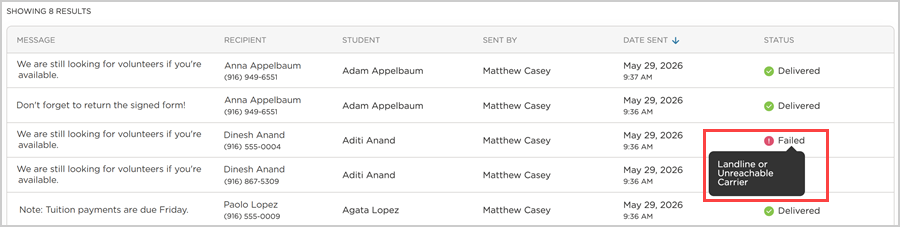
Reviewing the failure reason can help you determine the next step. For example, updating a family’s phone number on file or reaching out to them through another method, such as phone call or email.