With our staff kiosk form, you can ask your staff members up to five questions upon check-in or check-out.
App Version
Displaying the staff kiosk form during staff check-in/out in the Procare child care mobile app will require app version 4.7.
Create a Staff Kiosk Form
Go to School Settings > Settings > Sign-In Out > Staff Kiosk Form.
Click Setup Form.
Add Questions to the Staff Kiosk Form
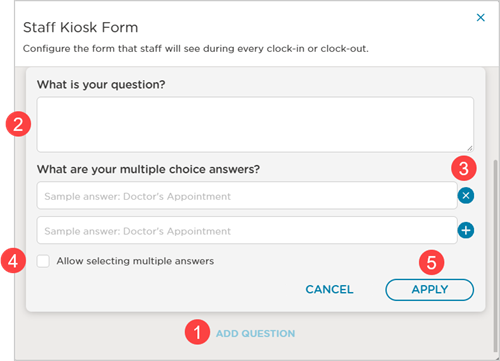
Click Add Question.
Enter your question. This question will be asked for each staff member upon clocking in/out.
Enter the possible answer(s) to the question.
Click to Delete
 an answer.
Click to Add
 an answer.
Check to allow multiple answers for the question.
Click Apply to add the question with the answers.
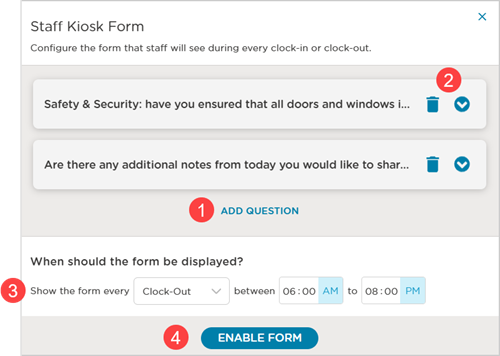
Click Add Question until all questions and answers have been added to the form.
Click:
Delete
 to remove a question and answer(s) you no longer want.
Click
 to show the question and answer(s).
Select the form for:
Clock-In or Clock-Out.
Select time range.
Click Enable Form.
The Staff Kiosk Form now says Enabled.
Edit the Staff Kiosk Form
Go to School Settings > Settings > Sign In-Out > Staff Kiosk Form.
Hover over the Enabled button.
Select Edit.
Click:
Delete
to remove a question and answer(s) you no longer want.Click
to show the question and answer(s).
Click Add Question to add a different question and answer.
Edit the display options for:
either Sign-in or Sign-out
Select time range.
Click Enable Form.
View Staff Form Kiosk Responses
Go to Staff Management > Timecard.
Select the date on the Staff dashboard.
Locate the Kiosk Form
 and click.
The kiosk form question and answers display.
Click Close to exit.