Your center can ask parents/guardians or authorized pickups questions when they sign in/out their child(ren).
The Parent Kiosk Form can help you collect important information from parents during check-in/out, for example, health screening questions before a child enters the building or classroom. It's also useful for asking whether a child is having hot or cold lunch, or noting the reason for a late arrival or early departure.
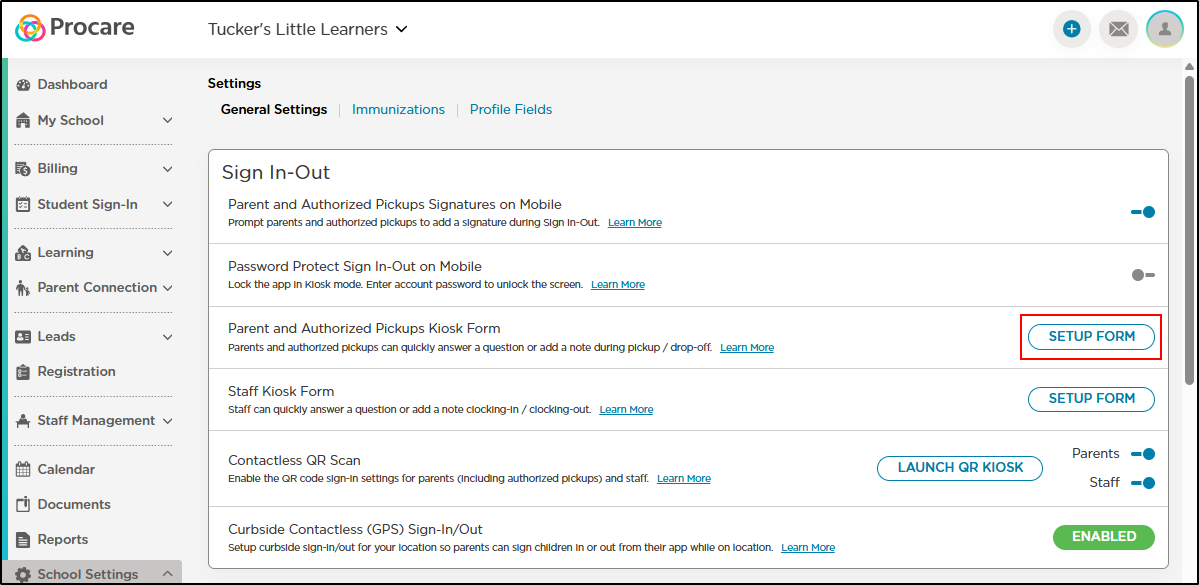
Go to School Settings > Settings > Sign In-Out.
Enable the Kiosk Form
Click Setup Form.
Create the Form
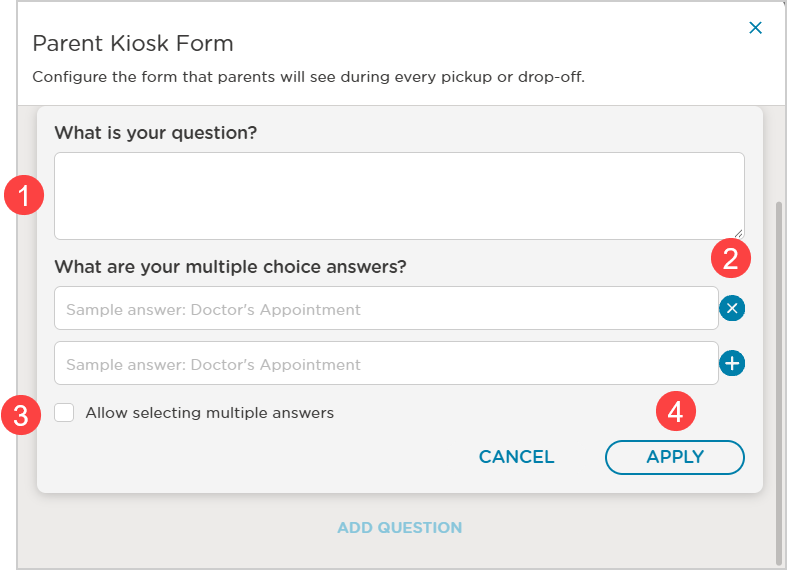
Enter your question. This question will be asked for each student as they are signed-in/out.
Enter the possible answer(s) to the question.
Click to Delete
 an answer.
Click to Add
 an answer.
Check to allow multiple answers for the question.
Click Apply to add the question with the answers.
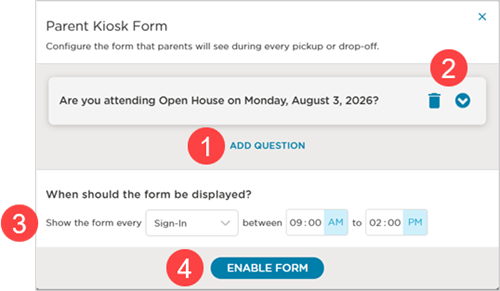
Click Add Question until all questions and answers have been added to the form.
Click:
Delete
 to remove a question and answer(s) you no longer want.
Click
 to show the question and answer(s).
Select to the form for:
either Sign-in or Sign-out
Select time range.
Click Enable Form.
The Parent/Guardian Experience with the Form
Parents/guardians follow the usual sign-in/out steps using the Sign-In Kiosk or Parent Kiosk. After tapping Sign In/Out, a kiosk form appears and parents/guardians can select their responses and add any additional notes.
The sign-in/out continues based on your center’s attendance options.
View the Kiosk Form Answers
For Individual Students
Go to Student Sign-In > Attendance.
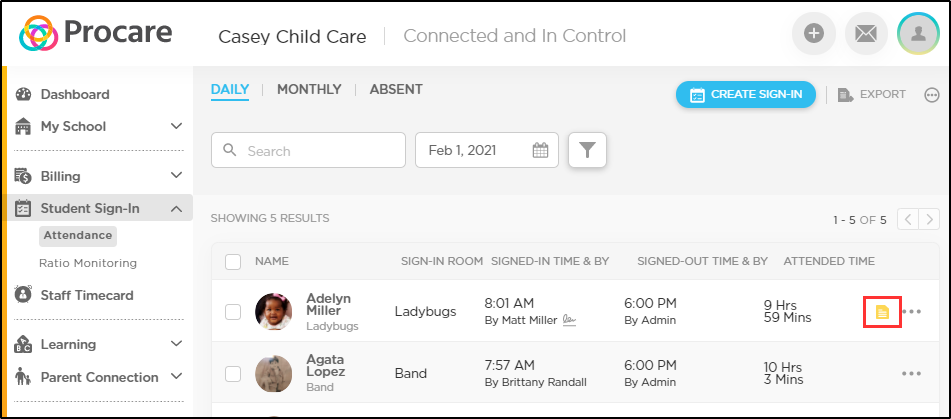
Locate the Kiosk Form
 and click.
The kiosk form question and answers display.
Click Close to exit.
For Multiple Students
Go to Reports > Report Library > Sign In-Out Students > select the Daily Attendance report.
Select the date.
Select the Room(s).
Select the Tag(s).
Click Generate Report.
The report is generated in .xls (Excel format) or as a PDF. Click your option. Questions and answers to the kiosk form are displayed for all students in your selection.
Note
This option only displays responses from the same day. To view previous responses, refer to the website instructions.
Tap Menu
 .
.Tap Live Sign-In Feed.
Tap Kiosk Form
for the student.The question(s) and answer(s) from the kiosk form display.
Edit the Kiosk Form
Go to School Settings > Settings > Sign In-Out > Parent and Authorized Pickup Kiosk Form.
Hover over the Enabled button.
Select Edit.
Click:
Delete
to remove a question and answer(s) you no longer want.Click
to show the question and answer(s).
Click Add Question to add a different question and answer.
Edit the display options for:
either Sign-in or Sign-out
Select time range.
Click Enable Form.
Disable the Kiosk Form
Go to School Settings > Settings > Sign In-Out > Parent and Authorized Pickup Kiosk Form.
Hover over the Enabled button.
Select Disable.