What is 2-Step Verification?
2-Step Verification adds a layer of security to your account by requiring at least 2 authentication methods. The first authentication method is a password, the second is typically a phone number or email address.
With 2-Step Verification, users set up what are called verified methods. These can be an authenticator app, a mobile phone number, or an email address.
Connect Portal: How parents set up and enable 2-Step Verification
Provider Portal: How staff sets up and enables 2-Step Verification
In this article, you will find:
Staff Permissions
The following Activity IDs must be set to 'All Permissions'
Activity ID 1068 - For staff to enable and utilize 2-Step Verification for their account.
Activity ID 1876 - To allow a staff member to reset another staff member's 2-Step Verification account,
Activity ID 1875 - To allow a staff member to reset a parent/guardian's 2-Step Verification account,
Activity ID 1877 - To allow a staff member to reset a contact's 2-Step Verification account,
Resetting 2- Step Verification for Staff (Provider Portal)
If a staff member is unable to access their Verified Methods (email address, phone number or authenticator app) and log in to the Provider Portal, their 2-Step Verification account can be reset by another staff member. Resetting a 2-Step Verification account will remove all their Verified Methods. Once reset, they can log in and add the correct methods.
Important: In order for a staff member to have access to reset another staff member's 2-Step Verification account, they must have Activity ID 1876 set to 'All Permissions'.
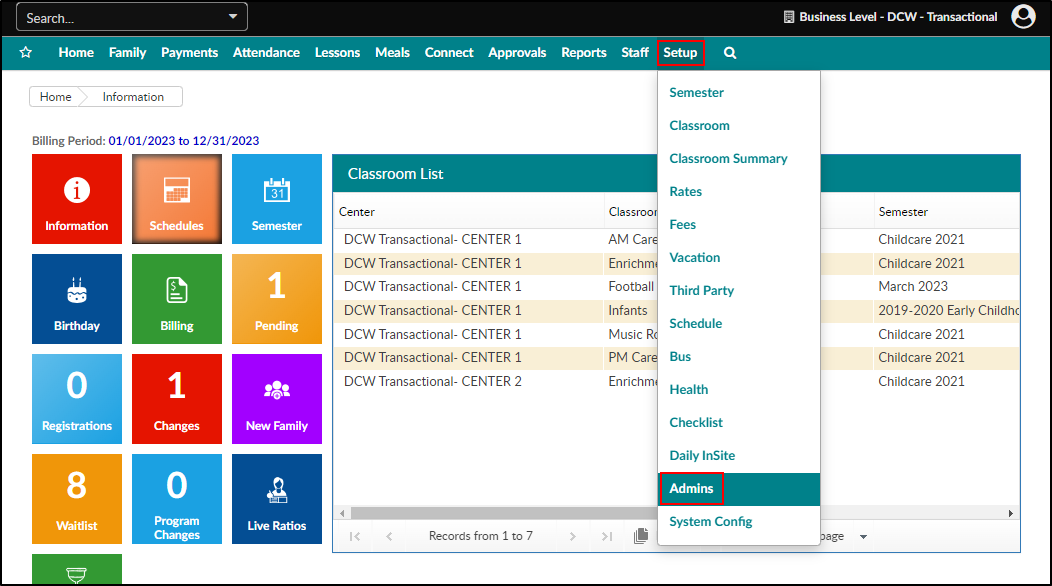
Click Setup, then Admins.
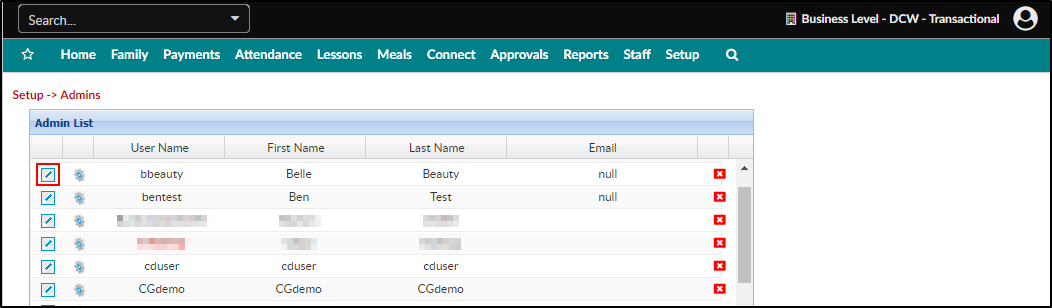
Locate the staff member in the Admin List and click the pencil icon to the left of their name.
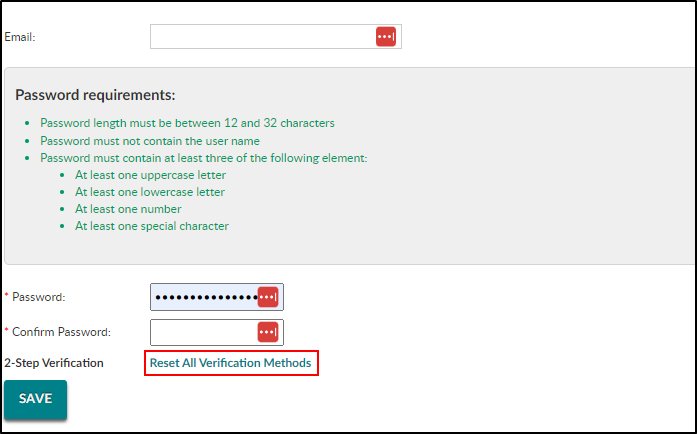
Under the password reset section, click Reset All Verification Methods.
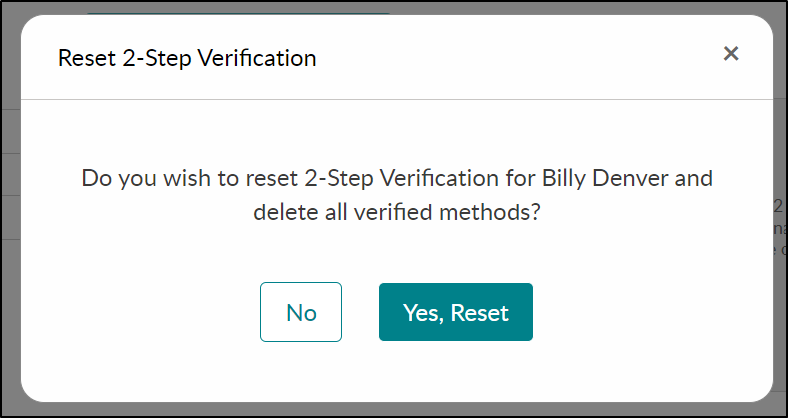
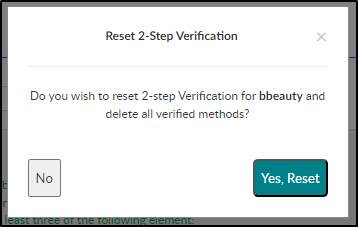
Click Yes, Reset to confirm the reset.
Resetting 2-Step Verification for Families (Connect Portal)
If a user is unable to access their Verified Methods (email address, phone number or authenticator app) and log in to the Connect Portal, their 2-Step Verification account can be reset by a staff member. Resetting a 2-Step Verification account will remove all their Verified Methods. Once reset, they can log in and add the correct methods.
Important: In order for a staff member to have access to reset a parent/guardian's 2-Step Verification account, they must have Activity ID 1875 set to 'All Permissions'.
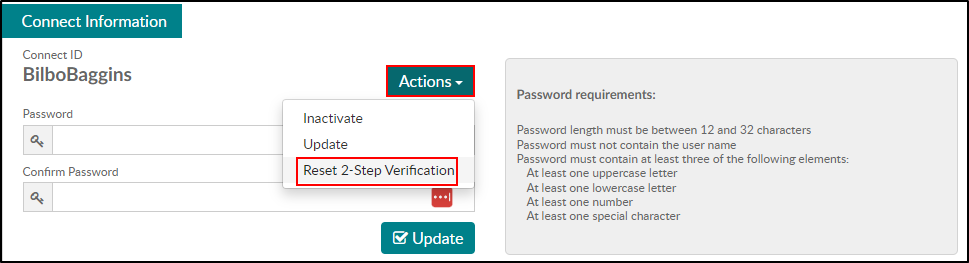
Navigate to the family record and click the Parents tab.
Locate the Connect Information section. Click Actions, then Reset 2-Step Verification.
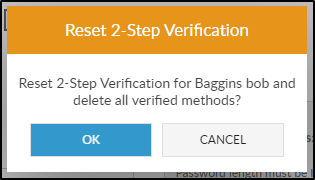
Then click OK to confirm the reset.
Resetting 2-Step Verification for Contacts (Connect Portal)
If a contact is unable to access their Verified Methods (email address, phone number or authenticator app) and log in to the Connect Portal, their 2-Step Verification account can be reset by a staff member. Resetting a 2-Step Verification account will remove all their Verified Methods. Once reset, they can log in and add the correct methods.
Important: In order for a staff member to have access to reset a contact's 2-Step Verification account, they must have Activity ID 1877 set to 'All Permissions'.
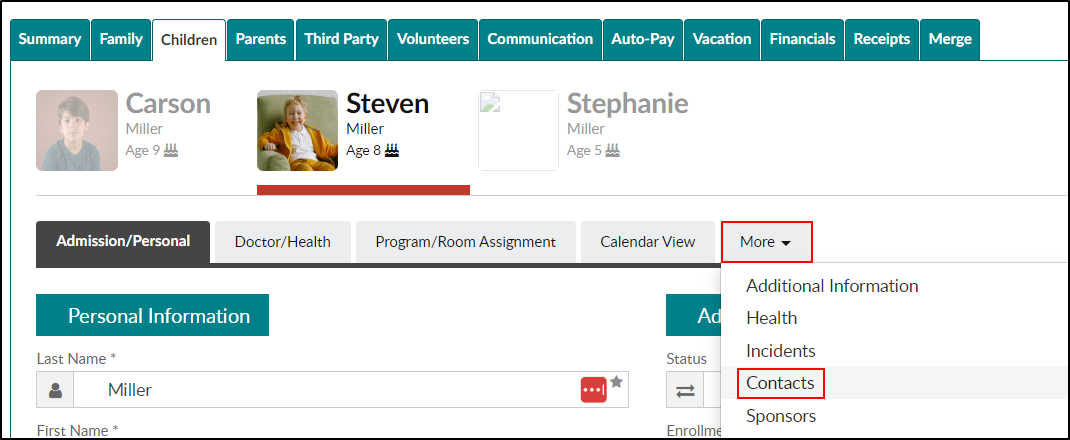
Navigate to the family record and click the Children tab.
Then click the More tab and select Contacts.
Locate the Payer Information section and click Reset 2-Step Verification.

Then click Yes, Reset to confirm the reset.