KinderSystems provides flexible, secure, and easy-to-use child care subsidy solutions for states, Head Start programs, and child care agencies throughout the United States.
Use our integration to transmit attendance records from SCW to the KinderSystems web portal for Arizona, Missouri and Texas.
Requirements for Arizona Integration Set Up
You must have a valid login for your state's web submittal page and know your center's:
KinderSystems provider ID number
KinderSystems group password
You must use SCW to record child attendance
Inform your state's KinderConnect team that you are using SCW to transmit attendance
Requirements for Missouri Integration Set Up
The following information must be obtained by the client from ControlTec prior to setup:
The Agency ID that is assigned by the State of Missouri DSS
The Provider ID that will identify the client in ControlTec
The Web Service Password for this Provider ID
The Web Service URL for the Vendor Interface. We will be using an HTTP Post for the JSON
Requirements for Texas Integration Set Up
KinderSystem Texas Requirements
In September 2026, the state of Texas adopted new requirements for collecting and submitting child attendance records for subsidized child care.For Procare SCW customers, as of September 8, 2026, the child/student checkin-out/out process for this category has been updated.
You must have a valid login for your state's web submittal page and know your center's:
KinderSystems provider ID number
KinderSystems group password
You must use SCW to record child attendance
Inform your state's KinderConnect team that you are using SCW to transmit attendance
The InSite Checkin app is used to meet Texas requirements by capturing a photo, an e-signature, and location data at each student's check-in/check-out.
The InSite Checkin app must be updated to the latest version:
Android: 3.5.0 (or higher)
iOS: 3.4.0 (or higher)
Setting Up KinderSystems
Follow the steps below to set up your KinderSystems integration:
Obtain the required information for your state (see above).
Contact SCW support and let them know you’d like to set up a KinderSystems integration.
Arizona Only: Schools must be trained by Arizona DES prior to using the integration. Click here to schedule your training with Arizona DES.
Add Child Contract ID numbers to SCW (see below).
Export/send agency attendance (see below).
Add Child Contract ID# to SCW
In SCW, each child must be linked to their KinderSystems Child ID to enable attendance tracking. Providers can find Child IDs in their CCES KinderSystems account.
Locate the family in SCW.
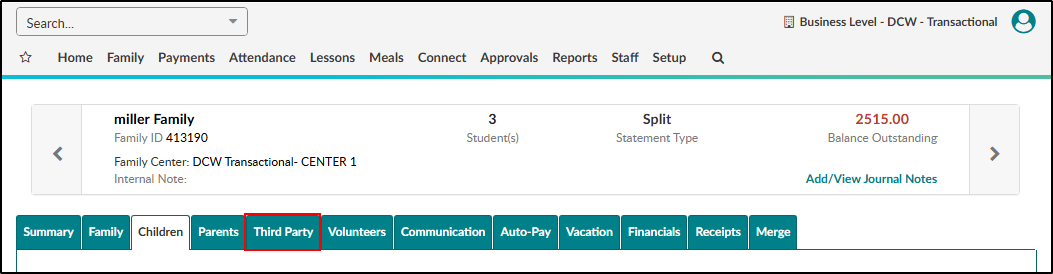
Click the Third Party tab within the family record.
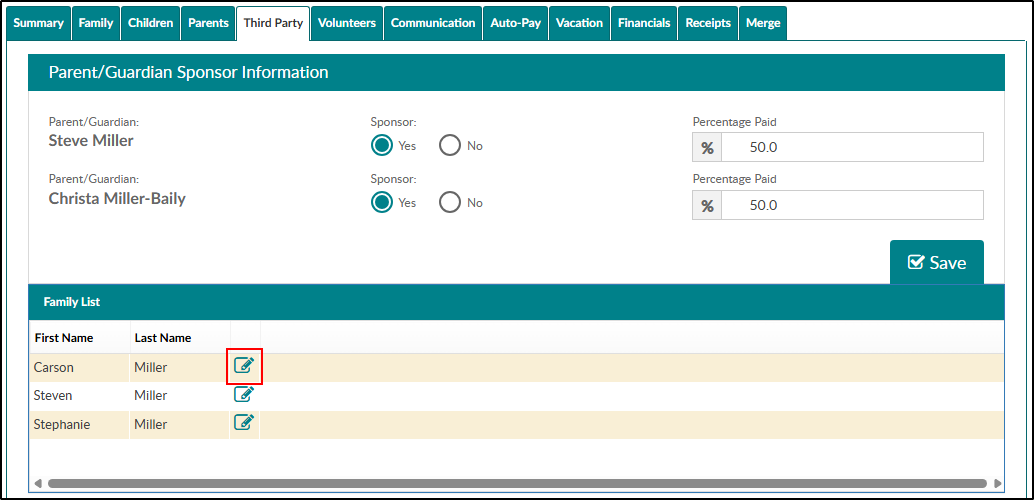
Click the View Contract icon to the right of the child's name.
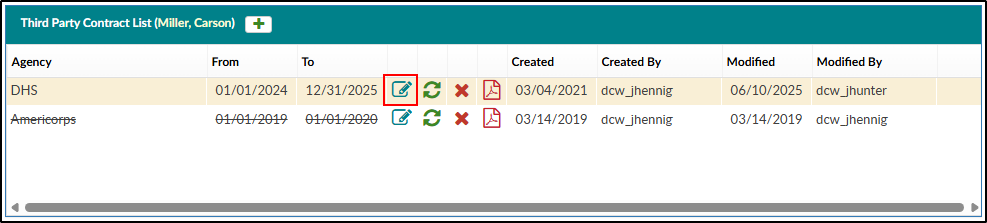
In the Third Party Contract List, click the modify icon next to the correct third party contract.
Under the Agency Contract section, locate the Child Contract ID# field and enter the child ID from KinderSystems.
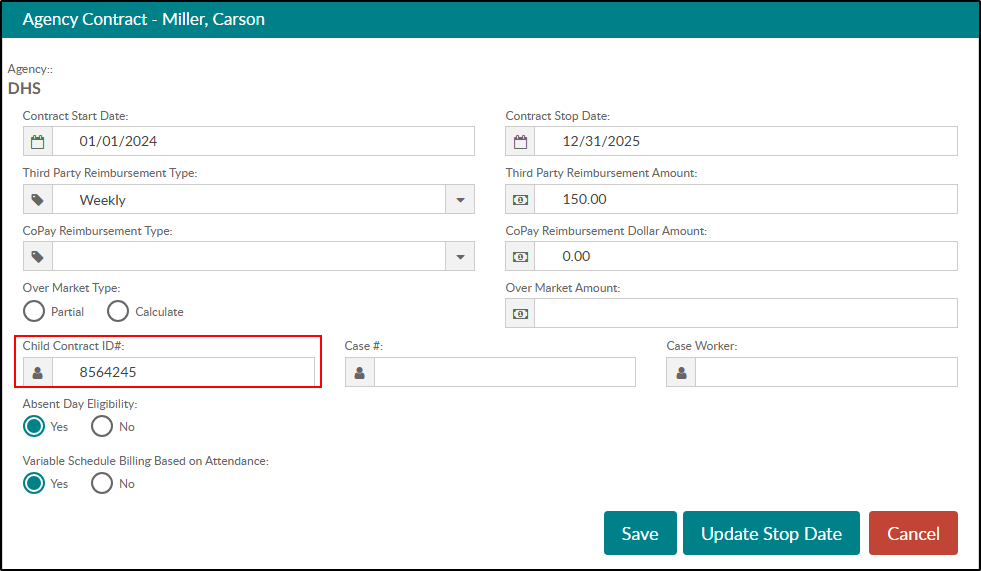
Click Save.
Exporting Agency Attendance
Once the integration is enabled and the Child Contract ID has been added to each child, follow the steps below to send agency attendance to KinderSystems. Please Note: The frequency of this process is up to the client (daily, weekly, monthly, etc.), but there is a time limit set by KinderSystems.
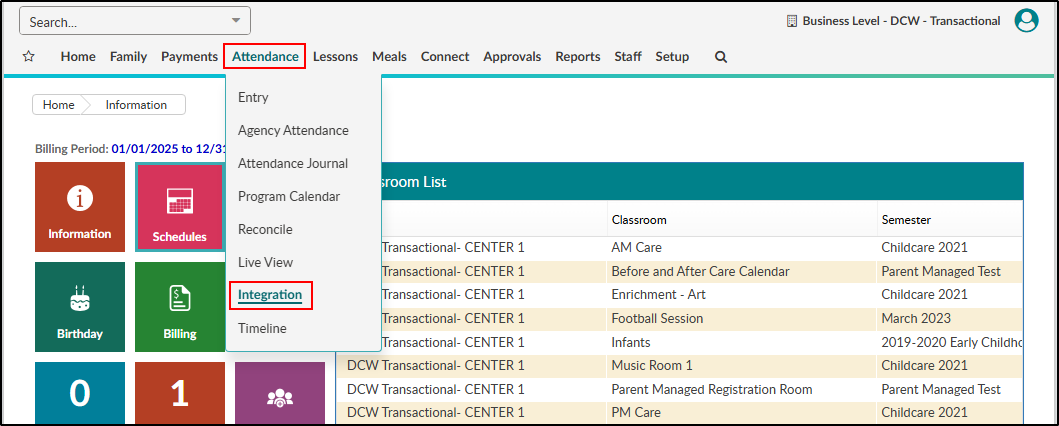
Click Attendance > Integration.
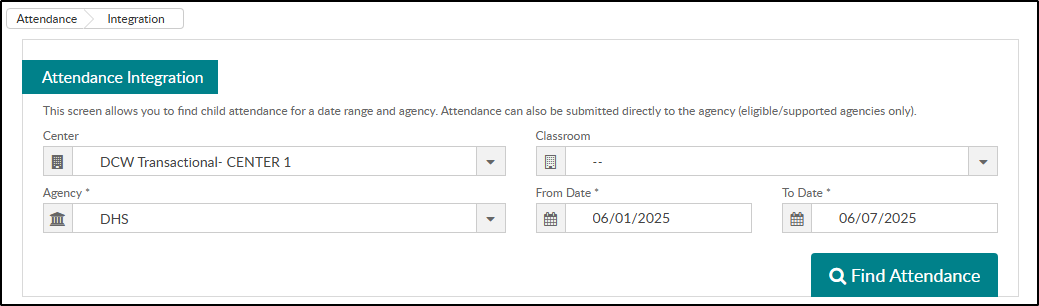
Enter the necessary search criteria and click Find Attendance. Please Note: Center or Classroom, Agency, From Date and To Date are required fields.
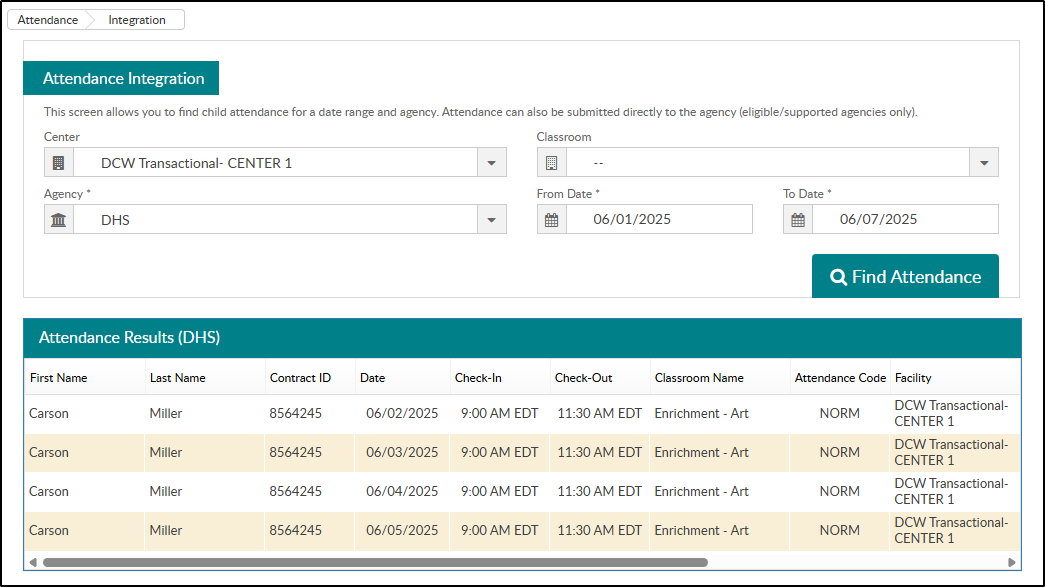
All attendance records that match the search criteria will display in the table. Please Note: Only attendance for children with a Contract ID will be sent to KinderSystems.
Click Submit to Agency to send the attendance to KinderSystems.
Successfully submitted attendance will display in yellow. Review the Notes section for any errors.

To refresh the chart or find additional attendance results, click the Find Attendance button again.
For additional assistance, contact your KinderSystems team:
State | Contact | Support Hours |
|---|---|---|
Arizona | Phone: 833-859-3433 or | Support Hours: |
Missouri | Phone: 833-866-1709, choose option 9 | Support Hours: 7 days a week, 6:00am-Midnight MT |
Texas | Phone: 888-265-6461 | Support Hours: Monday through Friday, 6:00am-9:00pm CST |
General and State Specific Notes
General Note
Attendance can be submitted multiple times from SCW to KinderSystems, but can be submitted only once from KinderSystems to Arizona & Missouri.
Arizona Specific Notes
Arizona allows attendance to be backdated/edited for previous months as long as the child's contract in SCW includes those attendance dates.
Absence days from the Agency Attendance screen will display on the Agency Attendance Integration screen and will be submitted with attendance.
SCW uses the Contract Date as the Authorization Date for Arizona.
If signatures are required, use the Arizona DES Sign-In/Sign-Out Report PDF.
Arizona DES requires training prior to using this integration. Please see the Arizona DES website for dates and to schedule your training.
Texas Specific Notes
Texas allows attendance to be backdated six days as long as the child's contract in SCW includes those attendance dates.
Parents/family members are the only ones authorized to add/edit attendance.
The only exception is bus runs to/from the school.