Here you will find the latest updates on the Procare Desktop ledger issues. Resolving these challenges remains our highest priority, and our teams are making steady progress toward a complete resolution. System monitoring shows that recent enhancements are working as intended, and we are continuing to implement additional updates to have full resolution.
Current and Resolved Issues
Identified Issue | Recommended Action | Status |
|---|---|---|
Some declined payments are being posted to the ledger (as expected), however, the original payment is not being posted. This means there’s a record of a failed payment, but no record that the payment was ever attempted, which makes the ledger inaccurate. | Manually add the missing payment based on the data provided by Technical Services. | Resolved 12/11 with version 2025.18.1 |
Deposit reports are incorrectly handling declined payments. A payment may be excluded from the original deposit report totals but then also appear on a separate deposit report for the decline, which prevents the transaction from reconciling correctly. | Our team is actively working on a resolution. In the meantime, if you notice any discrepancies in your deposit reports, please reach out to our support team. | Resolved 12/11 with version 2025.18.1 |
Some payments from a batch are failing to post to family ledgers and are not appearing in deposit reports, even though other payments in the same batch process correctly. Family ledgers may show incorrect balances, and payments that were successfully processed may appear missing. | Open Process Tuition Express to trigger True Up, and if the payment is still missing, manually post the missing payment. | Open Note: It was previously communicated as resolved in the 2025.18.1 release, but has since been reopened. |
When a card batch payment declines and is posted to the ledger, the associated card processing fee is sometimes not automatically voided. | The processing fee can be manually voided for the same post date as the initial decline. | Open |
Some ACH returns are not being posted to the ledger. Ledgers may show these payments as successful, despite them being returned. ACH returns can be identified through the ACH return notification email and through Tuition Express Reports. | Open Process Tuition Express to trigger True Up, and if the return is still missing, manually post the missing return payment. | Open |
Some cancelled scheduled payments are not being posted to ledgers with their unsuccessful status. Payments may be cancelled manually due to duplicate prevention logic, processing errors, or invalid payment profiles. This can cause ledgers to show payments as successful even though they were declined, creating balance discrepancies. | Open Process Tuition Express to trigger True Up, and if the payment is still not voided, manually post a declined payment. | Open |
Some declined credit card transactions are not being posted to family ledgers, causing balances to appear as paid, even when the payment was declined. This may result in inaccurate paid balances on the ledger. | Open Process Tuition Express to trigger True Up, and if the decline is still missing, manually post the missing decline payment. | Open |
Understand Closing Point-of-Sale Payments and the True-Up Process
The True-Up process ensures that payments, updates, and returns are correctly applied before new scheduled payments are processed.
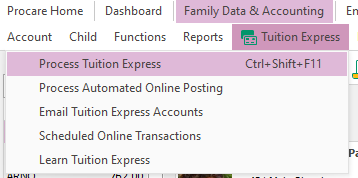
Access the Process Tuition Express screen by navigating to Family Data & Accounting > Tuition Express > Process Tuition Express.
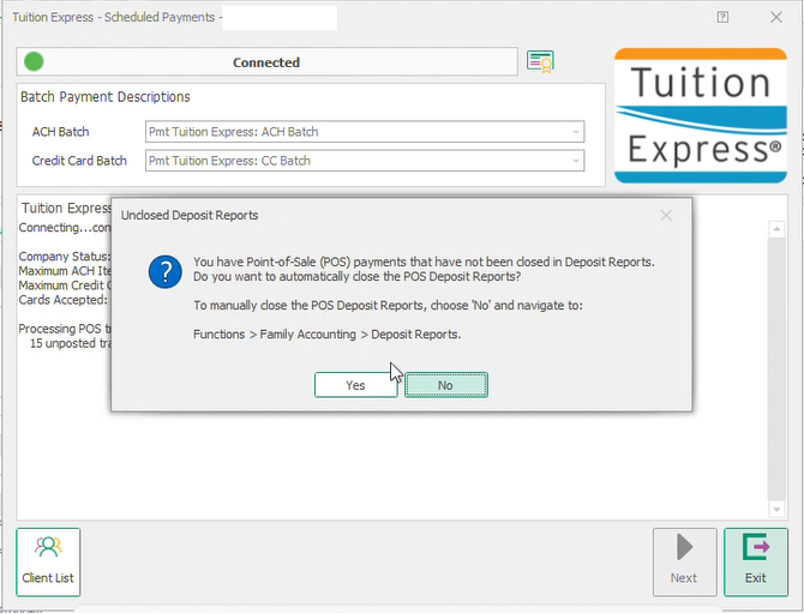
Close any Point-of-Sale payments. When the screen opens, the system first checks for any in-person or Point-of-Sale payments that still need to be closed.
Action Required :
If there are any are point-of-sale payments that are not currently closed in a deposit report, a pop up message will appear.
Please read the message and choose Yes to close all pending Tuition Express Point-of-Sale payments into deposit reports, or No to skip this process
You must select Yes or No to this message to proceed with Tuition Express Processing
Unclosed Point-of-Sale payments remain in the system and continue to trigger the pop-up each time the Process Tuition Express screen is opened until they are closed. Once closed, these payments no longer appear as unposted deposits and are included in the appropriate deposit totals.
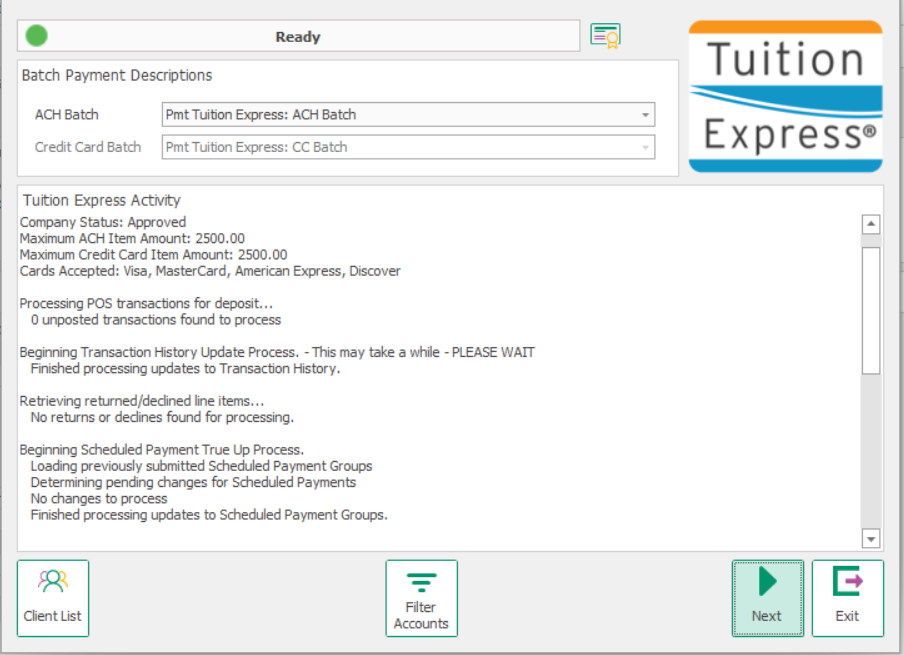
After Point-of-Sale payments are addressed, the True-Up process begins automatically. This process runs in the background to ensure payment records are up to date. The screen should remain open while True-Up is running.
The True-Up process completes two functions:
1. Beginning Transaction History Update Process
The system does an integrity check on previsouly submitted payments to ensure data accuracy, healing any records that may have missing data points caused by network interruptions.
2. Processing Updates to Previously Submitted Payment Groups
Any pending changes found for previously submitted payments, such as cancelled transactions or validation discrepancies, are applied to family ledgers to ensure balances are accurate.
If the screen is closed during the True Up process, the process will stop at the current step and restart from the beginning the next time the Process Tuition Express screen is opened. Any changes from completed steps will remain applied.
Once True-Up is complete, the system checks for any returned or declined payments.
Review Returns and Declines. Once True-Up is complete, the system checks for any returned or declined payments.
If any are found, a pop-up message appears.
Click OK
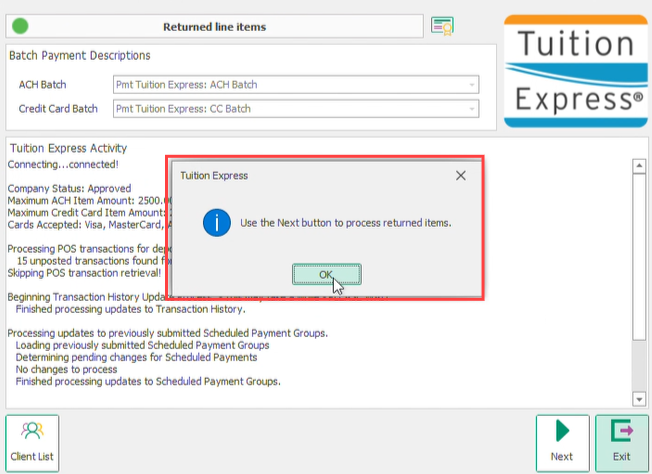
Click Next to review the returns and declines
Select Exit to skip processing Tuition Express and review Returns and Declines at a later time.
Tuition Express cannot be processed again until pending Returns and Declines are posted.
ACH returns will appear first.
After reviewing, click Next to review the card returns and declines
Select Exit to skip processing Tuition Express and review Returns and Declines at a later time.
Tuition Express cannot be processed again until pending Returns and Declines are posted.
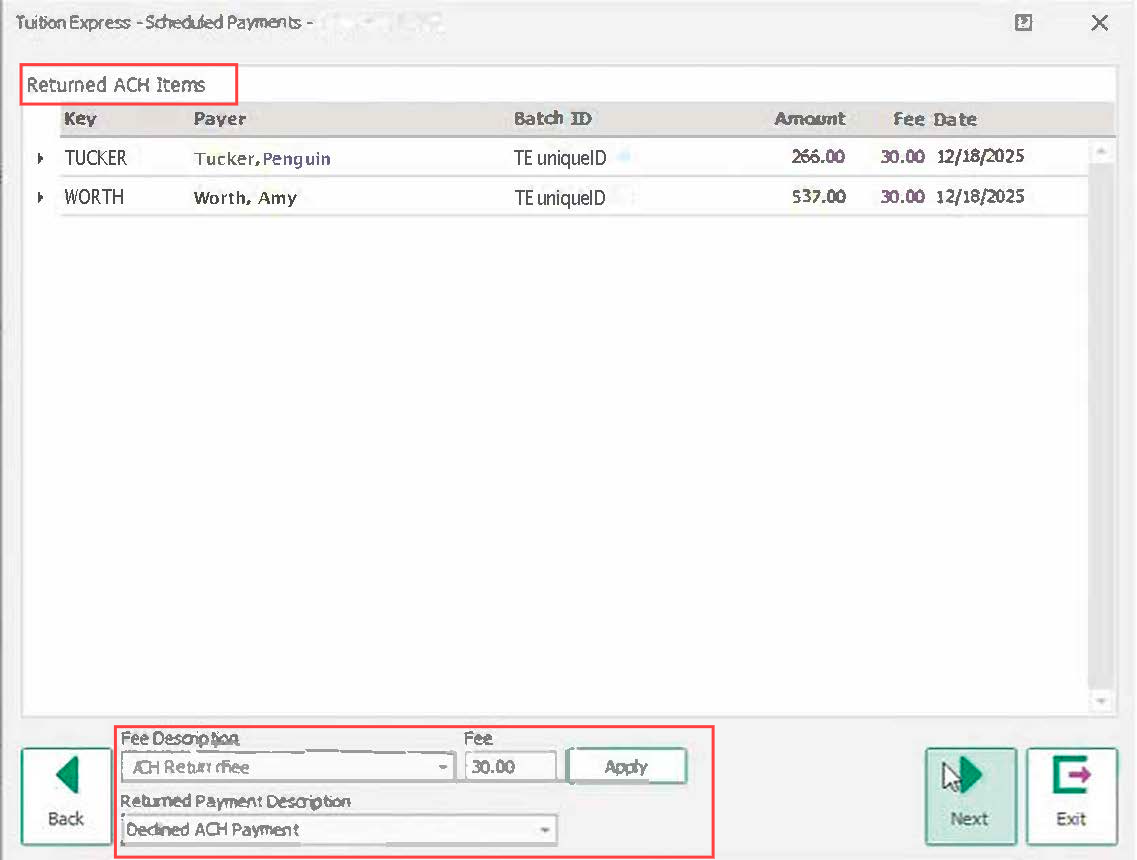
Review any Card Items. The line items will appear as shown in the image above, but will be for returned card items.
After reviewing, click Next
Select Exit to skip processing Tuition Express and review Returns and Declines at a later time.
Tuition Express cannot be processed again until pending Returns and Declines are posted.

Modify the Return or Decline Fee (Optional)
There is an option to adjust the return or decline fee if needed. This option is available on both screens, first for ACH returns and then for card returns or declines.

The return or decline fee can be adjusted if needed. This option is available on both screens, first for ACH returns and then for card returns or declines.
Use the drop-down menu to select a different fee or returned payment description
Update the fee amount if needed
Click Apply to save the changes
Click Next to post the fees and returns to the ledgers.
The system then opens the screen to process a new group of scheduled payments.
How To
How to trigger the True-Up process
Open Process Tuition Express or Process Automated Online Posting from the menu.
Please note that this process may take some time to complete. Do not close or exit the screen while processing is in progress.
.png)
Important: Please allow time for the process to complete. Do not exit the screen until you see the ‘Ready’ message.
How to manually void a credit card processing fee
Navigate to Family Data & Accounting.
Open the family account you want to update.
Click the Ledger icon to see the account’s transaction history.
.gif)
On the Ledger Card, locate the surcharge entry connected to the declined payment.
Highlight the surcharge line, then click the Void button in the lower-left corner of the screen.
In the Void details window, enter the following:
Date: Use the same date as the surcharge.
Comment: Add a note explaining why the surcharge was voided, such as Void surcharge tied to declined payment.
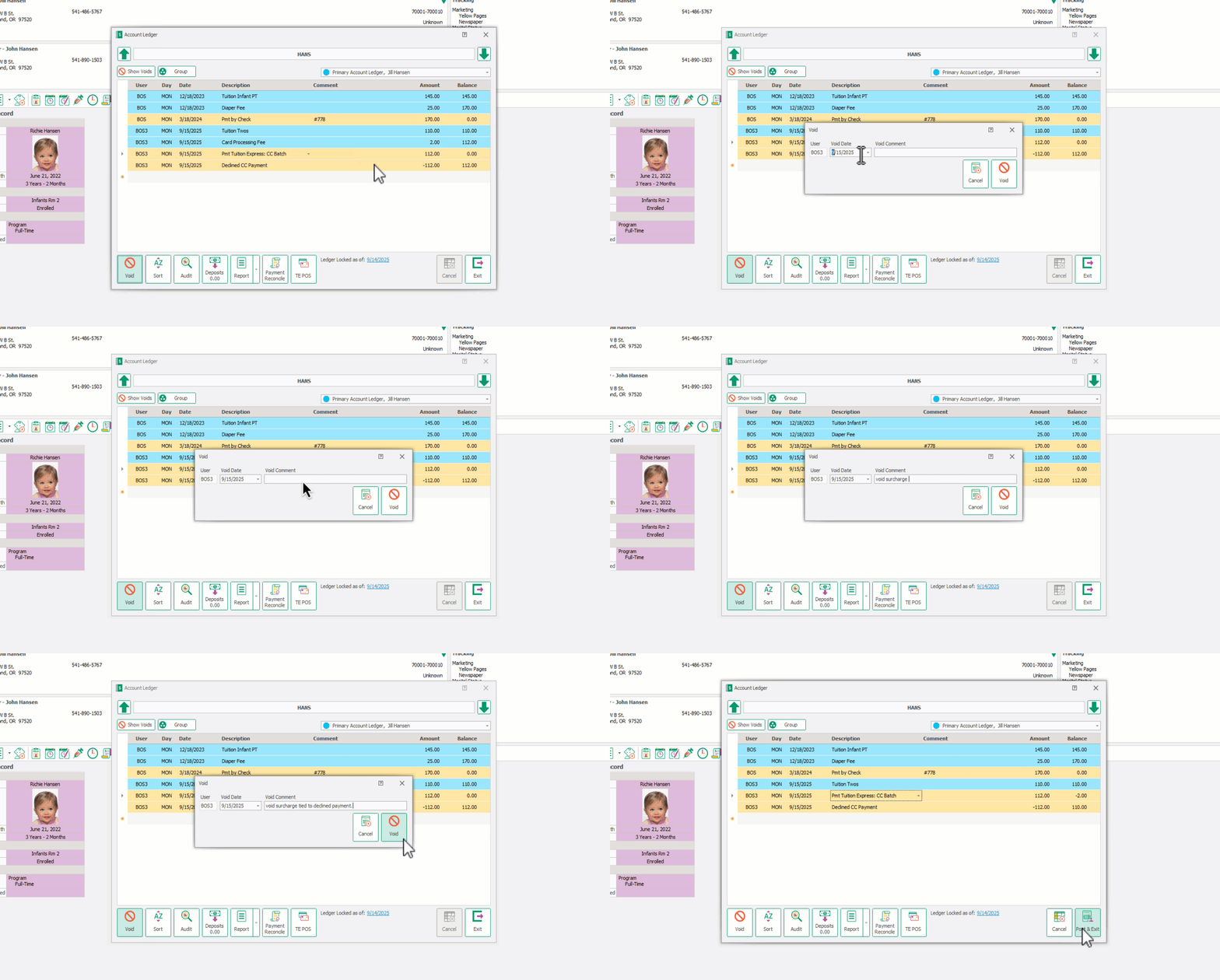
Click Void again to confirm.
Select Post & Exit from the bottom-right of the Ledger Card to save your changes.
Review the Ledger Card to confirm the surcharge has been voided and the balance reflects the correct amount.
If Voids do not appear, click Show Voids in the top left corner.