This feature allows you to change the standard amount and apply it to all selected schools. You can also choose to update the Child Billing Box while making the Standard Amount changes.

Learn more about Standard Amounts.
Change the Standard Amount and Apply to Multiple Schools
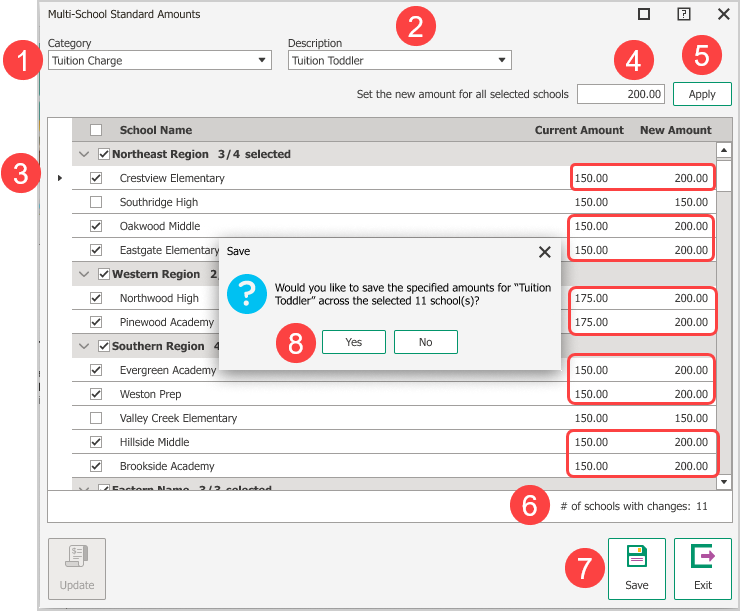
Go to Configuration > System > Accounting Management > Family Accounting > Multi-school Standard Amount.
Select the Category.
Select the Standard Amount Description.
Select the school(s) that you want to change.
Enter the new amount.
Click Apply. The New Amount is displayed.
Review the number of schools with the changed amount.
Click Save.
The new amount charged and the number of schools are confirmed.
If you exit the window without saving, Procare displays a message to confirm whether you want to Save, Cancel or Go Back.
Apply Changed Amounts to the Child Billing Boxes
Learn more about Child Billing Box.
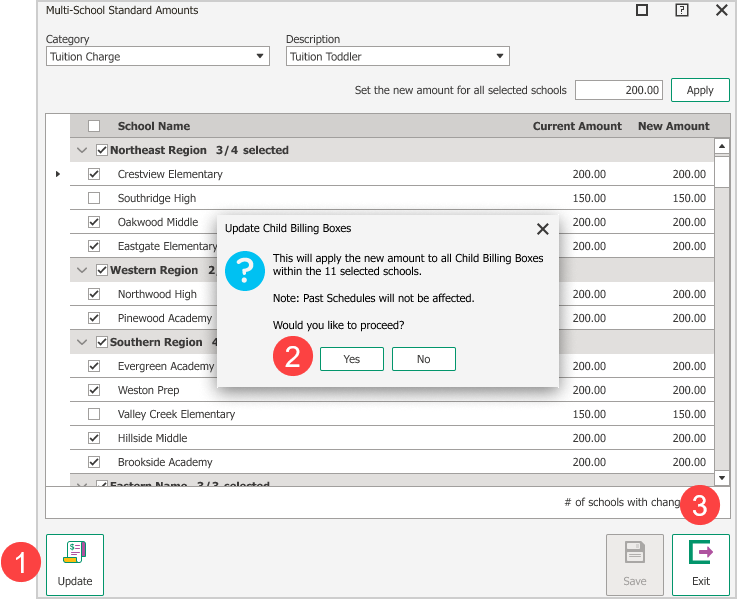
To continue to apply the new standard amounts to the Child Billing Boxes:
Click Update.
Select Yes to apply all new amounts to the Child Billing Boxes.
Click Exit to leave the window.
If you exit the window without saving, Procare displays a message to confirm whether you want to Save, Cancel or Go Back.