AI Translate in Procare Online allows you to read any incoming message in your preferred language. Whether you are a staff member reviewing a parent’s/guardian’s reply or a parent/guardian checking a message from your child’s teacher, AI Translate removes language barriers without changing how the original message was written.
Admin Note
AI Translate is turned off by default. Administrators can turn the feature on in School Settings.
Learn more about Communication.
What AI Translate Does
When you receive a message, AI Translate can display the message text in the language set in your user profile. The translation displays on demand. The original message is never modified and you can switch back to the original at any time.
In-app Translations Only
AI Translate applies to in-app messaging only. SMS messages sent via the Emergency SMS Alert feature are delivered outside of Procare Online and cannot be translated.
Where AI Translate is Available
Website > Messaging > Parent Messaging: Received messages in conversations
Child Care Mobile App > Messages: Received messages in conversations
Set Your Preferred Language
Before using AI Translate, set your preferred language in your user profile.

Learn more about Setting Your Preferred Language.
Note
AI Translate only works when the message language differs from your preferred language. If both match, the text will not change.
Translate a Message
Go to Messaging > Parent Messaging.
Select a message channel.
Select a conversation.
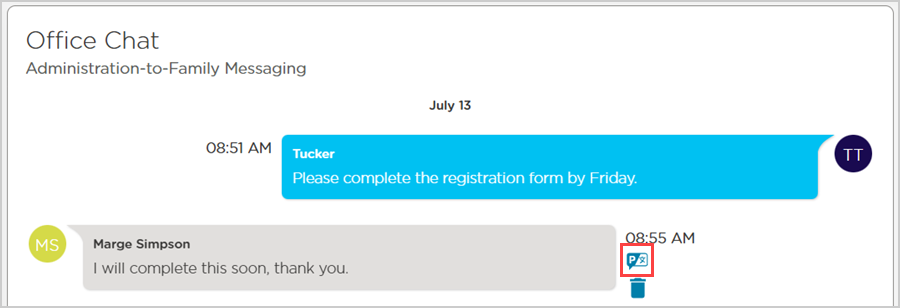
Locate and hover over the message you want to translate.
Click Translate
 .
.
The message text updates to display in your preferred language.
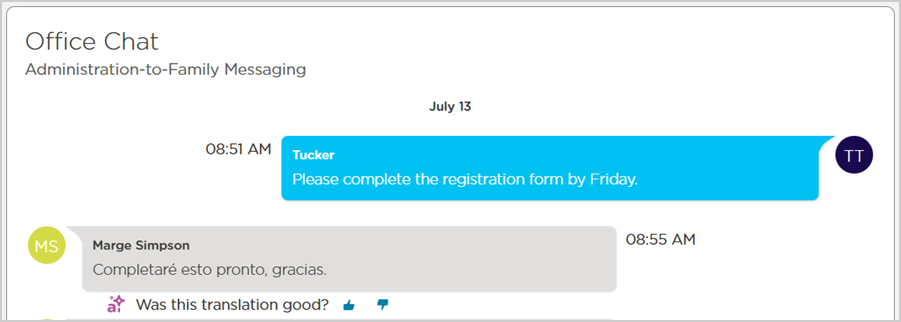
Note
To display the text in the original language, refresh the page.
Go to Messages
 .
.Select a message channel.
Select a conversation.
Locate the message you want to translate.
Long-press the message.
Select Translate from the menu.
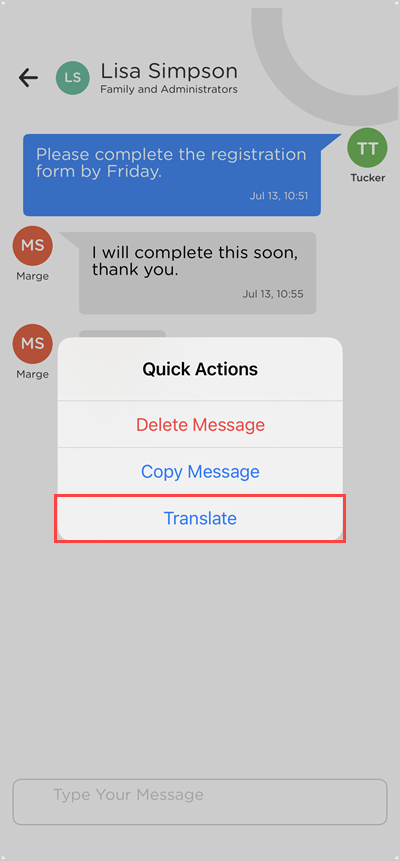
The message text updates to display in your preferred language and a
 Translated by AI label displays under the message.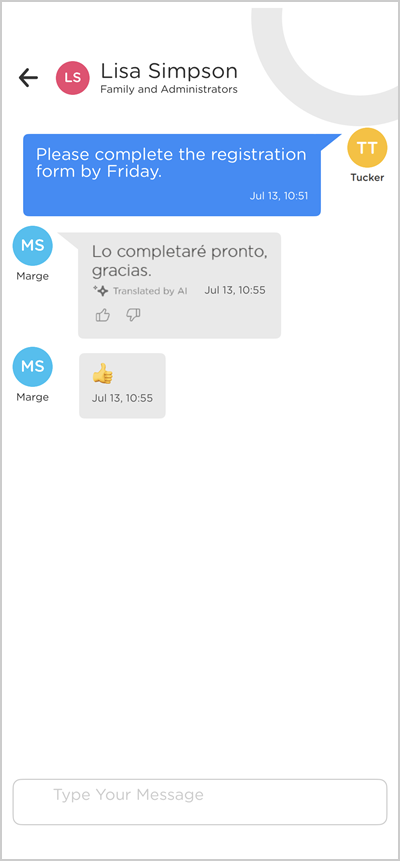
After the message is translated, Procare AI prompts you to rate the quality of the translation. After rating, the prompt confirms your feedback with "Thank you for your feedback!"

FAQ
Which languages are supported?
Currently, AI Translate supports English and Spanish.
Do I have to set a preferred language every time?
No. Your preferred language is saved in your profile and will be used for all future translations on the website and in the Child care mobile app until you change it.
What if my message does not translate?
Check the preferred language in your profile. If your preferred language matches the message language, the message will not translate.
Can I use AI Translate on an outgoing message?
No. AI Translate applies to incoming messages only. To translate text before sending, refer to your browser or device documentation for available translation options.