AI Rewrite in Procare Online is a built-in writing assistant that helps staff polish messages before sending them. Whether you are composing a quick classroom update or a formal note to a family, AI Rewrite can help you adjust the tone and clarity of your message in seconds without changing the meaning.
Note
AI Rewrite is available to staff only. Parents/guardians do not have access to this feature.
Admin Note
AI Rewrite is turned off by default. Administrators can turn the feature on in School Settings.
Learn more about Communication.

What AI Rewrite Does
When you draft a message or activity description, AI Rewrite offers three tone options to choose from:
Tone | Description |
|---|---|
Concise | Trims your message to the essentials, keeping it short and clear. |
Friendly | Adds a warm, approachable tone, great for everyday family communication. |
Professional | Elevates your language for a more formal or official message. |
Procare AI suggests a rewrite, but you can edit the result further, rate the quality or revert to your original text at any point.
Where AI Rewrite is Available
Website > Messaging > Parent Messaging: New messages and replies in conversations
Child Care Mobile App > Messages: New messages and replies in conversations
Child Care Mobile App > Activity: The Description field when logging an activity
Rewrite a Message on the Website
Go to Messaging > Parent Messaging.
Select an existing conversation or click New Message.
Enter your message in the message field.
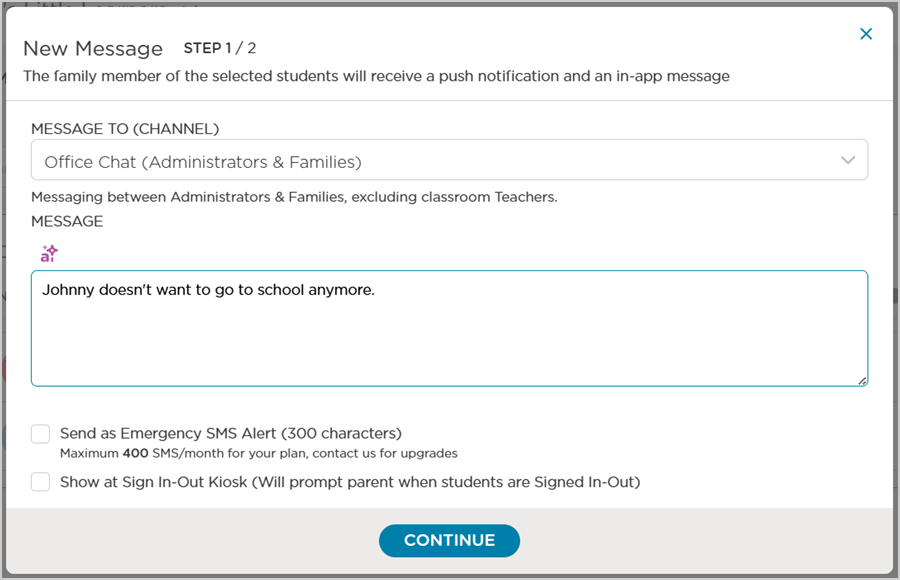
Select (highlight) the text you want to rewrite. A Select Tone menu displays above the message.
Note
Your text selection must contain a minimum of 35 characters for the Select Tone menu to display.
Select a tone to apply to the message.
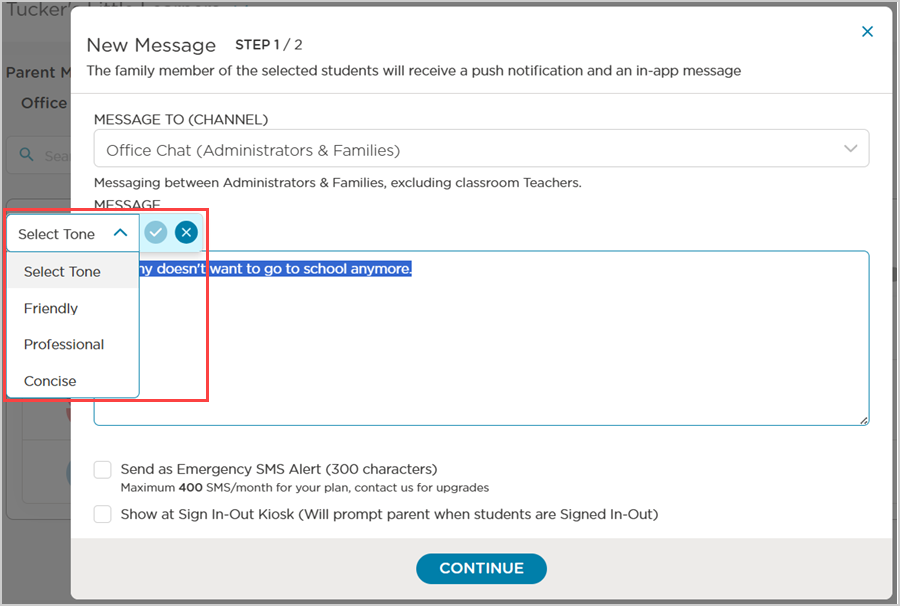
Click Submit
 to apply the rewrite. The AI-rewritten version replaces your selected text in the message field.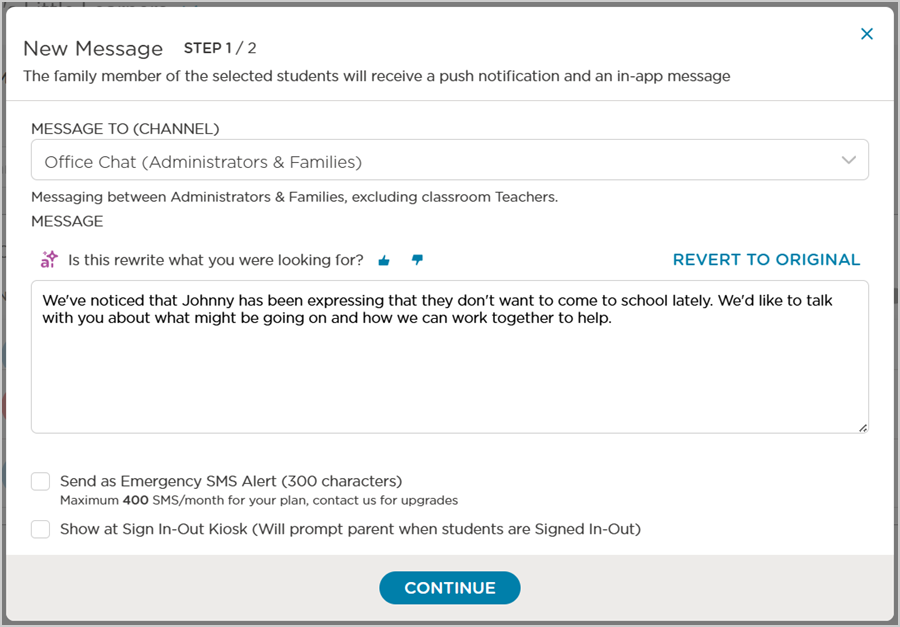
After the rewrite is applied, you can edit the text further before sending or select one of the following options:
Is this rewrite what you were looking for?: rate the quality of the rewrite.
Revert to Original: undo the rewrite and restore your original text.
Note
You cannot undo the rewrite after you send the message.
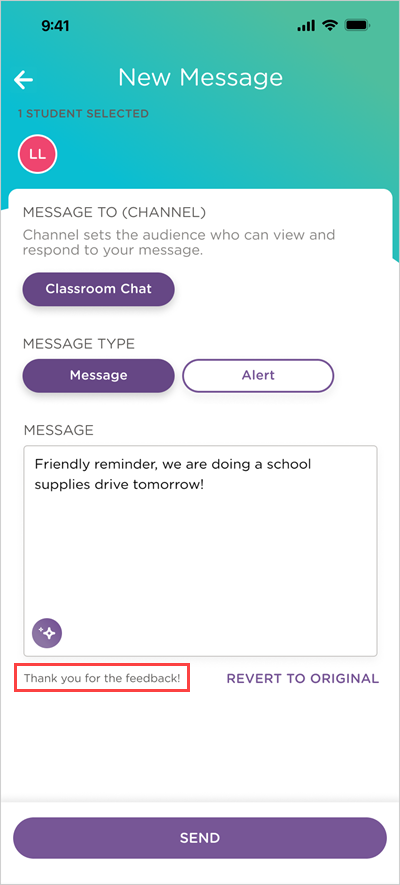
After rating, the prompt confirms your feedback with “Thank you for the feedback!”
Rewrite a Message in the Child Care Mobile App
Compose a New Message
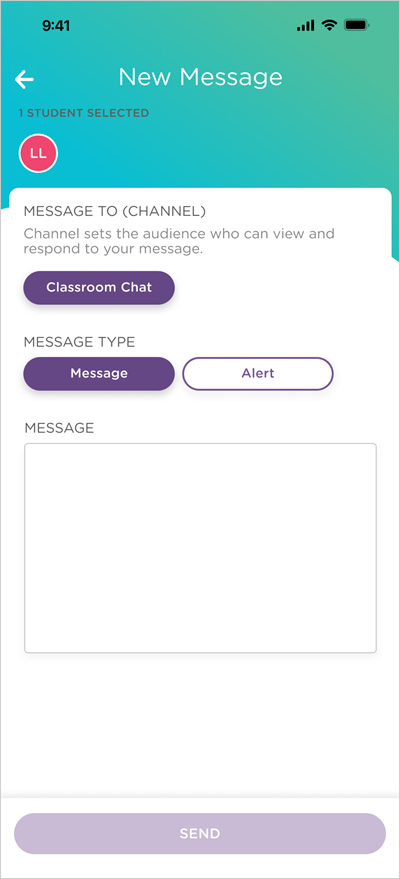
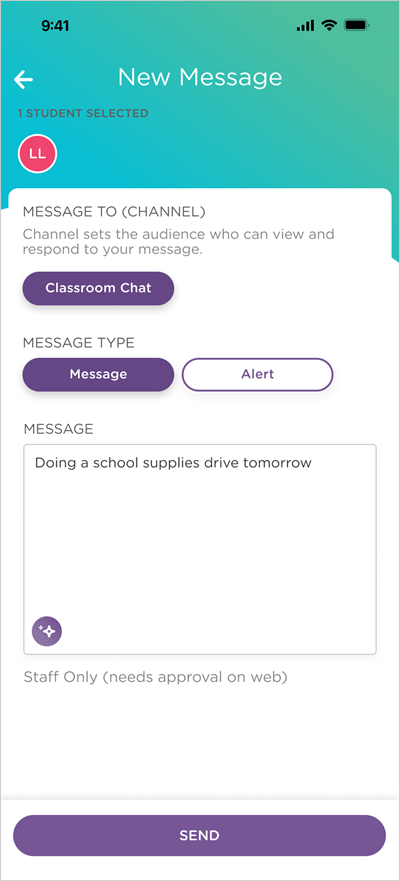
The New Message window uses buttons to select your channel (Office Chat or Classroom Chat) and message type (Message or Alert), making it faster to compose messages with fewer taps.
Go to Messages
 .
.Tap New Message
 .
.Select the student(s).
Tap Next.
Select a channel and message type.
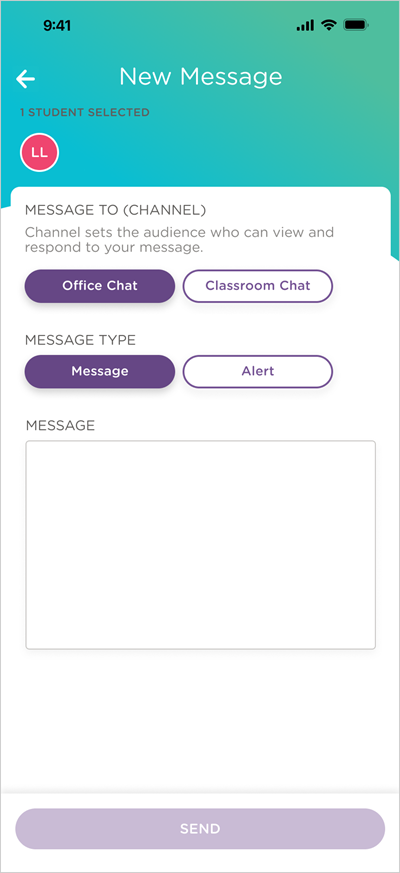
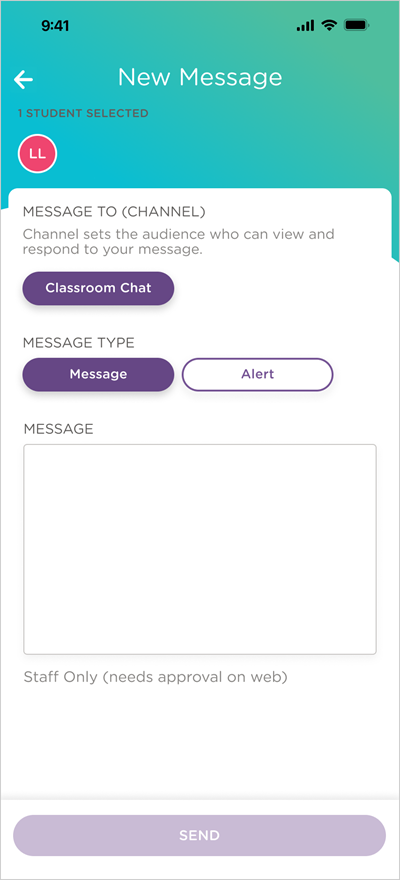
Some messages, such as those sent to Classroom Chat from a teacher, may require admin approval before they are delivered to families. When this applies, the app will display “Staff Only (needs approval on web)” below the message field.
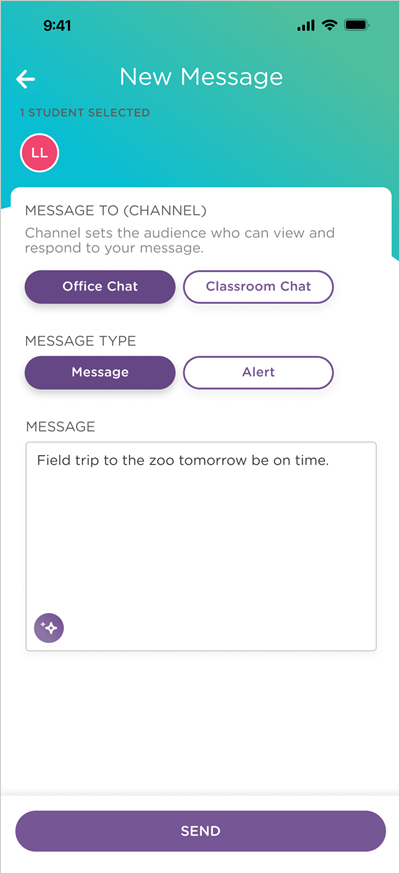
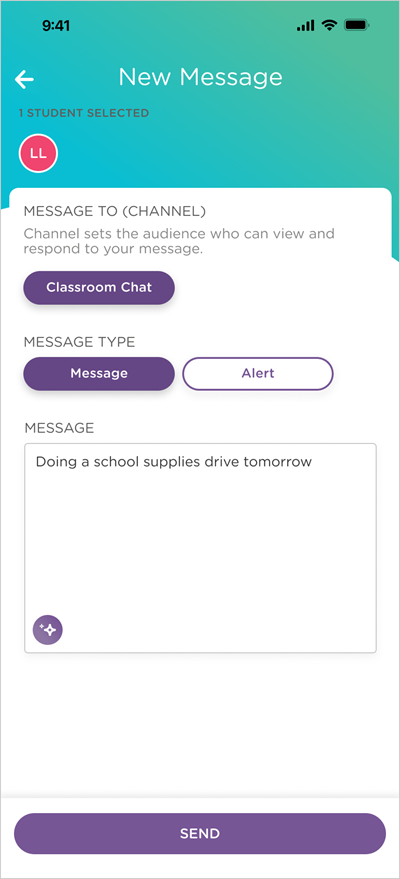
Enter your message in the message field. An AI Rewrite
 icon displays in the field after you start typing.
Note
Your message must contain a minimum of 35 characters for the AI Rewrite
icon to display.
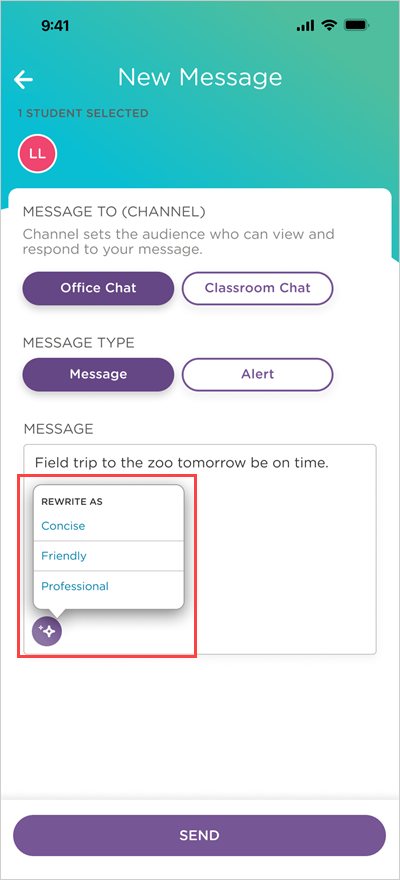
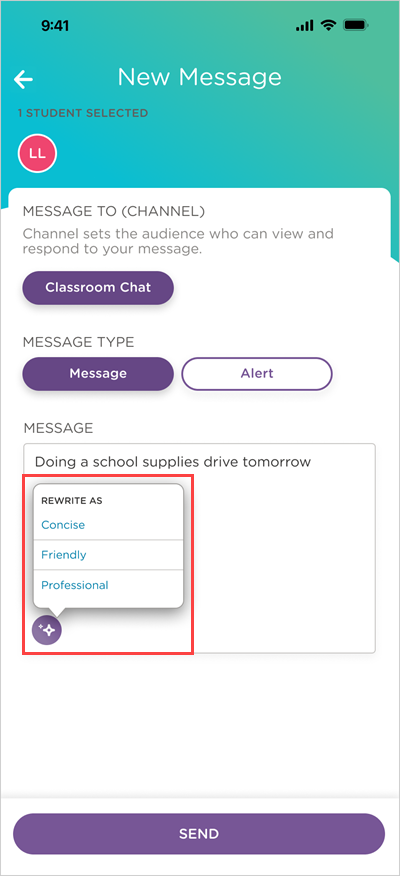
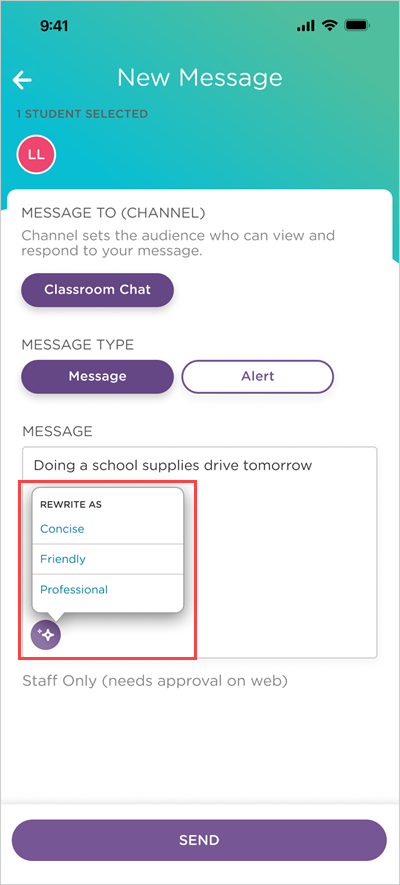
Tap AI Rewrite
. A Rewrite As menu displays.Select a tone to apply to the message.
The AI-rewritten version replaces your draft text.
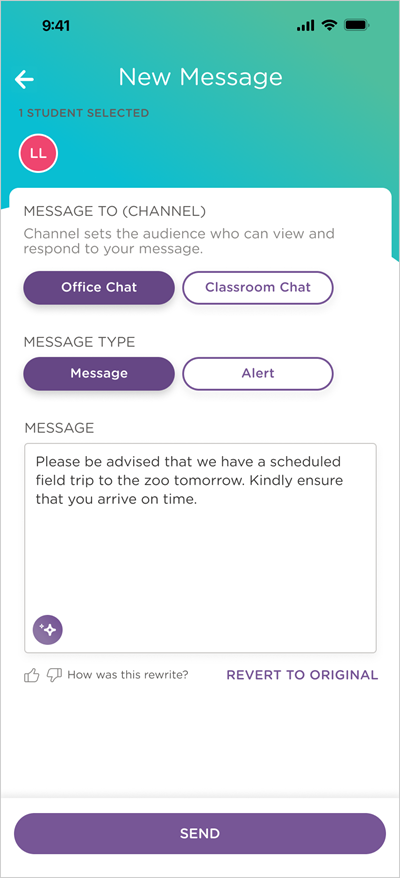
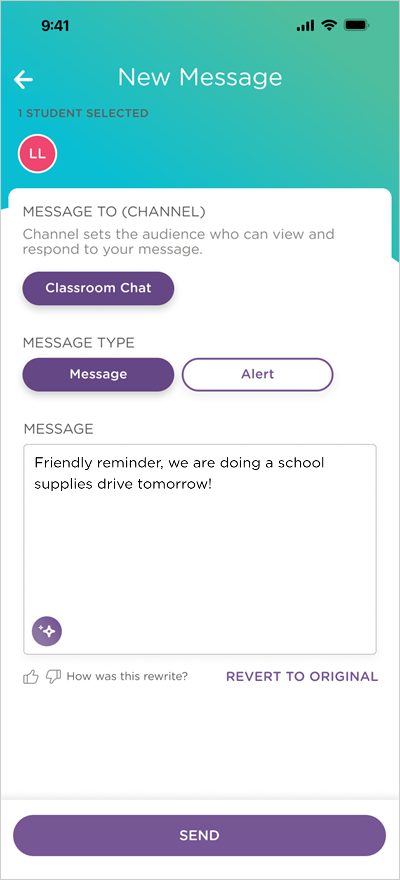
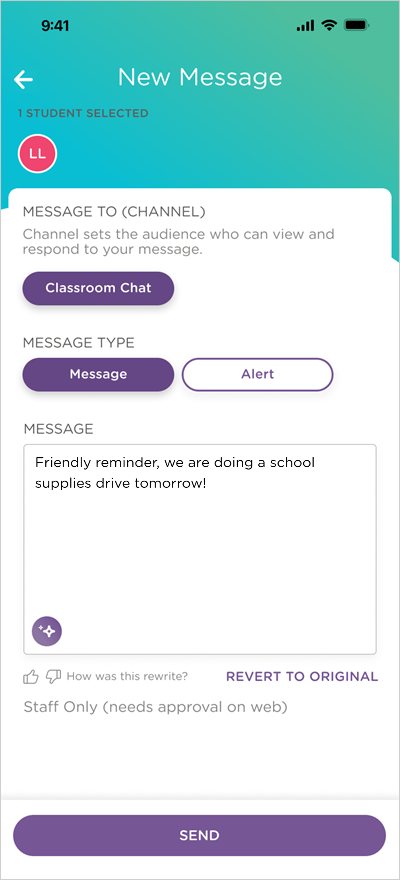
After the rewrite is applied, you can edit the text further before sending or select one of the following options:
How was this rewrite?: rate the quality of the rewrite.
Revert to Original: undo the rewrite and restore your original text
Note
You cannot undo the rewrite after you send the message.
After rating, the prompt confirms your feedback with “Thank you for the feedback!”
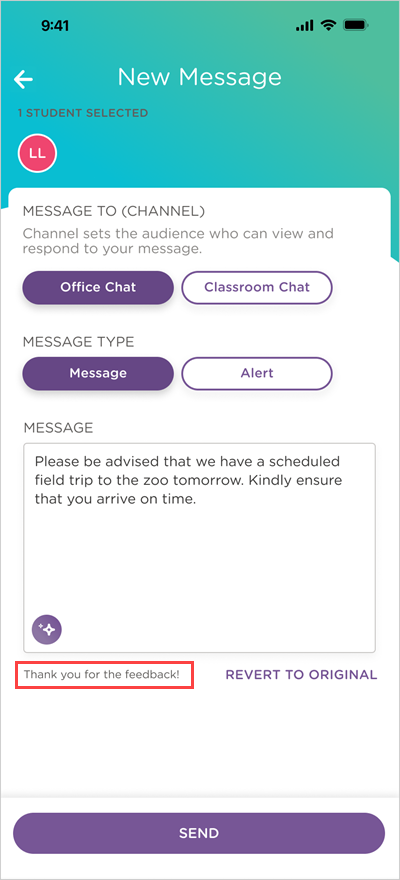
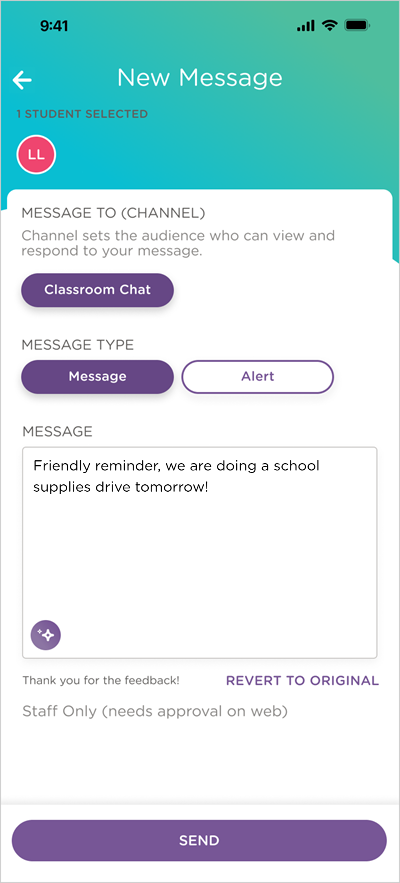
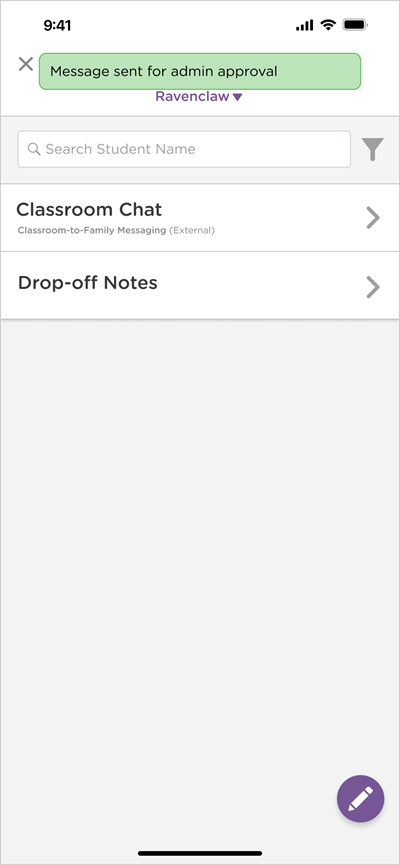
When sending a message that requires admin approval, the app displays a confirmation banner at the top of the window: “Message sent for admin approval.”
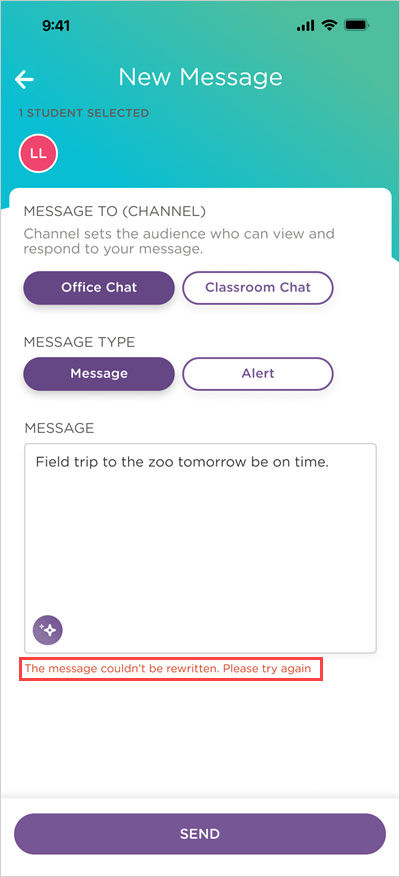
If a Rewrite Fails
If Procare AI is unable to rewrite your message, an error message will display below the message field: “The message couldn’t be rewritten. Please try again.”
Your original text will remain unchanged.
Rewrite a Message in a Conversation
Open a conversation.
Enter your message in the message field. An AI Rewrite
icon displays in the field after you start typing.Note
Your message must contain a minimum of 35 characters for the AI Rewrite
icon to display.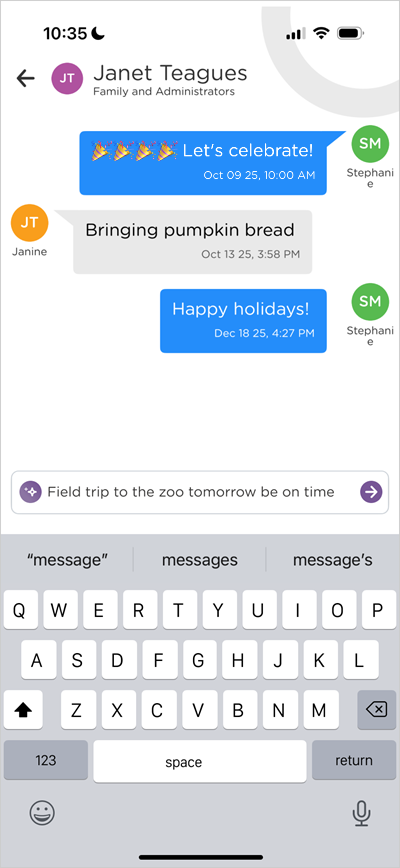
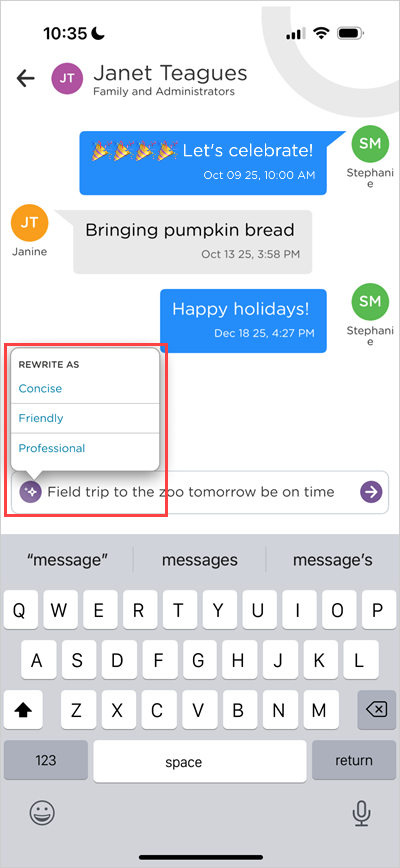
Tap AI Rewrite
. A Rewrite As menu displays.Select a tone to apply to the message.
The AI-rewritten version replaces your draft text.
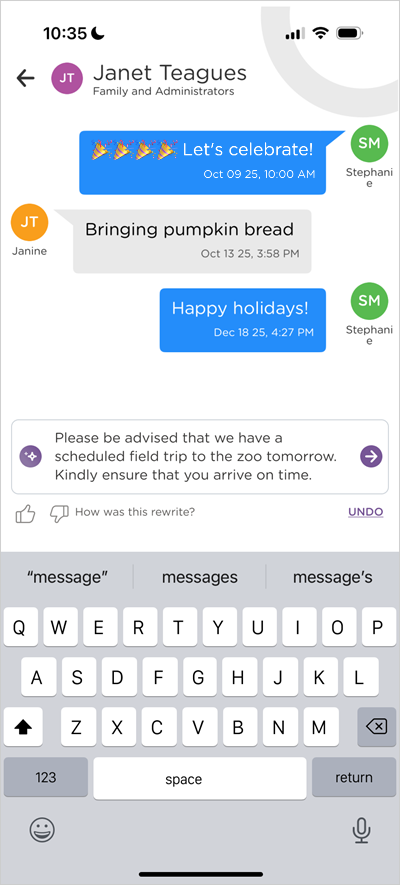
After the rewrite is applied, you can edit the text further before sending or select one of the following options:
How was this rewrite?: rate the quality of the rewrite.
Undo: undo the rewrite and restore your original text.
Note
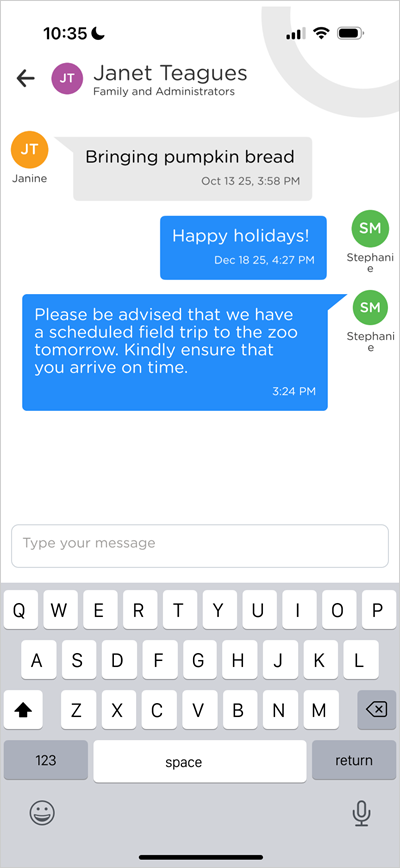
You cannot undo the rewrite after you send the message.
Rewrite the Description of an Activity
AI Rewrite is also available in the Description field when logging a Daily Activity, such as a Nap, Meal or other activity type.
Go to Activity.
Open or create an activity entry.
Complete the activity details.
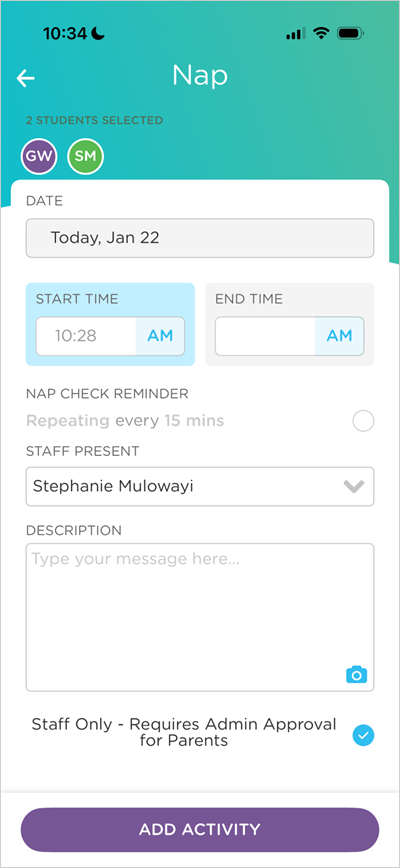
Enter a description in the Description field. An AI Rewrite
icon displays at the bottom of the field.Note
Your description must contain a minimum of 35 characters for the AI Rewrite
icon to display.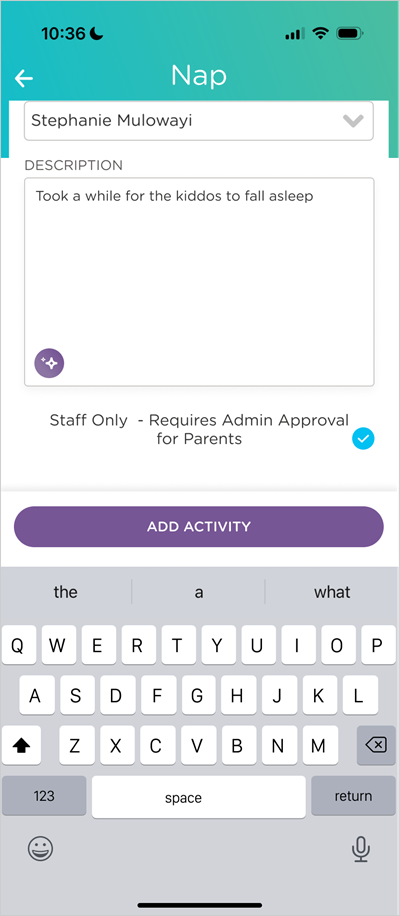
Tap AI Rewrite
. A Rewrite As menu displays.Select a tone to apply to the message.
.png)
The AI-rewritten version replaces your draft text.
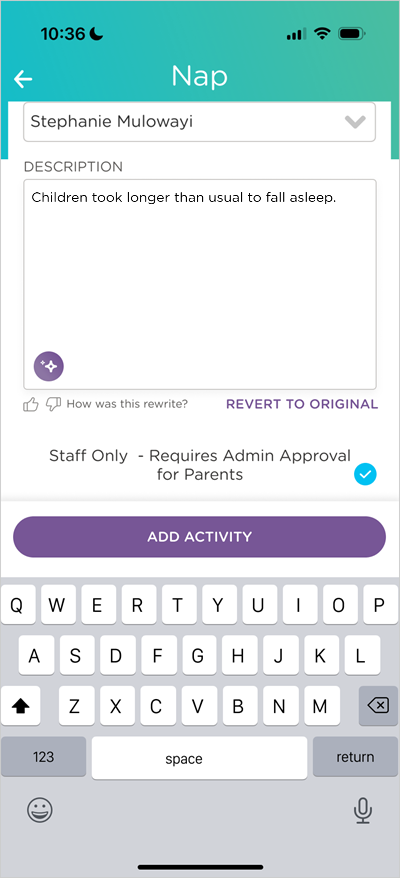
After the rewrite is applied, you can edit the text further before adding the activity or select one of the following options:
How was this rewrite?: rate the quality of the rewrite.
Revert to Original: undo the rewrite and restore your original text.
Note
You cannot undo the rewrite after you add the activity.
Tips for Best Results
Write your message first, then use AI Rewrite. Procare AI works best when it has your full thought to work with, even if it is rough or informal.
Try different tones. If the first rewrite does not feel right, revert and try a different tone. Each tone produces a meaningfully different result. Each time you select the same tone, Procare AI may generate different wording for that tone. We recommend selecting tones more than once to see different suggestions.
You can edit after rewriting. The rewritten text is fully editable. Treat it as a starting point, not a final draft.
Rating rewrites helps improve the feature. Rate each rewrite to share your feedback about the quality.

FAQ
Can parents/guardians use AI Rewrite?
No. AI Rewrite is available to staff only.
Will my original message be saved?
Yes. As long as you have not closed the message composer or activity form, you can undo the rewritten text to restore your original draft.
What if the rewrite does not match what I meant?
Revert to your original text and try a different tone or edit the rewritten version manually before sending.
What does “The message couldn’t be rewritten” mean?
This error means Procare AI was unable to process your request and no changes were made to your original draft. Tap AI Rewrite and try again.
Can I use AI Rewrite on messages that need admin approval?
Yes. You can rewrite your draft before sending. The approval workflow is not affected by using AI Rewrite.
Can I rewrite a message that has already been sent?
No. AI Rewrite only works on text that you enter in the message field.
Can I rewrite a description for an activity that has already been added?
No. AI Rewrite only works on text that you enter in the Description field.