Navigation Changes
The Leads and Registration sections are now under Enrollment.
Profile Field Mapping for Lead Student and Lead Parent
Name Update
Profile field mapping was previously referred to as custom fields.
Profile fields are a valuable tool for collecting and tracking key information about leads and students. Profile fields created for both Lead Students and Lead Parents can be linked to student profile fields, automatically syncing data when a lead converts to an enrolled student. Profile field mapping occurs once during enrollment, eliminating manual data entry and streamlining the registration process to save time for users.
Staff members with the appropriate permissions can create and manage profile fields under school settings. See: Staff Roles and Permissions for more information.
Creating Profile Fields
You can create profile fields under school settings and when creating or editing a registration form.
Creating Profile Fields in School Settings
Navigate to School Settings > Settings > Profile Fields.
Select Create Profile Field.
Check the Transfer to Active Student Profile checkbox.
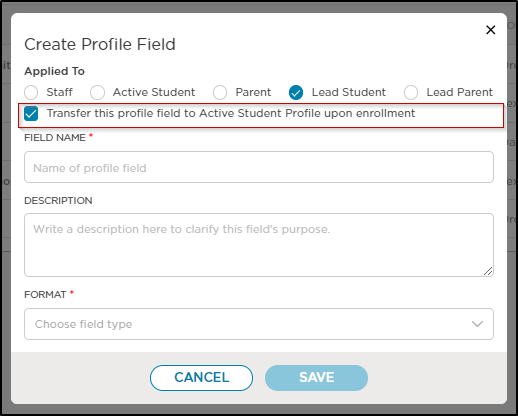
Enter the Field Name and choose the Format.
Click Save.
Adding Profile Fields to Registration Forms
Registration forms give you the ability to customize each form to suit your center or program's needs.
Go to Enrollment > Registration.
Click Create Registration or click More Actions
 , then select Edit on an existing registration form.
Click the tabs at the top, such as Student Info or Parent Info, to select the section you want to customize.
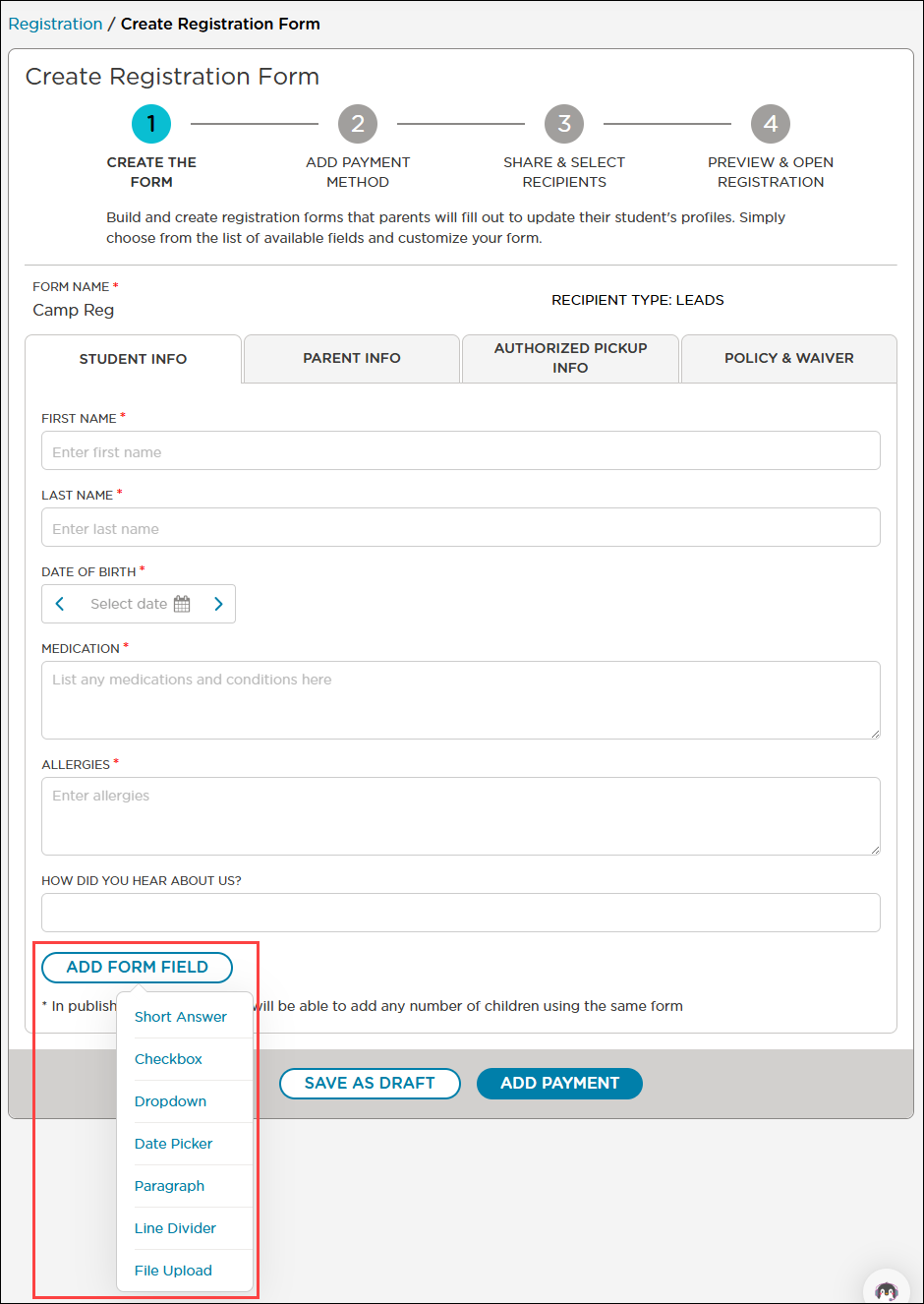
Click Add Form Field and choose your preferred format from the available options.
After adding the form field, you’ll be prompted with "Do you want the data saved to profile?" Click Yes to proceed.
You will then see two options:
Link to an Existing Profile Field: This will show any profile fields in the same format (e.g., checkbox, dropdown, short answer) for you to select from.
Create a New Profile Field: Choose this option if you want to create a new field.
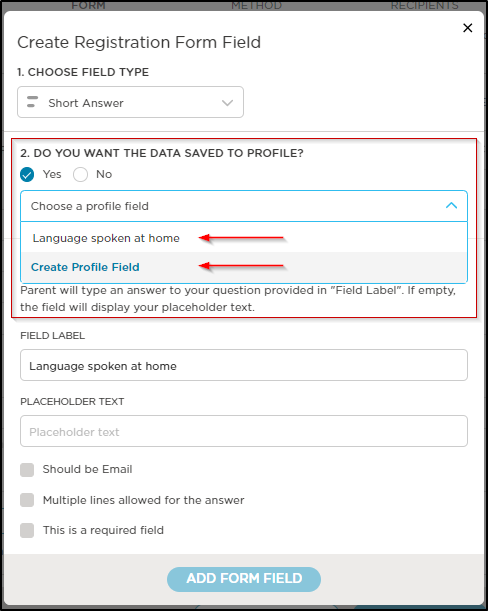
Click Add Form Field to add the field to the Registration Form
Transferring Profile Fields
Profile fields marked for transfer will automatically move to the Student profile upon enrollment.
Field Location | Transfer Location |
|---|---|
Lead Student | Student |
Lead Parent | Parent |
Note: This is a one-time transfer. Any changes made to the Lead profile after enrollment will not automatically update the Student profile.
In School Settings > Settings > Profile Fields, the "Transferred To" column indicates if a profile field will be automatically transferred to the Student or Parent profile upon enrollment. If the field is blank, it will not be transferred. You also have the option to edit or delete profile fields as needed.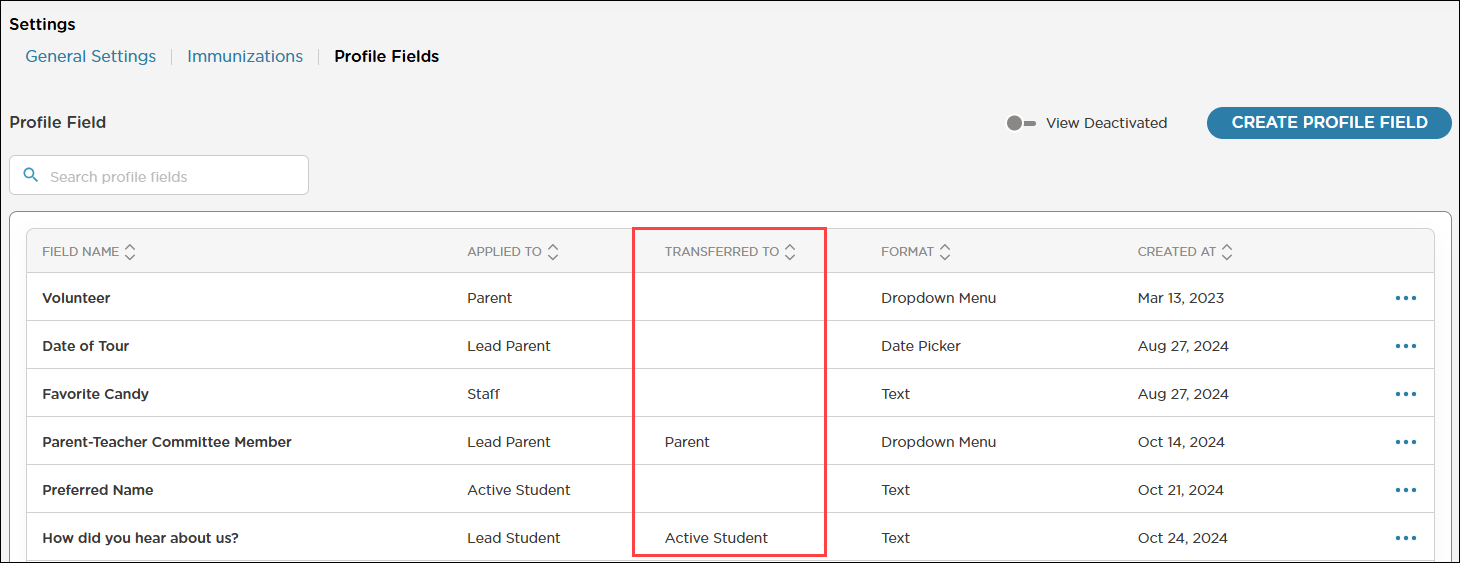
Glossary
Term | Description |
|---|---|
Form Field | A field that is used in a Registration Form. |
Profile Field | A field that is used in a Profile. There are default profile fields that cannot be changed in a Student, Staff and Parent profile |
Custom Profile Field | A field that was created by a staff member. These can be assigned to Lead Student and Lead Parent profiles. They can also be assigned to Student, Parent and Staff profiles. |