What is reconciliation?
Reconciliation is the process of comparing two sets of records and resolving any differences. It involves matching your records (such as invoices, receipts, and bank or card statements) with those in your account and correcting discrepancies to ensure accuracy and keep records up to date.
Merchant Statement
What is the Merchant Statement?
This report outlines the transaction fees charged by Procare Payment Processing (Tuition Express) to your school each month. It includes the summary of all fees applied to your account for the month.
How to read the Merchant Statement
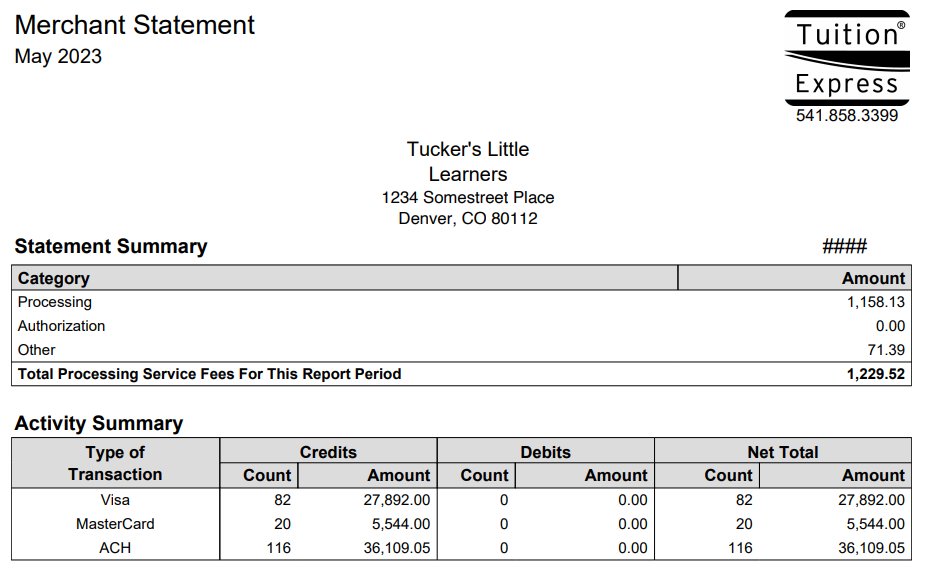
1. Statement Summary:
Processing Fees: The total amount charged to the merchant for using payment processing services.
Other Fees: These include any additional charges unrelated to payment processing. These fees might cover account maintenance or other services. These are passthrough fees from credit card companies or other fees that do not apply to payment processing.
Total Processing Service Fees for This Report Period: The total amount taken from the merchant’s account for processing payments in the previous month. This is the amount Tuition Express (the processing company) withdrew.
Activity Summary:
This is the total number of payments processed by a particular payment method.
In the example below, there were 82 Visa transactions totalling $27,892.00.
Processing Details
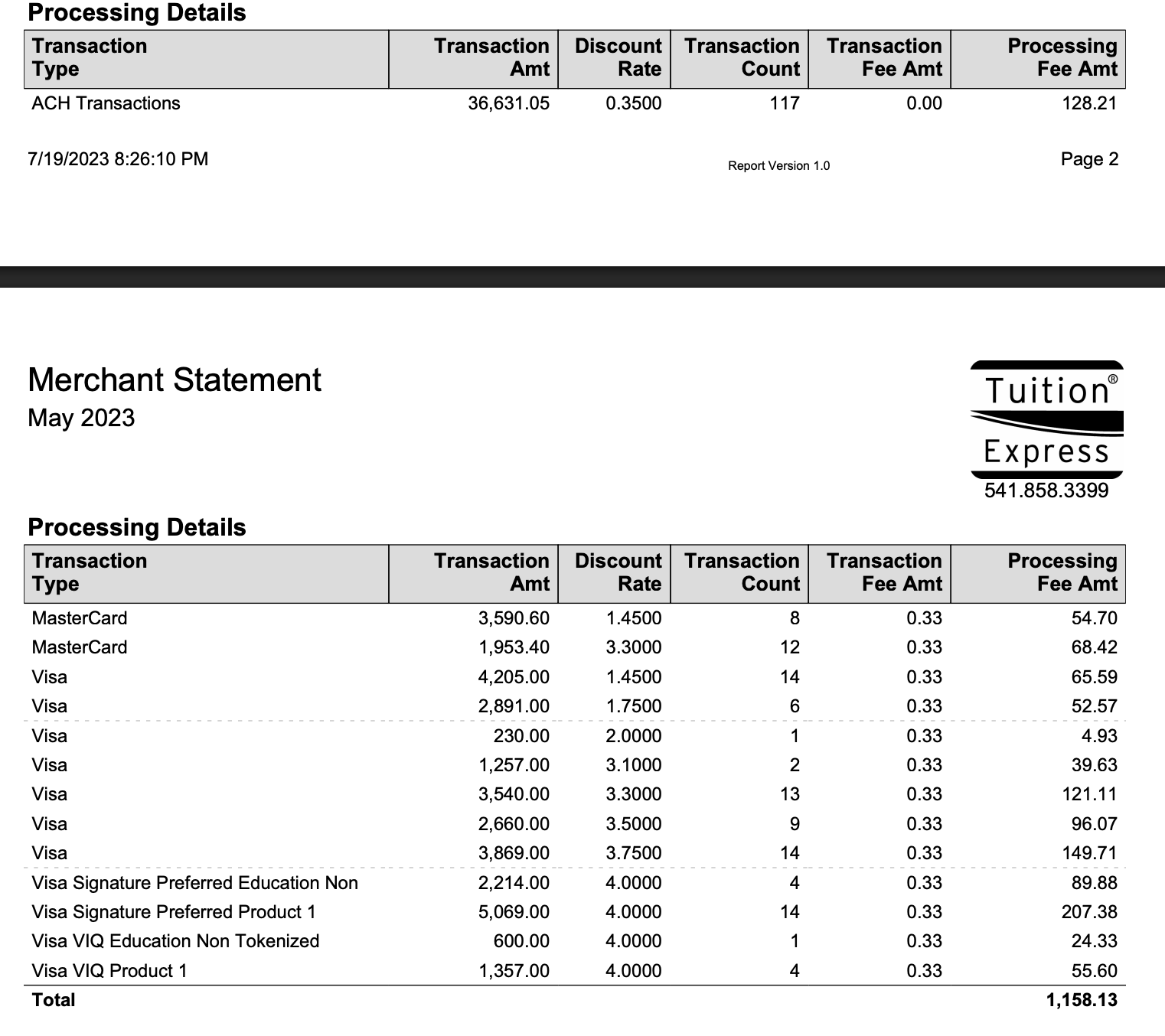
Breakdown of rates for ACH and credit card fees.
In this fictional example, the customer processed $36,631.05 at the rate of 0.35 and was charged $128.21 for processing.
Other Details
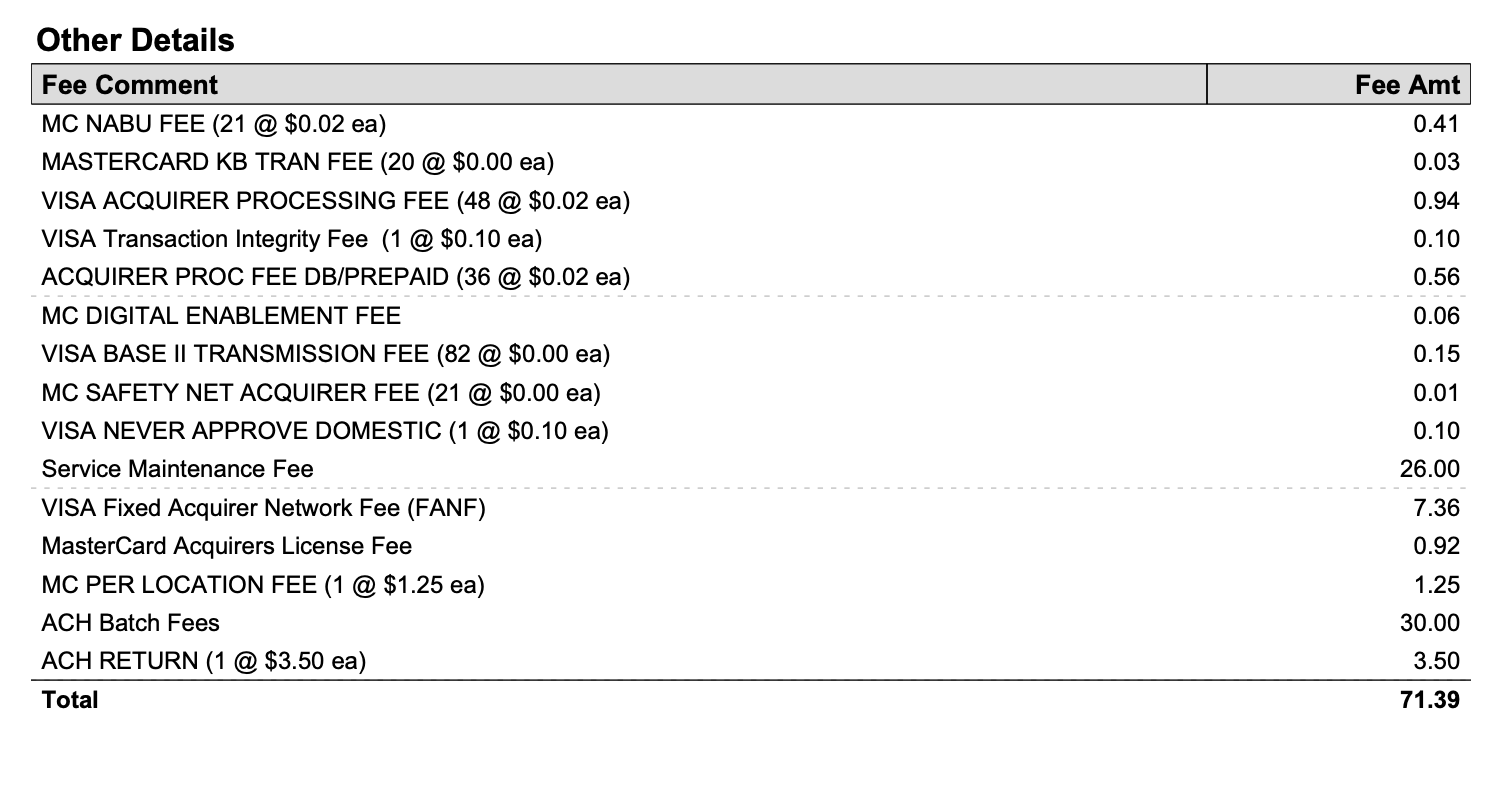
These are passthrough fees from card companies or other fees charged by Procare for batches or declines. These are not part of processing fees.
Messages from Tuition Express
Be sure to scroll to the bottom of each month’s Merchant Statement. Any updates of communications from Tuition Express will be found there.
How to generate the Merchant Statement
A reminder is emailed to you on the 2nd business day of the month, letting you know your Merchant Statement is available to generate.
To generate your Merchant Statement:
Go to Reports > Reports Library > Tuition Express.
Select Merchant Statement.
To run the report for a specific month, select one month in the future of the month you actually need data for.
For example, to get the September Merchant Statement, select October in the report parameters. September’s Merchant Statement will be available on the 2nd business day of October.
Click Generate Report.
Recommended Reports
How to read the Bank Account Activity Report
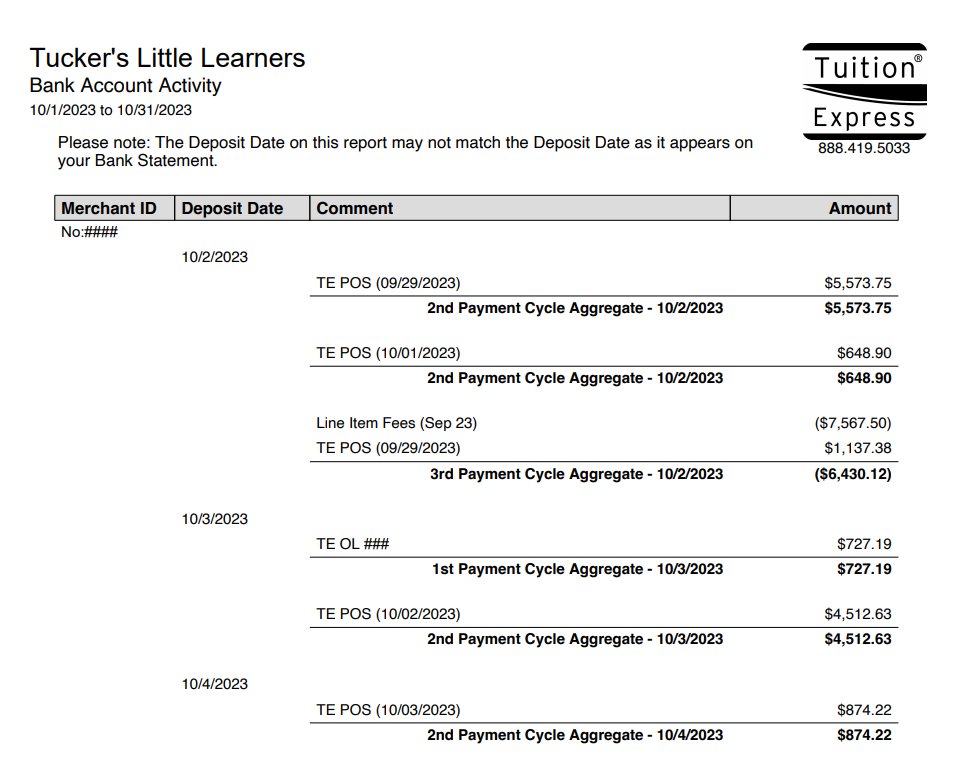
This report provides details on deposits made to your bank account, including the date each deposit was processed.
TE OL ####: These are ACH transactions. For example, 10/3/2023 TE OL ### $727.19 indicates that ACH transactions totalling $727.19 occurred on 10/2/2023 and were deposited on 10/3/2023.
TE POS: This refers to card transactions, including point-of-sale (POS) transactions and other card payments, such as autopay billing payments or payments made via the Child Care Mobile App. For example, "10/3/2023 TE POS $4,512.63" means this amount was sent to the bank on 10/2/2023 and deposited on 10/3/2023.
How to read the Transaction Batch Details report
This report provides a detailed breakdown of each ACH payment batch deposit.
The example below includes eight transactions totaling $2,525.78. The report displays the names of the account holders (the parents), the name on the account, the date created and the corresponding amounts.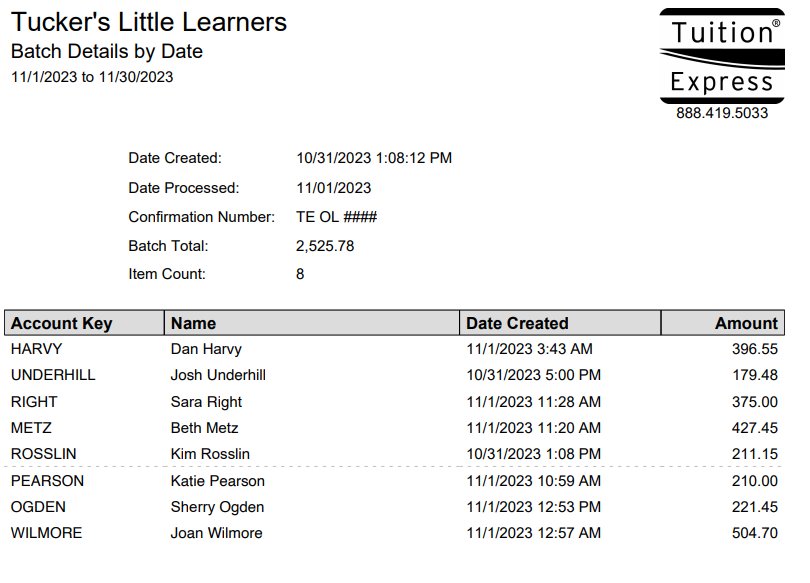
How to read the Payout Expected Deposit report
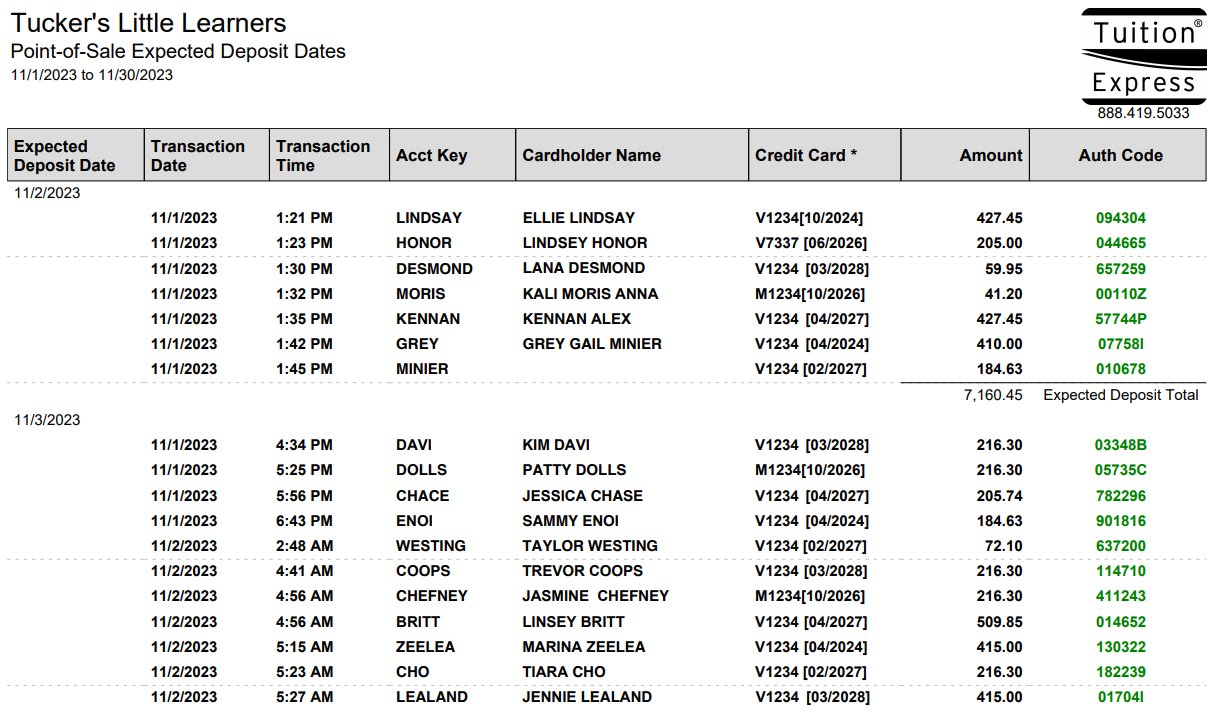
This report outlines the expected deposit dates for card payments. It includes details for each batch deposit along with a payment breakdown. The report will also display the parents' names, as they are the cardholders.
For example, a transaction dated November 1, 2023, for $427.45 is expected to be deposited into the bank on November 2, 2023. The batch contains seven transactions, totaling $7,160.45, which is the expected deposit total. The anticipated deposit date is November 2, 2023.
Important
Keep in mind that any payments received after the second to last business day of the cycle after the batch close time will show on the next cycle's report (7:00 PM center’s time zone for ACH and credit card). To see payment timings, go to Billing > All Transactions and filter by date and Payment transaction type. The date the deposits are sent to your bank may not be the day the bank puts those funds in.
Common Scenarios and How to Resolve Them
Where is the parent’s/guardian’s payment? How can I find it?
ACH:
Find the payment in the All Transactions screen. Identify the account/card holder name.
Generate the Transaction Batch Details Report for an ACH payment
Look for the payment amount and the parent’s name on a deposit date starting a day after the payment was made
Once you identify which batch it was a part of, you can report the Date Processed (Transaction Batch Details Report) listed and then verify the Deposit Date with the Bank Account Activity Report.
Credit Card and Debit Card:
Find the payment in All Transactions screen. Identify the account/card holder name.
Generate the Payout Expected Deposit Report for a card payment.
Look for the payment amount and the parent’s name on a deposit date starting a day after the payment was made
Once you have identified which batch it was a part of, you can find the Expected Deposit Date listed and then verify the Deposit Date with the Bank Account Activity Report.
FAQ
Which report should I generate to look up why an ACH payment failed?
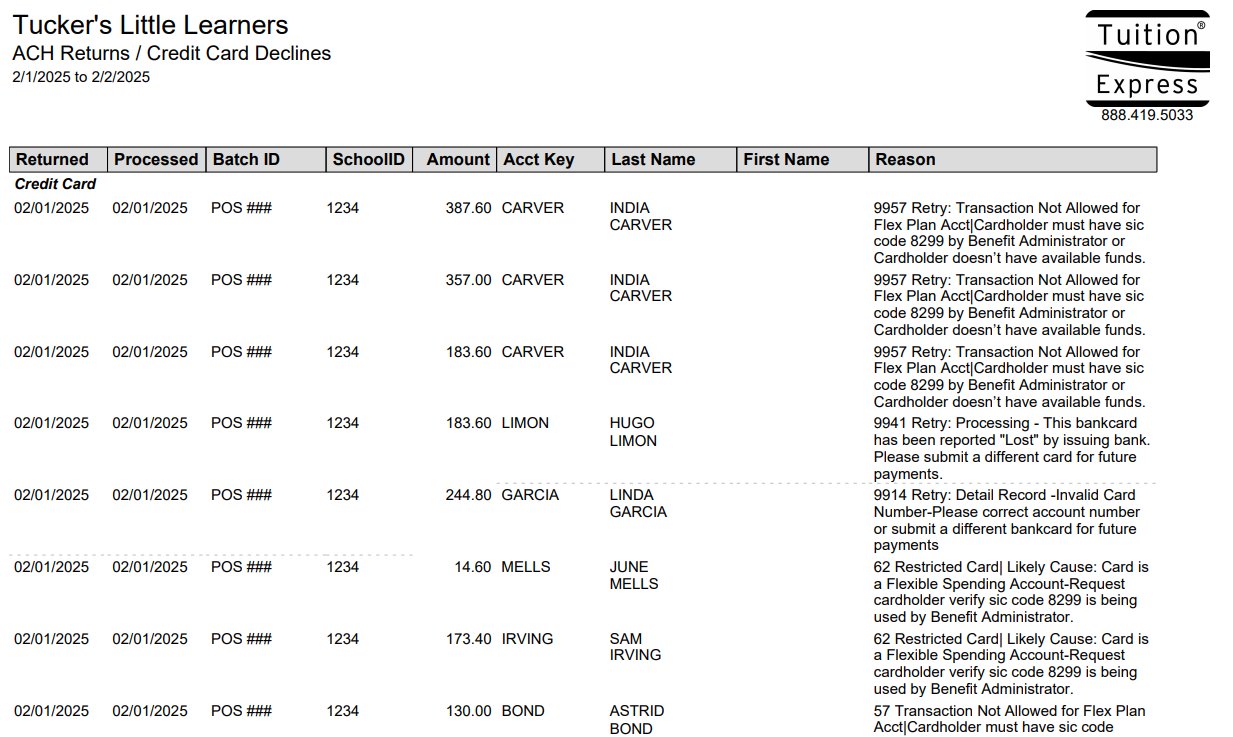
Generate the ACH Returns / Credit Card Declines report.
Where can I find my Tuition Express transaction fees listed?
This is found on the Merchant Statement.
I cannot see any Tuition Express reports under reports
You must have Full Access to both Reports and Reports - Tuition Express Reports to view Tuition Express. Learn how administrators can configure your access in Managing Staff Access - Roles and Permissions.