A 4-digit PIN is required for staff to clock in/out and transfer rooms through Procare.
Locate your PIN with a Procare Account:
Locate your PIN without a Procare account:
Open the Procare child care mobile app.
Tap Menu .
Select Edit Profile.
Locate the PIN in the Clock In-Out PIN field.
reach out to your admin to have them provide you with your PIN
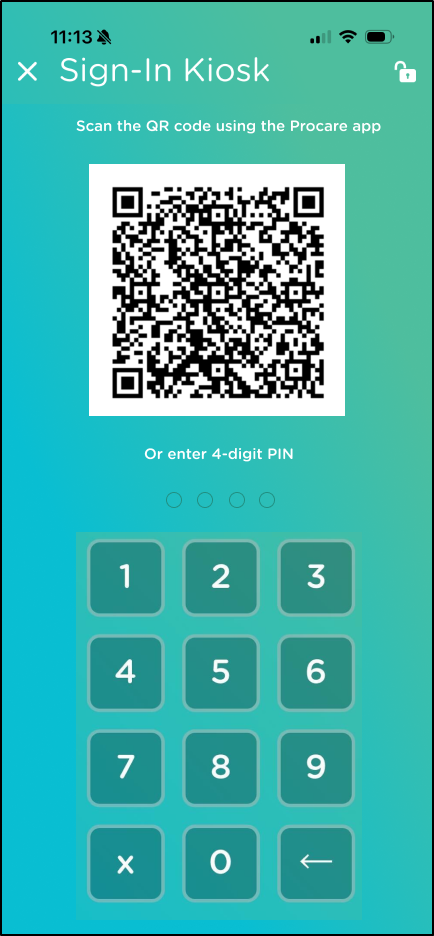
QR Code
The center posts a printed copy of the QR code or the QR code is displayed on a device monitor.
Open your mobile phone's camera.
Scan the QR code.
Tap the link.
Clock In
Clock Out
Transfer Rooms
Enter your 4-digit PIN.
The screen should default to your primary room assignment.
Tap Clock-In.
If you need to clock into a different room, tap the Select Room dropdown and tap the room name.
Tap Clock-In.
Enter your 4-digit PIN.
Tap Clock-Out.
To transfer to a different room, you need to clock out of the room you are in and clock into the new room.
Enter your 4-digit PIN
Tap Transfer to different room.
Tap the Select Room dropdown and tap the room name.
Tap Transfer.
A confirmation message displays and you are returned to the Sign-In Kiosk pin pad screen. If you have a problem clocking in/out or transferring to another room, reach out to your admin.
Sign-In Kiosk from Center’s Device
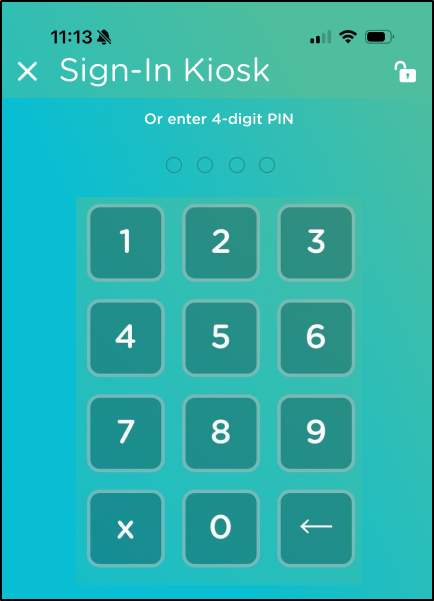
The center has a device for staff clock in/out with a Sign-In Kiosk displaying a pinpad.
The device is open and displays a pin pad similar to this.
Clock In
Clock Out
Transfer Rooms
Enter your 4-digit PIN.
The screen should default to your primary room assignment.
Tap Clock-In.
If you need to clock into a different room, tap the Select Room dropdown and tap the room name.
Tap Clock-In.
Enter your 4-digit PIN.
Tap Clock-Out.
To transfer to a different room, you need to clock out of the room you are in and clock into the new room.
Enter your 4-digit PIN
Tap Transfer to different room.
Tap the Select Room dropdown and tap the room name.
Tap Transfer.
A confirmation message displays and you are returned to the Sign-In Kiosk pin pad screen. If you have a problem clocking in/out or transferring to another room, reach out to your admin.
Staff Mobile Phone, Procare Account, Procare Child Care Mobile App
You use your mobile phone and have a Procare account and the Procare child care mobile app.
If you are using the Procare care mobile app on your mobile phone open the app. The center device is open and displays a pin pad similar to this.
Tap Sign-In.
Tap Sign-In Kiosk.
Enter your 4-digit PIN.
The device is open and displays a pin pad similar to this.
Clock In
Clock Out
Transfer Rooms
Enter your 4-digit PIN.
The screen should default to your primary room assignment.
Tap Clock-In.
If you need to clock into a different room, tap the Select Room dropdown and tap the room name.
Tap Clock-In.
Enter your 4-digit PIN.
Tap Clock-Out.
To transfer to a different room, you need to clock out of the room you are in and clock into the new room.
Enter your 4-digit PIN
Tap Transfer to different room.
Tap the Select Room dropdown and tap the room name.
Tap Transfer.
A confirmation message displays and you are returned to the Sign-In Kiosk pin pad screen. If you have a problem clocking in/out or transferring to another room, reach out to your admin.

 .
.
 .
.