Overview
Staff Timecard is where administrators review staff clock-in/out times, transfers, and room assignments for accuracy, and track attendance and hours on a weekly, biweekly, or monthly basis. Administrators can also edit timecard records, add missed clock-ins or clock-outs, and delete accidental clock-ins, clock-outs, or transfers.
The Staff Timecard is available only on the website. Go to Staff Management > Timecard.

Learn more about Timecard Access Options for Staff.
Click Daily.
Select the date.
The dashboard is where you can monitor clock-ins/outs and transfers for accuracy. You can see at a glance the movement of your staff throughout the center on any given day.
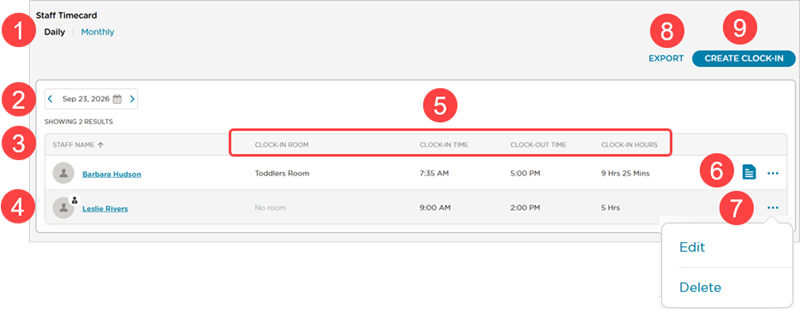
Click on the Staff Name column header to sort the list alphabetically.
Admin
 role is easily identified.
Review the clock in/out details. The total clock-in hours are available if the staff member has clocked out.
Click
 to review any notes added during clock in/out/ If the Staff Kiosk Form has been enabled and a staff member has completed the form, click Kiosk Questions to review the answers.
Click
 to Edit or Delete the record.
Click Export to generate a browser report of the information in this dashboard. The report can be printed or copied and pasted into an Excel file.
Note
A room transfer appears as two entries: a clock-in and clock-out for the room transferred from, and a clock-in and clock-out for the room transferred into.
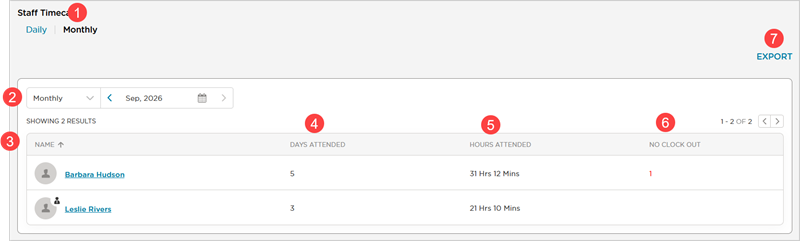
The dashboard is where you can monitor clock-ins/outs and transfers for accuracy. You can see at a glance the movement of your staff throughout the center on any given day.
Click Monthly.
Select the date.
Click on the Staff Name column header to sort the list alphabetically.
View the number of days the staff member attended in the time period selected.
View the number of hours the staff member attended in the time period selected.
View the number of missed clock-out records within the time period selected.
Click Export to generate a browser report of the information in this dashboard. The report can be printed or copied and pasted into an Excel file.
View Individual Staff Timecards
Daily or Monthly
Click the Daily or Monthly tab.
Select the date.
If you are on the Daily tab and do not see the staff member you want to review, select a date they were clocked in.
Click on a staff member's name.
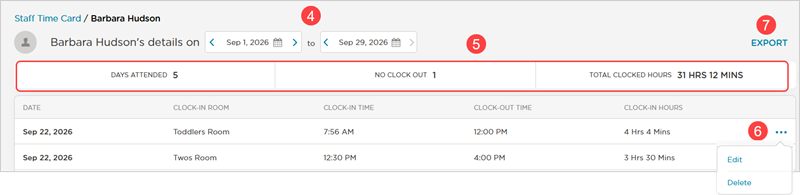
The date range is displayed and you can edit as needed.
A summary of the timecard that includes any missed clock outs.
Click
to Edit or Delete the selected record.Click Export to generate a browser report of the information in this dashboard. The report can be printed or copied and pasted into an Excel file.
Note
A room transfer appears as two entries: a clock-in and clock-out for the room transferred from, and a clock-in and clock-out for the room transferred into.
Add a Clock-In Record
We recommend that this be done only by administrators assisting a staff member with a missed clock-in record. Best practice for staff is to clock in using the Procare child care mobile app or QR code.
Learn more about clock-in/out options.
Navigate to Staff Management > Timecard.
Click Create Clock-In.
Select the staff member.
Select the Room.
Select the Date.
Enter the clock-in time. A clock-out time is not required.
Add a note. Click
 in any individual staff timecard record to review the details. The note will also appear on the Timecard Per Staff Report and Daily Timecard Report
Learn more about Clock-In/Out Staff Reports.
Click Save Changes.
The new entry is added to the Daily tab of the Staff Timecard. This will also display on a staff member's individual timecard.
Add a Room Transfer Record
We recommend that this be done only by administrators assisting a staff member with a missed transfer record when the staff member is currently clocked into a room and needs to transfer to another room. A room transfer consists of clocking out of the current room and clocking in to the new room. Best practice for staff is to clock in using the app or QR code.
Go to Staff Management > Timecard.
Locate the staff member's most recent clock-in record.
If the staff member is currently clocked out, see Add a Clock-In Record above to transfer them to the next room.
If the staff member is currently clocked in, continue with these instructions:
Locate the record and click More Options
.Select Edit.
Add a clock-out time.
Click Save Changes.
Click Create Clock-In.
Select the staff.
Select the room.
Select the date.
Enter the clock-in time. A clock-out time is not required.
Add a note. Click
in any individual staff timecard record to review the details. The note will also appear on the Timecard Per Staff Report and Daily Timecard ReportLearn more about Clock-In/Out Staff Reports.
Click Save Changes.
The new entry is added to the Daily tab of the Staff Timecard. This will also display on a staff member's individual timecard.
Edit a Clock-In/Out Record
We recommend that this be done only by administrators assisting a staff member with an incorrectly timed clock-in/out record or accidental clock-in/out to the wrong room.
Locate the staff member's clock-in/out record.
Click More Actions
.Select Edit.
Make the revisions. A clock-out time is not required.
Add a note. Click
in any individual staff timecard record to review the details. The note will also appear on the Timecard Per Staff Report and Daily Timecard ReportLearn more about Clock-In/Out Staff Reports.
Click Save Changes.
The new entry is added to the Daily tab of the Staff Timecard. This will also display on a staff member's individual timecard.
Delete a Clock-In/Out Record
We recommend that this be done only by administrators assisting a staff member with an accidental clock-in/out.
Locate the staff member's clock-in/out record.
Click More Actions
.Select Delete.
Select No or Yes, Delete.
The clock-in entry or clock-in/out entry will be removed from the staff member's timecard and from the software.
Note
There is no way to delete just a clock-out record. If a staff member accidentally clocked out but the clock-in time is accurate, there are two options:
Wait and edit the clock-out record with the accurate time when the staff member clocks out.
Delete the clock-in/out record and re-add the clock-in record.
Staff Timecard Reports
Once staff are clocking in and out, you can pull their attendance data through several staff timecard reports.
Go to Reports > Reports Library and open the Clock In-Out Staff section.
| Based on this article, here are some reports you may find helpful. |

Report Name | Use |
|---|---|
Daily Timecard Report |
|
Monthly Timecard Report |
|
Timecard Per Staff Report |
|
Learn more about Clock-In/Out Staff Reports. Review report types, detailed information and see sample reports.

FAQ - Staff Timecard
How can staff view their timecard?
Non-admin staff can start a new clock-in/out process to view their most recent activity. Procare displays the latest activity, which is their current status.
The Timecard Per Staff report is best for providing staff members with their timecard for review. The PDF version displays each staff member on their own page, so it can be printed and given to a specific individual to review and/or sign.
Learn more about Clock-In/Out Staff Reports. Review report types, detailed information and see sample reports.
How can staff edit their timecard?
When staff clock in/out using the Procare child care mobile app, the app automatically records the current time. Non-admin staff typically cannot edit these times unless their permissions are updated. Only users with Full Access permissions to Staff Timecards can modify timecard data; this permission allows them to edit their own timecard and other staff members' timecards.
The best way for a staff member without Full Access to Staff Timecards to edit their timecard is to inform an admin with Full Access to Staff Timecards of the necessary edits.
Is the staff timecard available in the app?
No. Staff Timecard in only available in the website > Staff Management > Timecard.
Non-admin staff can start a new clock-in/out process to view their most recent activity, which indicates their current status.