
This article covers how to choose and set up a staff clock in/out method, add and manage time card entries from Procare Online and access staff attendance reports.
Procare Online offers a range of solutions to help your center streamline staff clock-in/clock-out. Review the options below and decide which one works best for your center and staff.
Initial Considerations
Consider what your center needs to function efficiently, ensure compliance, and remain aligned with your policies and procedures. Review this checklist before deciding on your staff clock-in/out option.
Checklist | Description |
|---|---|
Time Zone | To ensure Procare records the correct clock-in and clock-out times, confirm the time zone is set correctly in your school profile. Go to School Settings > School Profile > Timezone. |
Ratio Monitoring | When staff clock in/out and transfer rooms throughout the day, you can track ratios and set up ratio alerts to monitor them.
Learn more about Student to Staff Ratio Alerts & Monitoring. |
Live Room Status and Live Sign-In Feed | Staff timecards are essential for the Live Room Status feature in the Procare Online > Dashboard and the Live Sign-In Feed in the Procare child care mobile app. The Live Room Status and Live Sign-In Feed display which staff members are currently logged into which classrooms, providing real-time visibility into classroom and staffing statuses.
Learn more about Procare Online Dashboard. Learn more about Procare child care mobile app Live Sign-In Feed. |
Room Visibility and Clock In/Clock Out
Choose a Staff Clock In/Out Transfer Method
Staff can clock in/out or transfer rooms one of three ways. Use the questions below to decide which fits your center.
How | Method | Staff Instructions |
|---|---|---|
Do you want your staff to clock in/out on their own devices? | Send your staff this link for instructions. | |
Do you want your staff to clock in/out from your center’s device using their PIN? | Send your staff this link for instructions. | |
Do you want your staff to clock in/out from their mobile phone or use a classroom device? Procare account and Procare child care mobile app required. | Method 3 - Staff Mobile Phone, Procare Account, Procare Child Care Mobile App | Send your staff this link for instructions. |
Staff Assigned Rooms
All clock-in methods default to displaying the staff member's assigned room. The staff member can select a different room based on their room assignment and Room Visibility permission.
Method 1 - QR Code
Staff clock in/out from their own mobile phone by scanning a QR code. No Procare account or Procare child care mobile app required.
 to enable or
  turn off.
Click Print QR Code.
Post a paper copy for staff to scan or
Display the QR code on a monitor.
Staff scans the QR code with their mobile device and connects to Procare Online.
Staff enter their PIN.
Click Clock-In/Out.
Transfers can be tracked in real-time. In the clock-in/out process, have staff click Transfer to a different room and select the new room.
Set up a device, for example, a tablet with the Sign-In Kiosk. The window should look similar to this. Follow the instructions based on the window you see.
|
|
|---|
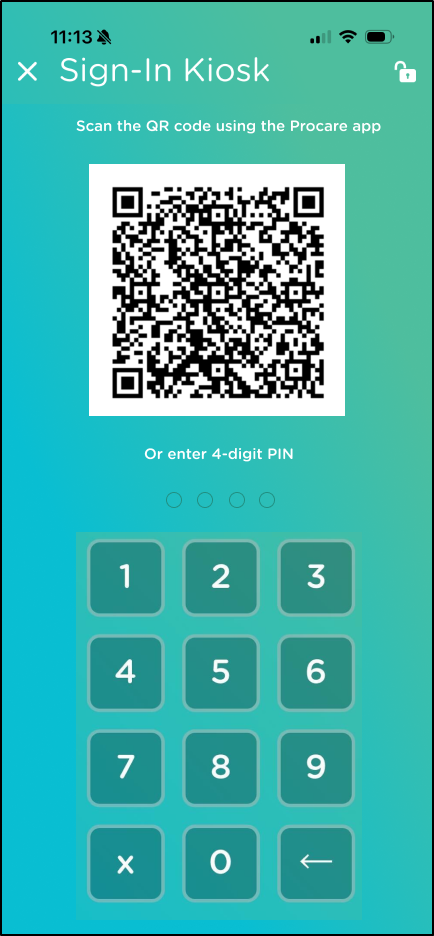
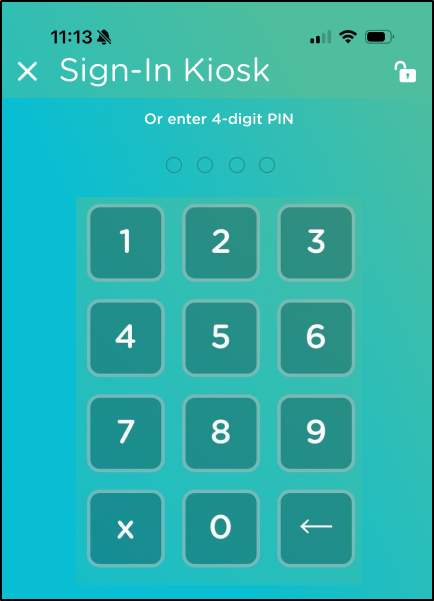
Scan the QR Code
The staff member locates the QR code to scan, and holds the phone for the camera to read it.
They tap the code or
Enter the PIN
They enter their PIN.
Select the room (optional).
Tap Clock-In.
Transfers can be tracked in real-time. In the clock-in/out process, have staff click Transfer to a different room and select the new room.

Send this link to staff to learn how to clock in/out with a QR code.
Method 2 - Sign-In Kiosk from Center Device
Staff clock in/out from the center’s device by using their PIN. No Procare account or Procare child care mobile app required.
 if you want to prevent anyone from navigating away from the Sign-In screen. Any sign-in requires a password.
Send this link to staff to learn how to clock in/out with the Sign-In Kiosk and the center’s device.
Method 3 - Staff Mobile Phone, Procare Account, Procare Child Care Mobile App
Staff clock in/out using their mobile phone by using their PIN. Procare account or Procare child care mobile app required.
Send this link to staff to learn how to clock in/out with their mobile phone, Procare Acccount, Procare child care mobile app
Optional
For any clock-in/out method - ask staff questions when clocking in/out
After selecting a staff clock-in/out option, complete the staff setup steps below.
Staff Setup
1. Add Staff | |
|---|---|
To clock in and out, staff must first be added to Procare Online — this generates the PIN linked to their profile.
Learn more about adding staff to Procare Online. | |
No Procare Account Needed | Procare Account Needed |
| To communicate with parents/guardians, send daily activities, log attendance, access lesson plans, etc., staff members must have a Procare account. But first you must invite them to sign up for a Procare account.
Learn more about staff signing up for a Procare account. |
2. Provide a PIN to Staff | |
|---|---|
Staff require a PIN to clock in/out or to transfer rooms. | |
Staff Without a Procare Account | Staff With a Procare Account |
Staff can view their own PIN in the Procare child care mobile app if they have a Procare account. See 1. Add Staff - Add Procare Account above.
| |
If the staff member does not have a Procare account you will need to provide their PIN. To locate their PIN in Procare Online:
or
or
Learn more about the Staff Detailed Report. | |
 .
.If Procare Online does not automatically generate a PIN for a staff member, you can manually generate one.
Create a PIN Manually or Assign a New PIN for Staff
Go to Staff Management > Staff.
Click the staff member's name.
Hover over the Clock In-Out PIN field.
Click Edit
 .
.Enter a 4-digit PIN. The PIN must be between 0001 and 0999, and cannot be the same as another staff member's PIN.
Click
 to save.
3. Set Up Staff Roles, Permissions, and Room Assignment | |
|---|---|
| |
Checklist and Review | |
| |
4. Timecard Access Options | |
|---|---|
Staff members do not need access to timecards to clock in/out or transfer rooms. Access to Staff Timecard allows a staff member to view all staff clock-in/out times, including days and hours attended. Depending on the access level granted, a staff member may also be able to edit clock-in/out and transfer records for all staff members. Review permissions carefully before granting this level of access. | |
| |
Role | Definition |
No Access |
|
Read |
|
Full Access |
|
Learn more about Managing Staff Access - Roles and Permissions.
Learn more about User Roles & Permissions - Custom Roles.
Next Steps |
|
| |
| |

Integrate with Gusto
Procare has partnered with Gusto to provide even more features relating to staff and employee management, including payroll, benefits, W-2 forms, and other HR services. See Integrating with Gusto to learn more!

FAQ - Setup Staff Clock In/Out and Transfer
Why did a staff member get 'Staff Clock In-Out is enabled only for admin devices' when trying to clock in with their PIN on the Sign In Kiosk?
This happens when the device being used is not logged in by an admin. It is a safeguard to prevent staff members from clocking in at any location using their own Procare account on a personal or unauthorized device.
Here are a few ways to resolve this:
Use a QR code for staff clock-in/out instead of a PIN
Set up a center device in a central location that all staff can use to clock in
Contact Procare Customer Support to enable a setting that allows staff to clock in/out from any device
See the Choose a Staff Clock-In Method above for more details on each option and which one fits your center best.
What if I want staff members to clock in from a tablet in the classroom?
If staff share a device or log in and out throughout the day on the same classroom tablet, the best options are:
Enable the QR code so staff can scan it with their own device to clock in
Contact Procare Customer Support via Tucker Chat and ask them to enable Allow Staff to Clock In/Out on Any Device
See the Choose a Staff Clock-In Method section above for details on each method.
Can staff clock in using the Contactless Curbside (GPS) method?
No. The Contactless Curbside (GPS) method is for parents/guardians only.
Can staff clock in/out and transfer rooms from a web browser?
No. Staff cannot clock in/out or transfer rooms from a web browser. Based on what the center decides, the staff will use the Procare child care mobile app > Sign-In Kiosk or a QR code. See Choose a Staff Clock In/Out Transfer Method above.
.