Note
Staff scheduling is not available in the Procare child care mobile app.
This feature allows you to manage staff schedules on the website. Go to Staff Management > Schedule. Add or update a staff shift and print a PDF of the schedule.
Update Staff Scheduling Permissions
Go to School Settings > Roles & Permissions. Configure the staff permissions.
No Access | Read | Full Access |
|---|---|---|
|
|
|
Add, Copy, Edit or Delete a Staff Schedule
Room Visibility and Staff Scheduling
Room Visibility controls which rooms your staff can be scheduled for based on their access permissions. Staff can only be scheduled in rooms to which they have been assigned. When a staff member has No Access to Room Visibility, they can only be scheduled in their assigned rooms. This ensures staff are only placed where they have proper access and permissions.
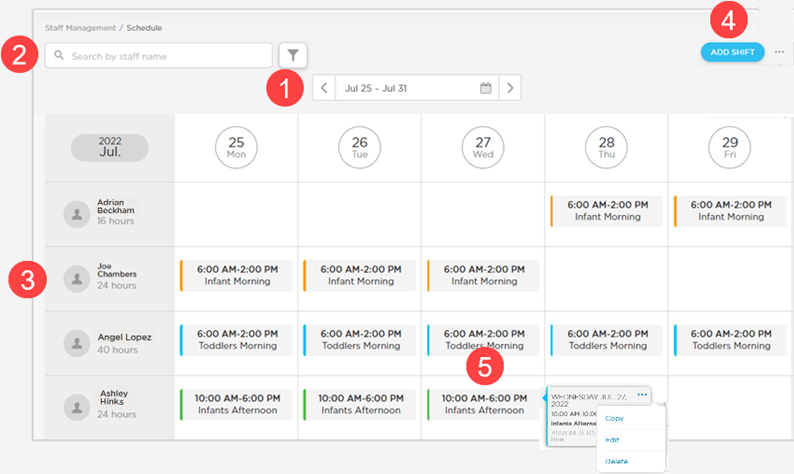
Select the date
Search by staff name or filter by Room or Program.
View individual staff shift details.
Click Add Shift.
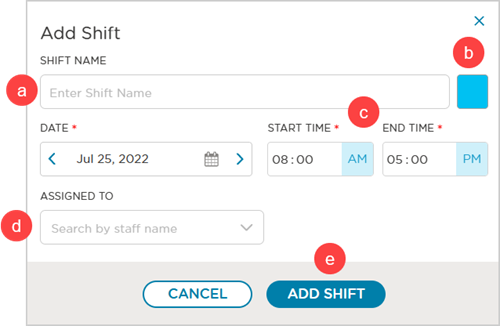
Enter a Shift Name (optional), this name will appear on the schedule.
Choose a color to distinguish your shifts. For example, morning versus afternoon, different rooms, etc., to make it easier to differentiate the shifts when viewing the whole schedule.
Enter Date.
Enter Start and End Time.
Assigned To (optional) – select the staff member to assign the shift to.
Assigned To
If you leave this field blank, the shift will be added to the Unassigned category and not applied to a specific staff member.
Click any staff scheduled time.
Click More Options

Click Copy and make the necessary edits.
Click Edit to revise existing details.
Click Delete to remove this shift.
Click Yes, Delete to delete or
Click No to cancel.
Print a Staff Schedule
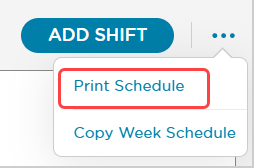
Click More Options
Click Print Schedule of the schedule selected for a PDF copy.
Copy a Week’s Schedule
This feature lets you use a full week's schedule as a template and copy it into future weeks.
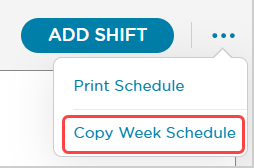
Click More Options
.Click Copy Week Schedule.
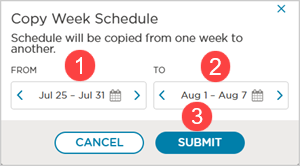
Select the date to copy From.
Select the date to copy To.
Submit.
Assign Multiple Shifts per Day
Multiple shifts can be added per day for the same staff member. Below is an example of a staff member with two shifts on the same day.
Overlapping Shifts Alert
If multiple shifts for the same staff member overlap on the same day, Procare displays the message ‘Overlapping Shifts’.

FAQ - Staff Scheduling
Can the staff schedule be viewed in the Procare child care mobile app?
No it cannot be viewed in the app. Staff can use a web browser on their device to visit schools.procareconnect.com, log in > go to Staff Management > Schedule to view the staff schedule. The web browser is not optimized for a phone screen, so we recommend viewing it from a laptop or tablet. The best way to share the staff schedule with staff in the Schedule window is to click More Options > Print Schedule. Sent the PDF by email, use Parent Connection > Newsletter or print it.