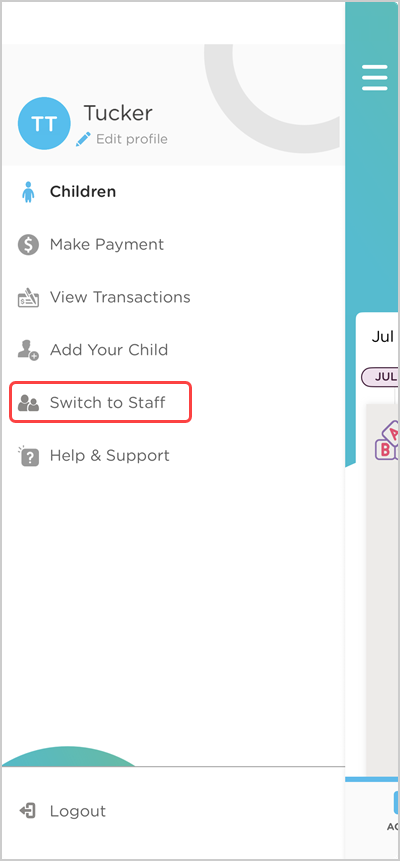
If you have a staff member who is also the parent/guardian of a child at your school, Procare offers a way for that individual to switch between the two accounts on the website and in the Child care mobile app.

Learn more about:
Option 1 - They have been added as a staff or parent/guardian
If the individual has already signed up for a Procare account as a staff or parent/guardian, you can add them as a parent/guardian or staff (respectively) with the same email address they currently use to log in.
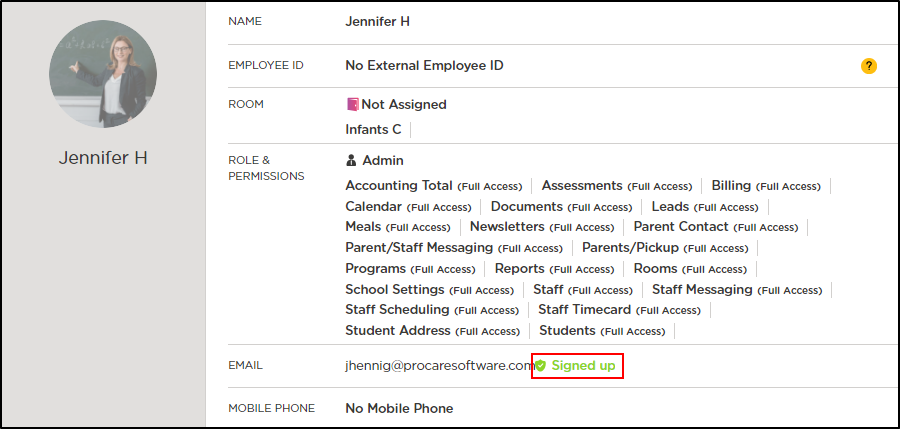
For individuals signed up as staff:
Go to Staff Management > Staff.
Select a staff member.
Locate the Email field on the Profile page.
“Signed up” displays in green next to the staff member’s email address.
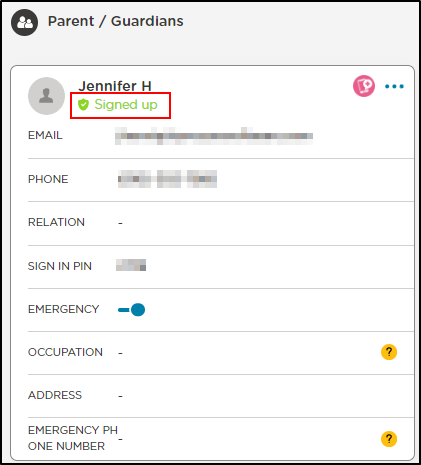
For individuals signed up as parents/guardians:
Go to My School > Students.
Select a student in the parent’s/guardian’s family.
On the Profile page, go to the Parent/Guardians section.
“Signed up” displays in green below the parent’s/guardian’s name.
Option 2 - They have not been added as a staff or parent/guardian
If the individual has not signed up for a Procare account (staff or parent/guardian):
Create a staff or parent/guardian account for the individual (only one account; do not create separate accounts for individuals with dual roles).
The individual will receive an email with an invitation code to sign up for a Procare account.
Once they finish signing up for an account and log in, follow the steps in Option 1 to locate their email address and add their dual role.
Switch Between Staff and Parent/Guardian Profiles
Once an individual has access as a staff member and a parent/guardian, they can quickly switch between the two views on the website and Child care mobile app.
Go to Procare Online.
Select the type of account to log in to: Staff or Parent.
Enter your credentials.
Click Login.
Click the profile icon (
 or your photo).
Select Switch to Parent.
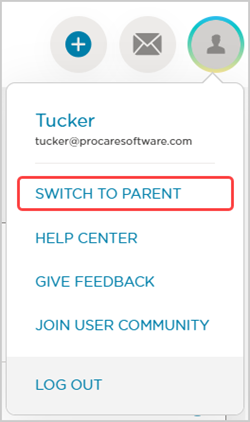
To switch back to your staff account, click the Profile
icon, then select Switch to Staff.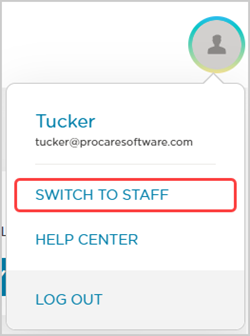
Open the Child care mobile app.
Select the type of account to log in to: Staff or Parent.
Enter your credentials.
Tap Login.
Tap Menu ☰.
Tap Switch to Parent.
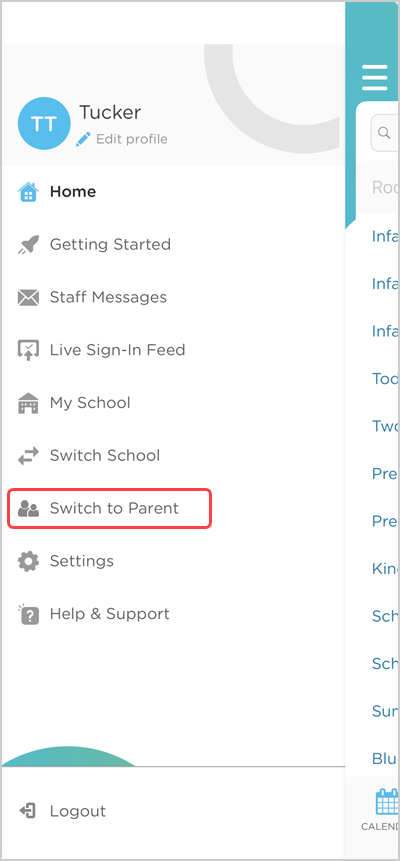
To switch back to your staff account, tap Menu ☰, then tap Switch to Staff.