When a parent/guardian uploads a document to their child’s profile, admins and assigned classroom teachers are immediately notified by email and in-app notifications.
Notifications for Student Profile Document Uploads Only
In-app and email notifications only occur for documents that have been uploaded to a student’s profile. In-app notifications do not occur when parents/guardians complete document requests for e-documents or when staff create or upload documents using the Documents feature.
Admin Note
Your admin configures this feature’s settings.
Learn more about Staff Notifications.

In-app Notifications
Where Do Notifications Appear?
Notifications appear as indicators throughout the Students page:
A red dot indicator displays next to Students in the navigation menu under My School.
A New Document
 indicator displays for the associated student in the students list.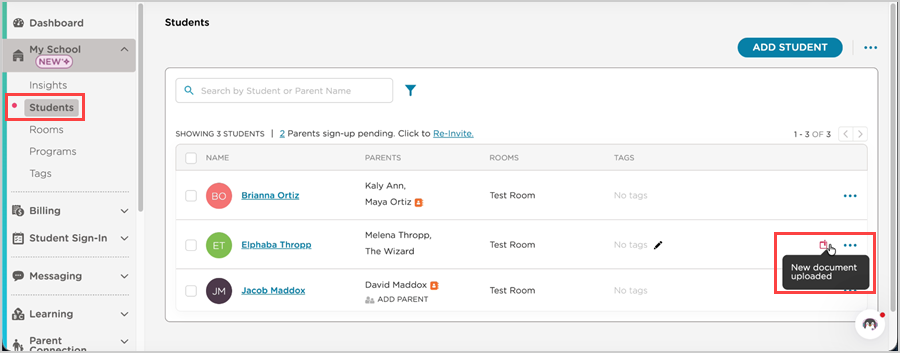
Click the New Document
indicator or the student’s name to go to their Documents page. The latest document displays first in the list.
How to Dismiss Notifications
Click the New Document indicator or the student’s name to open their Documents page. Once you go to the Documents page, the indicators disappear automatically. You do not have to preview or download the file.
Who Can See Notifications?
In-app notifications are per-user, not shared across the center. Only the staff member who views a student's Documents page will have the notifications cleared. Other staff members at the center will continue to see the indicators until they view the page themselves.
Email Notifications
You will receive an email notification containing the following details:
Student’s name
Document name
Who uploaded the document
Date and time of upload
School name
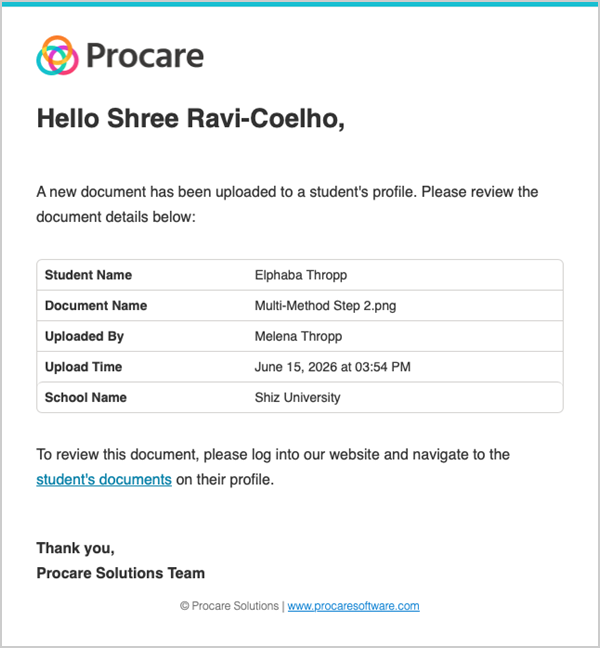
Click student’s documents to go directly to the student’s Documents page.
Note
The document name shown reflects what it was originally named at the time of upload. If it is renamed afterward, the email will not reflect the change.
Upload time is shown in the school's time zone, not the recipient's.