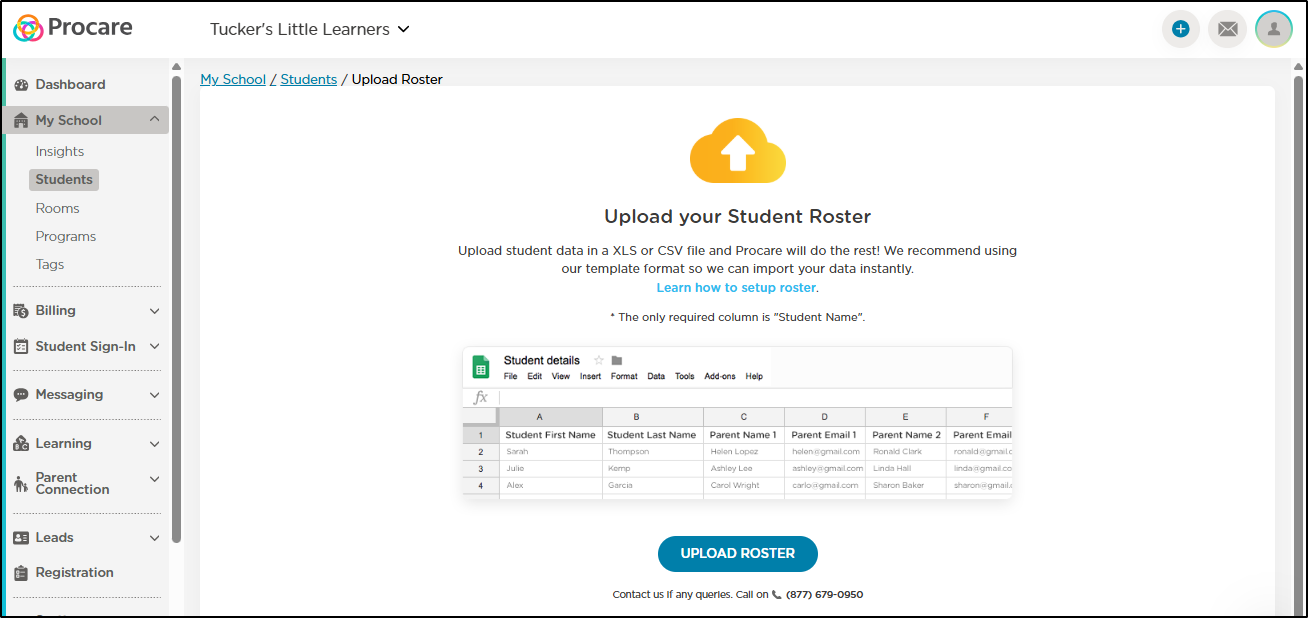
Do you have more than 30 students in your childcare program or school? If you do, use a spreadsheet to upload your students into Procare Online more efficiently.
Procare Desktop Customers
This option is not available to Procare Desktop customers. Refer to this article to learn more about syncing data from Procare Desktop to your Engagement Functionality.
When using the bulk upload spreadsheet template, do not edit the column names or move the columns. Doing so will cause errors in your upload and may cause it to fail. You can leave columns blank if you have no data to contribute.

Note
You cannot bulk upload to the waitlist/leads. The bulk upload functionality adds students to your Active Student list. Once the students are added, you can update their enrollment status.
Fill out your spreadsheet
1. | |||
2. | Fill out the spreadsheet/template with your student information. Here is a list of the information you can include on your spreadsheet. | ||
| |||
Student Name: | This is a required field.
| ||
Student Room | This is the student's primary room.
| ||
Parent name, phone number and email address | Parent name, phone number and email address: If the name, phone number and email are exactly the same for two or more children, they will be linked together as siblings during the import.
| ||
Authorized Pickups | Do not include the parents as authorized pickups, as this will create duplicates in the system. | ||
| |||
Date of Birth | Upcoming birthdays will appear with an icon in the app, and you'll be able to quickly see the student's age on the website. | ||
Address | Addresses are saved separately for each child's profile. | ||
Allergies | Leave this blank if a child has no allergies; all children with information listed under the allergies column will appear with a red first aid cross on the web and mobile app. | ||
Notes | These notes are for internal use by staff, and are not visible to parents. | ||
Tags | Use tags to quickly find specific groups of students. | ||
Student IDs and/or Family IDs | Include these if you have your own student or family ID system in place, otherwise leave these fields blank.
| ||

 Multiple authorized pickups can be added by separating each name with a comma.
Upload your Spreadsheet
| |||
|
| ||
| |||
Important
Imports are currently limited to 100 rows. If your import exceeds 100 rows, it will fail.
Review your Student Information
Go to My School > Students and review your import using the import tag.
If there are any issues with the import, you can inactivate the student profiles it created, then try again.
Next steps once your import is complete: