Do you have more than 30 students in your childcare program or school? If you do, use a spreadsheet to upload your students into Procare Online more efficiently.
Procare Desktop Customers
This option is not available to Procare Desktop customers. Refer to this article to learn more about syncing data from Procare Desktop to your Engagement Functionality.
Note
You cannot bulk upload to the waitlist/leads. The bulk upload functionality adds students to your Active Student list. Once the students are added, you can update their enrollment status.
Download the Bulk Upload Template
Go to My School > Students.
Go to the Upload Roster screen using one of the following methods:
Click Add Student > Upload XLS.
Click More Actions
 > Bulk Upload Students
Click here to open the upload roster screen.
Click Download Template. In general, the file saves to your Downloads folder.
Fill out your spreadsheet
When using the bulk upload spreadsheet template, do not edit the column names, move the columns or enter new information in columns with dropdown choices. Doing so will cause errors in your upload and may cause it to fail. You can leave columns blank if you have no data to contribute.

1. | Open the template file. | ||
2. | Fill out the spreadsheet/template with your student information. Here is a list of the information you can include on your spreadsheet.
| ||
| |||
Student Name | This is a required field.
| ||
Primary Room | This is the student's primary room.
Learn more about Primary Room | ||
Date of Birth | Upcoming birthdays will appear with an icon in the app, and you will be able to quickly see the student's age on the website. | ||
Address | Addresses are saved separately for each student’s profile. | ||
Status | Select each student’s status from the available choices.
| ||
Schedule | Use the following format for days on each student’s schedule: M, T, W, Th, F, S, Su.
| ||
Allergies | Leave this blank if a student has no allergies; all students with information listed under the allergies column will appear with an allergy | ||
Medication | Leave this blank if a student does not take medication. | ||
Notes | These notes are for internal use by staff and are not visible to parents/guardians. | ||
Student Tags | Use tags to quickly find specific groups of students. | ||
Parent Name, Mobile Phone, Email and Relation | Parent/guardian name, phone number and email address: If the name, phone number and email address are exactly the same for two or more children, they will be linked together as siblings during the import.
| ||
Authorized Pickups | Do not include the parents/guardians as authorized pickups, as this will create duplicates in the system.
| ||
| |||
Physician | You can enter the name, phone number, email address, type and additional notes for one physician per student. | ||
Student IDs and/or Family IDs | Include these if you have your own student or family ID system in place, otherwise leave these fields blank.
| ||
 icon on the website and Child care mobile app.
 Up to 3 authorized pickups can be added in separate columns.
Upload your Spreadsheet
Go to the Upload Roster screen.
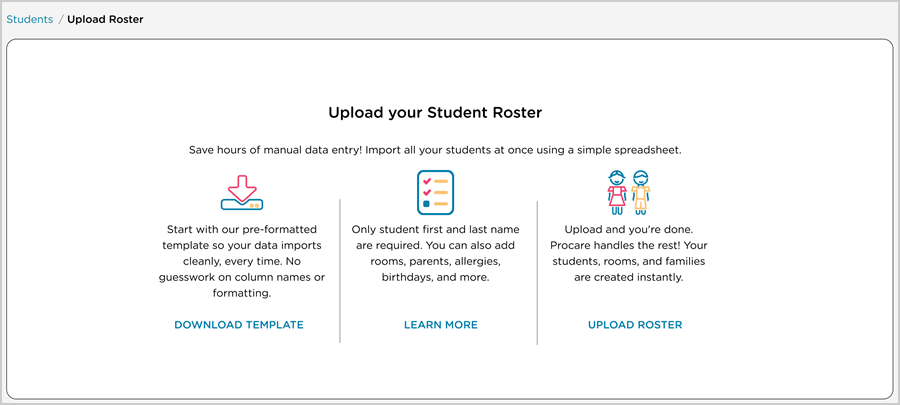
Click Upload Roster.
Upload the file from your device.
Choose whether to tag the students in the import. Tags can be helpful for filtering.
Procare Online automatically selects the option to tag students and provides a tag name using the upload date and time. You can do one of the following:
Edit the tag
Choose not to include the tag before the import
Remove the tag after the import is complete
Click Submit. Procare Online displays a confirmation that the roster is uploading.
Click Close.

Learn more about Managing Tags.
Review your Student Information
Go to My School > Students and review your import using the import tag if you included it.
If there are any issues with the import, you can inactivate the student profiles it created, then try again.
If the spreadsheet does not upload successfully, you will receive a notification email with details about any errors so you can make corrections and try again.
Next steps once your import is complete: