
Important
Procare staff accounts must be created on the Procare website first. After their account is created, they use the same email and password to log in to the Procare child care mobile app.
After you add a staff member to your center, send them an invite to create their Procare account. Once they sign up, they can:
view students
send and receive messages
record daily activities
Staff Email
Staff without an email address in the software cannot receive an invitation to create an account. See Add, Edit, or Deactivate Staff for more information.
Review which staff have signed up and which still need to.
Check Staff Sign-up Status
Go to Staff Management > Staff.
Locate the staff member.
Review the sign-up status in the Invite Status column.
Invite Status Key





| Add and Invite Staff |

If you have not added the staff member follow these steps and send their invite at the same time.
Click Add Staff.
Enter their email address.
If the email is already in Procare a message will display.
Email is already taken - each staff member must have a unique email address, which they use to log in and receive messages and notifications. If the email is already assigned to another staff profile, an error message appears and the new profile cannot be created.
Click Invite to Procare.
Select their role if known or configured by your center.
Click Create Staff. An invite is sent.

| Invite Existing Staff |

If you have already added your staff and just need to send them an invite, follow these steps.
Go to Staff Management > Staff.
Locate the staff member.
Click Invite.
Common Scenarios and Solutions for Staff Invite Email

 Send
| Staff Invite Email |

The staff invite email contains the following information:
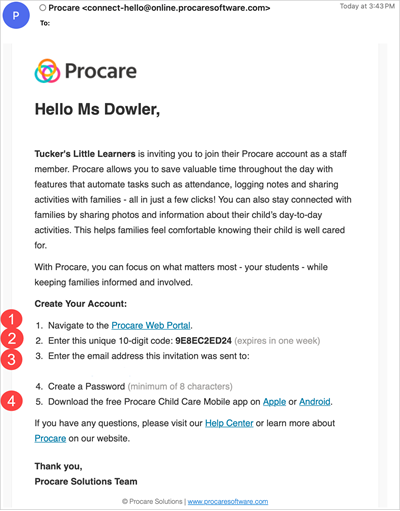
Instructions for how to create their account with the web link.
A unique invitation code that expires in one week.
The email address used to create the staff account.
Links to download the Procare Child Care Mobile app.
Once the staff member receives the email:
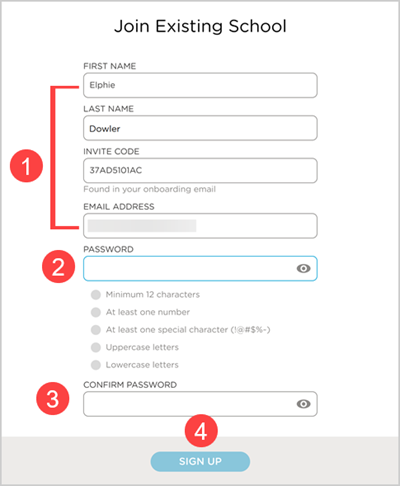
They click on the link provided in Step 1. They are taken to a web form. Their name, invite code and email address will automatically populate in these fields.
They will need to create and confirm a password.
Next, they click Sign-Up.
The final step is to set up their 2-Step Verification.
Note
2-Step Verification is required for all staff who use Procare Online.

Learn more about Setting Up 2-Step Verification for Staff.
The staff member can now log in to Procare Online (website) and the Procare Child Care Mobile app.
Staff Login
Staff go to https://schools.procareconnect.com/.
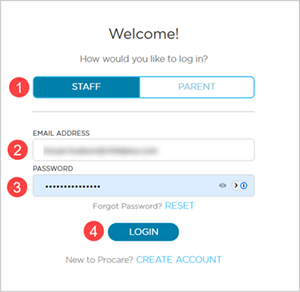
They select Staff.
Enter their email.
Enter their password.
Click Login.
When staff log in to the Procare child care mobile app, they will select Staff.

For information on adding staff who are also parents/guardians and how to switch between staff and parent/guardian accounts:
Learn more about Add Staff Who Are Also Parents.
 Reach out to Procare customer support when:
a staff member needs their login email changed after they have already signed up
a staff member appears to have a duplicate or disconnected account
invite or verification emails are not arriving after:
confirming the email address is correct and
IT has allowed Procare's email domain
Prepare for the chat or call by having the:
staff member’s name
email address(es) involved
screenshots to help with faster resolution

Troubleshooting Guide
A staff member did not get their invite.
Go to Staff Management > Staff > locate the staff member.
Confirm the email address on the staff member’s profile is correct and free of typos.
To re-invite the staff member, click the Re-Invite button.
If staff with school-domain email addresses are not receiving emails from Procare, ask your IT department to allow messages from Procare.
Remind staff that accounts cannot be created in the Procare child care mobile app. They must complete setup through the invite email link first, then use the app to log in.
Send this article to staff to provide instructions on how to sign up for a Procare account.
A staff member’s email needs to be corrected.
Follow the steps depending on whether the staff member has or has not signed up.
Staff member has not signed up:
Go to Staff Management > Staff.
Locate the staff member, click More Options
 .
Click Edit.
Locate the email, click Edit
 .
Edit the email address.
Click Invite or Re-Invite.
This automatically triggers a new verification email and sign-up instructions to the corrected address — no need to contact customer support.
Staff member has signed up:
To change a login email after sign-up, you must contact Procare customer support. Have the staff member’s name, current email address and the new email address available.
A staff member is not seeing the correct center when they log into Procare.
Go to Staff Management > Staff. Ask the staff member which email address they use to log in to Procare. Compare it with the email on their profile.
If the two emails do not match, confirm the staff member has signed up for a Procare account at your center with the email on their profile. Then ask them to log out and log back in with that email.
If the emails match, the staff member may also have access to another school or have a parent account associated with the same email. Show them how to switch schools or switch to their staff account.
See Staff with Multi-School Access and Add Staff Who Are Also Parents/Guardians for instructions.